What feels difficult on this screen?
“Make everything bigger” sounds like a clear request until the web page becomes enormous and the browser's tabs remain tiny. A screen has several size controls, each with a different reach. A useful fitting starts with the part that gets in your way: reading a paragraph, finding a toolbar button, distinguishing a selected item, or moving to the next field.
This consultation uses Windows 11 and desktop Google Chrome, with English menu names. Other browsers and operating systems have different paths. The aim is a workable everyday setup, without promises about medical effects. Choose the need below that best describes your difficulty; you do not have to complete every adjustment.
Keep one familiar task open while you compare settings: reading an article, finding a file, or drafting an unsent message. Write down the original value immediately before changing it. Keep the window size and other settings steady during each comparison, so the result tells you something useful.
“The menus and buttons are too small”
If the trouble follows you from File Explorer to the browser toolbar, begin with the display rather than an individual page. Open Start > Settings > System > Display. With multiple monitors, select the display you want to adjust first. Under Scale & layout > Scale, record the current percentage and try a larger available preset. The setting marked Recommended is a useful reference point, but compare it with the size you need. Microsoft documents this route in its display layout guidance.
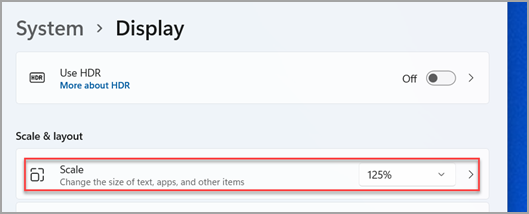
Initial state in Microsoft Windows 11 Display settings: read and record the percentage beside Scale. Open that control to choose a preset after selecting the intended monitor.
Version notes
Current Microsoft Windows 11 documentation identifies this System > Display image as the Scale menu entry. It shows the initial closed control at 125%. Exact capture build is undisclosed; no expanded preset list or changed setting is demonstrated.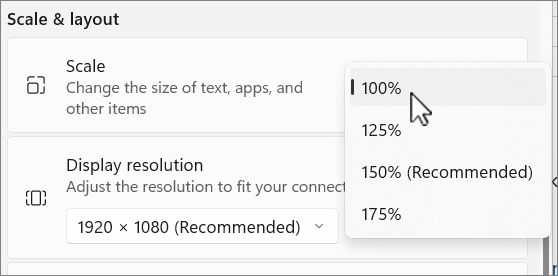
Microsoft Windows 11: the expanded Scale menu exposes the available presets. This example marks 100% as the current choice and 150% as Recommended; record your own starting value and choose a suitable preset after selecting the intended display.
Version notes
Current Windows 11 Scale menu reference from Microsoft’s Windows 11 instructions. Complete source excerpt, unchanged. This image shows an open menu before selecting a different value; the exact Windows build and monitor setup are undisclosed.Scaling enlarges the interface broadly. Inspect the toolbar you originally struggled with, then open an ordinary dialog. Can you read the button labels and still reach the bottom row? Move a window between your displays if that is part of your normal work. Restore the recorded preset on the same monitor if the fit is worse. If Windows asks you to sign out, save your work and schedule that interruption.
Leave display resolution at its usual recommended value for this fitting. Lowering resolution can make text less sharp; it is a different control from scaling. Also stay with scale presets: Microsoft advises against custom scaling in its visibility settings guide.
When the buttons fit but their lettering does not
Try Start > Settings > Accessibility > Text size. Record the slider's starting percentage, move it, inspect the preview, and select Apply. This targets text rather than enlarging the whole interface. Check your actual app afterward: a larger preview sentence does not establish whether a crowded sidebar or an older app will accommodate the change. Return the slider to its recorded value and apply it to undo. Microsoft distinguishes this control from scaling in Change the size of text in Windows.
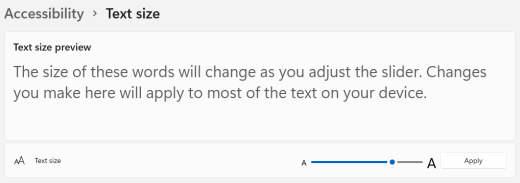
Microsoft Windows 11: use the Text size slider and inspect the preview above it. Apply is dimmed in this initial state; move the slider before applying your own change. No numeric percentage is visible in this reference image.
Version notes
Current Windows 11 Text size reference, supplied in Microsoft’s Windows 11 section. Full source excerpt retained unchanged. Exact Windows build and starting percentage are undisclosed; the image demonstrates the controls before a pending change, not an applied result.For an occasional small detail, a temporary enlarged view may be enough. Press Windows key + Plus (+) to open Magnifier; repeat to enlarge, or use Windows key + Minus (−) to reduce magnification. Learn the exit first: Windows key + Esc closes Magnifier. It enlarges the view, rather than changing the document's text or layout.
“The browser is fine; this article is tiny”
Keep Windows settings steady and adjust the page. In Chrome, open the three-dot More menu at the upper right. Beside Zoom, note the percentage, then use + or −. On Windows, Ctrl + Plus and Ctrl + Minus are alternatives. This enlarges page content, including images; it does not serve as a size control for Chrome's own toolbar.
For a default across websites, use More > Settings > Appearance > Page zoom. The separate Font size control changes text where sites permit it. Some sites do not respond to font-size changes, so use page zoom if that control has no useful effect. Chrome also remembers site zoom choices: manage them at Settings > Privacy and security > Site Settings > Additional content settings > Zoom levels. Removing a site's entry returns it to the browser default. These paths are documented in Chrome's zoom help.
A useful comparison is specific: “I can now read the delivery options, but the address field is hidden.” That observation separates an improvement from a remaining layout problem. You can return to your recorded zoom while reporting the problem, without deciding that larger text itself was a mistake.
“The screen is bright, yet controls blend together”
First separate brightness from contrast. Brightness concerns the display's light output; contrast concerns distinctions between things such as lettering, backgrounds and selected controls. A dark palette alone does not tell you whether those distinctions are clear.
For brightness, open Start > Settings > System > Display and adjust Brightness if available. External monitors may have no Windows slider; use the monitor's own buttons or onscreen menu. Note the old level before changing it. Some Windows 11 devices also vary brightness with content. If the screen changes as you switch between dark and bright windows, inspect Display > Brightness > Change brightness based on content, where available. Microsoft describes these hardware differences in its brightness guidance.
If reflections obscure the screen, compare the same content after repositioning the display or the nearby light source. A software palette cannot remove a reflection. Judge the result from your normal working position rather than from the settings preview.
For indistinct text and controls, open Start > Settings > Accessibility > Contrast themes. Record the current theme, select another and choose Apply. A brief waiting screen may appear. Examine ordinary text, links, disabled buttons and the selected item in a menu. A theme is useful only if you can distinguish the states your task requires. To restore the previous appearance, select the recorded theme and apply it; choose None only if that was your starting selection. See Microsoft's contrast theme instructions.
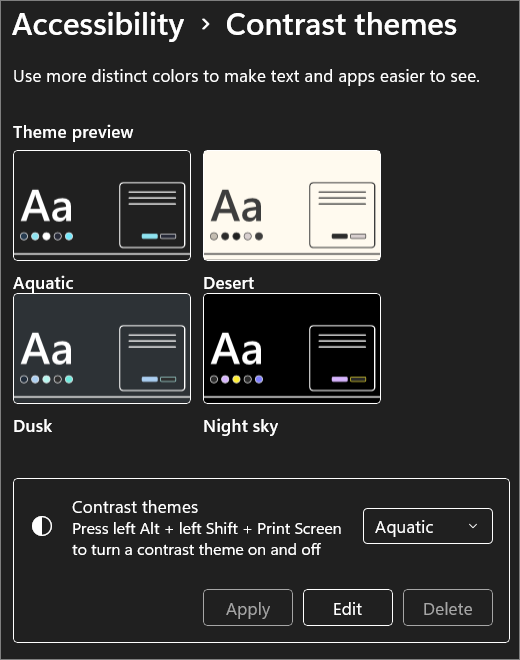
Initial state in Microsoft Windows 11 Contrast themes: record the current theme before comparing another. This example shows Aquatic selected and Apply dimmed.
Version notes
Current Microsoft Windows 11 contrast instructions show these four previews and the Contrast themes selector. This is the initial inspection state. Exact Windows build is undisclosed; no newly selected or applied theme is claimed.Before evaluating photo colors, return to the display configuration required by your color workflow. Likewise, if a chart uses indistinguishable colors without labels, ask for labeled data. An altered palette cannot supply an explanation the chart never contained.
“I lose the pointer, or clicking takes too much effort”
For pointer visibility, open Start > Settings > Accessibility > Mouse pointer & touch. Record its current size and style, then compare another size or color over both a white document and a dark toolbar. Restore the original choices if a larger pointer conceals details you need.
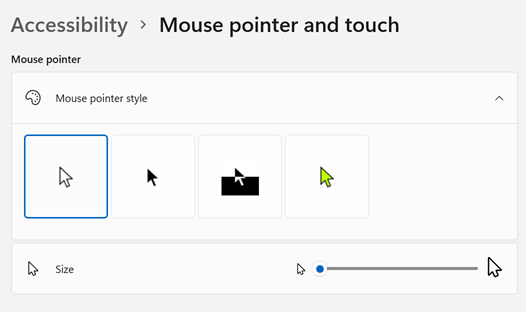
Initial state in Microsoft Windows 11 Mouse pointer and touch: record the selected style and Size before changing either. This example shows white selected and Size near the smaller end.
Version notes
Current Microsoft Windows 11 visibility guidance links this Mouse pointer and touch pane and documents changing pointer color and size. Exact Windows build is undisclosed; image shows the initial controls rather than a completed comparison.Keyboard navigation offers another route through the task. Practice in Chrome on an informational page with harmless links, keeping any existing assistive technology in its usual configuration. The goal is to know both where you are and what a key will do.
- Press Tab to move forward through controls and Shift + Tab to move backward. Watch for the outline or other visible focus indicator. A highlighted word in a paragraph is not necessarily keyboard focus.
- Use Ctrl + L to focus Chrome's address bar, or F6 to move among browser areas. This distinguishes moving around the browser from moving through the page. Google documents these routes in Chrome keyboard shortcuts.
- Activate only a harmless, visibly focused link with Enter. For a custom menu or other complex widget, consult its keyboard instructions; arrows may handle movement within it. If focus vanishes, stop activating controls and return to a known browser area.
Do this again at your chosen zoom and contrast theme. A focus outline that was clear before a palette change may be difficult to identify afterward. W3C explains visible focus and keyboard operation as responsibilities of web interfaces. Your practice run checks a particular task; it is not an accessibility certification.
If one site remains difficult, send its owner a concrete description: “In Chrome on Windows 11, Tab reaches this menu, but its focused item is invisible with this contrast theme.” Include the zoom and a sanitized screenshot if useful. Keep your own short preference note equally concrete: the display you adjusted, its scale, text size, browser zoom and chosen theme. Those details let you reproduce a comfortable fit when you return to the desk.
Sources, versions & scope
The steps describe the documented controls and expected checks; they are not a claim that every device or software release has been physically tested. Platform and version differences are stated with the procedure.
- Make Windows easier to see
- W3C WAI: Understanding Resize Text
- Understanding SC 2.1.1: Keyboard
- Mozilla: Font size and page zoom
- Change your screen resolution and layout in Windows
- Change the size of text in Windows
- Change text, image & video sizes (zoom) — Computer
- Change display brightness and color in Windows
- Change color contrast in Windows
- Chrome keyboard shortcuts — Computer
- Understanding SC 2.4.7: Focus Visible