Wi-Fi & Internet
Use a wired backhaul for a mesh network
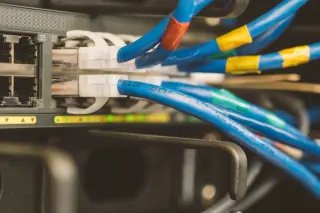
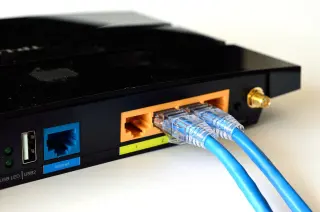
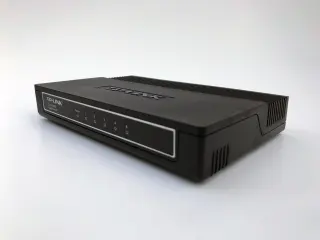
Wire one TP-Link Deco satellite, check the correct router-side connection, verify Ethernet backhaul, and isolate cable or switch failures without resetting the mesh.
The guide library
Follow the connection from your device to the internet. Diagnose weak links, understand measurements and improve your home network.
Wire one TP-Link Deco satellite, check the correct router-side connection, verify Ethernet backhaul, and isolate cable or switch failures without resetting the mesh.
Compare coverage, Ethernet backhaul and wireless mesh links, then plan a reversible addition without assuming matching network names guarantee seamless roaming.
Find why downloads disrupt calls, compare idle and loaded latency, separate Wi-Fi trouble, and try reversible bandwidth limits or OpenWrt SQM settings.
Identify two routing layers, distinguish provider NAT, and switch TP-Link Deco to Access Point mode only after checking which gateway will protect your network.
Plan your broadband handover, router position, cable routes and equipment box before moving, then use a clear arrival test to find problems early.
Choose router positions by testing occupied rooms, physical obstructions and cable safety, with a repeatable comparison that keeps settings unchanged.
Compare your ASUS router’s WAN address with its public IPv4, distinguish CGNAT from double NAT, and choose a workable route to your home devices.
Use the eero app to identify busy devices, compare upload and download activity, and test whether pausing one transfer fixes a household slowdown.
Compare DNS answers on Windows 11, check Chrome’s lookup path, and separate naming failures from website errors before changing network settings.
Change a TP-Link Archer admin or Wi-Fi password, preserve a wired route into settings, reconnect household devices and recover without an unnecessary reset.
Trace slow Steam downloads on Windows 11 through rate units, disk activity, bandwidth limits and server regions, then gather evidence for support.
Set up TP-Link Archer guest Wi-Fi, keep local-access permissions off, and check that visitors can browse without reaching a household file share.
Use call statistics and controlled load comparisons to distinguish delay, jitter, loss and device trouble without treating one speed result as a verdict.
Set up Google Family Link for a child’s Android device, check daily and app limits, keep essential apps available, and handle website requests and exceptions.
Give household calls room to work: pause competing transfers, lower Google Meet video demand, compare Ethernet, and restore temporary changes afterward.
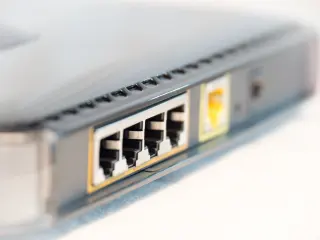
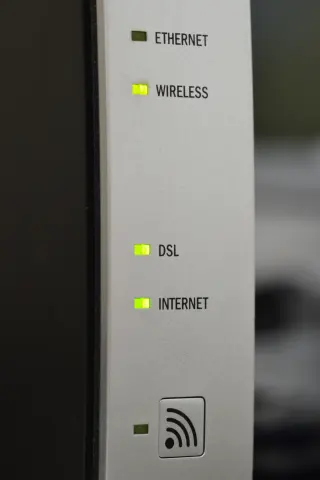
Identify the modem, router and access point in your home by tracing cables, reading labels and checking operating modes before replacing the wrong device.
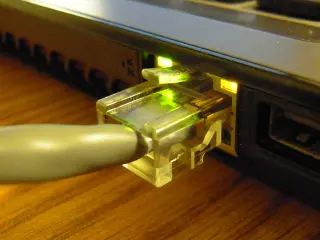
Choose Cat 5e, Cat 6 or Cat 6A by port speed and cable length, spot weak product listings, and check a new wired connection before routing it.
Set up guest access on a network you administer, test device reachability safely, and distinguish internet access, local sharing and client isolation.
Understand what DNS resolves, compare browser and system behavior safely, and collect useful evidence before changing resolvers or blaming a VPN.
Set up a clear VPN routine on Windows 11: check the route, choose kill-switch behavior, review exceptions and recover without assuming anonymity.
Estimate a photo library’s first cloud upload, rehearse a folder in OneDrive on Windows 11, and leave bandwidth for calls while checking the finished copies.
Convert Mbps into file-transfer time, distinguish decimal GB from binary GiB, and build an honest planning range instead of trusting a headline connection rate.
Read IPv6 addresses on a Windows 11 PC, compare IPv4 and IPv6 paths, and learn when a result points to your home router, your ISP or an inconclusive test.
Compare one iPhone across locations and busy hours, try a reversible LTE check, and collect useful evidence before blaming reception or carrier congestion.
Use a controlled Ethernet comparison to separate local Wi-Fi problems from a wider connection slowdown, then collect evidence your provider can act on.
Trace a Windows 11 no-internet problem through device comparisons, IP addresses, gateway replies and DNS checks, then choose a targeted recovery step.
Set up an Ethernet-fed cellular backup on a compatible ASUS router, rehearse a broadband outage, and check work recovery, data use and the return to normal.
Build a timestamped Windows 11 outage record with device comparisons, short command results and a clear ISP handoff, while preserving evidence before restarts.
Compare Wi-Fi bands through compatibility, obstacles and local conditions, while keeping regulatory channels and country-specific equipment limits in view.
Separate router speed classes, negotiated Wi-Fi rates and real downloads, then inspect Windows 11 connection limits before paying for an upgrade.
Design repeatable speed tests with consistent devices and endpoints, interpret variation honestly, and check data use and privacy before sharing results.
Prepare an ASUS router update with offline firmware, a settings backup and a Windows rescue route, then verify the version and restore everyday connectivity.
Compare hotspot and home broadband costs, data limits and household needs, then run a practical trial before cancelling your existing internet service.
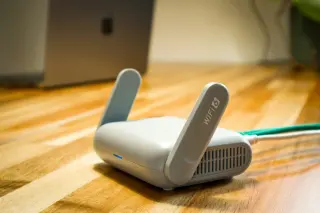
Connect a GL.iNet travel router with hotel permission, complete the captive portal, restore VPN and DNS protections, and remove the saved network at checkout.
Compare busy-hour demand, upload limits and a simple wired check before paying for more speed. Choose a tier that fixes the capacity your household lacks.
Use ASUSWRT logs to separate routine renewals and blocked packets from connection failures or suspicious changes, then save useful evidence for support.
Use Windows 11 ping samples to compare your gateway and internet paths, check Ethernet, and report missing replies without blaming the wrong device.
Build a household streaming budget, count screen-hours, adjust Netflix quality and compare estimates with your provider’s remaining data allowance.
Estimate hotspot data from total bitrate and duration, control optional background traffic, and keep metered settings distinct from a carrier-enforced limit.
Choose WPA2, WPA3 or transition mode on an eero home network, verify each device’s actual connection, and recover safely if older equipment stops working.
Catch a daily outage on Windows 11, compare router and internet reachability, read the wireless report, and test one scheduled trigger at a time.
Use Windows 11 and Chrome on café or hotel Wi-Fi: verify the network, handle access portals, keep HTTPS warnings and remove the saved connection.
Pair a 2.4 GHz smart plug or bulb on eero, restore the higher Wi-Fi bands, and check connection details or encryption when setup still fails.
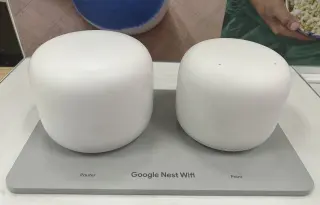
Rename a Google Nest Wifi network, reconnect a smart speaker, check every accessory, and restore the old name if the household cannot reconnect.
Find a Windows 11 PC’s local IP address without an online lookup, identify the right adapter, and share only the details a support case actually needs.
Build a dependable Windows 11 desk connection, check calls under normal household load, and leave yourself a tested recovery route before work is interrupted.
Recover a missing public Wi-Fi sign-in page on Windows 11 with Firefox, check reversible fixes, and know when the venue must repair your access.
Map Wi-Fi reception at real working spots with a MacBook, record signal strength and serving radios, then repeat the same route to check one change.
Use the free tools for transfer time, storage planning, image details and everyday text tasks.
Open the tool bench