A connection that fails every evening gives you something useful: an appointment with the fault. Before buying a router or resetting Windows, watch one expected failure and establish what actually stops working. A dropped call, a disconnected Wi-Fi radio and an internet outage can look similar from a browser.
This investigation uses a Windows 11 PC on a home network you control. It combines a timed observation with two lightweight reachability checks and a wireless report. You do not need to change DNS, release an address or reinstall an adapter to collect this evidence.
Make an appointment with the failure
Write down the next expected window and start ten minutes early. Keep the PC awake, connected to power and in its usual location. Record that condition: keeping it awake changes the experiment if the original failures happened while it slept.
Use a short notebook entry: date, local time and time zone; first symptom; first recovery; affected devices; whether Wi-Fi disconnected; and any router or modem light changes. Check that the PC clock agrees with your phone. Compare the router’s displayed clock before interpreting its logs; an hour’s offset can make a matching event look unrelated.
For example, suppose three failures begin at 21:00, 21:01 and 21:00 and last about two minutes. Those are hypothetical observations, not measurements. They justify examining scheduled activity near 21:00. They do not prove a scheduled restart. Keep recording weekends and days when nobody is using the PC: a household routine can imitate an automatic timer.
Watch the router boundary and the internet boundary
Open Start, search for Command Prompt and open it normally. Run ipconfig. In the active Wi-Fi adapter’s output, note Default Gateway; ignore disconnected adapters. Microsoft’s ipconfig reference confirms that the plain command displays addresses and gateways. No gateway? Reconnect to your recognized network and repeat before continuing.
- In that window, start
ping /t 192.168.1.1, replacing the example address with your own gateway. Look for repeated replies while the connection is healthy. - Open a second Command Prompt and run
ping /t 1.1.1.1. This is an example public destination, not a required DNS setting. Confirm that it replies before the expected failure. If either target never replies while normal browsing works, it is unsuitable for this comparison; blocked echo traffic is not evidence of an outage. - When the symptom arrives, record the clock time and which window changes to timeouts or other errors. Try two unrelated websites and check a second household device. On a phone, turn mobile data off temporarily so cellular fallback cannot hide the Wi-Fi problem; restore it afterward.
- After recovery, press Ctrl+C in each window to stop and display statistics. Copy the relevant output into your private notes before closing. Continuous ping has no per-reply clock here, so the manual time record matters.
Microsoft documents continuous ping and its stop controls. These small echo probes check IP reachability, not speed or application health. One lost reply is weak evidence; look for a repeatable change at the same time as the real symptom. A successful IPv4 probe also cannot clear every IPv6 or service-specific problem.
| During the failure | What to investigate next |
|---|---|
| Gateway and public target both stop replying | The PC’s local path or the router. Compare the second device and router lights before blaming the provider. |
| Gateway replies; public target fails | The onward path or target. Failures across devices and unrelated services strengthen the shared-connection hypothesis. |
| Both reply; websites or one app fail | Name resolution, that service, a VPN path or application behavior. This is not proof that Wi-Fi disconnected. |
If only the Windows PC fails, retain required VPN and security software and involve its administrator if managed. If several devices fail, observe the shared equipment before restarting it. Reboots can interrupt others and remove the very state you need to inspect.
Ask Windows whether the radio actually disconnected
After a Wi-Fi failure, search for Command Prompt, right-click it and choose Run as administrator. Approve the Windows prompt only if authorized. Enter netsh wlan show wlanreport, then open the HTML file at the location printed by the command. If elevation is unavailable, keep your timed notes and ask the PC administrator to generate it.
Microsoft’s wireless-report guide says the report covers the last three days. In Wi-Fi summary chart, select the session around your recorded time; select a red error marker for details. The example below is Microsoft’s reference report, not a capture of your network.
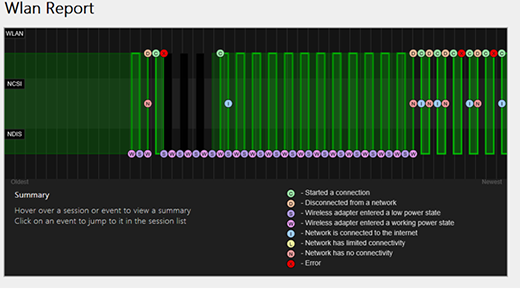
Microsoft’s HTML report example: select the session near the time you recorded, then inspect its events. These sample events are not measurements of your connection.
Version notes
Current Microsoft support documentation explicitly applies to Windows 11 and supplies this exact report image. It depicts report fields, with no OS shell or build identifier; historical sample data is not claimed as a current test. Original vendor asset retained unchanged.In Disconnect Reasons, inspect the listed reasons, then read the matching Wireless Sessions entry for its time and events. The summary counts alone cannot tell you which reason belongs to tonight’s interruption.
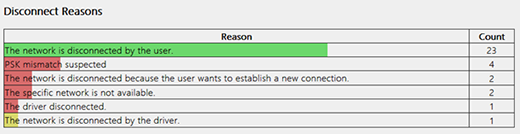
The Disconnect Reasons table groups causes across the report. Match the relevant Wireless Sessions entry to your outage time before drawing a conclusion.
Version notes
Current Microsoft support documentation explicitly applies to Windows 11 and supplies this exact report image. It depicts report fields, with no OS shell or build identifier; historical sample data is not claimed as a current test. Original vendor asset retained unchanged.Treat the event as a clue to compare with your notebook. A disconnect at the right minute supports a local wireless interruption; an uninterrupted session sends you back toward the onward path or application. Neither outcome identifies a faulty component by itself.
Save a dated copy before the next investigation overwrites the latest report. It includes device, user and network information: share only relevant excerpts privately with support. A Wi-Fi report cannot reconstruct the provider’s internal logs.
Move one daily trigger, then wait for the appointment
Make a shortlist that fits the observations: a router reboot timer, device access schedule, a backup or upload, or equipment on a timed power outlet. Inspect rather than changing everything. For a router log, note whether uptime restarted, the radio stopped, or the internet connection reconnected; wording and availability depend on the model.
Scheduled rebooting is a real possibility: TP-Link’s current restart guidance explicitly identifies enabled Auto Reboot schedules. That establishes a hypothesis, not a universal menu path. Use your exact router’s manual to locate scheduling controls and check its time zone. Do not press Reset or Reboot while gathering evidence.
Choose one optional activity you control. Record its original setting, then move its schedule outside the failure window or pause it for one window. Resume it afterward; a paused backup needs time to catch up. Leave parental restrictions and required security tasks to their owner or administrator.
If the interruption follows the moved activity, the link is stronger. If the old window becomes quiet only once, keep observing: one good evening is inconclusive. Restore an ineffective change before testing another. Compare at least two later expected windows where practical, while preserving the same location and workload.
If the outage remains shared across devices with no matching household trigger, send your provider the dates, time zone, durations, light changes and gateway-versus-public-target pattern. Ask whether its line or session records show a matching interruption. You now have a reproducible daily window and a boundary to investigate, which is more actionable than “the internet drops every night.”
Sources, versions & scope
The steps describe the documented controls and expected checks; they are not a claim that every device or software release has been physically tested. Platform and version differences are stated with the procedure.