Internet failover gives a small home office a second route online when its normal connection fails. The useful outcome is being able to reopen work, reconnect a call and send a document without rewiring the desk during an outage. Expect an interruption: switching connections does not guarantee that an existing meeting or VPN session survives.
This guide uses the ASUS router web interface, on a model supporting Dual WAN with an Ethernet LAN port assigned as the backup input. The second service is a separately activated cellular gateway with an Ethernet output. Phone tethering, mesh configuration and other router brands are outside this setup.
Decide what must survive the outage
Write a short outage workload: one laptop, email, essential websites and the required work VPN. Tell everyone sharing the router when you will deliberately interrupt its internet connection. Save documents locally and finish sensitive transactions before the drill.
Choose a backup that avoids the failure you care about. A cellular service may bypass a damaged fixed broadband line; another service delivered over the same physical route may share that vulnerability. Neither makes your main router redundant. A power cut also requires suitable backup power for the router, cellular gateway and working computer. Size that separately from the internet plan.
Before buying anything, find your exact router model on ASUS's website. In its technical specifications, check WAN > Dual WAN, then the model manual for supported secondary inputs and the assignable Ethernet port. Four LAN sockets alone do not prove this feature exists. If Ethernet LAN is unavailable as a secondary input, stop: these instructions do not apply to that model.
Activate the cellular gateway first. Check its allowance, overage policy and whether the subscription permits this use. Connect a laptop to that gateway alone and try your actual work websites and approved VPN. A gateway that cannot do the essential job independently is not ready to become the backup.
Make a cable record before adding the gateway
Photograph the existing connections and note the router's local management address and administrator credentials. Keep a local copy of the settings you plan to change. If firmware needs updating, complete that as separate maintenance and confirm normal broadband works before introducing Dual WAN.
Read the printed WAN and numbered LAN labels on your own router before moving cables. The hardware reference illustrates those labels only; it does not identify your secondary input or prove that the pictured older router supports this procedure.
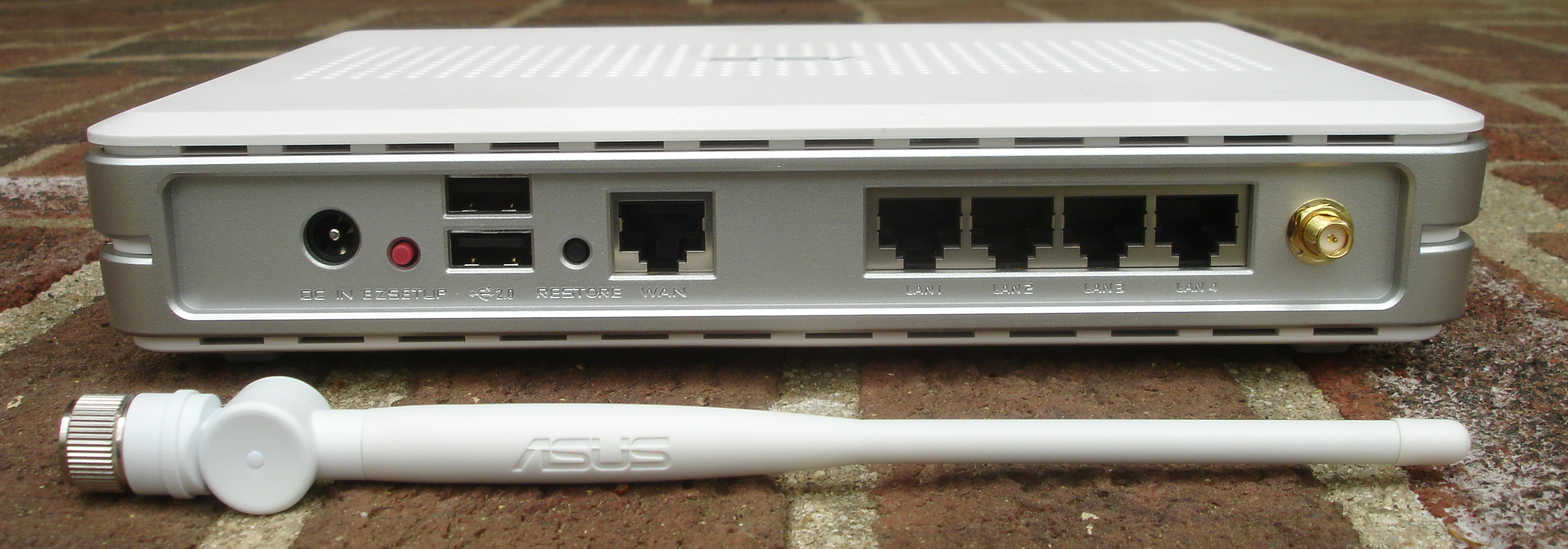
Locate printed WAN and numbered LAN labels before changing cables. This dated ASUS hardware reference shows those labels only; it does not identify your assignable backup port or establish Dual WAN support. Photograph: Zuzu, 26 April 2008; unchanged.
Version notes
Evergreen physical label reference, photographed 2008; not a current model recommendation, setup walkthrough or software interface. Printed labels alone do not prove operating mode, negotiated speed or PoE support. Display photograph resized for loading speed; the full-size link preserves the original download.Leave the normal broadband handoff connected to the ASUS WAN input. Reserve the LAN port permitted by your model for the backup; move any ordinary device using that socket to another normal LAN port first. Keep the setup laptop on the ASUS Wi-Fi or a different LAN port. Connect the cellular gateway's LAN output to the reserved socket, which will become the ASUS secondary WAN.
Use different local address ranges on the cellular gateway and ASUS LAN. If both devices use the same range, resolve that through the gateway's documented settings before continuing, or ask its support team. Keep both firewalls enabled; placing the laptop in a DMZ is not a prerequisite for outgoing work.
Assign the backup, then check standby
ASUS documents this web-interface sequence. Labels and available ports depend on the model; do not copy a port number from a vendor example.
- While connected to the ASUS network, open its local management address and sign in with the router administrator credentials.
- Open WAN > Dual WAN. Turn Enable Dual WAN on.
- Set Primary WAN to WAN and Secondary WAN to Ethernet LAN. Select the actual reserved LAN port.
- Choose Failover under Dual WAN Mode. Enable Allow Failback Function if you want automatic return to broadband when it recovers. Select Apply.
- Open Network Map. Check primary and secondary status. ASUS identifies Hot-Standby or Cold-Standby on the secondary as a successful standby setup.
Failover does not combine the two services' bandwidth. Budget for the active service's capacity. A green standby indication is also not evidence that your employer's VPN works through it; that needs the application check below.
Understand what triggers the change
A cable can remain connected while the provider loses internet access. Review Auto Network Detection on the Dual WAN page, including Network Monitoring, the detection interval and failure threshold. Record existing values before adjusting anything.
ASUS's documented defaults check every five seconds and require 12 consecutive failures: at least 60 seconds before failover. Treat that as a documented baseline, not a measured promise for your firmware. Connection establishment and application recovery can add time.
Monitoring supports DNS queries and ping, with different failure risks. Follow the linked ASUS instructions for the selected method and any required target fields; do not paste an arbitrary website's changing address into a permanent check. Keep the initial documented settings for the first drill. If the router repeatedly changes routes, restore the previous monitoring settings and investigate rather than making detection progressively more aggressive.
Prove the backup with a controlled outage
- Pause optional downloads, cloud backups and streaming on devices you control. Keep required security software active. Confirm an ordinary page loads through the primary service.
- Start a timer and unplug only the Ethernet lead entering the ASUS primary WAN socket. Leave router power, laptop connectivity and the backup cable intact.
- Watch Network Map for the secondary becoming active. After the configured detection period, load two unrelated websites, reconnect the work VPN and reopen the work application. Record elapsed time and anything needing manual reconnection.
- Reconnect the primary lead to its recorded socket. With failback enabled, watch for return to the primary; expect another interruption. Recheck the VPN and work application before resuming transfers.
This drill proves recovery from a disconnected primary cable. It does not prove detection of an upstream outage with the Ethernet link still present. If your provider equipment offers a documented, reversible internet-disconnect control, schedule that separate test while preserving local management. Otherwise record upstream detection as untested.
If standby never becomes usable, reconnect the primary immediately. Check the chosen secondary port, cable seating, gateway subscription and independent gateway access again. If browsing works but the VPN fails, retain the firewall and contact work IT with the observed symptom. Do not declare success from web browsing alone.
Leave a recovery note beside the router
Whole-router failover can move household traffic onto a limited cellular allowance. Hypothetically, a sustained combined upload and download rate of 4 Mbps uses about 1.8 GB per hour: 4 × 3,600 ÷ 8 ÷ 1,000. That is planning arithmetic before overhead, not a measured call requirement. A background download can spend the allowance much faster.
Write down how to recognize the active connection, which transfers to pause, the carrier's usage-check method and the observed reconnection delay. Consult the mobile-data guide for additional allowance planning. Recheck the backup after plan, gateway or firmware changes.
If failback is disabled, do not assume reconnecting broadband ends cellular use. Follow your model's documented return procedure and verify the active primary status. To abandon this setup, restore the primary cable, turn Enable Dual WAN off and Apply, then remove the backup cable and restore displaced devices to their original LAN sockets. Confirm normal broadband before resuming work; avoid a factory reset as a shortcut.
Sources, versions & scope
The steps describe the documented controls and expected checks; they are not a claim that every device or software release has been physically tested. Platform and version differences are stated with the procedure.