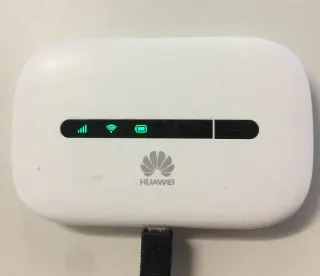
Before departure, pack the files as well as the charger
A useful travel hotspot has a closing time. Decide what you need to finish before you open the laptop: send a revised document, attend a short meeting, retrieve a booking. That small itinerary makes it easier to notice when an unrelated download starts spending the data you meant to save for tomorrow.
This trip plan follows an Android phone sharing mobile data over Wi-Fi with a Windows 11 laptop. Google's current Android instructions note that some steps require Android 14 or later; manufacturers can use different labels. The meeting example uses Google Meet in a desktop browser. Neither the menus nor the allowance assumptions apply automatically to an iPhone, another Windows version or a different calling app.
On your usual connection, open the presentation and reference documents you will need, save permitted local copies, and confirm they actually open without internet access. An online shortcut is poor luggage. Finish optional large transfers before leaving, or pause them through each application's own controls. Keep a short note of what you paused so that a temporary travel arrangement does not leave a backup stranded for a week.
Check your carrier's official account page for tethering eligibility, remaining hotspot allowance, reset date and destination coverage. Ask specifically about roaming if the journey crosses a border. A plan's headline phone allowance does not tell you whether laptop tethering shares it, has its own quota, incurs another charge or slows down at a threshold. Google explicitly warns that some carriers restrict tethering or charge extra. If those terms are unclear, settle them before relying on the hotspot.
Give the meeting its own data ticket
Here is a hypothetical departure decision, not a measurement of Meet. Suppose the account shows 2 GB of usable allowance for the rest of the trip. You want to spend no more than 0.5 GB on today's laptop session, keeping 1.5 GB aside for later travel needs. All units below are decimal: a GB is 1,000,000,000 bytes and an MB is 1,000,000 bytes, distinct from binary GiB and MiB.
The useful result is the decision this supports: a short meeting may fit, while an unplanned file transfer still needs scrutiny. The assumed 1.2 Mbps is neither a Meet bandwidth requirement nor a guarantee attached to a resolution. Real calls vary. If your available information gives separate sending and receiving rates, add them once; this example already includes both directions. A connection advertised at a much higher speed does not mean the meeting continuously transfers at that speed.
Keep the reserve available rather than immediately assigning it another job. If the allowance barely covers the modeled call, shorten the meeting, agree on audio participation where suitable, or arrange another approved connection. There is no setting that makes an uncertain estimate exact.
At the stop, open a network for one laptop
Before enabling sharing, note the time and the carrier account's remaining allowance, including any displayed reporting timestamp. Keep the phone charged and accessible on a stable surface. This is a working stop: choose somewhere you can hear the call and supervise both devices without balancing a hot phone inside a bag.
- On Android, swipe down and touch and hold Hotspot to reach its settings. If the tile is absent, Google's route is Edit in Quick Settings, then add the Hotspot tile. A manufacturer's layout may differ; use its Settings search for “hotspot” and its official instructions if this route is unavailable.
- Inspect the hotspot name and password, opening Set up Wi-Fi hotspot if shown. Use a recognizable, nonpersonal name, a strong password and supported password protection. Turn on Wi-Fi hotspot after checking those details.
- In Windows 11, select the taskbar's network, sound or battery area, then Manage Wi-Fi connections. Choose the exact hotspot name, select Connect, enter its password and select Next. Check that Windows shows the intended network as connected. If it is missing, use Refresh network list and confirm sharing is enabled on the phone. If authentication fails, compare the password with the phone's settings; keep protection enabled.
Give credentials only to the intended traveler. Where the phone offers a connected-device list, check it before starting work. A companion's laptop deserves its own budget discussion before it joins this session.
Make the laptop recognize the expensive connection
Go straight to Start > Settings > Network & internet > Wi-Fi, select the connected hotspot and turn Metered connection on. This matters because Microsoft documents Wi-Fi as unmetered by default. Metering can change app and update behavior, but some traffic continues. Verify your optional transfers remain paused; do not assume every program observes the Windows setting. Leave required security and organizational controls running. If policy locks the switch, consult your support team.
For a local usage warning, Microsoft's documented route starts on that connected Wi-Fi network's page: select Set a data limit to help control data usage on this network, then Enter limit. Choose the appropriate limit type, fill in its details and select Save. Check the displayed accounting period and existing usage before interpreting the amount. Today's session budget is not automatically the same thing as a monthly network limit.
If the page layout differs, search Settings for “Data usage” and verify which network is selected. Windows warns as you approach and exceed its limit; do not treat that warning as a promise that connectivity or carrier charging stops. The phone's own activity and other clients also need allowance outside this laptop's view.
Keep the meeting within its purpose
Open the document you packed and the meeting link, leaving unrelated browsing for later. In Google Meet's desktop browser interface, open Settings > Video. The separate Send resolution and Receive resolution controls let you reduce outgoing and incoming picture quality. Google identifies standard definition at 360p as using less data than HD; its receive options also include Audio Only, which removes incoming video.
Choose settings that preserve the work. If participants need to read a shared presentation, discuss whether audio-only reception is appropriate before selecting it. Turning off your own camera does not remove incoming video. Lower resolution is a useful adjustment, not evidence that the hypothetical bitrate now applies. Agree on a short agenda and an end time rather than budgeting for a quick update that becomes an open-ended conversation.
If the connection deteriorates, tell the group, stop optional activity and move to an agreed lower-data participation mode if available. Avoid repeatedly downloading test files to prove the connection is slow. When a decision needs a large attachment, arrange to send it from the next suitable connection instead of quietly adding it to the travel session.
Close the connection before packing up
After the necessary work finishes, disconnect the laptop and turn the phone's hotspot off. Record the finishing time and available usage readings. Compare the same counter and accounting window with your starting note. Do not subtract a phone-wide monthly total from a laptop-only session figure and call the difference missing data.
Carrier updates may lag; check your provider's stated reporting behavior before treating the first reading as final. An unexpected increase is a reason to inspect the window, client devices and deferred transfers, rather than immediately deciding the call used exactly that amount.
At the next suitable connection, resume the transfers you noted before departure and confirm they progress. Review pending updates too. Keep the hotspot profile metered while it still represents limited mobile service. Your last travel note should say which jobs have caught up and how much usable allowance remains for the next stop.
Sources, versions & scope
The steps describe the documented controls and expected checks; they are not a claim that every device or software release has been physically tested. Platform and version differences are stated with the procedure.