Measure the chair, not the room name
A room can have usable Wi-Fi by the doorway and an unreliable connection at its desk. A useful coverage survey records the places where devices actually work, then returns to those same places after a change. You need a MacBook, a paper sketch or notes document, and access to your usual home Wi-Fi. This guide uses macOS’s built-in connection details; it does not require a survey app or router login.
Draw a rough floor plan with the router and any mesh points marked. Give each working spot a short name: office desk, sofa left seat, kitchen counter. Add a reference spot a few metres from the main router in the same room. Include different floors and any place where a call drops. Record doors as normally open or closed.
Use the same MacBook throughout. Put it at working height, with the lid at the same angle and the screen facing the same direction on repeat visits. Leave its usual desk accessories connected for the first pass. You are mapping this device’s experience; a phone or television may receive the same network differently.
Expose the numbers behind the icon
Start at the reference spot and confirm that the Mac is connected to your intended network. If the Wi-Fi icon is absent from the menu bar, Apple’s current guide says to open System Settings > Menu Bar and select the Wi-Fi checkbox. This is the current documented route; older macOS layouts can differ.
- Hold Option and click the Wi-Fi status menu in the menu bar. Read the details beneath the connected network, rather than the surrounding list of available networks. Apple documents this expanded view; Cisco specifically documents its RSSI reading on MacBooks.
- Find RSSI, the received signal strength expressed in dBm. Record the minus sign: −50 dBm represents a stronger received signal than −70 dBm. Cisco’s supplied example highlights RSSI at −50 dBm; that is the vendor’s illustration, not a reading from your home.
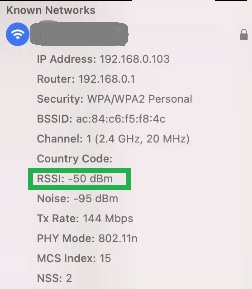
Visual 01 · macOS Wi-Fi status menu Read the RSSI field and retain the minus sign. Cisco’s example shows −50 dBm on 2.4 GHz; these are vendor example values, not measurements from your rooms. The green highlight and masked network name are in the supplied original.
Cisco Systems, Inc.; macOS interface copyright Apple Inc. Contextual instructional quotation; vendor copyright retained. Image source · Usage termsVersion notes
Current Cisco reference, document 220877 updated August 14, 2026. Captured macOS release/build undisclosed. Used only for reading the RSSI field and adjacent radio details, not as a capture of the full current menu or Settings navigation. Vendor URL ends .png but the supplied bytes are JPEG; local extension reflects the actual unchanged encoding. - Copy Channel and the band shown beside it, plus BSSID if displayed. The network name identifies the network you joined; BSSID distinguishes the radio connection, which matters when several access points share that name. Record Noise too if present, but leave unavailable fields blank.
If you opened the ordinary menu, dismiss it and repeat while holding Option before clicking. If you are disconnected, return to the reference spot and reconnect through the Wi-Fi menu first. Where details are unavailable on your Mac, record that limitation rather than converting signal bars into invented dBm values.
Keep BSSID identifiers in your private survey notes. There is no need to publish network names or addresses to compare rooms. Closing the menu ends this inspection; it does not change the router’s configuration.
Make one deliberate circuit
At each marked spot, set the Mac down and wait about 30 seconds. Take three RSSI readings roughly ten seconds apart, closing and reopening the expanded menu for each sample. These intervals are a practical sampling routine, not a Wi-Fi standard. Record all three readings and their middle value after sorting them; retaining the range helps reveal an unstable spot.
Then try the task that matters there. For a meeting desk, make a short test call with a willing participant and note freezes or audio interruptions. For a reading chair, try your usual pages. Use the same task at the reference spot. A brief success is encouraging, but does not establish reliability throughout a working day.
| Spot | RSSI samples; middle value | Band / radio label | Task observation |
|---|---|---|---|
| Reference | −46, −48, −47; −47 dBm | 5 GHz / A | Call clear |
| Office desk | −73, −77, −75; −75 dBm | 5 GHz / A | Audio interrupted |
| Sofa | −58, −60, −59; −59 dBm | 5 GHz / B | Call clear |
Your own log should also include time, channel, door state and any disconnection. Here, A and B stand for different recorded BSSIDs. The sofa’s result therefore includes a change of serving radio; it is not simply a measurement of distance from A. If the band changes between readings, preserve each result with its band rather than combining everything into one middle value.
Do not run a bulk internet speed test during the call observation. If you add benchmarks, run them separately with the same service and server where selectable. They add evidence about the complete internet path; they do not directly measure room coverage.
Look for patterns before choosing a remedy
There is no single dBm reading that guarantees every task. Cisco explains that stronger RSSI does not necessarily mean higher throughput. Use your reference, repeated room readings and task observations together rather than declaring a room “good” from one number.
- The same radio gets weaker toward one desk, and the task fails there.
- That combination supports investigating reception at that location. Recheck at the doorway and another usable desk position. You may discover a workable position without relocating network equipment.
- Reception looks similar to the reference, but the task fails.
- Coverage alone does not explain the symptom. Airtime competition, interference, the mesh’s onward connection or the internet service may be involved. Keep those results rather than assuming an extra access point will solve them.
- The BSSID changes between visits.
- Record which connection accompanies each result. Clients decide when to roam; the nearest point need not become the serving point immediately. Repeat the normal walking route before treating a surprising result as permanent.
Noise, where reported, supplies context rather than a complete interference diagnosis. For example, a hypothetical RSSI of −65 dBm and noise of −92 dBm have a 27 dB separation: −65 − (−92). A single noise snapshot cannot certify that a channel stays clear.
Repeat the circuit after one change
Choose one reversible change suggested by the map: a different desk position, a more open router position within safe cable reach, or moving a nearby hub away from the Mac. Apple identifies metal and concrete as substantial obstructions and notes that USB 3 and Thunderbolt 3 equipment can interfere with nearby wireless devices. Do not unplug a drive during a transfer; eject it before disconnecting it.
Repeat the weak spot, the reference and the other working spots with the same device orientation and door state. Keep the original log. An improvement at one desk is less useful if it creates a new problem elsewhere. Restore the original position if the change worsens service, then investigate another candidate separately.
If a room disconnects completely, log “disconnected,” move back to a working spot and rejoin the known network. You do not need to forget the network or factory-reset anything for this survey. Repeat troublesome spots during the period when trouble normally occurs. Finish with a short conclusion such as “office desk repeatedly weak on radio A; doorway works,” which is actionable evidence without claiming a professional radio survey.
Sources, versions & scope
The steps describe the documented controls and expected checks; they are not a claim that every device or software release has been physically tested. Platform and version differences are stated with the procedure.