Write the guest’s permissions before sharing the password
A visitor should be able to open a website without being able to open your household file server. Those are two separate acceptance conditions. A new Wi-Fi name proves neither. Treat the guest entrance as a small installation that needs commissioning: define the permitted destinations, configure the entrance, then try each destination from the visitor’s side.
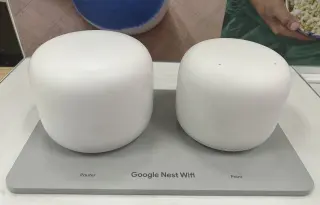
This procedure covers a Google Nest Wifi router operating in its normal router mode, administered through Google Home. Keep an owner’s phone on the main Wi-Fi and use a separate, personally controlled laptop as the guest test client. The local test target is an existing household service you own, such as a storage appliance’s browser interface. No new server, scanner or firewall exception is needed.
| Destination | Intended guest result | Evidence to keep |
|---|---|---|
| Public website | Loads through guest Wi-Fi | Site and time of a fresh request |
| Private storage interface | No local service response | Exact local address, baseline and guest observation |
| One optional printer | Usable only after deliberate sharing | Selected device and completed local print job |
| Owner’s administration | No owner credentials or Home membership supplied | Owner retains management; local management exposure recorded separately if applicable |
Write “not tested” beside any destination you cannot meaningfully exercise. An incomplete record is more useful than a pass inferred from a missing icon.

Permit the internet route first
Before making changes, record the existing guest setting and shared-device selections privately. If other people already depend on that guest network, arrange the change with them. Leave the owner’s phone connected to the main network throughout.
- In the correct home in Google Home, open Home → Wifi → Devices → Network settings → Guest Network. Turn on Guest network. Give it a name and password different from the main Wi-Fi; Google requires a guest password.
- Under Shared devices, begin this trial with nothing selected, after recording previous selections. Tap Save. Google documents selected-device sharing as an intentional guest capability. Its guest-network instructions verify these controls.
- On the test laptop, select the new guest name in its Wi-Fi controls and connect with that password. Check the connected network name again. Disconnect Ethernet or other optional network connections for the trial so they cannot supply the successful route.
Open a familiar public HTTPS website and request a fresh page. A previously displayed tab is not evidence of current connectivity. If the laptop has cellular connectivity, prevent fallback for this test. If an employer controls its VPN or network settings, use a personal device instead of changing managed protections.
Record whether the fresh request works. If it fails, compare ordinary browsing on the main network before investigating guest settings. A guest laptop that cannot get online has failed the permitted-access test, even if it also cannot reach storage.
Keep private storage behind the household door
The strongest practical comparison uses the same client, same service and same address on both networks. Start the laptop on the main Wi-Fi. Open the storage appliance through its established local address, including the usual port and protocol. Record enough of the response to recognize it later, without copying private files into the test record. A known login screen is sufficient to establish service reachability; you need not download anything.
Now return the laptop to guest Wi-Fi, confirm the network name, and request the identical address in a new private browser window. Avoid a vendor’s remote-access portal: a cloud relay can work over the internet while the local boundary remains intact. Likewise, a device disappearing from a discovery list may only mean that discovery stopped crossing the network boundary.
A response from the protected service is a failed boundary test for this contract. That includes its login screen or an authentication error generated by the service. “I could not log in” does not mean “I could not reach it.” Do not enter credentials merely to prove the point.
A timeout is evidence of a blocked or unavailable path, but it needs a control. Switch back to the main Wi-Fi and repeat the request immediately. If the service has gone to sleep or its address has changed, both attempts may fail for reasons unrelated to guest separation. Fix the baseline and repeat. Do not disable the storage firewall to manufacture a cleaner result.
If a household service has separate IPv4 and IPv6 access paths that you actually use, record and exercise those established paths separately. Otherwise leave that coverage explicitly unresolved. Do not turn an ordinary household check into a search for unknown devices.
Admit one printer only if the visit requires it
Printing is a separate permission. First establish that the owned printer works locally from the main network. Then check its normal local route from the guest laptop before sharing it. If it already works, investigate whether the application is sending through a cloud service before blaming or approving the local boundary.
For a supported printer listed under Shared devices, select only that printer on the Guest Network page and save. Try a harmless one-page document from the guest laptop using the printer’s supported local workflow. An item appearing in a printer list is weaker evidence than an actual completed job. If the printer is not offered or the job fails, leave printing unresolved rather than enabling unrelated access.
Repeat the private-storage test with the printing exception active. Permission to use the printer must not become an assumption that everything else stayed private. If printing is temporary, remove that selection after the visit and repeat the guest print attempt. Confirm the printer still works from the main network before calling the exception withdrawn.
Do not confuse an owner account with a local doorway
Keep the owner’s signed-in Google Home session off the guest test client. An owner managing equipment through an authenticated application may be using an internet service; successful management there would not, by itself, demonstrate guest access to a local administration interface. Visitors need the guest Wi-Fi credential, not an invitation to administer the home.
If this installation includes another router with a known local management page, such as an upstream ISP gateway, assess that endpoint separately. Establish its normal response on the main connection, then request that same address from the guest connection without entering administrator credentials. An unexpected login page is reachable administration, even when password protection remains. This procedure does not assume that the Nest router provides a conventional browser login at its gateway address.
Guest-to-guest separation is another unanswered question. The cited Google setup guide does not promise that visitors cannot communicate with one another. If that is required, test two owned guest clients against an existing benign local service, first confirming the service works when the clients share the main network. A single failed attempt still cannot establish universal peer isolation. Do not commission this installation for mutually untrusted visitors on that evidence alone.
Close the entrance, or hand over a bounded result
If a required boundary fails, withhold the guest credential and return through the retained owner session. On the same Guest Network page, turn guest access off. Restore prior selections and settings if abandoning an agreed trial; do not re-enable a configuration you have just found unsafe. For an existing service, agree its recovery with the owner.
If the installation passes the stated checks, keep a short dated record of the router model, app version, tested addresses, selected exception and observed results. Supply only the guest credential. Recheck after changes to routing, shared devices or the equipment providing Wi-Fi.
This scope excludes a bridged primary Nest router: Google explicitly says Guest Wi-Fi is unavailable in that mode. That restriction concerns the primary router, not the ordinary bridging of additional mesh points. Do not change the upstream topology simply to make this procedure fit. For ISP-customized equipment, another manufacturer’s router, workplace networks or accommodation Wi-Fi, obtain the exact model’s supported guest policy from its administrator.
Finally, describe the arrangement honestly to visitors. Google says guest network identifiers and usage information may be associated with the owner’s account, and people physically present may still operate shared speakers or displays. Its connected-home guest guidance explains those limits. Acceptance here grants a tested network route; it does not promise anonymity or prevent someone in the room from speaking to a household device.
Sources, versions & scope
The steps describe the documented controls and expected checks; they are not a claim that every device or software release has been physically tested. Platform and version differences are stated with the procedure.