Write the sentence before collecting the number
“My internet gets 420 Mbps” looks like a measurement. It is really a measurement with most of its description missing. Which device? Connected how? Talking to which service, at what time? Was 420 the only result, the middle result, or the screenshot that survived after several disappointing attempts?
Before testing, draft a sentence with blanks: “On this device, using this connection and test service, during this interval, download results had a median of ___ Mbps across ___ completed runs, ranging from ___ to ___.” Filling those blanks gives you something another person can interpret. It also exposes what you have not measured.
The useful question is what statement the result can support. A short experiment can document performance at a desk or reveal a repeatable evening pattern. It cannot, by itself, assign responsibility for every slow application.
The instrument has a point of view
A throughput test moves data between endpoints and reports a transfer rate. The journey includes your device, its local connection, your router, and the networks toward the test server. A phone on Wi-Fi and a router's built-in test start at different points. Ethernet removes the wireless hop from a laptop's measurement, but its adapter, cable and port still have limits.
There is also a calculation behind the display. FAST.com transfers data to and from Netflix servers. M-Lab describes NDT as a single-stream bulk-transport measurement. Cloudflare's explanation describes progressively larger transfers and a 90th-percentile speed calculation. These methods do not ask exactly the same question. Averaging their headline numbers would create a statistic with an unclear meaning.
Even “ping” needs its label. Cloudflare describes its browser measurement as time to first byte; FAST.com distinguishes unloaded and loaded latency. Keep those labels when recording milliseconds. A large download result and a long loaded delay can coexist: moving plenty of data does not guarantee a prompt response while the connection is busy.
Five attempts, with the stopping rule agreed in advance
For a small, executable experiment, use one desktop browser and FAST.com on a connection whose data allowance permits bulk testing. The site begins transferring data when opened. Five attempts are an editorial choice for this modest observation exercise, not a certification standard. Decide on that count before seeing the first result.
Ask one narrow question, such as “What does this laptop receive at this desk during this evening interval?” Keep the laptop and its position fixed. Record the operating system, browser version, Wi-Fi or Ethernet, and whether a VPN is active. Leave required workplace protections in place. Pause optional downloads or cloud transfers you control, with other users' agreement where relevant, and note household activity you cannot control. This establishes the conditions you intend to describe.
- Prepare five numbered rows before opening the site. Include local date, time and time zone; download Mbps; upload Mbps; unloaded and loaded latency in ms; server names; and an activity note. Pre-numbering makes an inconvenient result harder to quietly omit.
- Open FAST.com and let the download estimate finish. Select Show more info to reveal upload and latency information, and wait for the additional measurements to settle. Record the displayed server list and values. If the extra fields do not appear or a test fails, record that limitation rather than treating a missing value as zero.
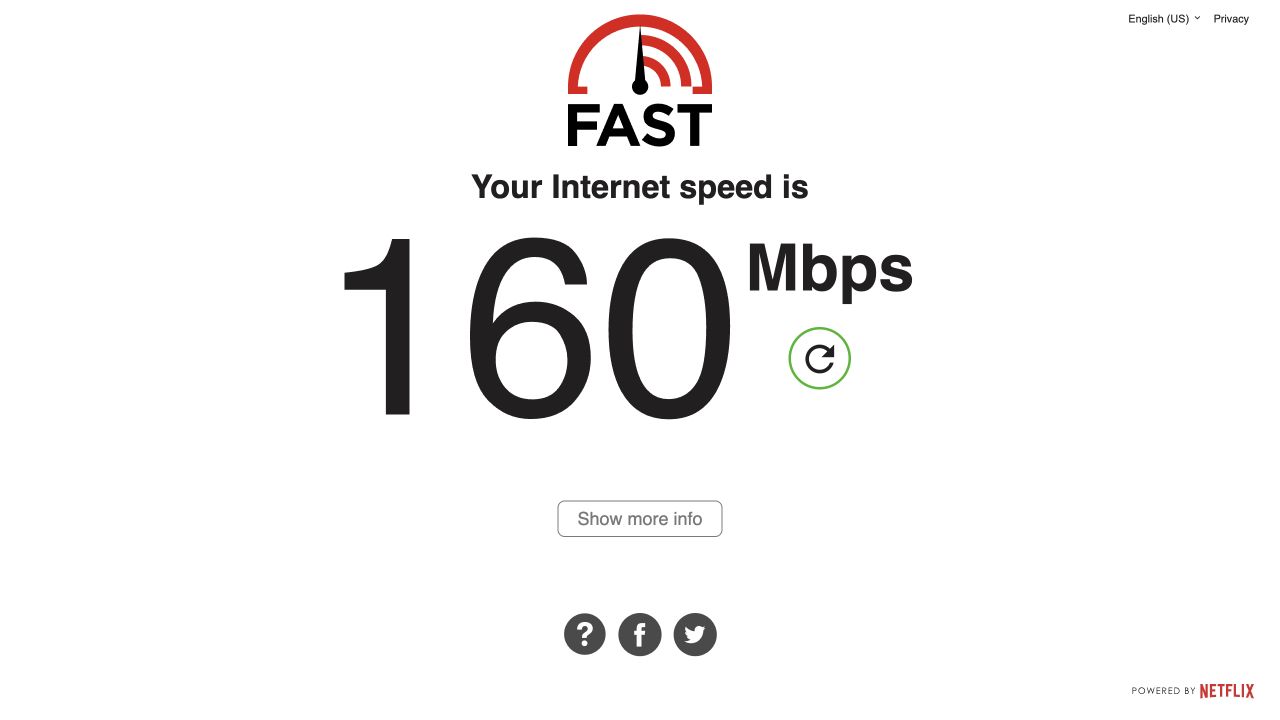
Visual 01 · FAST.com desktop web interface After the download estimate finishes, Show more info opens the additional measurements. The 160 Mbps shown belongs only to this capture session, not an expected result or a controlled comparison.
FAST.com / Netflix interface. Original browser capture by Signal Desk; interface copyright retained by Netflix. Image source · Usage termsVersion notes
Real browser screenshot, 31 October 2026. The extra panel is not expanded here, so this image does not demonstrate upload, latency or server-list values. - Inspect Settings once and record the configuration. The page exposes minimum and maximum parallel connections and test duration, plus an option for loaded latency during upload. Keep these settings unchanged throughout. If you change them after the first run, label that run separately and define a new series; it is a different instrument configuration.
- Use the circular restart control for each subsequent attempt. Wait about a minute after completion, leave the test in the foreground, and run nothing else deliberately bandwidth-heavy. Never run two speed tests together: they would compete. Preserve the timestamp and servers for each attempt, since automatic selection may change them.
- Stop after attempt five. Keep failures in the record and state how many attempts produced each metric. Do not keep refreshing until a desired speed appears. Close the test and resume paused work.
This procedure works through a browser on Windows, macOS or Linux; it requires no operating-system network reset. Interface wording can vary by language or revision. If the restart control is unavailable, reloading starts another transfer; count it as another attempt. If the service does not expose enough endpoint detail, write “automatic endpoints; exact endpoint unknown.” Matching displayed server names still does not prove an identical network route.
The middle needs its neighbours
Suppose all five attempts complete under the same recorded settings. The following numbers are hypothetical, not measurements made for this article.
| Attempt | Download | Upload |
|---|---|---|
| 1 | 312 | 42 |
| 2 | 298 | 39 |
| 3 | 341 | 41 |
| 4 | 180 | 18 |
| 5 | 325 | 40 |
Sort a copy of the download column: 180, 298, 312, 325, 341. The median is the third value, 312 Mbps. Report the observed range as 180–341 Mbps. Its width is 161 Mbps, but publishing the endpoints is usually more informative than publishing the subtraction alone. Upload sorts to 18, 39, 40, 41, 42: median 40 Mbps, observed range 18–42 Mbps.
The median prevents either extreme from becoming the headline. It does not make attempt four irrelevant. A median alone would conceal that one download result was substantially lower. Preserve the collection order so that an activity note—perhaps an observed backup starting during attempt four—can accompany the number. A suspected explanation is still a hypothesis.
Summarize each metric separately. The median upload need not come from the same attempt as the median download. If one attempt fails, report “four completed out of five attempted” and calculate from the available values; for four sorted values, the median is the average of the middle two. Do not manufacture a fifth value or silently discard the failure.
The observed range describes these attempts. It is neither a confidence interval nor packet jitter. Closely spaced tests share conditions, so five successes cannot establish all-day reliability or a guaranteed minimum.
Publish the observation and its boundary together
For the invented series, a defensible report could read: “One laptop at the study desk, connected by Wi-Fi, completed five FAST.com attempts between 20:00 and 20:15 local time. Download median was 312 Mbps, observed range 180–341; upload median was 40 Mbps, range 18–42. Browser and test settings stayed unchanged. Netflix endpoints were selected automatically. Optional local transfers were paused; other household traffic was not independently measured.” Attach the actual device, browser, date, time zone and endpoint notes in a real report.
“The provider delivered only 312 Mbps” would overreach. This series does not locate the bottleneck. Nor would a fast result clear the provider of an intermittent fault. The IETF's TCP throughput framework explains why end-to-end throughput depends on more than provisioned access bandwidth. Its managed-network methodology is broader than this household exercise; this five-attempt procedure does not claim compliance with it.
If provider performance is the question, collect a separate series on a capable wired device connected to a router LAN port, document negotiated link speed and adapter limits, and repeat the same setup during another time window. Keep morning and evening summaries separate. A recurring wired slowdown warrants investigation with the provider; it still leaves server, route and local equipment as possible contributors. A second test service adds another observation, with its own method, rather than overruling the first.
Before posting, remove unnecessary IP addresses, account identifiers and precise location details from screenshots. The measurement service's own disclosure is a separate issue: M-Lab's privacy policy, for example, says test data including IP address and timestamp is published and retained indefinitely. Redacting your screenshot does not change what a service collected.
A useful support request ends with the uncertainty you want resolved: “These repeated results occurred on the recorded setup. What additional measurement would distinguish an access-link limitation from the remaining possibilities?” That gives the next investigator both evidence and a question they can work on.
Sources, versions & scope
The steps describe the documented controls and expected checks; they are not a claim that every device or software release has been physically tested. Platform and version differences are stated with the procedure.
- Measurement Lab: NDT (Network Diagnostic Tool)
- Measurement Lab Privacy Policy
- Microsoft: Fix Wi-Fi connection issues in Windows
- Measurement Lab: Speed Test interface and data-policy notice
- FAST.com: Internet Speed Test and measurement FAQ
- About the Cloudflare Speed Test
- RFC 6349: Framework for TCP Throughput Testing