A new name means a reconnection job
Changing the Wi-Fi name can leave a house full of perfectly working equipment showing offline. The name, also called the SSID, is part of the network information devices remember. Keeping the password does not make a genuinely new name transparent to them.
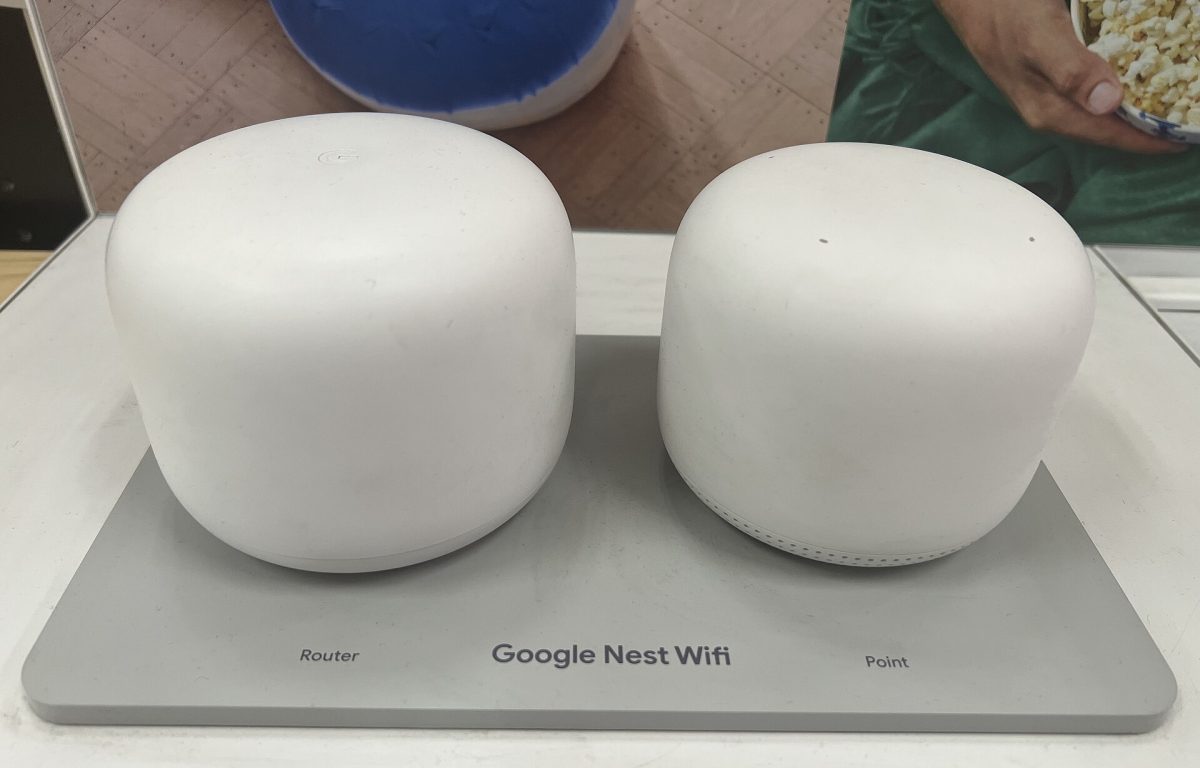
This guide covers a main Nest Wifi or Google Wifi network managed in the Google Home app, with a Google smart speaker or display as the worked reconnection example. Plan a short maintenance window while you are home. The aim is to preserve settings, reconnect deliberately and retain a way back, rather than promise uninterrupted service.
First decide whether the name actually needs changing. If you are replacing a router and want minimum disruption, Google recommends reusing the previous network name and password. If you want a different name for privacy or clarity, budget for updating the devices that used the old one.
There is also a smaller change: renaming an entry in the connected-device list. Under Home → Wifi → Devices, select the device and edit its displayed name. Google says this autosaves and changes only its label in the app; deleting that custom text restores the original label. This naming control can make a cryptic printer entry recognizable without changing the household SSID.
Make a list you can finish
Before touching the network name, privately record the exact current name and Wi-Fi password. Preserve capitalization and punctuation. Confirm you can open Google Home in the account and home that manage the router. Keep these instructions available offline, so a disconnected phone does not strand the procedure.
Walk through the rooms and list devices using this Wi-Fi: speakers, plugs, bulbs, cameras, printers and anything easy to forget. Beside each, write its setup app, where its setup button or code is located, and a small task that proves it works. Check the manufacturer's network-change instructions before beginning, especially for equipment mounted out of reach.
For a hypothetical household with eight Wi-Fi accessories, create eight rows. Seven successful checks and one inaccessible camera mean the migration is unfinished. The count is a planning aid, not an estimate of how quickly devices reconnect.
Mark equipment that talks through a separate hub. Do not reset every bulb simply because a hub loses its connection; first establish which component actually stores the Wi-Fi credentials. Arrange another time if an essential camera, door controller or heating system cannot tolerate an uncertain interruption.
Keep the existing password and security configuration for this rename unless there is a separate security reason to change them. Combining a new SSID, new password and different encryption makes failures harder to isolate. If credentials are compromised, treat the work as a security migration and do not later restore the compromised password just for convenience.
Change one field, then reconnect the phone
- Open Google Home and select the home containing your router. Follow Home → Wifi → Network settings, the route in Google's current English network-name instructions. Stop if you cannot identify this network rather than editing another home.
- Enter the new network name. Google permits 1–31 characters and warns against accidental leading or trailing spaces. For easier entry on small device screens, choose a short, distinctive name using ordinary letters and numbers. Avoid an address or other personal information.
- Check the spelling once more, then tap Save. Expect clients using the old name to need attention. On your phone, open its Wi-Fi network chooser, select the new name and supply the existing Wi-Fi password.
- Confirm the phone reports the new network as connected. Load a fresh website, taking account of cellular fallback: a page opening over mobile data does not prove the renamed Wi-Fi works. Reopen Google Home before starting on accessories.
If the new name is absent, refresh the network list and check another nearby client before saving more changes. If it appears but the phone cannot join, compare the entered password with your private record. If you cannot regain access, pause accessory setup and use the recovery section below.
Use one speaker as the first reconnection
Keep the phone signed into the same Google account as the speaker or display. Google's device migration instructions give this route:
- In Google Home, open Home → All devices. Touch and hold the speaker or display tile.
- Choose Settings → Device information → Wi-Fi → Forget this network.
- Return to the app's home screen, then choose Home → Add → Device → Search for device. Follow setup and select the new Wi-Fi name.
The old connection may already be unavailable. Google says a speaker or display may require its model-specific factory reset if forgetting fails, communication fails or network settings are inaccessible. Decide between rollback and that reset before erasing anything. Reset instructions differ by model; a router reset is not the remedy for one stranded speaker.
Do not apply this speaker sequence indiscriminately to cameras. Google's migration guide warns that removing a camera can reset it, and some Nest-app recovery paths lose video history. Review the relevant device section and save important clips before removal.
Check functions, not just green dots
After the speaker reconnects, ask it to play audio. Then work down the inventory one device at a time, using each manufacturer's supported network-change procedure. For a lamp, issue an app command and watch the light; for a printer, complete a small print job. Restore any state you changed during the check.
A refreshed camera preview is stronger evidence than an old thumbnail. For scheduled equipment, verify the next relevant scheduled action as well as manual control. Keep unresolved devices on the list instead of repeatedly removing and re-adding them.
If a 2.4 GHz accessory will not pair, avoid inventing a separate band name. Google uses one SSID across its bands; a phone on 5 GHz and an accessory on 2.4 GHz can belong to the same network. Google's band guidance also notes that some setup flows need the phone on 2.4 GHz. When the phone cannot select a band, moving farther from the router may help it switch, but this is not guaranteed.
Leave WPA3 at its recorded setting during this job. Google documents compatibility problems with some older WPA2 devices when WPA3 transition mode is enabled. If encryption changed too, restore that separate setting before blaming the new name.
Keep rollback simple
If too many devices are stranded, return to Home → Wifi → Network settings and save the exact old name. Keep the original password and security settings. Reconnect your phone to that name and repeat the inventory checks. Devices still holding the old credentials may recover; ones already migrated or reset may need another setup pass.
If you replaced hardware, avoid leaving an unnecessary old router broadcasting alongside the replacement. Google warns that clients can split between the two. Turn off a redundant old router only when it is no longer providing the required internet connection.
Finish when every required device passes its practical check, or record precisely what remains offline. Keep the recovery notes until delayed schedules have run. A rename is complete when the household works again, not when the new name first appears.
Sources, versions & scope
The steps describe the documented controls and expected checks; they are not a claim that every device or software release has been physically tested. Platform and version differences are stated with the procedure.