Give the satellite a better route home
A laptop can show strong Wi-Fi beside an upstairs mesh unit while that unit struggles to reach the main router downstairs. Ethernet backhaul replaces the connection between mesh units with cable. Your laptop can stay wireless; you are improving the middle of its journey.
This guide converts one satellite in an existing TP-Link Deco network, then checks the result before adding more cables. You need access to its Deco app, two working units with Ethernet ports, a known-good patch cable and, for the final installation, a verified cable route. A switch is optional. Models without Ethernet sockets cannot take this upgrade.
Start with the room whose satellite has a difficult wireless path. Ethernet can remove that obstacle, but it cannot repair a slow internet service or poor reception between the laptop and its nearest unit. Keep the satellite where it provides useful room coverage once its backhaul is wired.
Find which side of the router the cable belongs on
Before unplugging anything, photograph the existing connections for your private notes. Identify the main Deco, its internet cable, the target satellite and any switch or wall sockets between them. Label cable ends by destination. Keep the original layout recoverable while you test.
Connect your phone to Deco Wi-Fi. Open the Deco app and go to More > Advanced. Read the Operation Mode row; TP-Link's current example shows Wi-Fi Router. If necessary, open that row to inspect the selected mode, then leave without saving a change. The pictured page is TP-Link's Deco X60 example, so your model or app layout may differ.
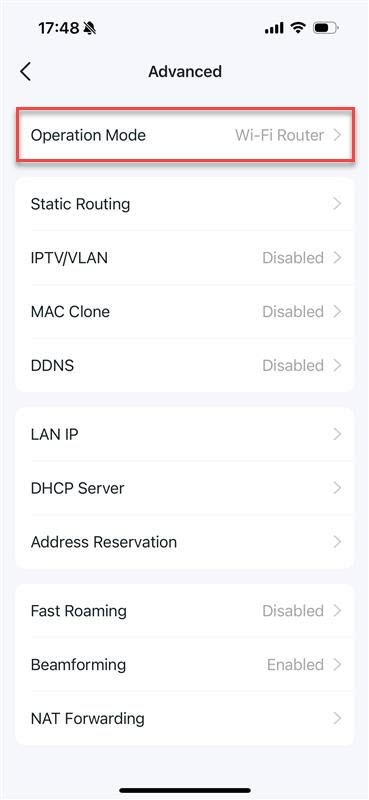
Read the existing mode before choosing the cable route. TP-Link’s example shows Wi-Fi Router; inspecting this row does not require changing the mode.
Version notes
Current TP-Link FAQ updated April 17, 2026, with April 2, 2026 screenshot asset. Checked October 31, 2026. Exact app and iOS build undisclosed; screens may vary by model and app version.In Router mode, use this route: main Deco LAN → satellite, or main Deco LAN → switch → satellite. A satellite must stay downstream of the main Deco. Connecting both units to a switch on the main Deco's internet side bypasses the required path.
In Access Point mode, an existing upstream router handles routing and address assignment. Satellites can connect through that router's LAN or through another Deco. TP-Link's AP-mode guide confirms Ethernet support and explains that the upstream DHCP server must remain enabled.
Keep the current mode for this job. Switching to AP mode can remove Deco controls such as parental controls, address reservation and port forwarding. A cable upgrade is a poor reason to change who manages the household network. If you cannot establish the mode, stop before connecting the new path and consult the model documentation.
Prove the idea with one direct connection
- Check that both Decos already belong to the same working network. TP-Link requires initial setup through the app before cabling units together. A fresh satellite needs adding to that network first; plugging in Ethernet alone is not the setup procedure.
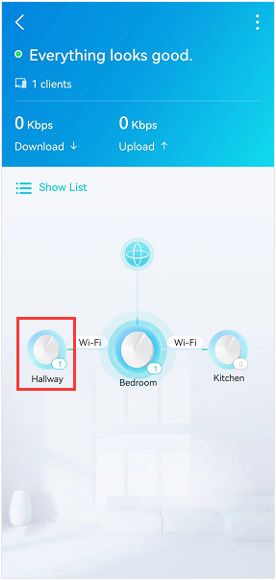
Visual 02 · TP-Link Deco app · existing wireless network map Before adding the cable, identify the main Deco and target satellite in the existing map. TP-Link’s example outlines Hallway; both satellite links still read Wi-Fi.
TP-Link official support screenshot, unchanged; original red callout retained. Copyright TP-Link. Image sourceVersion notes
Official August 2026 source set, checked against October 2026 Deco navigation guidance. Shows the pre-cabling Wi-Fi state; it does not show Ethernet backhaul. Exact app build and capture date undisclosed. - Temporarily bring the target satellite within reach of the main unit using a short cable. Leave the main Deco's internet connection in place. Connect its available LAN port to an available Ethernet port on the satellite, with both units powered. Avoid any port assigned exclusively to IPTV.
- Let the connection settle, then open the app's network map and tap the satellite Deco. Check its reported backhaul for Ethernet. Deco selects wired backhaul automatically; there is no separate Ethernet-backhaul enable switch to find.
- Open a normal website from a connected device. Record the satellite name, cable and ports used, and the displayed connection type. A successful direct test gives you a reference for evaluating the longer route.
The current Ethernet-backhaul FAQ documents automatic selection and the satellite check. The Deco App Guide also distinguishes unit details from client details: select the mesh unit, not your phone's entry. A phone's Wi-Fi connection does not tell you how its satellite reaches the main Deco.
Replace the temporary cable with the real run
Return the satellite to its intended room and substitute the permanent Ethernet path. Confirm where both ends of a wall run terminate; matching-looking sockets do not establish a connection. Patch the correct room cable to the main Deco's LAN side, directly or through the downstream switch. Retain a simple tree of connections rather than adding a second cable between the same boxes.
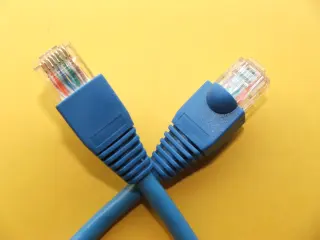
Use a known-good Cat 5e or Cat 6 run with equipment whose documented port speeds meet your needs. Inspect connectors for damage, seat the plugs fully and keep the cable out of door hinges and walking routes. Leave drilling and concealed cable installation until the temporary test has demonstrated the benefit.
Check the satellite's Ethernet status again after introducing wall plates, patch leads or a switch. If the short direct cable worked but the installed path does not, the new components are your first suspects. Add or replace one segment at a time so you can identify which change loses the wired connection.
You can stop after one satellite. Other units can retain wireless backhaul, so there is no requirement to wire every room. Prioritize the difficult link rather than disturbing units that already serve their rooms reliably.
Check both the route and the result
First establish that Ethernet is actually selected. Then compare the experience at the original desk, using the same device, position and task. For a speed comparison, use the same test service and server where selectable, and run tests sequentially during similarly quiet periods. Record both download and upload, plus any interruptions in the task that originally failed.
For example, suppose a hypothetical household has 500 Mbps internet and a 100 Mbps switch port in the new route. That wired segment cannot carry a 500 Mbps download; practical throughput will be lower than its 100 Mbps link rate. Replacing wireless backhaul with that path might improve consistency while limiting peak speed. These are illustrative limits, not results from a tested installation.
If the app says Ethernet but the desk remains slow, check which Deco serves the test device using the unit's client list. A laptop still associated with another unit can spoil the comparison. Separate local Wi-Fi from the internet connection before assuming the new cable has failed.
Recover according to where the test failed
- No Ethernet status with the short direct cable
- Try another known-good cable and an available port. Recheck the operating mode, chosen ports and same-network membership. Do not move the main unit's internet cable experimentally. If the simple connection still fails, collect model and hardware revision details for support before attempting permanent wiring.
- Direct connection works; the switch path fails
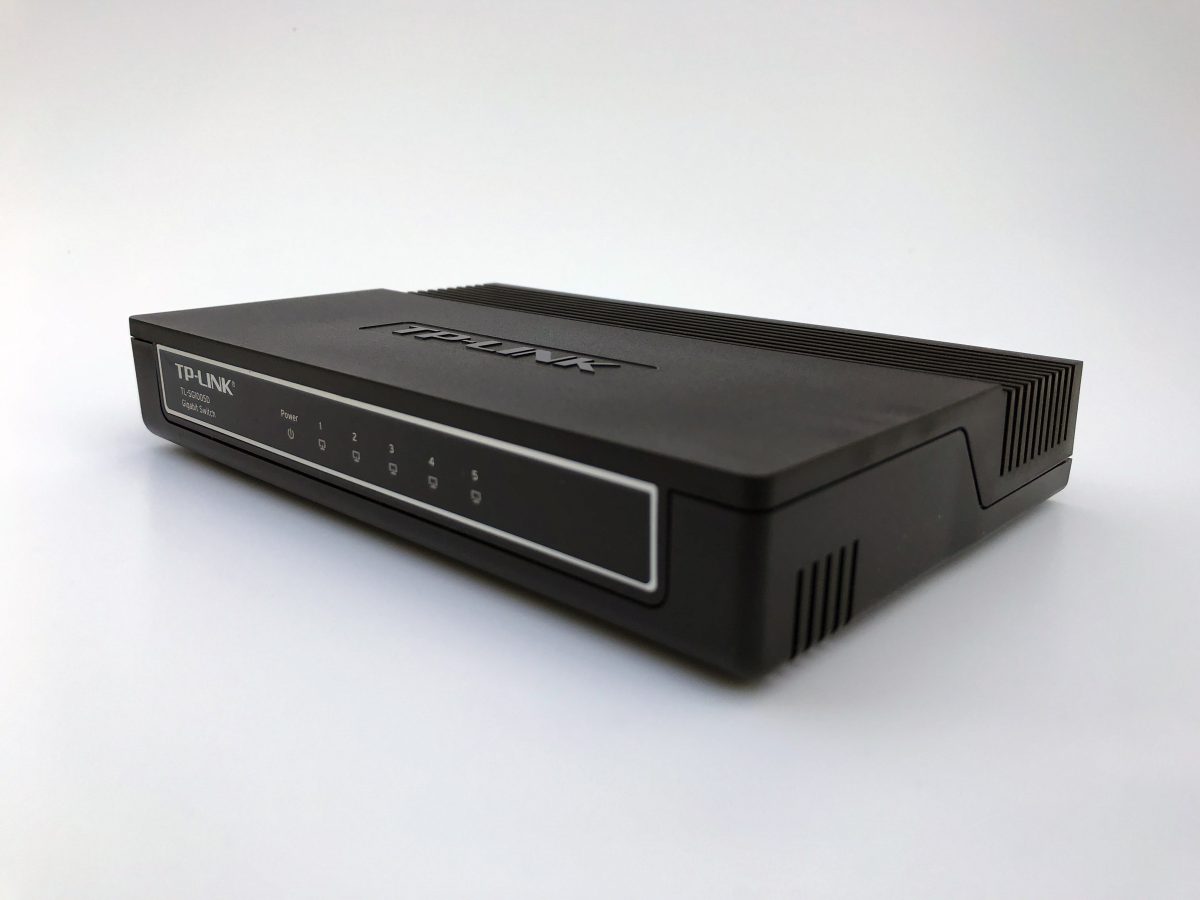
- Bypass the switch again to confirm the difference. TP-Link's official troubleshooting thread identifies IEEE 1905.1 support and loop prevention as possible switch issues. Ask the switch maker about your exact model. Check its documented settings before changing loop protection, and record any setting so it can be restored; a blanket change across an unfamiliar network is not a useful diagnostic shortcut.
- The network becomes unstable after adding the cable
- Remove the newly added backhaul cable first. Restore the satellite's original position and let it reconnect wirelessly. Recheck your wiring sketch for a connection upstream of the main Deco in Router mode or an extra path between switches. Preserve the working configuration rather than factory-resetting the mesh.
Removing the inter-unit Ethernet cable returns Deco to wireless backhaul automatically, provided the satellite has a usable wireless path. That is why keeping the original position and connections in your notes matters. Finish by labelling the successful run and saving the confirmed topology, so the next cable change does not undo it.
Sources, versions & scope
The steps describe the documented controls and expected checks; they are not a claim that every device or software release has been physically tested. Platform and version differences are stated with the procedure.