The icon that cleared the wrong suspect
In this hypothetical case, Maya has an excellent Wi-Fi signal and a presentation that will not upload. The laptop sits a few steps from the router. Every arc of the icon is filled. She concludes that the wireless connection must be fine and opens her internet provider’s support page.
The icon has answered a narrower question than she thinks. Strong reception describes the radio signal reaching the laptop from its access point. It does not certify the speed of the whole journey to the presentation service. Even an operating system that checks internet connectivity is checking reachability, not promising that a particular upload will finish promptly.
Her first useful move is to separate the nearby connection from the route beyond it. A short Ethernet comparison can do that without buying equipment, changing router settings or erasing anything—provided she already has a suitable cable and adapter. The investigation needs a changed route and a repeatable symptom.
What the bars cannot see
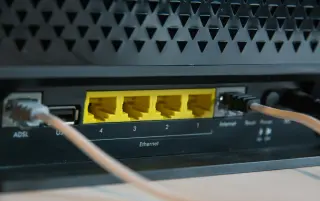
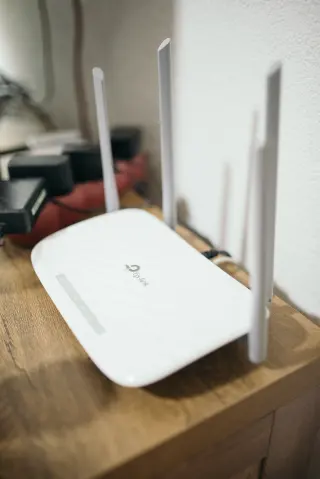
Picture the trip outward: laptop, wireless access point, router, provider network, other networks, destination server. An ordinary home router combines several of those local functions in one box. A mesh system spreads them across boxes. The two links we are separating are the laptop’s wireless path into that home network and the shared onward route to the destination.
Radio strength is only one influence on the first part. Nearby networks can compete for airtime, interference can disrupt transmissions, and devices have different radio capabilities. A loud, clear signal does not grant a laptop exclusive use of the channel. Apple’s router guidance explains how channel choice and channel width affect interference; adding signal strength cannot solve every such constraint.
A mesh satellite makes the icon especially persuasive. Maya could have a strong connection to a satellite in the study while that satellite has a poor connection back toward the main router. Google explicitly describes that inter-point connection as a possible speed bottleneck. The bars on her laptop do not tell the whole mesh story.
Meanwhile, the shared route can be busy even when local Wi-Fi is healthy. Another household transfer, a provider problem or a destination that is struggling can slow the task. Neither half gets cleared by the icon.
Interview the same laptop twice, then once more
Maya keeps the presentation and its destination unchanged. She chooses a brief interval when nobody needs an uninterrupted call, leaves required VPN and security software enabled, and pauses only optional transfers she controls. She notes whether other household traffic continues. The named controls below are for Windows 11 on an authorized home network; a managed laptop may require its administrator’s help.
She compares the troublesome task itself. If an upload is already underway, she lets it finish or cancels it through the application before starting another attempt; she uses a disposable test copy where uploading again would create unwanted versions. A benchmark can provide another observation, but it must use the same service and, where selectable, the same server. She does not compare one app’s Wi-Fi result with a different app’s wired result.
- Capture the wireless attempt. Open Start > Settings > Network & internet and confirm the expected connection, then repeat the affected task and note what happens. Microsoft documents this settings route and connection status. Record elapsed time or the specific stall, rather than just “slow.”
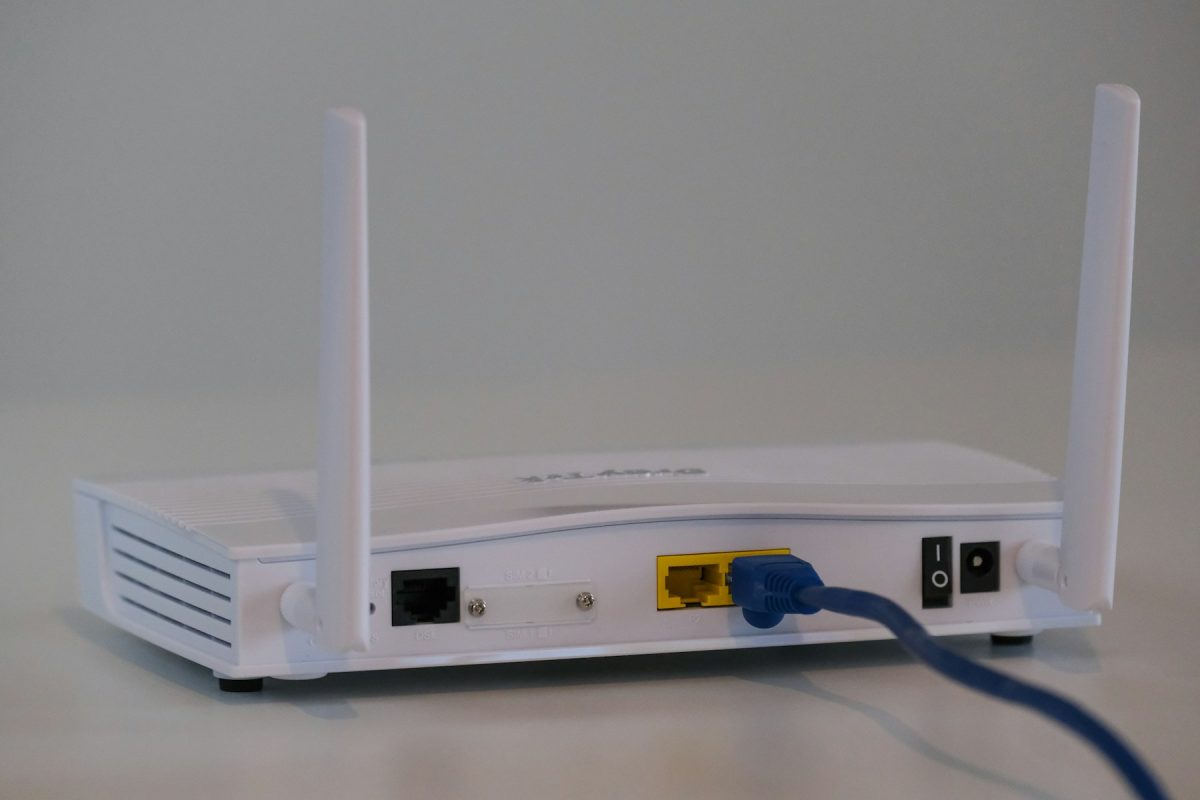
- Replace the local path. Connect the laptop to a spare LAN port on the main router using a known, suitable Ethernet cable and adapter. Open Settings > Network & internet > Ethernet to inspect the connection. Then open Wi-Fi in the same settings area and switch it off on this laptop. Internet access should remain available through Ethernet. If it disappears, turn Wi-Fi back on and resolve the cable connection before drawing conclusions. Leave the router’s own Wi-Fi running.
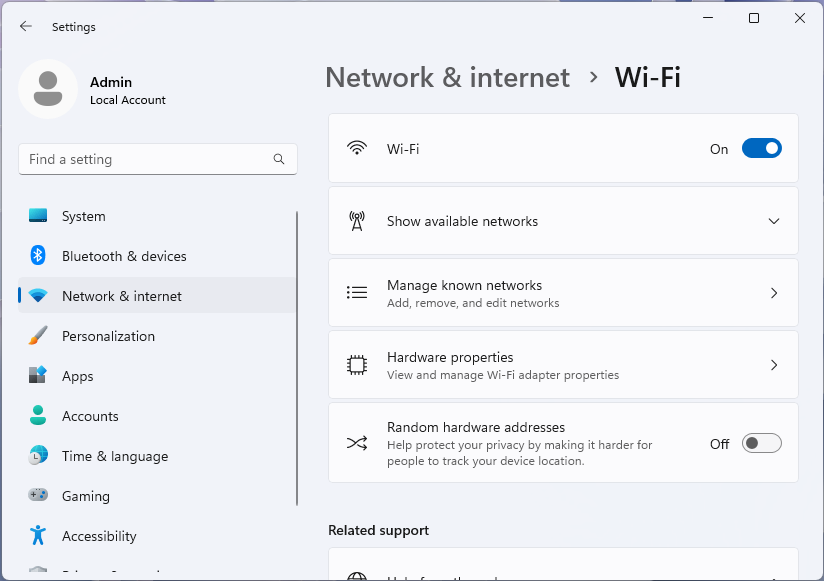
Visual 01 · Microsoft Windows 11 Initial state: at Settings → Network & internet → Wi-Fi, the top Wi-Fi switch is On. Switch it Off for the Ethernet comparison, then restore it for the return attempt. Leave Random hardware addresses unchanged. Used with permission from Microsoft.
Microsoft Corporation. Microsoft Windows 11 product screenshot. Used with permission from Microsoft. Image source · Usage termsVersion notes
Microsoft Learn explicitly identifies the supplied desktop Settings screenshots as Windows 11. Current network documentation confirms the named Settings route; exact Windows build and capture date unknown. No live network comparison performed. - Repeat the same task over Ethernet. Keep the browser, destination and required VPN state the same. Allow a VPN that reconnects after the interface change to finish reconnecting first. Note any changed endpoint or household activity. A cable into a mesh satellite may retain its wireless onward link; use the main router for the comparison described here.
- Return to the wireless condition. Turn the laptop’s Wi-Fi back on, unplug the temporary Ethernet cable and confirm reconnection to the recognized network. Repeat once more from the original position. Resume anything you paused. If Wi-Fi is now fast too, the first improvement may have been a change over time rather than an effect of the cable.
The return attempt matters. A server can recover while someone is hunting for an adapter. A backup can finish during the switch. A Wi-Fi–Ethernet–Wi-Fi sequence gives those explanations somewhere to show up, although a few attempts remain a small sample.
When the cable changes the story
Suppose Maya’s upload repeatedly stalls on Wi-Fi, completes normally on Ethernet and stalls again after returning to Wi-Fi. These are invented observations, not test results. They direct attention toward the wireless path and the laptop’s handling of it. They do not identify a broken router or prove that the provider is always performing well.
Her next comparison is physical: the same laptop, on Wi-Fi, in an open position near the main router. If that works, she has evidence about the original location or mesh path. If it still struggles but another authorized wireless device handles the same service normally, the original laptop becomes a stronger suspect. Comparing devices introduces differences in hardware and software, so it narrows the inquiry rather than delivering a verdict.
For a Google Nest Wifi or Google Wifi mesh installation, the owner can open Google Home > Home > Wifi > Points > Test mesh. This vendor-specific test examines connections between the primary device and additional points. A weak result makes satellite placement worth investigating; moving the satellite nearer the primary router can improve its onward connection even if moving it away from the laptop seems counterintuitive. Other mesh brands use different controls.
There is no need to start changing channels during the comparison. Once the wireless branch is established, make one reversible placement or configuration change and repeat the original task. Preserve existing router settings before any later configuration work.
When the cable solves nothing
If both connections struggle, first ask whether the wired comparison was capable of revealing an improvement. A limited adapter, cable or port can restrict Ethernet. A 100 Mbps negotiated link cannot demonstrate a 500 Mbps internet connection, and useful application throughput will be lower than that link’s headline rate. Google’s slow-connection documentation describes Ethernet links falling back to lower speeds. Check the displayed link rate if available, or the adapter and port specifications; try a known-good cable before treating an unexpectedly low result as evidence against the provider.
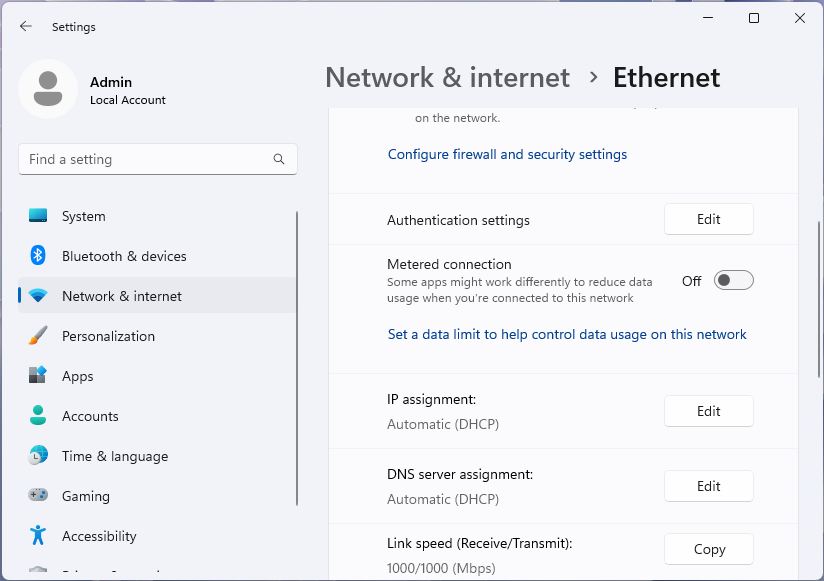
At Settings → Network & internet → Ethernet, read Link speed (Receive/Transmit). Microsoft’s example shows 1000/1000 (Mbps), the negotiated link rate. Used with permission from Microsoft.
Version notes
Microsoft Learn explicitly identifies the supplied desktop Settings screenshots as Windows 11. Current network documentation confirms the named Settings route; exact Windows build and capture date unknown. No live network comparison performed.With a credible wired path, the remaining pattern decides the next move. If only the presentation service struggles while unrelated services work, investigate that service or application. A healthy benchmark cannot clear the presentation service because it talks to a different destination. Measurement Lab describes NDT as a bulk-transport measurement reporting upload, download and latency; it does not reproduce every application’s workload.
If several devices and services struggle together, look for a shared condition. Does the trouble coincide with a large upload you control? Pause it using its own application, repeat the affected task, then resume it. Improvement during the pause supports contention as an explanation. Run a call observation separately from a bulk speed test, since the test itself consumes capacity.
If the laptop alone stays slow through both interfaces, its applications, VPN path or other local behavior deserve attention before the household connection does. Keep required protections in place and involve the device administrator where appropriate. If multiple capable devices remain slow over the shared route, check the provider’s official service status and take the timed observations to support.
The report that replaces “but I have full bars”
Maya’s useful support note now names the failing task, approximate times, device, destination and what happened on each interface. It says whether Ethernet reached the main router and whether the symptom returned on Wi-Fi. That is enough to explain the experiment without claiming it has identified a particular faulty component.
If she adds benchmark results, she records units, server details and both upload and download where available. Before choosing a public test, she reads its data policy: M-Lab, for example, collects the public IP address with measurements and publishes test results. She sends relevant details through official support channels and removes unnecessary addresses or network names from screenshots.
In the wireless-only version of this case, she can use the verified Ethernet connection to finish the presentation upload while investigating the local path later. The full icon remains on the laptop. Its meaning has become more precise: good reception from one nearby device, with the rest of the journey still requiring evidence.
Sources, versions & scope
The steps describe the documented controls and expected checks; they are not a claim that every device or software release has been physically tested. Platform and version differences are stated with the procedure.
- Fix Wi-Fi connection issues in Windows
- NDT (Network Diagnostic Tool)
- Measurement Lab: Privacy policy
- Essential Network Settings and Tasks in Windows
- Recommended settings for Wi-Fi routers and access points
- Mesh test guide: Improve your network performance
- Troubleshoot slow internet on Google Nest Wifi or Google Wifi