Choose the password that needs changing
You can change a router’s administration password without asking everyone to reconnect. Changing its Wi-Fi password is different: devices using the old wireless credential will need the new one. The practical goal is to keep control of the router and restore household devices in a planned order.
This guide covers an owner-managed TP-Link Archer router with the browser menus Advanced → Wireless → Wireless Settings and Advanced → System → Administration. It excludes Deco, ISP-customized gateways and the newer Wi-Fi 8 interface. If your menus differ, check your exact model and hardware revision’s manual before saving anything.
- Admin or local password
- Opens the router’s settings. Change this when protecting administration. Keep it separate from the password shared with household members.
- Wi-Fi password
- Lets devices join a wireless network. Change this when replacing a shared credential or withdrawing access from someone who knows it.
- TP-Link ID password
- Protects a separate cloud account. It is outside this local-password procedure; changing it is not a substitute for replacing a disclosed Wi-Fi password.
TP-Link’s admin-password instructions distinguish the first two. If administration is your only concern, follow the admin section below and skip the wireless change.
Keep one route into the settings
Choose a window when nobody needs an uninterrupted call, upload or security-camera feed. Tell people which network will change and how they will receive the replacement credential. A saved video frame or previously loaded webpage can hide an outage, so plan a fresh connection check afterward.
Connect a laptop by Ethernet to a port labeled LAN on the Archer. Leave the internet/WAN cable in place. A laptop without Ethernet needs a suitable adapter. Temporarily turn off that laptop’s Wi-Fi to confirm its connection really uses the cable, then open the management page. This is your recovery route if wireless clients disconnect.
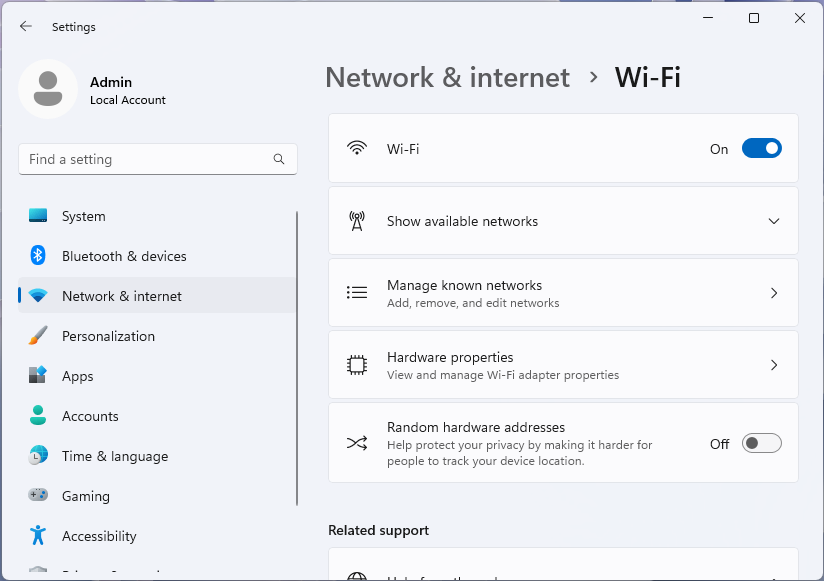
On Microsoft Windows 11, turn the top Wi-Fi switch Off while the Ethernet laptop stays connected. The pictured switch starts On; Random hardware addresses is a separate control.
Version notes
Microsoft Learn explicitly identifies the supplied desktop Settings screenshots as Windows 11. Current network documentation confirms the named Settings route; exact Windows build and capture date unknown. No live network comparison performed.If you only have a wireless device, you can still proceed, but it will disconnect when the new settings take effect. Store the replacement password somewhere accessible offline first. Postpone if losing that connection would leave you unable to retrieve the password or reconnect.
Type https://tplinkwifi.net directly into the browser address bar. If it fails, use your router’s recorded local management address; 192.168.0.1 is TP-Link’s documented default, not a guarantee for a configured household network. The management page needs a connection to the router, not working internet service. TP-Link’s login guide recommends Ethernet for wireless changes.
Sign in with the existing local admin password. If you encounter a certificate warning, verify the exact local destination and your connection to your own router before following the manufacturer’s guidance. Do not dismiss warnings on an unfamiliar site reached through search results.
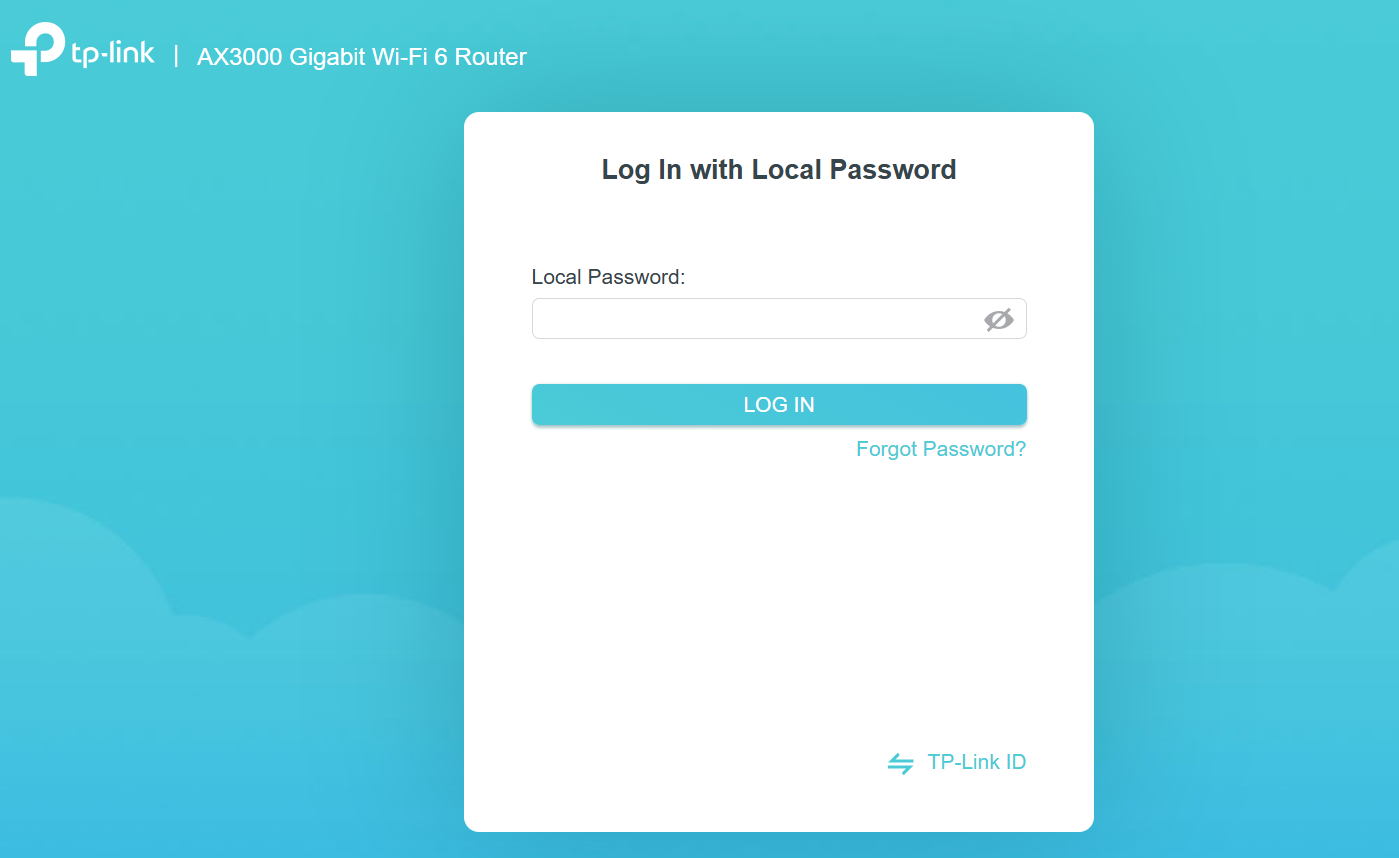
Use the existing local administrator password in Local Password, then choose LOG IN. TP-Link’s AX3000 example keeps TP-Link ID login separate.
Version notes
Official March 2026 source asset; supported Classic interface cross-checked against TP-Link’s September 2026 Archer AX55 setup guide. Exact firmware build and capture date undisclosed; not a first-time setup or successful login.Privately record the existing network names, which bands share a password, and the security mode. List devices needing attention, including printers, televisions, cameras and separate extenders. Keep the old credential only if appropriate for recovery; if it was disclosed, restoring it would restore that access too.
For an admin-only change, verify a new login
- Open Advanced → System → Administration. Find the password-change controls. Enter the current local password and a new, unique password, completing any confirmation field shown.
- Save the replacement in your password manager as the router’s admin credential, clearly separate from Wi-Fi. Click Save in the router interface.
- If the router returns you to its login screen, use the new password. Otherwise log out deliberately and sign back in. Seeing the settings again confirms you retained administration.
Check that another household device can still open a fresh webpage. An admin-only change should not require changing its Wi-Fi credential. If that device disconnects, check whether wireless settings were also altered before distributing any new password. Do not assume the admin password belongs in a phone’s Wi-Fi prompt.
Replace the wireless credential in one controlled change
Choose a new Wi-Fi passphrase that is unique, long and practical to enter on your least convenient device. Several unrelated words can be easier to transcribe than dense punctuation. Use characters accepted by the router and your devices, and check capitalization carefully. Do not use a published example as your real password.
- Open Advanced → Wireless → Wireless Settings. Locate Network Name (SSID), Password and the band controls before editing anything. Leave the network name unchanged for this password-only change.
- Replace the Password value for the intended network. With Smart Connect enabled, TP-Link documents shared settings for 2.4 GHz and 5 GHz. Inspect any separate 6 GHz or separately configured band entry rather than assuming it changed too.
- Leave security mode, channel, channel width, radio enable switches and Smart Connect as recorded. Changing those simultaneously can introduce compatibility problems that resemble a bad password.
- Confirm the replacement against your private record, then click Save. Follow any explicit apply or reboot prompt rather than unplugging the router. Wireless clients may lose their connection; that is expected.
The official wireless-settings guide shows this menu and explains the wireless disconnection. Its screenshot illustrates field locations; the displayed sample password is not a recommendation. A separate guest network has its own credential: replacing the main password does not establish that a visitor’s guest access has been revoked.
Keep the wired laptop connected. Reopen the wireless page after saving and confirm the intended network name remains. Avoid changing the admin password during the same wireless cutover; complete and verify one operation first.
Reconnect people first, then the quiet devices
Start with one phone or laptop. Select the existing Wi-Fi name and enter the new password. If it repeatedly reports an incorrect password without offering an editable prompt, use that device’s option to forget the saved network, then join it again. This removes its saved connection profile; it does not reset the router.
Confirm the connected network name and request a fresh webpage. On a phone, briefly turn off cellular data for this check so mobile service cannot disguise a failed Wi-Fi connection. Restore cellular data afterward.
Once that client works, reconnect other people’s devices, then equipment needing local setup. For a hypothetical household with eight wireless devices, count eight completed reconnections, not eight devices visible in an old app list. Mark each with an actual check: a fresh webpage, a printer test page, a new camera live view or streaming playback.
A printer or camera without a keyboard may need its manufacturer’s network-setup procedure. A separate extender or access point with independently stored credentials may also need updating. Do not factory-reset these devices merely because they show offline. Keep the wired management connection until essential equipment works.
Recover the failed part before considering a reset
One device fails, another works: check that the failing device selected the right network, then re-enter the password carefully. Check its supported bands and the recorded security mode before making broader router changes. A device joining Wi-Fi but failing a print job needs a different check from one rejecting authentication.
No wireless device can join: return through Ethernet, inspect the intended band’s password and check that its radio remains enabled. Correct the entry and save. If abandoning a routine change, you can restore the recorded wireless password, but clients already updated will then need the old one again. Do not restore a compromised credential merely for convenience.
You cannot sign in to administration: separate a page that will not load from a page rejecting your password. Check the cable and local address for the former. For the latter, use your saved new admin credential or supported recovery through a previously linked TP-Link ID, if your model offers it.
A factory reset erases custom internet and wireless settings. TP-Link’s forgotten-password guidance describes that consequence and notes model-dependent recovery. Stop and obtain the exact model’s instructions and any ISP setup details before taking that step. A planned password change is finished when administration remains accessible and the household’s required devices have demonstrably reconnected.
Sources, versions & scope
The steps describe the documented controls and expected checks; they are not a claim that every device or software release has been physically tested. Platform and version differences are stated with the procedure.