You have joined the hotel or café Wi-Fi, but the welcome page never arrives. A connected radio link does not necessarily mean the venue has authorized internet access. The missing page may be where you accept its terms or enter an access code.
This guide covers a Windows 11 laptop using Firefox on public guest Wi-Fi. Work through one attempt at a time, and stop when normal browsing works. Keep any Wi-Fi password and venue access code handy; they may be different credentials.
First establish whose network you joined
Ask staff for the exact Wi-Fi name and whether a browser sign-in is required. Similar names are not confirmation. Also ask whether the venue has a published sign-in address. A portal can use an outside service, so an unfamiliar domain needs verification rather than an assumption that it is legitimate.
Open Start → Settings → Network & internet → Wi-Fi. Find the top Wi-Fi switch and confirm it is On. That is the control to use for the reconnect attempt below; leave Random hardware addresses unchanged.
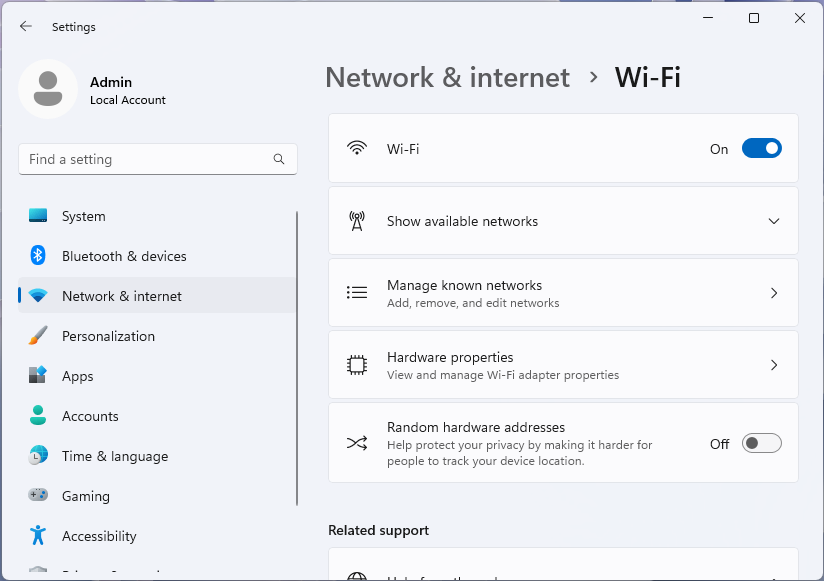
Microsoft Windows 11: the top Wi-Fi switch is On. Use this control for the Off/On reconnect attempt, then rejoin the confirmed guest network. The separate Random hardware addresses switch is not part of this action. Used with permission from Microsoft.
Version notes
Microsoft Learn explicitly identifies the supplied desktop Settings screenshots as Windows 11. Current network documentation confirms the named Settings route; exact Windows build and capture date unknown. No live network comparison performed.Expand Show available networks and check the name you joined. If it is wrong, disconnect and select the confirmed venue network. Enter its Wi-Fi password if requested. If joining fails before Windows shows a connection, solve that with staff first: a browser page cannot repair an incorrect wireless password.
Keep a short note of the network name and what happens next: no page, blank page, repeated sign-in, or a certificate warning. Those observations lead to different remedies. Signal strength alone does not distinguish them.
Give the portal a fresh request
Open Firefox and a new tab. If it offers a network sign-in prompt, follow it. Otherwise, type http://firefox-portal-detection.com into the address bar and press Enter. Include http:// so this is a web request rather than a search. Mozilla identifies this address as a portal-detection endpoint in its captive portal documentation.
The useful outcome is a redirect to the venue’s confirmed welcome page. If a simple response appears without a redirect, that alone does not prove all internet access works. Try loading a fresh page on a familiar HTTPS website. An already-open email tab or cached document is a poor check because its contents may have loaded earlier.
If nothing loads, return to the Windows Wi-Fi page. Switch the top Wi-Fi control Off, then On, select the official network again and repeat the request once. Expect a temporary disconnection. Do not repeatedly submit a paid access form while diagnosing an uncertain connection.
If Firefox upgrades the request or shows a secure-connection warning, do not click through a certificate error. Ask staff for the official portal address and open that directly. The plain HTTP request is only a way to invite the network’s redirect; it is not a place to enter passwords or payment details.
If the page is blank, change one thing
A VPN may be waiting for internet access while the portal is waiting for a request outside the tunnel. If your own VPN permits it, disconnect using its normal control, repeat the portal request, and reconnect the VPN after sign-in. Do not remove its profile or disable the firewall. On a managed work laptop, use the organization’s approved method or ask IT.
When the page opens in an ordinary tab but loops or stays blank, try Firefox’s menu → New private window and request the portal there. Treat this as a separate session experiment, not anonymous access. If it works, finish sign-in in that window and check ordinary browsing afterward. Close the private window when finished; avoid deleting every site’s cookies just to troubleshoot one guest network.
Only investigate encrypted DNS if the portal hostname will not resolve or you previously customized Firefox’s DNS settings. Open Firefox’s menu → Settings → Privacy and security → DNS over HTTPS → Advanced settings. Record the selected option and the displayed status separately before changing anything.
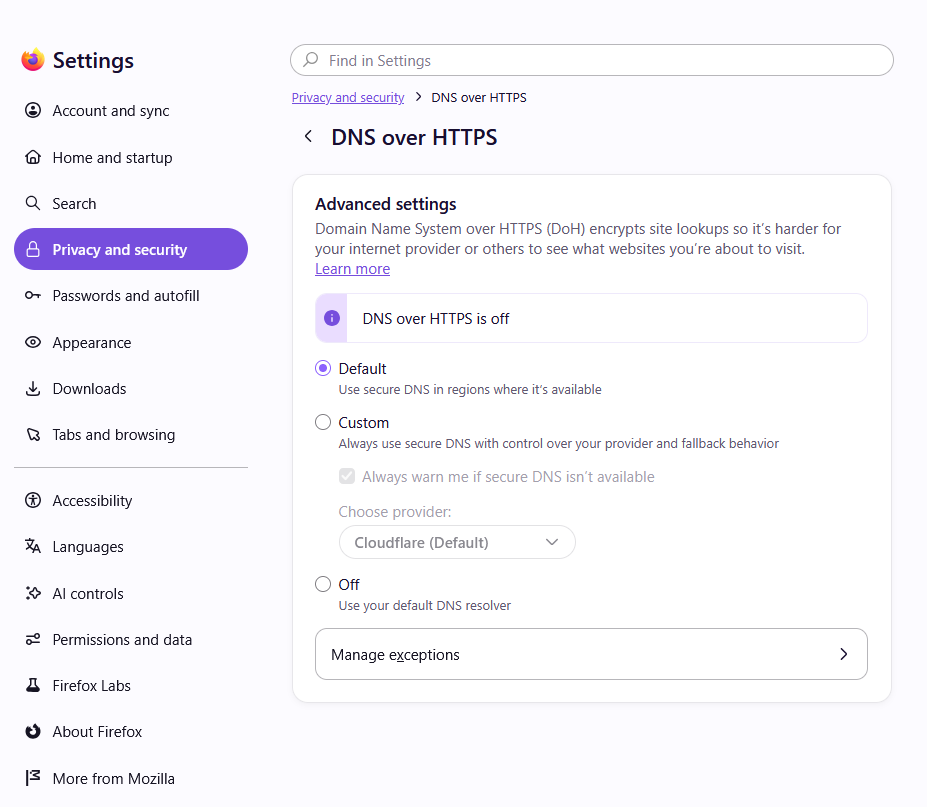
Record both the selected option and status. This Mozilla reference shows Default selected and DNS over HTTPS is off; it does not show your laptop’s result or a Custom-to-Default change.
Version notes
Downloaded from the current Mozilla Help page with159 as the selected release. The exact gallery asset is dated7 October 2026 and labelled fx157dnsoverhttps; the current 159 guide uses it for the same released controls. Firefox 159.0 was released27 October 2026. This is not the older held Nightly or four-level settings image; its bytes are different. Exact patch capture unknown.Mozilla’s current example has Default selected while the status says DNS over HTTPS is off. These are different facts: one describes configuration, the other current operation. Do not interpret that example as a fault on your laptop. Under Default protection, Firefox can fall back when secure DNS has problems.
If you deliberately selected Custom, record its provider and warning choice, try Default for one portal attempt, then restore your original choice afterward. Leave policy-controlled settings alone. If Default is already selected, move on rather than cycling through DNS providers or changing Windows’ network configuration without evidence.
One saved-network retry, then a useful handoff
If reconnecting did not help, forgetting this guest network is a narrower next attempt than resetting every network adapter. First confirm you know its Wi-Fi password and have any required joining instructions. Do not forget a managed enterprise profile as an experiment.
- In Windows Settings, open Network & internet → Wi-Fi → Manage known networks.
- Find only the venue network and choose Forget. This removes its saved connection; it does not guarantee that the venue clears your portal authorization.
- Return to the available networks, select the same confirmed name and reconnect. Re-enter the Wi-Fi password if needed, then request the portal again in Firefox.
Microsoft’s troubleshooting guide documents this saved-network route. Its broader Network reset also removes adapters and settings and may require VPN software setup afterward. That is too disruptive for a single venue’s missing welcome page. Do not reboot the venue’s router.
If available, compare another device on the same Wi-Fi, ensuring its successful browsing is not using mobile data. A second failure supports a venue-side investigation; a successful device helps narrow the question but does not prove the laptop is defective. Ask staff whether an expired access code, device allowance or existing session needs attention.
A useful handoff might read: “Windows 11, Firefox, connected to the confirmed guest network; the portal request times out after reconnecting, and a second Wi-Fi device also fails.” That is a hypothetical example, not a test result. Give staff the actual symptom and time. Keep room details and access codes out of public posts.
Know when you are finished
Once the verified portal opens, complete its required terms or access-code step. A request to install a certificate or configuration profile needs clarification from the operator; it is not an ordinary remedy for a missing page.
Load fresh pages on two unrelated HTTPS sites, restore any DNS setting you changed, and reconnect your VPN if you normally use one. Check browsing again afterward. If the portal succeeded but only the VPN fails, take that specific result to the VPN provider or IT rather than repeating portal sign-in.
A lingering Firefox network notification does not require another login when fresh browsing works. Close it and report repeated false prompts to the operator if necessary. When leaving, disconnect; optionally forget the guest network so returning to the area does not silently reconnect you.
Sources, versions & scope
The steps describe the documented controls and expected checks; they are not a claim that every device or software release has been physically tested. Platform and version differences are stated with the procedure.