A fast browser download beside a crawling game update is a useful clue. It suggests a problem specific to an application, destination or route, but it does not identify which one. Replacing the router before checking the service can leave the actual restriction untouched.
This guide uses Steam’s desktop client on Windows 11. It follows one slow download through its units, installation workload, application settings and delivery region, then compares connections. Keep a short record of each change so a temporary improvement does not become a permanent guess.
First establish what is actually slow
Open View → Downloads in Steam. Record the game, whether this is a fresh installation or update, the displayed transfer unit, current progress and time. Observe an active transfer for roughly two minutes rather than copying its brief peak. This interval is a practical sampling choice, not a Steam benchmark.
Check units before drawing conclusions. In a hypothetical example, 25 MB/s equals 200 Mbps, because each byte contains eight bits. A 200 Mbps connection cannot ordinarily deliver a sustained 200 MB/s. Conversely, a repeated 2 MB/s transfer is about 16 Mbps and deserves investigation when other comparable transfers are much faster. Read the unit actually shown; Steam can display bits or bytes.
A queued, paused or scheduled item is not a slow active transfer. Start the intended item from the Download Manager if appropriate, and close any running game during this comparison. Keep only one Steam download active. Do not delete an installation simply because its remaining-time estimate grows.

Separate incoming data from work on the drive
Watch whether Steam reports downloading or a local stage such as installing or verifying. Look at its network and disk activity together. A patch can spend time processing data already received, so a flat network graph during local work does not by itself establish an internet fault. Valve’s hardware troubleshooting guidance explicitly describes CPU and disk work constraining installation download rates; the same distinction is worth checking on this Windows PC.
Press Ctrl + Shift + Esc to open Microsoft Windows 11 Task Manager. Select Performance, then CPU, and watch the activity history during the slow period. Compare it with a period when Steam is transferring normally, if one occurs.
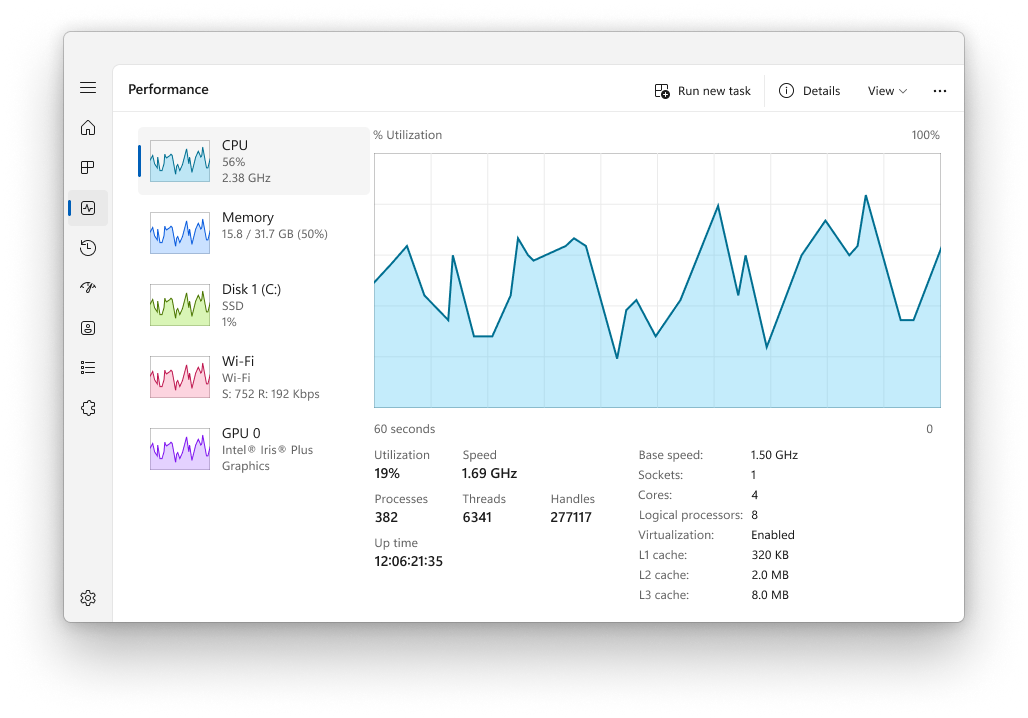
Microsoft Windows 11 Task Manager: Performance → CPU shows activity history to compare with Steam’s slow period. Microsoft’s example readings are not download-test results. Disk is visible in the sidebar but is not selected here. Used with permission from Microsoft.
Version notes
Unchanged official Windows 11 Task Manager reference, checked 2026-10-31. Exact build/capture date undisclosed. Illustrates CPU inspection only, not the Steam client, disk-selected view or an observed bottleneck.Next select the disk containing the Steam library and inspect its activity. Persistent heavy disk activity while network traffic pauses suggests investigating installation or competing storage work. High CPU utilization suggests processing pressure. Neither observation proves Steam caused it: Task Manager’s Performance view summarizes the machine, and a low overall CPU percentage can conceal a busy individual core.
Pause an optional backup or other large transfer you recognize through that app’s own controls, then observe again. Resume it afterwards. If Steam is visibly advancing through local processing, let that stage finish before testing regions. Keep security software enabled; a download test does not justify broadly excluding a game library from scanning.
Check the restrictions Steam is meant to obey
Open Steam → Settings → Downloads. Write down the existing download-speed limit and region before editing anything. Inspect the speed-limit control and its units. Valve’s download-management guide says an active bandwidth limit is also shown in the Download Manager.
If a personal speed limit is enabled, temporarily disable it for one active-transfer observation. Leave the region unchanged. A transfer that rises above the previous ceiling supports keeping a higher limit when household capacity permits. Restore the original limit if it protects calls or other users; removing it is a test, not an obligation.
Also inspect scheduling and gameplay restrictions if the item keeps waiting rather than transferring. These explain a delayed start, not every low rate during an active transfer. Interface wording can change; if your Downloads page differs, follow the linked official instructions rather than substituting an unrelated setting.
Give “only Steam is slow” a fair comparison
Pause Steam briefly. On the same PC and connection, download a reasonably large file you already need from another reputable service. Avoid a browser-cached file. Record approximate sustained rate and elapsed time, cancel unnecessary excess transfer, then resume Steam. Run these sequentially so the downloads do not compete.
Keep the PC’s location, connection and optional background activity unchanged. A small webpage or video that starts promptly is a weak comparison: it may need far less throughput than a game download. A fast speed test is supporting context, but it uses different servers and cannot certify the route to Steam.
If another queued Steam title is available and you are willing to transfer some of it, pause the first and briefly observe the second. One slow title with another fast title narrows attention toward that content or its installation work. Several slow Steam titles alongside a fast independent download strengthens the service-specific pattern. Neither result identifies the responsible network.
Try a nearby region, then return to the original
Valve’s slow-download guide explains that Steam uses geographically distributed content servers and recommends checking the download region. In Steam → Settings → Downloads → Download region, first confirm that the current choice suits your location.
- Record a short active-transfer observation using the original region. Note any disk-heavy stage separately.
- Select one nearby alternative region. If Steam asks to restart, allow that after other Steam activity is safe to interrupt. Resume the same title and observe another active-transfer interval.
- Return to the original region and repeat. Restore the previous setting if the alternative makes no repeatable difference.
This original–alternative–original sequence helps catch improvements caused merely by time passing. Repeatable improvement makes a regional delivery-path difference plausible; it does not prove a particular server is broken. Different chunks and installation stages still limit the comparison. Avoid cycling through dozens of distant regions after one promising peak.
Choose one final branch and preserve the result
If Steam remains unusually slow on home Wi-Fi, a brief router-LAN Ethernet comparison on the same PC can test the wireless contribution. If an existing second internet connection is available, the same download there adds another clue. Check its data allowance first: game transfers can consume it quickly. Restore the original connection afterwards.
Improvement on a different provider makes the original network or route worth investigating, but can also reflect different server selection. A pattern restricted to evenings may involve congestion. Record repeated times rather than declaring throttling. Changing DNS or adding a VPN would introduce further variables without locating the fault.
For a download that repeatedly stalls or fails to restart, consider Steam’s documented cache reset after saving these observations. Confirm you can sign back in, including Steam Guard access. Go to Steam → Settings → Downloads, find Clear Download Cache, and choose its clearing button. Read the confirmation before proceeding. Valve says installed games remain intact, but you must log in again. There is no restore-cache undo; signing back in and resuming is the recovery path.
Stop once normal transfer resumes consistently, or send Steam Support a compact record: title, installation versus update, timestamps and time zone, units, region comparisons, local-processing observations and whether another service was fast. Include exact errors. Restore temporary bandwidth and background-app changes. That record gives support a specific failure to investigate without sacrificing installed games or resetting the entire network.
Sources, versions & scope
The steps describe the documented controls and expected checks; they are not a claim that every device or software release has been physically tested. Platform and version differences are stated with the procedure.