A smart bulb or plug can refuse setup even while your phone has excellent Wi-Fi. If its specifications say “2.4 GHz only,” give its setup process a compatible connection before changing passwords or resetting the router. This guide uses the eero mobile app on an existing home network; other routers have different controls.
The goal is a device that joins your normal network and keeps working after setup. You will prepare the accessory, temporarily restrict the available bands if needed, then verify the connection and restore normal operation.
One network name can still include 2.4 GHz
Eero broadcasts multiple radio bands under one network name, also called an SSID. Seeing just one name in your phone’s Wi-Fi list does not mean 2.4 GHz is missing. A device that only supports that band can ordinarily use the shared network.
The complication can be the accessory’s initial setup workflow. Eero specifically provides a temporary band restriction for devices that struggle at this stage. It does not offer permanent separate names for each band. Its frequency guide says successfully connected devices remain connected when the higher bands return.
Start with the accessory’s normal setup once. If it succeeds, skip the temporary restriction and go straight to verification. A warning about 2.4 GHz alone is not a reason to change the entire network.
Get the accessory ready before starting the timer
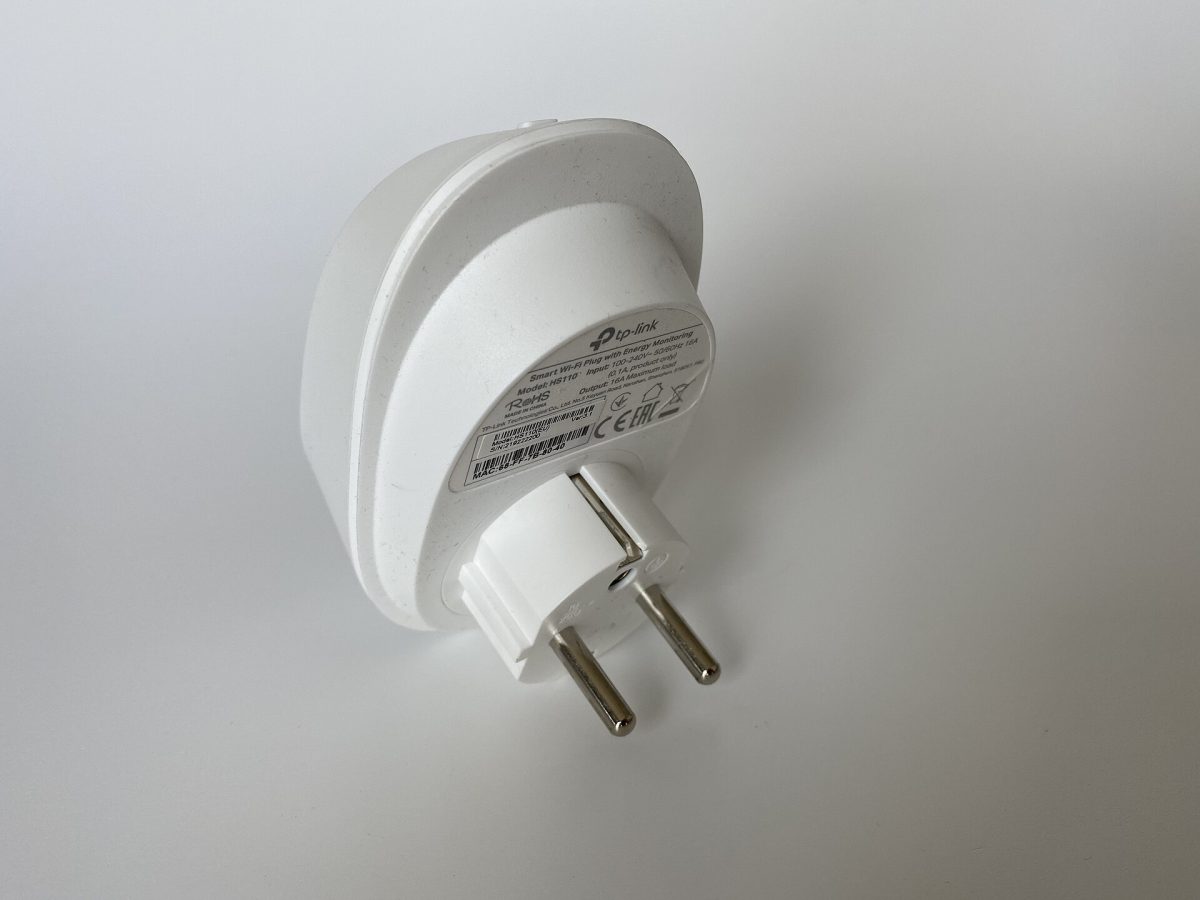
- Check the exact model’s documentation for Wi-Fi support. An accessory requiring a separate hub needs that hub’s setup procedure; a 2.4 GHz pause does not replace missing hardware.
- Have the manufacturer’s app ready and know the existing home Wi-Fi name and password. The Wi-Fi password is distinct from the password used to sign into a manufacturer’s account.
- Connect your phone to the home network you intend the accessory to use. For this procedure, keep both on the main network instead of introducing a guest network as another variable.
- For a movable plug or bulb, begin near an eero in a suitable outlet or fixture. Leave permanently installed equipment in place. Keep the accessory powered as its instructions require.
Find the manufacturer’s instructions for entering pairing mode and its expected indicator pattern. Do not assume every flashing light means the same thing, or guess a long button hold: one product may distinguish pairing, network reset and factory reset. If this accessory already controls a schedule or automation, record it before following any reset instruction.
Choose a brief interval when interrupting fast wireless connections is acceptable. The pause affects the network’s higher bands, not just the new accessory. Other devices may reconnect differently or lose connectivity temporarily. Prepare one accessory at a time so you can identify the new arrival.
Open a temporary 2.4 GHz pairing window
- Open the eero app and choose Settings at the bottom right.
- Scroll down to Troubleshooting, then select My device won’t connect.
- Choose My device is 2.4 GHz only, then Pause 5 GHz and 6 GHz.
- Read the resulting pause screen. Return to the accessory’s app, enter its documented pairing mode and repeat its add-device flow using your existing home Wi-Fi credentials.
These labels follow eero’s dedicated pause instructions. They describe a ten-minute window, but the broader frequency page says thirty minutes. Follow the duration displayed by your app and have everything ready before starting; neither published number should be treated as a guaranteed timer for every installation.
The expected result is the accessory app reporting that the device has joined or is ready to control. If setup times out, first check whether the pause ended. Restart the temporary window if necessary, then retry the documented pairing process. Renaming the household network adds work for every saved device and is unnecessary for this attempt.
If your app lacks the documented controls, check that you are managing the intended eero network and using an updated app. Stop before substituting unrelated advanced settings. Record which menu differs and ask eero support about that installation.
Verify the device after the higher bands return
In eero, locate the accessory through Home or Devices and tap its entry. Use Connected to to inspect the eero and frequency serving it. For this accessory, expect 2.4 GHz. If several entries look alike, compare the manufacturer and MAC address with the accessory’s own record rather than renaming an unidentified device.
The device-information reference also identifies where to inspect the assigned IP addresses and authentication protocol. Those details distinguish joining Wi-Fi from completing an app account or cloud-service connection.
End the temporary pause with Cancel on its screen, or let the displayed timer expire. Issue an ordinary command in the accessory’s app and observe the physical result, such as a lamp switching on and off. Repeat once after returning a movable accessory to its intended location. A successful setup message alone does not establish reliable operation there.
If it works near an eero but fails in its final position, investigate placement and coverage before repeating enrollment. Keep a short note of the working location, final location and failed action. That comparison is more useful than repeatedly deleting the device.
If it still fails, check authentication separately
Supporting 2.4 GHz does not establish support for every security mode. Eero’s encryption guide describes per-band choices and acknowledges compatibility problems with some older clients.
Open Settings, then Network settings → Encryption, and record the existing 2.4 GHz choice before editing it. Standard uses WPA2, Hybrid accepts WPA2 and WPA3, and Enhanced requires WPA3. If the accessory’s documentation specifies WPA2 and that band uses Enhanced, there is an authentication mismatch. Eero also suggests Standard when a legacy device struggles with Hybrid.
Try Standard on 2.4 GHz as a deliberate compatibility change, then repeat setup. Leave the other bands alone. This changes security policy for that band, so assess whether keeping WPA2 there is acceptable. If it does not help, restore the recorded setting. If it does help, restoring a mode the accessory cannot use may disconnect it again; consider a device update or manufacturer advice before doing so.
Finally, note where failure occurs: no network detected, password rejected, joined in eero but absent from the accessory app, or online but unresponsive. Give support the model, that stage and the changes already tried. Keep passwords private. Once the accessory remains usable with normal bands restored, end troubleshooting and retain only the settings it actually needs.
Sources, versions & scope
The steps describe the documented controls and expected checks; they are not a claim that every device or software release has been physically tested. Platform and version differences are stated with the procedure.