A frozen call and a line saying “Request timed out” look like a diagnosis. They are observations that need a comparison. Ping sends a small ICMP echo request and waits for an echo reply; a missing reply does not say whether the request, the reply or the destination’s willingness to answer caused the result.
This guide uses Windows 11 on a home network, testing IPv4. You will compare your local gateway with two internet destinations, then change one connection condition. Keep the failing application’s behavior alongside the command results. A successful ping does not certify the application’s traffic, or an IPv6 connection it may be using.
Choose two distances and one symptom
Write down what actually fails and when: “call audio breaks up while a backup uploads,” for example. Record the time and time zone, whether you are on Wi-Fi or Ethernet, and whether a VPN is connected. Keep any required work VPN enabled; its routing may make the home-gateway comparison inconclusive, so involve IT if the active route is unclear.
- Open Start, type cmd and open Command Prompt. These checks do not require an administrator window.
- Enter
ipconfig. Under the connected Wi-Fi or Ethernet adapter, find Default Gateway. Ignore disconnected adapters. Use the dotted IPv4 gateway address, not an address copied from an unrelated virtual adapter. Microsoft’s ipconfig reference explains the displayed fields. - Write down that address. If it is absent, or several connected adapters make the choice ambiguous, resolve which connection is active before interpreting a gateway test. An IPv6-only network falls outside this procedure.
The gateway tests the nearby path to your router, which may include an access point or mesh link. An internet destination adds the router’s outward connection and a remote path. Neither test isolates a single physical cable by itself.
Collect comparable samples while the problem happens
First run a bounded gateway test. The following address is an example only: replace 192.168.1.1 with the gateway you recorded.
ping /4 /n 50 192.168.1.1In a second Command Prompt window, run the internet comparison during the same period:
ping /4 /n 50 8.8.8.8Then repeat the internet test against another destination:
ping /4 /n 50 1.1.1.1These public addresses are comparison targets, not settings to enter in your network configuration. They may answer differently from your call or game server. If the affected service publishes a diagnostic host, use its instructions as an additional service-specific check.
Let each run finish and keep its summary plus the individual replies around the symptom. Record packets sent, received and lost, and minimum, maximum and average round-trip time. Note whether audio actually broke up during that run. Press Ctrl + C if you need to stop; mark an interrupted sample as such.
Microsoft documents the count and IPv4 options. Leaving the timeout unchanged makes runs easier to compare. A timeout means the reply did not arrive within that waiting period; it does not locate a broken link. If the message is “Destination host unreachable,” preserve the wording and responding address rather than treating the summary alone as successful replies.
For a hypothetical completed sample, 50 requests with 48 echo replies and two timeouts means 2 ÷ 50 × 100 = 4% missing replies in that sample. One missing reply out of four would be 25%, which shows how jumpy a tiny sample is. Neither percentage estimates your entire day. Even 50 successful replies can miss a brief failure between probes.
Read the pattern before naming a culprit
| Observation | Useful next inference |
|---|---|
| Gateway and internet replies disappear during the same symptom | Investigate the local connection first; a shared local problem could affect both. Gateway reply policy still needs consideration. |
| Gateway stays responsive; both internet targets repeatedly miss replies | Investigate the outward connection and paths. This does not yet prove the provider caused it. |
| Only one internet target misses replies | That destination or its particular path may behave differently. Broader internet loss is unproven. |
| All probes reply while the application fails | The symptom remains real. Investigate the service, application traffic or another protocol rather than declaring the connection healthy. |
A gateway that never answers while ordinary browsing works is a poor ping reference. Record it as unavailable for this comparison; do not disable a firewall merely to get a prettier result. Cisco Meraki’s packet-loss troubleshooting guide explicitly limits ping evidence to ICMP or loss affecting all traffic.
Also separate loss from delay. Replies that all return with occasional high times show delay variation in those probes. Missing replies and delayed replies can coexist, but a high maximum time alone is not a packet-loss count. Compare runs against the same destination; different destinations naturally have different paths and distances.
Change one condition, then return
Repeat the paired tests once with optional uploads paused and once under the ordinary workload that triggers the problem. Resume paused transfers afterward. Improvement only while uploads are paused suggests a load-related issue; it does not distinguish every possible queue or overloaded device.
If practical, compare Ethernet using the same computer and router. Save work before switching connections because calls and transfers may disconnect. Connect a known-working cable to a LAN port on the main router; using a mesh satellite may leave a wireless backhaul in the path.
Open Settings → Network & internet → Wi-Fi. Record the top Wi-Fi switch’s initial state, then turn it Off for the Ethernet comparison. Leave Random hardware addresses unchanged. If Ethernet cannot reach the internet, restore Wi-Fi immediately and resolve the wired connection before treating it as a comparison.
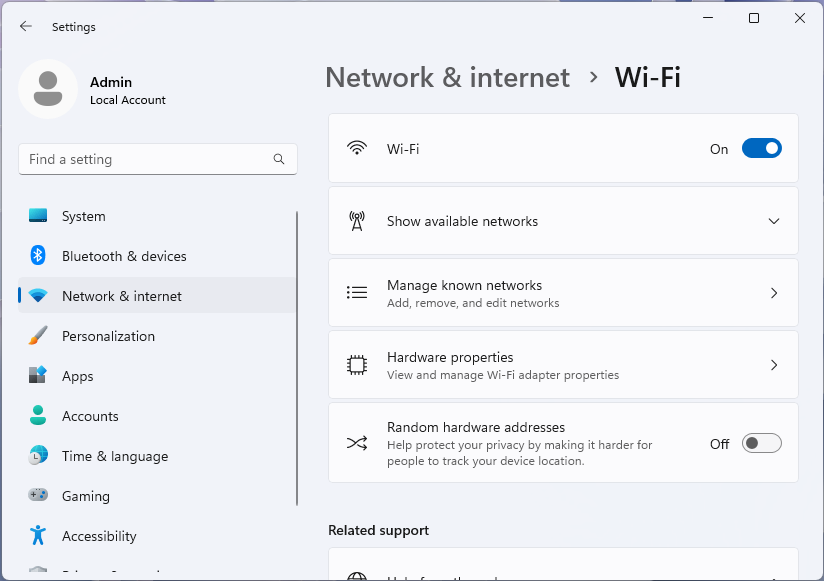
Microsoft Windows 11: the top Wi-Fi switch is initially On. Record its state before turning it Off for the wired comparison, then restore it afterward. The lower Off label belongs to Random hardware addresses; leave that setting unchanged. Used with permission from Microsoft.
Version notes
Microsoft Learn explicitly identifies the supplied desktop Settings screenshots as Windows 11. Current network documentation confirms the named Settings route; exact Windows build and capture date unknown. No live network comparison performed.Run ipconfig again for the wired gateway, repeat the same destinations and workload, then unplug the test cable and restore Wi-Fi to its previous state. Confirm your usual network and application reconnect. If missing replies and the symptom repeatedly disappear on Ethernet and return on Wi-Fi, focus on the wireless path. This narrows the search without proving which radio, access point or mesh link is responsible.
Use hop results as supporting evidence
For persistent internet-side symptoms, an optional next check is:
pathping /n /4 8.8.8.8Allow several minutes for route discovery and statistics; the initial hop list is not the finished report. The /n option skips intermediate name lookups. Microsoft’s pathping example distinguishes a router failing to answer packets addressed to itself from loss affecting forwarded traffic.
A middle hop showing missing replies while later hops and the destination answer reliably is not evidence that this hop drops the same percentage of your application packets. Loss continuing through later hops to the destination is more useful evidence, but these round trips still cannot establish the exact device or direction at fault.
Send support the timed summaries, exact errors, destination addresses, connection type, VPN state, workload and Ethernet comparison. Mark tests you could not complete. Stop short of a factory reset or driver removal based on ping alone: a repeatable observation with clear limits gives support a better starting point.
Sources, versions & scope
The steps describe the documented controls and expected checks; they are not a claim that every device or software release has been physically tested. Platform and version differences are stated with the procedure.