Which band should I use for a laptop that moves between rooms?
Let the laptop use the available bands automatically to begin with. Then investigate the room where something actually goes wrong. A connection that handles a video meeting at the kitchen table has answered a more useful question than a router advertisement promising its highest speed beside the antennas.
The three familiar bands are 2.4, 5 and 6 GHz. Broadly, 2.4 GHz favors reach and older-device compatibility; 5 GHz often offers more capacity at ordinary indoor distances; 6 GHz offers additional spectrum for compatible equipment, especially where the signal is strong. These are starting expectations, not a speed ranking for every seat. Microsoft describes those trade-offs in its home-layout guidance.
The questions below separate three decisions that are often bundled together: what the equipment can use, what it has connected to, and whether that connection serves the task.
My router says Wi-Fi 6. Where is its 6 GHz network?
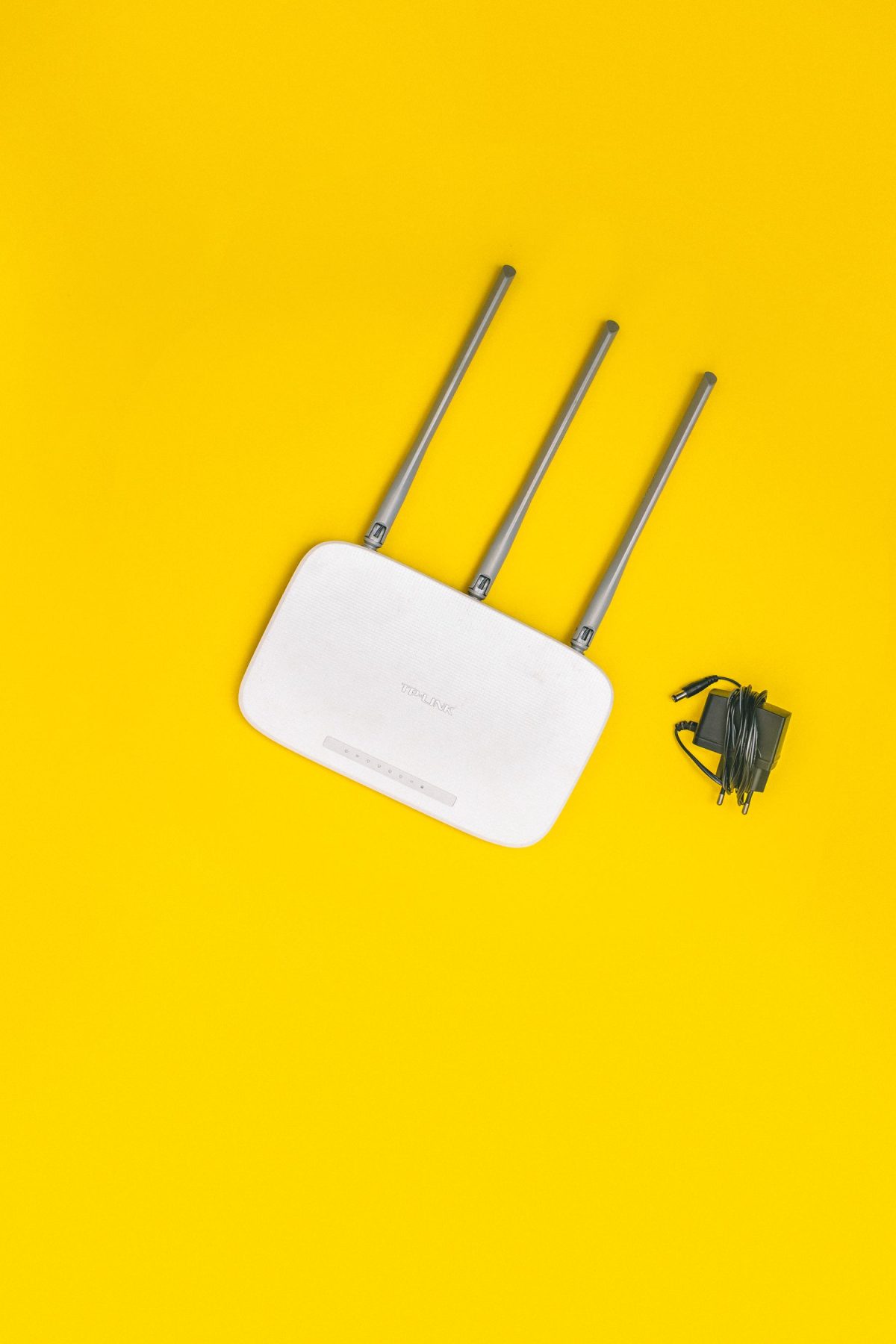
It may not have one. Wi-Fi 6 names a generation of technology; 6 GHz names a frequency band. The matching number is unfortunate. Wi-Fi 6 operates in 2.4 and 5 GHz; Wi-Fi 6E extends that generation into 6 GHz. Wi-Fi 7 equipment can also support 6 GHz, subject to the product and region. Intel's wireless product comparison makes the distinction explicit.
Nor does “tri-band” settle it. NETGEAR documents both the older arrangement of one 2.4 GHz radio plus two 5 GHz radios and the Wi-Fi 6E arrangement of 2.4, 5 and 6 GHz. Some mesh systems reserve a radio for communication between their units. Read the exact model's band specification and client-access details before looking for a missing network. The manufacturer's explanation of tri-band is useful here; the label alone is insufficient.
I see one network name. How can I tell which band Windows is using?
On Windows 11, connect normally, then open Start > Settings > Network & internet > Wi-Fi > your connected network's properties. Look for Network band (channel). If you land on the general Wi-Fi page, select the connected network's properties to reach its details.
Record the band at the problem location. Recheck after moving; a shared network name can remain the same while the connection changes. Microsoft's Windows Wi-Fi guidance also explains that supported Wi-Fi 7 Multi-Link Operation can show more than one band there. Wi-Fi 7 support begins with Windows 11 version 24H2 and requires suitable equipment.
If your build or driver omits the field, leave the current band unconfirmed. The router's connected-device view may offer another read-only route; its menu varies by model. A network name ending in “5G” is an administrator's label, not a measurement. Likewise, a protocol entry such as 802.11ax cannot by itself distinguish Wi-Fi 6 from 6E or prove a 6 GHz connection.
My phone uses 6 GHz, but my laptop cannot see it. Is something broken?
Not necessarily. Check the laptop's exact wireless adapter specification, rather than its age or price. A laptop with only 2.4 and 5 GHz support cannot acquire a 6 GHz radio through a router setting. For an Intel adapter that does support 6E or 7, Intel lists Windows 11, suitable drivers, a compatible access point, and regional and system-manufacturer enablement among the requirements. Those are requirements for that platform, not a universal statement about every operating system. See Intel's 6 GHz enablement guidance.
A working phone connection is evidence about that phone. It does not establish the laptop's hardware or software support. If the laptop specification promises the feature, compare its installed software with the PC maker's supported configuration before treating the router as faulty. Keep the working connection while investigating.
Will 2.4 GHz get through two walls when 5 or 6 GHz will not?
It is a sensible possibility, not a promise. Lower-frequency 2.4 GHz generally travels farther and handles obstacles better than the higher bands. But “two walls” leaves out their construction, the angle through them, placement and the equipment at both ends. There is no dependable room-count rule.
At the troublesome seat, try moving into a clearer path or closer to the access point and repeat the failing task. If it improves, that supports investigating coverage; it does not identify the band unless you read the connection details again. Moving can change both signal conditions and the selected access point.
For a desk behind heavy construction, changing the access-point position or providing a nearer wired access point may be more productive than trying to make 6 GHz reach it. The article's recommendation is to compare the occupied position with a clearer one, rather than attach a universal distance to a frequency.
Should I give every band a separate name so I can choose?
Separate names make a manual comparison easier, but they also change how the household connects. A single network name lets compatible clients use the available bands without asking people to select a different saved network in each room. Router steering and client decisions influence the result.
Apple specifically recommends one name across 2.4, 5 and 6 GHz for its devices. Its Wi-Fi 6E and Wi-Fi 7 guidance describes a limited-compatibility warning when the corresponding bands have different names. That is a concrete reason to follow the equipment vendor's design rather than split names as a routine troubleshooting step.
If your administrator already provides separate, recognized networks for the bands, you can compare those. Otherwise, inspecting the current connection and changing location gives useful evidence without renaming anything. A shared name does not mean the router has only one radio.
The new smart plug asks for 2.4 GHz. Must my phone stay on it too?
The plug needs a supported band to join. Whether its setup app also requires the phone on 2.4 GHz depends on that product's provisioning method; follow the plug maker's instructions for the exact model. Do not infer that requirement from the frequency label alone.
Once configured, devices on different bands can communicate through the same local network when the router permits it. A guest network or client-isolation setting can prevent discovery even if both devices use the same band. DrayTek documents the distinction in its VigorAP cross-band isolation example; other routers expose different controls. If setup succeeds but the app cannot find the plug, record which normal or guest network each device joined before changing radio settings.
Keep a compatible 2.4 GHz option for equipment that needs it. If the setup instructions call for a temporary change, record the original setting and restore it afterward; avoid disabling bands for the whole home merely to guess what the app expects.
Why can a strong 2.4 GHz signal still feel slow?
Signal strength describes only part of the connection. Busy shared airtime can leave little opportunity to transmit. A band also contains channels, and channel width is another setting: it describes how much spectrum a connection occupies. Width and band are separate choices.
Apple's router-settings guidance recommends 20 MHz width for 2.4 GHz and Auto or all widths for 5 and 6 GHz when using Apple products. Wider is not an unconditional improvement in a crowded environment. Treat those as vendor-scoped settings, not instructions to override a managed network.
For a useful comparison, keep the laptop at the same desk and repeat the same task on an existing supported alternate connection. Note pauses, call interruptions or transfer completion as appropriate. Recheck the band each time. If an internet download barely changes, the remote service or internet connection may be limiting it. A local radio change cannot remove every bottleneck farther along the route.
A foreign router review shows extra 6 GHz channels. Can I unlock them?
Do not change the country setting to imitate the review. Available channels, power and permitted uses depend on local rules and the equipment's regional approval. Hardware support and permission to operate are separate questions. Intel explicitly notes regional restrictions and manufacturer enablement in its 6 GHz documentation; Apple also says its 6 GHz features are unavailable in some regions.
For an imported unit, collect its full model and regional suffix and ask the manufacturer which configuration is approved where you use it. An overseas screenshot cannot answer that. Until compatibility and local availability are established, keep the supported 2.4 or 5 GHz connection that completes your work; a missing 6 GHz option is not a reason to replace a functioning network blindly.
Sources, versions & scope
The steps describe the documented controls and expected checks; they are not a claim that every device or software release has been physically tested. Platform and version differences are stated with the procedure.
- Microsoft: Wi-Fi and your home layout
- Apple: Use Wi-Fi 6E or Wi-Fi 7 networks with Apple devices
- Ofcom: Enabling automated frequency coordination in the 6 GHz band
- Microsoft: Faster and more secure Wi-Fi in Windows
- Microsoft: Connect to a Wi-Fi network in Windows
- Intel Wi-Fi 6: product comparison
- NETGEAR: What is a tri-band router?
- Microsoft: Faster and more secure Wi-Fi in Windows
- Intel: How to Enable 6 GHz Band Using Intel Wi-Fi 6E or Wi-Fi 7 Products
- Apple: Use Wi-Fi 6E or Wi-Fi 7 networks with Apple devices
- Apple: Recommended settings for Wi-Fi routers and access points
- DrayTek: Use different SSIDs for 2.4G and 5G WLAN but allow access to each other