The same site works in the other window. What changed?
Imagine a booking website that keeps returning you to its sign-in screen. In your ordinary window, the loop repeats. In a private window, the page opens. It is tempting to declare the cookies broken and clear everything. But the useful discovery is narrower: the site behaves differently in two browser contexts.
That difference is a lead. A private window changes stored session information, and it can also change which extensions and tracking protections affect the page. Even the account you are viewing may differ. Treating the comparison as a verdict can turn a small fault into an afternoon of restoring sign-ins.
This hypothetical investigation uses Firefox on desktop, across Windows, macOS and Linux. Mobile Firefox and other browsers have different controls. Start by saving unfinished work outside the affected page, then try a normal reload. If the problem remains, keep the ordinary window available for comparison.
Private means a separate session, not an invisible visitor
In Firefox, private-window cookies are temporary and separate from ordinary-window cookies. Closing the last private window ends that session. Opening another private window while one remains open does not guarantee a fresh start; finish and close all private windows before repeating a clean comparison. Mozilla describes these boundaries in its Private Browsing documentation.
The practical benefit is that you can visit a site without reusing its ordinary cookie session. The promise does not extend to the site's own records. Signing into your account identifies you to that service, and actions performed there can remain attached to the account after your private window closes.
Private browsing also does not hide your IP address. Sites, internet providers and an employer managing your device or network may still observe activity; what each can see depends on the connection and management involved. There is no need for an “anonymity test” to establish this limit. Seeing a different advertisement or an empty history list would not demonstrate anonymity.
Bookmarks and downloaded files survive a private session. Suggestions can also draw on bookmarks and ordinary browsing history already present in your profile. These are expected limits, explained in Mozilla's guide to what Private Windows protect. A private window neither wipes your existing profile nor cleans up files you chose to save.
Compare an action, not just two homepages
Choose a harmless, repeatable action: opening an account page, expanding a menu or displaying a timetable. Avoid repeating a purchase, payment or form submission; uncertainty about whether a transaction succeeded belongs with the service's order records or support team.
- In the ordinary window, record the exact symptom and the account shown. Use a short description such as “account page returns to sign-in.” Keep passwords and session tokens out of your notes.
- In Firefox's application menu, choose New private window. Confirm that the Private Browsing start page opens, then type the site's known address. Do not copy a sign-in callback URL containing account or session parameters.
- Try the same action. If it requires authentication, sign into the same account before comparing the result. An anonymous homepage loading successfully says little about a failing account page.
- Return to the ordinary window and repeat once. A service that recovered between attempts can otherwise make the private window appear responsible.
Keep the observation literal. “Same account page opens privately but loops ordinarily” supports further browser investigation. “Homepage opens privately before login” leaves the account-specific problem untested. “Both fail now” gives little reason to erase local storage immediately.
Firefox extensions are not enabled in private windows by default, but users can allow them. Open Add-ons and themes (or Extensions and themes), select Extensions, then open an extension's details and inspect Run in Private Windows. Read the setting without changing it yet. Mozilla's extension permissions guide explains this difference. “Private” is therefore not shorthand for “all extensions disabled.”
Give Firefox a different comparison
If the private result suggests an extension or rendering difference, Firefox offers a second experiment. Troubleshoot Mode temporarily disables extensions, themes, hardware acceleration and some other customizations. It serves a different purpose from creating a separate private session.
Save work in all windows because this involves a restart. Open the Firefox menu, choose Help (or Help and Report), then Troubleshoot Mode… and confirm Restart. In the next dialog choose Open. The adjacent Refresh Firefox option makes lasting changes and is not part of this experiment.
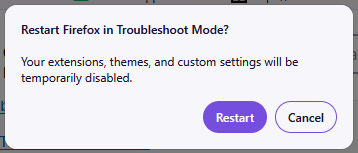
This is the first restart confirmation: save work before choosing Restart. Cancel backs out. It does not show the later Open / Refresh Firefox dialog; at that later prompt choose Open for this temporary experiment.
Version notes
Mozilla’s current 159 Help displays this original 1 October 2026 reference labelled Fx157TroubleshootModeWin10. It shows Firefox’s own restart confirmation; vendor reference was made on Windows10. No claim that a Windows11, Mac or Linux device was physically tested, or that the subsequent Open / Refresh prompt is pictured. Current159 release verified27 October 2026.Retest the affected page in an ordinary window. If it works, one of the temporarily disabled features is a candidate; the result does not identify a particular extension. Quit Firefox and start normally to leave Troubleshoot Mode. Then, if appropriate, temporarily disable one suspected extension and repeat the same action before making another change. If the fault persists in Troubleshoot Mode, investigate storage, account or service behavior rather than repeatedly toggling extensions.
The cleanup menu contains different kinds of evidence
“Clear your browser” is an imprecise instruction. Firefox's history documentation distinguishes visit records, downloaded resources and website state. They answer different questions.
| Category | What it does | What removal changes |
|---|---|---|
| Cache | Reuses downloaded page resources, such as images and scripts. | Resources must be downloaded again; later loads can be slower. |
| Cookies and site data | Can hold session identifiers, preferences, carts and other application state. | Can end sign-ins and remove locally held work or preferences. |
| Browsing history | Records previously visited pages in browser history. | Removes visit records; this alone does not reset a site's session. |
A site can store more than cookies. An offline application may keep files or other working data locally, as Mozilla's local storage guide explains. Before deleting that storage, export or copy work and confirm that any supposed online copy actually opens. Knowing a password and having access to your second authentication factor also matters before discarding a working session.
Choose the smallest useful deletion
For an outdated image or a broken layout, a cache-only attempt preserves more state than clearing cookies too. In the current Firefox desktop settings, open Settings → Privacy and security. Under Browsing data, choose Clear browsing data to open its dialog.
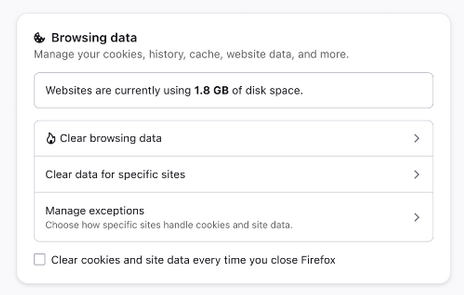
Open Clear browsing data here to reach the selection dialog. The checkbox for clearing cookies on every close is unchecked; leave that separate setting alone. The 1.8 GB shown is Mozilla’s example website-storage total, not your cache size. No cache has been cleared in this reference state.
Version notes
Mozilla’s current Help page was opened with version 159 selected; released 159.0 was independently confirmed in its27 October 2026 release notes. The reference asset was introduced for 152 inJune 2026 and still illustrates these unchanged controls in 159. Exact screenshot patch build unknown. This is an initial settings card, not the cache-only selection dialog.Set When to Everything and select only Temporary cached files and pages; deselect every other category before confirming. This follows Mozilla's cache instructions. The scope is browser-wide cache, not just this site. Reload and retry the original action.
For a persistent session loop, after preserving local work, consider removing only the affected site's stored state. In that same settings section choose Manage Data…, Manage browsing data or Clear data for specific sites. Search for the site's domain, inspect the matches, select the intended entry and choose Remove Selected, then Save Changes and confirm. Avoid the all-sites removal option. Reload, sign in and repeat the action.
An alternate route is the padlock or shield beside the address bar, then Clear cookies and site data. This shortcut also clears temporary cached content for the site; it is not a cookie-only experiment. Mozilla documents both routes in its site-data clearing guide. Inspect any confirmation before proceeding, especially where related domains are listed.
If the ordinary window still fails after the relevant attempt, stop repeating deletion. Send support the affected page, approximate time, account type and the ordinary/private and Troubleshoot Mode observations. Those results give someone a concrete fault to investigate while leaving your other sites usable.
Sources, versions & scope
The steps describe the documented controls and expected checks; they are not a claim that every device or software release has been physically tested. Platform and version differences are stated with the procedure.
- Private Browsing - Use Firefox without saving history
- Clear cookies and site data in Firefox
- How to clear the Firefox cache
- How Private Windows protect you
- Extensions in Private Browsing
- Use Troubleshoot Mode in Firefox
- Delete browsing, search and download history on Firefox
- Manage local site storage settings
- Firefox 159 release notes: current released desktop version on27 October 2026