Make the first hour easier
If you were unexpectedly unavailable, could someone you trust find the home insurer’s number, tell a relative whom to contact, and locate an important paper original? An emergency folder should answer those immediate questions without requiring your unlocked phone or a tour of your entire digital life.
This guide builds a small folder in Google Drive’s desktop website, using a personal Google Account. Your helper uses their own Google Account. Decide together what they should be able to read now: this arrangement gives immediate access, rather than waiting for an emergency. If that feels too broad for a document, leave it out and record whom to contact instead.
Ask the person whether they are willing to take this role and which email address they actually use. Agree on the intended situation, such as a hospital stay or an extended communications outage. The folder provides information; handling money, signing documents, or acting for you needs its own arrangements with the relevant institution.
Write the page they should open first
Start on your computer with a short document called 00-READ-FIRST.pdf. Use whatever editor you already know and save a readable PDF. Put your name, the review date, the helper’s role, and a short order of operations at the top. Aim for instructions someone can follow while worried and distracted.
A hypothetical opening might say: “If I cannot respond, contact my sister first. For an urgent problem at home, call the property manager listed below. The home insurance reference is in 02-Household. Paper originals are in the labelled box in the study.” Use real details only in your private copy, with the people concerned aware that their contact information is included.
Build the rest around three questions:
- Who knows what to do?
- List a few named contacts, their relationship or responsibility, a telephone number, and an alternative contact. Explain when to call each person.
- What needs attention soon?
- Include household responsibilities, pet-care instructions, essential service providers, and the location of relevant account references. Describe what is already arranged and what needs a call.
- Where is the authoritative information?
- Identify selected documents, their dates, and where originals are kept. For an adviser or institution, record a verified contact route and what to ask for.
Include only information needed for those tasks. A provider name and partial account reference may be enough to start a conversation; a complete identity-document scan may be unnecessary. Avoid filling the folder with old statements, personal correspondence, and unrelated records that make the useful page harder to find.
Keep passwords, backup codes, device recovery keys, and password-manager exports out of this shared folder. Put a pointer to your separately arranged recovery process in the first page, without its secrets. If you have not arranged one, write that it remains unresolved. A promise that “the password is somewhere in my email” will not help someone who cannot enter that mailbox.
Assemble a small, self-contained packet
At drive.google.com, confirm you are using your personal account. From My Drive, choose New > Folder, enter Emergency information, and select Create. Use a new folder outside any existing shared folder. Google documents this creation route in its file organization guide.
Open it and create two subfolders the same way: 01-Contacts and 02-Household-and-documents. Keep the first-page PDF at the top level. These names are suggestions; omit an empty category rather than creating an elaborate filing system.
Inside the intended destination, choose New > File upload and select your prepared files. Wait for upload completion, then open each file from Drive. Verify every page, phone number, date, and small-print reference. This follows Google’s upload instructions. Preserve your local originals.
Use actual uploaded documents for the essential packet, rather than a page of links to private email attachments or other accounts. A linked document introduces another access dependency. For scans, check the image itself: searchable text alone does not establish that the number or address is correct.
Invite the exact person
Google’s sharing guide describes the access controls. Select the emergency folder and click Share. Enter the helper’s confirmed email address, select Viewer, leave Notify people checked, and choose Send or Share.
Reopen Share. Confirm the address and Viewer role, and keep General access set to Restricted. Viewer permits reading without editing. Folder contents inherit its permissions, so treat everything added here as shared with your helper. Do not use it as a staging area for private files.
Choose Copy link and give the helper that link through your agreed channel. Restricted access still requires permission; possessing the link alone is insufficient.
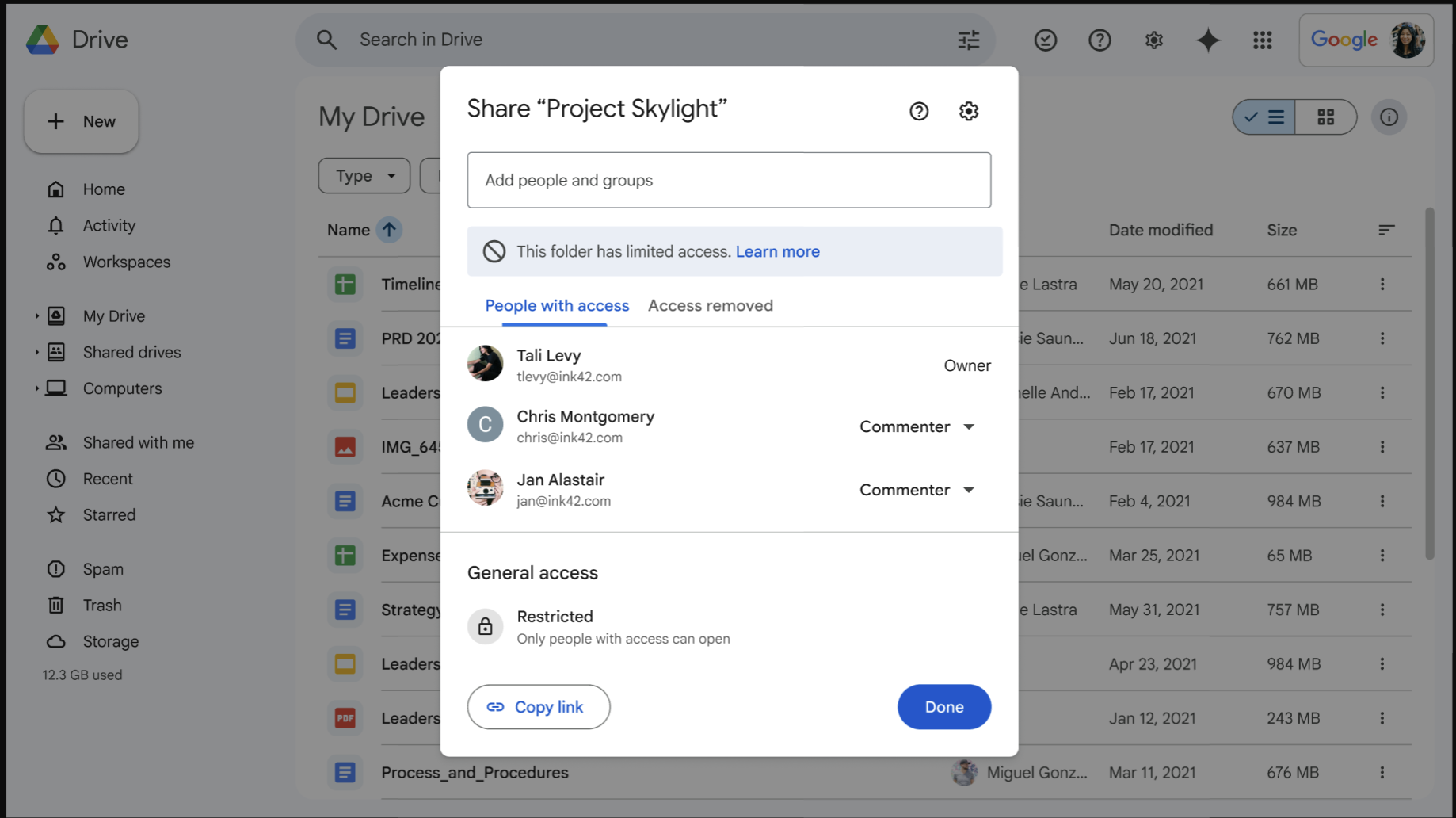
Copy link is at the lower left of the folder’s Share dialog. Google’s vendor example has Restricted general access and existing members; copying the link does not grant somebody new access. Its sample members are Commenters, not this guide’s intended Viewer invitation.
Version notes
Official rollout announcement published 7 April 2026, available to personal accounts and all Workspace editions. The updated dialog has Limited access, People with access and Access removed. Exact captured web build is undisclosed. Background file modification dates are demonstration content, not the screenshot date. This is Google’s public example, not a personal account capture.Rehearse from their side of the table
Ask the helper to open the link on their own device, signed into the invited account. Do not test by handing them your signed-in laptop. Have them locate the first page, identify the first contact, and open one selected attachment. Ask what instruction is unclear before supplying an explanation yourself.
For a deliberately small offline test, have them select the first-page PDF in Drive, right-click, and choose Download, following Google’s download guidance. They should open the downloaded file from their device’s file storage with the network disconnected, then reconnect. A browser preview alone does not establish an independent copy.
If access is denied, check the signed-in email against the invitation. Correct a mistaken recipient instead of switching to public link access. If reading works but downloading fails, check whether the owner has disabled downloading for viewers. Google also documents browser-related download failures; use its troubleshooting guidance before changing broader browser settings.
Agree whether the helper should retain an offline packet on a device they keep locked. A paper first page may suit them better. Date either copy and agree where it belongs. Neither will receive later changes automatically. Store a separate private master yourself so rebuilding the packet does not depend entirely on this shared folder.
Record what the rehearsal actually proved: for example, “Invited account opened the current contact sheet; downloaded PDF opened offline.” Do not record a successful test until the helper has done it. An unavailable owner account, missing internet connection, and lost helper device remain different failure cases.
Review the instructions, not just the filenames
Set a recurring reminder to review the packet every three months, and revisit it after a move, changed provider, new phone number, or change of helper. Read the first page as though you knew nothing about your household. Confirm that each contact is still appropriate and each included document still serves a purpose.
When replacing a document, update the review date inside it and use a dated filename. Open the new upload before retiring the old shared copy. Tell the helper which offline copy needs replacing and ask them to confirm the new date. Keep superseded material in your private records if needed; avoid leaving competing “current” instructions in the emergency folder.
If the arrangement ends, open the folder’s Share menu, use the arrow beside the person’s name, choose Remove access, and Save. Review any separately shared files too. Revoking access cannot retrieve downloaded or printed copies; arrange their return or deletion with the former helper. Before adding a replacement, repeat the rehearsal with that person’s own account.
Sources, versions & scope
The steps describe the documented controls and expected checks; they are not a claim that every device or software release has been physically tested. Platform and version differences are stated with the procedure.