Ask something the table can settle
“Analyze my spending” leaves too many choices open. Try: Which category accounts for the most spending in this October sample, and how is it split between two people? That question tells you what to group, what to add, and what comparison belongs across the top.
This workshop uses Google Sheets in a desktop browser, with edit access to a spreadsheet. The data below is hypothetical, in dollars, and deliberately small enough to check by hand. You can follow it in a blank spreadsheet before using your own records. No paid analysis feature or generated recommendation is needed.

A pivot table groups matching labels and calculates a result for each group. It leaves the underlying transactions available for inspection. The useful skill is choosing the calculation and the population it describes: an attractive summary of the wrong rows still answers the wrong question.
Start with eight purchases and a known total
Put these headings in cells A1:D1, then enter the eight records underneath, ending at row 9. “Period” is intentionally a text label here, so this exercise does not depend on date parsing or grouping. Each row represents one purchase; Amount is the whole purchase amount, entered as a number without a typed currency symbol.
| Period | Person | Category | Amount |
|---|---|---|---|
| 2026-10 | Alex | Groceries | 48 |
| 2026-10 | Sam | Groceries | 32 |
| 2026-10 | Alex | Transport | 20 |
| 2026-10 | Sam | Transport | 15 |
| 2026-10 | Alex | Eating out | 30 |
| 2026-10 | Sam | Eating out | 25 |
| 2026-10 | Alex | Groceries | 22 |
| 2026-10 | Sam | Eating out | 18 |
The eight amounts add to 210. Alex accounts for 120; Sam accounts for 90. Keep these checkpoints beside your notes. They help distinguish a layout mistake from a missing record.
For your own export, settle the meaning of a row first. If a receipt appears once per item but repeats its full receipt total on every line, summing that column overstates spending. Likewise, exclude account transfers from a purchase question and decide whether refunds are negative purchases. A pivot cannot infer these accounting choices.
Keep an untouched copy before cleanup. Use consistent category spellings; “Food” and “Groceries” remain separate groups. For stray spaces, select the label cells and choose Data → Data cleanup → Trim whitespace. Google notes that this does not remove non-breaking spaces. Review suspicious labels individually if apparent duplicates remain. See the official cleanup instructions.
Give each field a job
In this question, Category defines the groups, Person defines the side-by-side comparison, and Amount supplies the numbers. Period will later limit which purchases count. Starting from those roles prevents the common mistake of adding every available field.
- Select A1:D9, including the headings. Choose Insert → Pivot table, select New sheet if offered, and confirm Create.
- In the pivot table editor, remove any automatically inserted suggestion with Clear all. Beside Rows, choose Add → Category.
- Beside Columns, choose Add → Person. Beside Values, choose Add → Amount. Set Summarize by to SUM.
These creation and editing controls are documented in Google’s pivot-table guide. If the editor is closed, click the pivot’s pop-up Edit button. Keep Show totals enabled for both row and column fields.
The completed sample should have these results. Blank intersections in a different dataset can mean there are no matching purchases; do not interpret a blank as evidence that a person was omitted from the source.
| Category | Alex | Sam | Grand Total |
|---|---|---|---|
| Eating out | 30 | 43 | 73 |
| Groceries | 70 | 32 | 102 |
| Transport | 20 | 15 | 35 |
| Grand Total | 120 | 90 | 210 |
If your result is 8 instead of 210, you are probably counting records. SUM answers “how much?”; a count answers “how many?” AVERAGE answers “how large was the typical recorded purchase?” Those are different questions. Changing number formatting to currency does not fix an incorrect aggregation or convert imported text into numeric data.
Rank the categories, then inspect the surprising one
Under the Category row field, set Sort by to the summed Amount field and Order to Descending. Groceries should lead with 102. Google’s customization guide documents sorting by aggregated values and the filter controls below.
The answer is now specific: groceries represent 102 of 210 dollars, about 49% of this sample. Alex contributes 70 of those grocery dollars. That supports reviewing grocery purchases; it does not establish that Alex is overspending. The sample says nothing about household size, who bought shared items, or whether a large shop covers several weeks.
For a presentation order, you can instead drag a categorical row label to another position within the same hierarchy level. The editor shows Custom ordering. Google’s September 2026 demonstration illustrates this with different sales data. Restore descending value sorting when you want the largest category first.
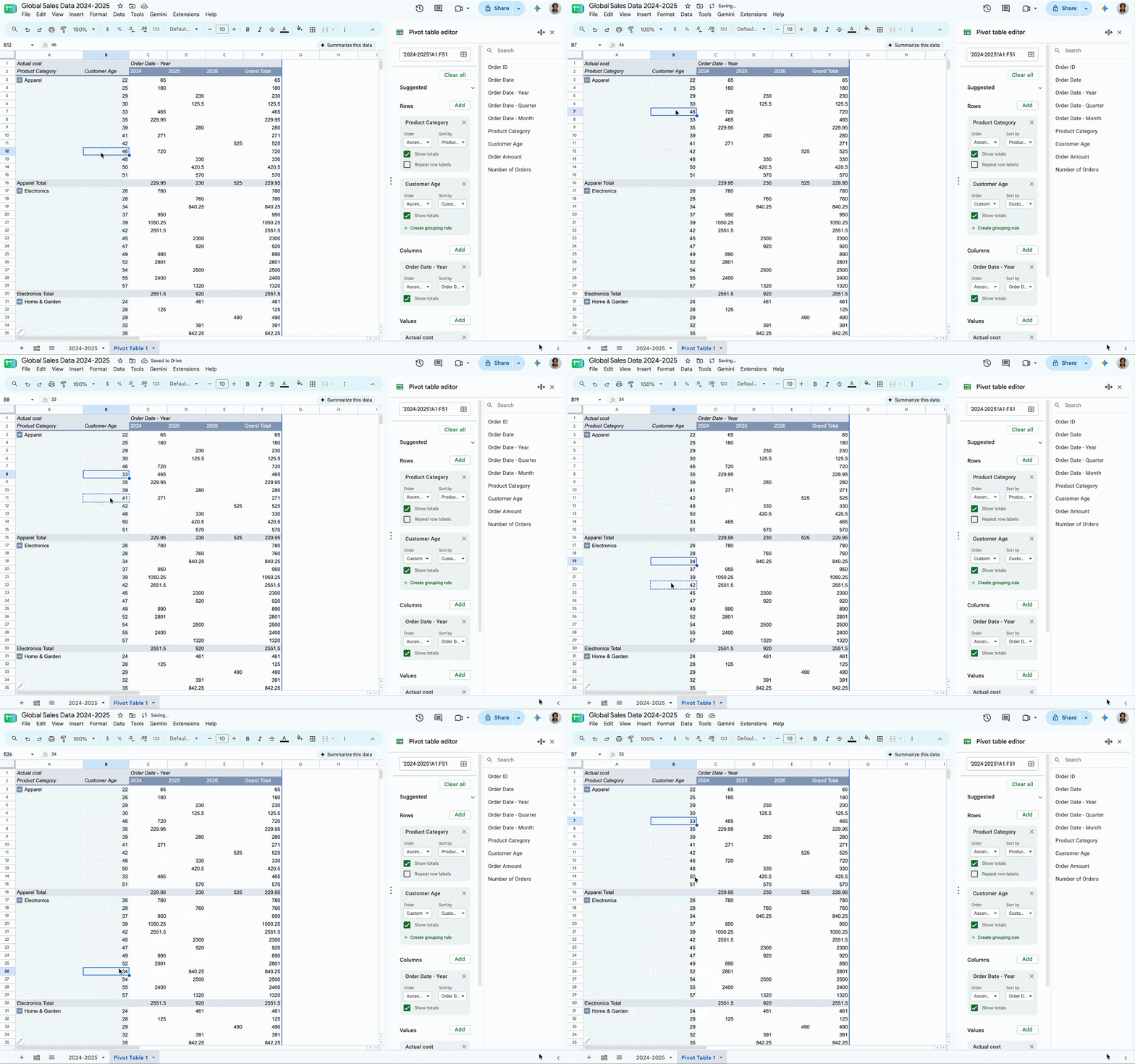
Google’s current demonstration shows manual row reordering inside a pivot hierarchy. Its sales data differs from the spending example above; use value sorting for a largest-first ranking.
Version notes
Official September 22, 2026 feature demonstration, checked October 31, 2026. Scheduled Release rollout began October 5 with up to 15 days for visibility. The current customization help also documents drag-and-drop and Custom ordering. No live account or exact browser build tested. Animation starts only when you choose Play. The static preview is the unchanged first frame.To investigate a total, double-click its numeric cell; Sheets creates a new sheet containing its source rows. For the sample’s Alex/Groceries cell, expect the 48 and 22 purchases. Treat that extracted sheet as an inspection result. Correct a mistaken purchase in the original source, then inspect the updated pivot again.
Keep the answer correct when the list grows
Add Period under Filters. Open Showing all items, use Filter by values, leave only 2026-10 selected, and confirm OK. The sample stays at 210. With multiple periods, this makes the question’s October boundary explicit. Review the selection when new period values arrive: an existing value filter can keep them hidden.
Source-cell edits refresh the pivot automatically, but a purchase appended beyond A1:D9 falls outside this exercise’s selected range. In the editor, use Select data range to extend the range through the new last row. Include the headings and every required column. Then recheck the filter and grand total.
- A category is split into two nearly identical labels
- Compare the original label cells, correct inconsistent wording or whitespace, and check that the groups merge. Do not simply hide one group; its purchases still matter.
- The grand total is too large
- Look for duplicated transactions, included subtotal rows, or repeated receipt totals. Avoid deleting rows solely because their amounts match: two real purchases can cost the same.
- You want to undo the experiment
- Remove an unwanted field from the editor or rebuild the summary on another sheet. Deleting a dedicated pivot sheet removes that summary, not its separate source sheet. Source edits and cleanup affect the records themselves; use Undo promptly or recover from your preserved copy.
Before sharing, label the report “October sample spending by category and person,” include its currency and source range, and confirm the total. That gives the next reader enough context to understand both the answer and its limits.
Sources, versions & scope
The steps describe the documented controls and expected checks; they are not a claim that every device or software release has been physically tested. Platform and version differences are stated with the procedure.