A shared task board earns its place when everyone can answer three questions: what needs doing, who will move it forward, and what counts as finished? Adding more columns rarely fixes unclear answers. Start with one small project, a few real tasks and rules people can remember.
This workshop uses Trello in a desktop web browser, with individual Trello accounts for collaborators. You need permission to create a board in a Workspace. The setup uses ordinary lists and cards; leave paid views, integrations and automation aside while you establish the habit.
Give the board a job and four lists
Choose a boundary such as “November community event” or “Shared office repairs.” Mixing household errands, client work and long-term ambitions makes priority hard to interpret. Agree who will check the board each working day and who will run a short weekly review.
- In Trello’s header, select Create, then Create Board. Enter the project name and select the intended Workspace.
- Before creating the board, change its visibility to Private. New boards default to Workspace visible, according to Trello’s creation instructions. Private is a sensible starting point for a deliberately invited group; Workspace administrators can still have access.
- Create the board. Use Add another list at the right to add lists named Ready, Doing, Waiting and Done. Rename an existing list by selecting its title, typing the replacement and pressing Enter.
Ready means agreed work that someone can start. Doing means someone is actively advancing it. Waiting means a specific dependency prevents progress. Done means the promised result exists and has been checked. Put these definitions in a card named “How we use this board” at the top of Ready, clearly marked as guidance rather than a task.
Keep new suggestions outside Ready until the group accepts them. A notebook or an existing discussion thread is enough initially. This prevents a useful work queue becoming an unreviewed collection of wishes.

Share with the people doing the work
Open the board’s Share dialog. Search for a collaborator by email address or name, select the correct person, choose Member, then select Share. Repeat for the small working group. The illustrated dialog shows the invitation controls before a recipient is selected.
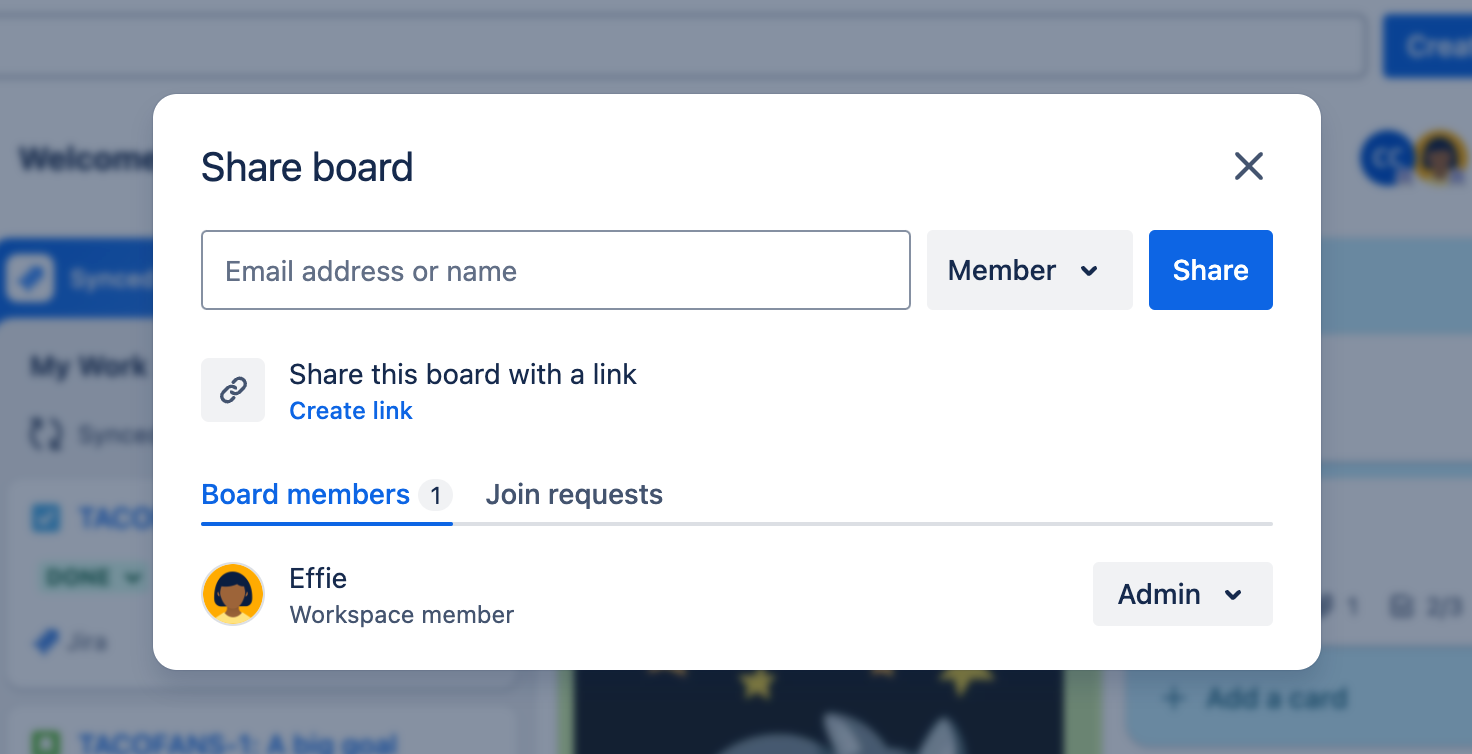
In Trello’s official example, enter the intended collaborator in Email address or name, keep Member selected and use Share. This initial state does not show an invitation sent.
Version notes
Official reference served by current Trello Cloud membership documentation on 2026-10-31. Exact capture date/build undisclosed; initial Share-dialog state only, not a successful collaboration test.Ask one colleague to open the board while signed into the invited account, create a temporary “Board check” card and rename it. Their visible edit confirms useful access more reliably than an invitation email. Remove the practice card from view by archiving it afterward.
Trello’s membership guide says normal members can see and edit every card on a board. Assigning someone a task does not hide other cards from them. Keep private personnel matters and credentials elsewhere. Free Workspaces have a ten-collaborator limit across the Workspace, so count existing collaborators before inviting a new group.
If Share is missing or an invitation fails, ask the board administrator to check membership restrictions and Workspace capacity. If a colleague sees an access request instead of the board, compare their signed-in account with the exact invited address. Making the board public is an excessive fix for a mistaken account.
Make each card a small agreement
At the bottom of Ready, select Add a card, enter an action-led title and press Enter. “Confirm the hall booking” is easier to act on than “Venue.” Open the card and write a short description identifying the expected result and where supporting information lives.
For a hypothetical event, a useful description might read: “Owner: Priya. Finished when the hall manager has confirmed the date and capacity in writing, and the confirmation is linked here. Next action: call the manager. Needed by: Friday before invitations go out.” This is a model for clarity, not a report of a real event.
On the current card layout, open + Add below the title. The menu contains Members, Dates and Checklist; matching shortcuts also appear beside Add. Use Members to assign the agreed owner. Use Dates when there is a real deadline, and a Checklist when several small actions contribute to the same result.
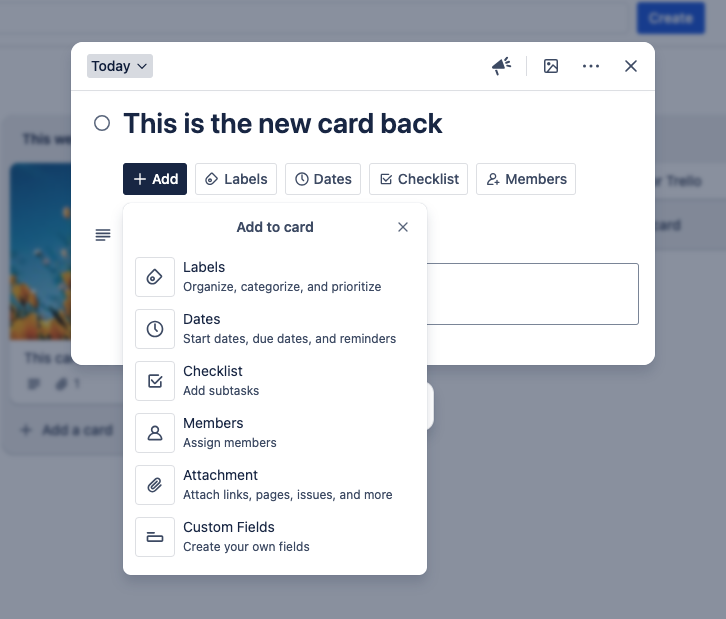
The current documented card layout puts Members, Dates and Checklist in Add, with shortcuts beside it. This vendor example shows the open menu before an owner or date is selected.
Version notes
Vendor asset filename dates capture to 2025-05-07. Still embedded in current Trello Cloud new-card-layout instructions checked 2026-10-31; page notes rollout variation. Exact deployment/build is undisclosed. Shows current documented Add-menu state only; no completed assignment or date setting.The current card-layout reference documents these controls. Close the Add menu to return to the description. Add the owner’s name in text as well if the group needs an immediately readable handoff rule. Trello permits multiple card members; the single accountable owner is your working agreement.
Split a card when two people can finish separate results independently. Keep a checklist when the steps belong to one outcome. Avoid compulsory labels, attachments and dates on every card: each extra field needs someone to maintain it.
Use movement to expose decisions
Drag a card from Ready to Doing when its owner actually starts. Put the most important Ready card near the top. When work stalls, move it to Waiting and add a dated comment naming what is missing, who will follow up and when they will check again. “Waiting for supplier quotation; Alex will call on Tuesday” gives the group something actionable.
For a hypothetical three-person group, start with at most three task cards in Doing, normally one per person. If six cards accumulate there, discuss which three will receive attention and return the others to Ready. This is a manual team rule, not a Trello-enforced limit or a productivity measurement.
Before moving a card to Done, compare the result with its description. A completed checklist does not establish that the promised outcome exists. Add the final link or a brief completion note so another person can understand the result without reconstructing a chat conversation.
If a card lands in the wrong list, move the same card back. If finished work reopens, return it to Ready or Doing with a comment explaining the remaining action. Creating a replacement card usually divides the history and makes ownership harder to follow.
Spend ten minutes each week removing uncertainty
Review Waiting first: chase the dependency, choose a new follow-up date or cancel work that no longer matters. Then check Doing for abandoned starts and Ready for duplicates or vague titles. Ask whether each task still deserves attention before adding new ones.
Review Done together and archive results that no longer need to stay visible. Open a card’s top-right Actions menu and choose Archive card. Archive the temporary Board check card the same way. Archiving clears the working view while preserving the record.
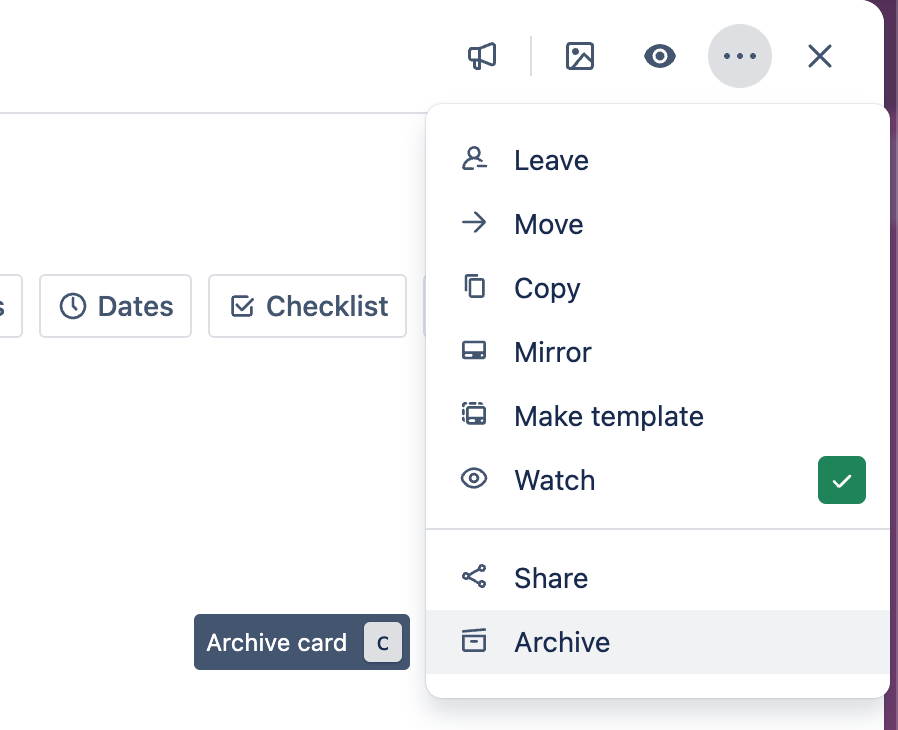
Open the top-right ellipsis Actions menu and choose Archive. The tooltip calls it “Archive card” and shows C as its shortcut. This is the menu before the action, not proof that the temporary card was archived.
Version notes
Current Trello Cloud archive instructions checked 2026-10-31. Layout independently compared with the official New card back documentation and its separate top-right Actions-menu reference. Continuously delivered web product; exact build and original capture date unknown. No live account action or successful recovery test performed.If someone archives the wrong card, open the board menu and choose Archived items. If your layout groups it under More, open that section first.
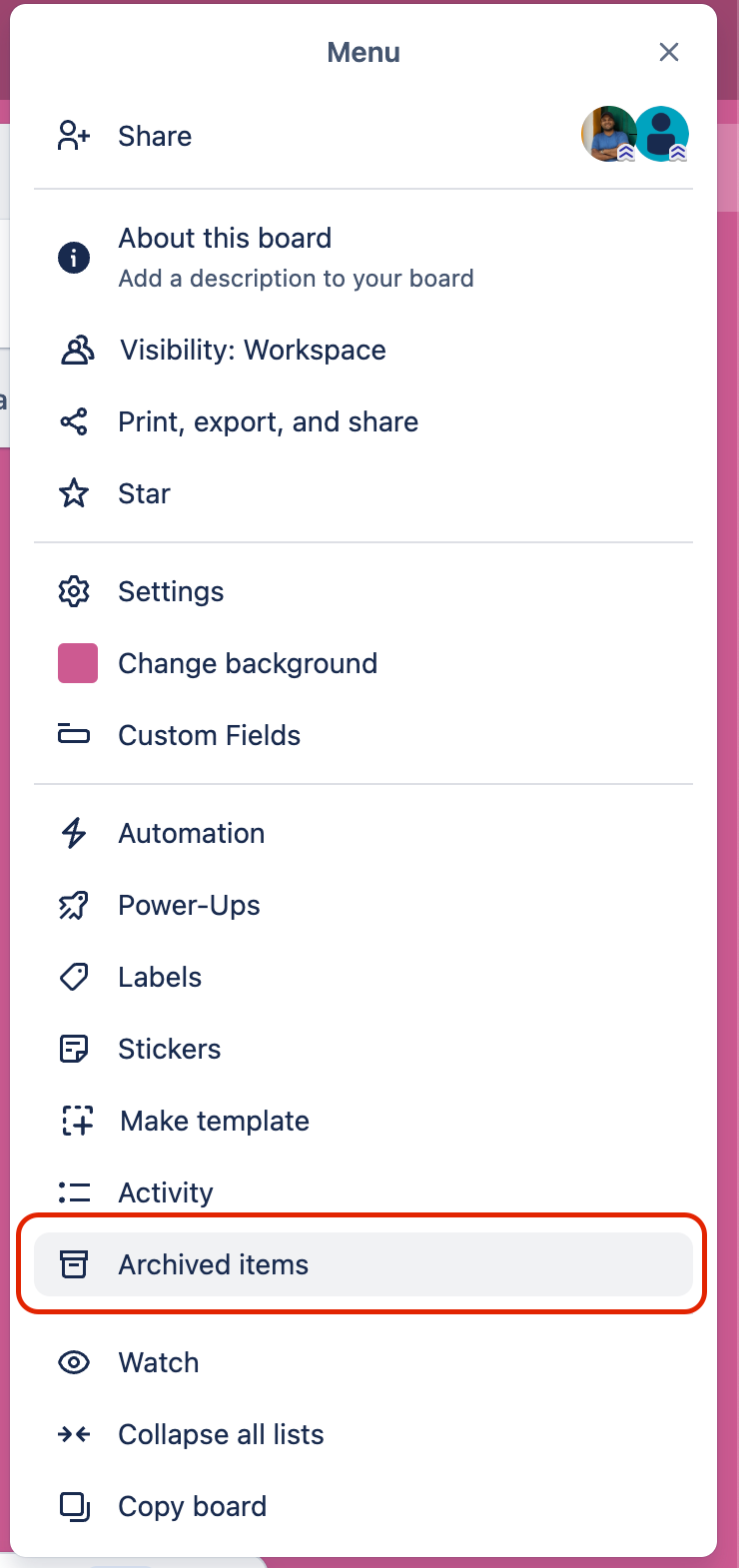
Choose Archived items in the board menu. This current vendor reference puts the entry directly in Menu; use More first only if your own layout groups it there. This is the entry point, not the archived-card search or a completed restore.
Version notes
Current Trello Cloud archive instructions checked 2026-10-31. Layout independently compared with the official New card back documentation and its separate top-right Actions-menu reference. Continuously delivered web product; exact build and original capture date unknown. No live account action or successful recovery test performed.In Archived items, find its title and choose Restore. Check its returned list. Trello’s archive guide distinguishes this recoverable action from Delete, which permanently removes the card and cannot be undone.
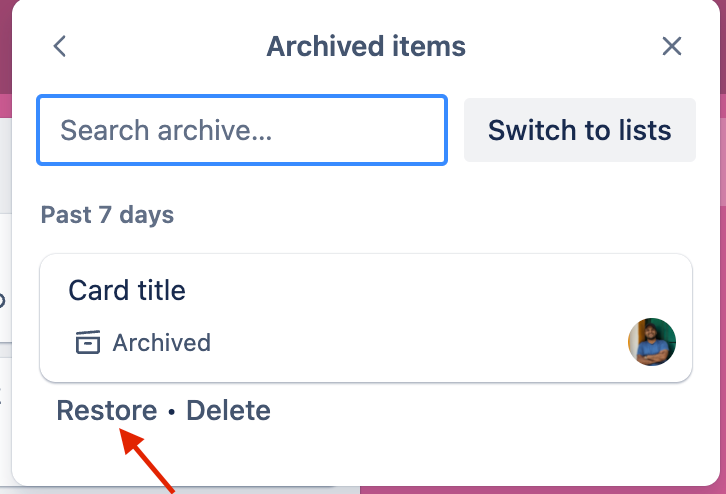
In Archived items, find the intended card and choose Restore. The original arrow points to Restore, beside the destructive Delete link. This vendor example shows the pre-restoration state; verify the returned card and list yourself.
Version notes
Current Trello Cloud archive instructions checked 2026-10-31. Layout independently compared with the official New card back documentation and its separate top-right Actions-menu reference. Continuously delivered web product; exact build and original capture date unknown. No live account action or successful recovery test performed.After two weekly reviews, ask everyone to find their next task and explain one Waiting card. If that requires a meeting, fix the wording or ownership before adding another feature. A usable board is one the group can keep truthful with small, regular edits.
Sources, versions & scope
The steps describe the documented controls and expected checks; they are not a claim that every device or software release has been physically tested. Platform and version differences are stated with the procedure.