Make the small print survive the trip
For a Windows 11 screenshot containing menus, spreadsheet cells, code or error messages, start with PNG. Save a named master, then check the copy that actually reaches its destination. A crisp local file can still become unreadable when a chat preview shrinks it.
This guide follows one text-heavy capture through Microsoft Snipping Tool on Windows 11. It addresses readable letters and reliable delivery, rather than choosing formats for photographs or designing a complete image archive. You need the source window, a folder for the capture and an image viewer with a 100% zoom setting.
Decide what the reader must distinguish before taking the shot: an error code, the selected menu option, a column heading or a whole paragraph. That decision determines the useful capture area. Including the entire desktop often gives the important words too little room when the picture is displayed.
Choose the encoding before chasing a smaller file
PNG uses lossless compression: it preserves the captured pixels through encoding. JPEG uses lossy compression, which can introduce fuzzy edges or colored fringes around letters. Neither format can repair a source that was already blurry. MDN’s image-format guide recommends lossless encoding for screenshots and line art.
| Destination constraint | Practical choice |
|---|---|
| Accepts PNG | Send the PNG master or a cropped PNG copy. |
| Accepts only JPEG | Keep PNG; make one separate JPEG delivery copy and inspect its smallest text. |
| Requests WebP | Use a lossless export if available; WebP can also be lossy, so the extension alone is insufficient. |
| Rejects the file for size | Remove irrelevant capture area first, then reassess readability before reducing dimensions. |
For this job, a “quality” slider is not a sharpness control. Raising JPEG quality may reduce compression damage, but it cannot recover missing detail. Avoid converting repeatedly between formats while trying to rescue the same image. Return to the PNG master for every new delivery attempt.
Capture once, save a named PNG
Before opening the capture tool, make the source readable at a comfortable size. If it is a document or web page, enlarge its text within that app, then frame the relevant passage again. This lets the app render the letters before capture. Enlarging a finished screenshot merely enlarges an existing grid of pixels.
- Prepare the evidence. Bring the relevant window forward. Keep the message and enough surrounding labels to explain it, but move unrelated private information out of view. If a menu matters, arrange to reopen it during a delayed capture.
- Choose the area deliberately. Open Start, search for Snipping Tool and open it. In screenshot mode, open the snipping-mode menu and choose Rectangle, then select New. The screen dims; drag around the text and its essential context. The vendor image shows this mode menu before capture.
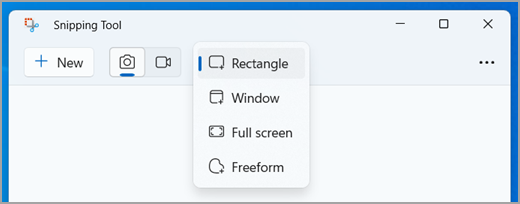
Visual 01 · Microsoft Snipping Tool on Windows 11 Choose Rectangle in Microsoft Snipping Tool before selecting New. This official Windows 11 example shows the mode selection, not a captured message or the PNG save dialog.
Microsoft Snipping Tool screenshot. Used with permission from Microsoft. Image source · Usage termsVersion notes
Checked 2026-10-31 against the currently published Windows 11 tab of Microsoft Support. The exact embedded vendor asset shows the matching screenshot-mode menu and New control. Documentary current vendor reference; installed build and original capture date are unspecified. Full supplied asset retained unchanged. - Check the capture before committing. Read the complete line, including punctuation and any trailing code. If the selection cut off a letter or omitted the setting’s label, take another snip. Do not compensate by guessing the missing characters in an annotation.
- Save a deliberate copy. Select Save as, choose your working folder, select PNG in the file-type control and use a descriptive base name such as
printer-error-master. Select Save. Microsoft confirms PNG and JPG output in its Windows Snipping Tool guide.
Microsoft’s support instructions describe automatic saving to the Screenshots folder and changing that behavior through See more > Settings. Your configuration may differ. Use the named copy above so you know which file to attach. For a disappearing menu, use the tool’s Delay control before New, then reopen the menu during the countdown.
In File Explorer, open View > Show > File name extensions. Confirm the saved name ends in .png. Microsoft’s extension guide also explains that renaming an extension does not convert the file. Changing capture.jpg to capture.png leaves the JPEG data unchanged; export again from the source instead.
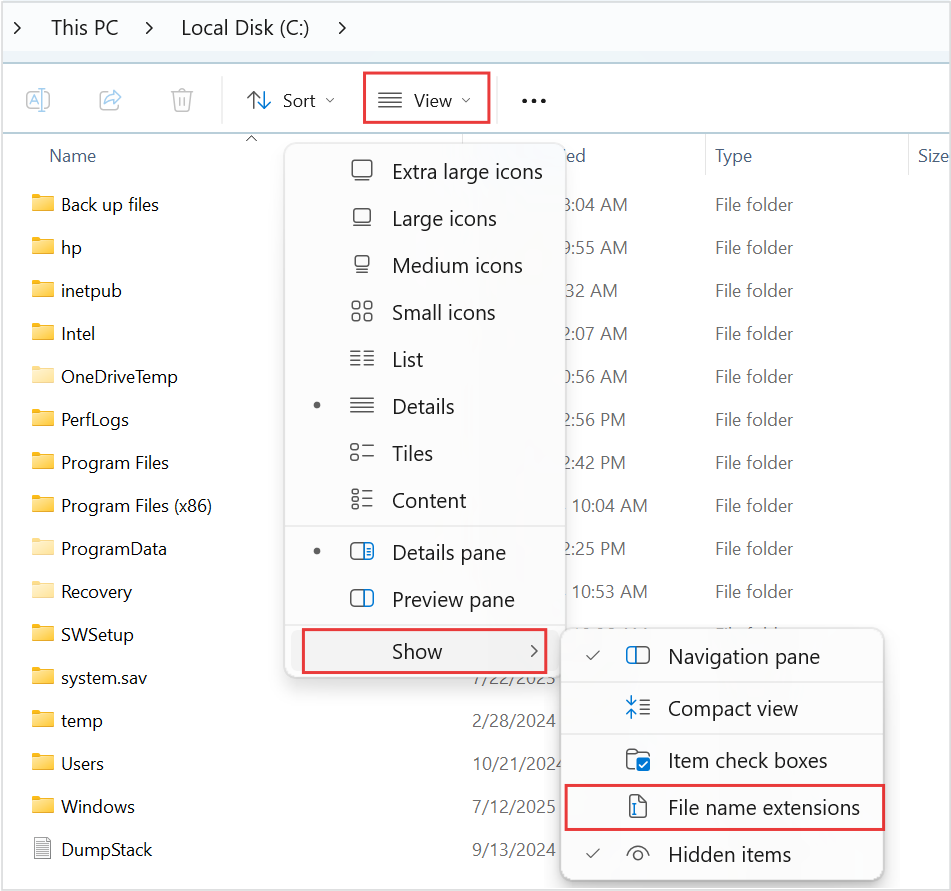
Windows 11: open View → Show → File name extensions, then enable the unchecked option to inspect the saved suffix. The source’s red outlines are unchanged. This reference identifies the control; it does not show your saved PNG or prove its encoding.
Version notes
Microsoft’s current Windows 11 file-extension instructions provide this Windows 11 command-bar and Show-submenu image. Complete downloaded asset retained, including the source’s red outlines. Exact Windows build is not stated. Initial menu state only; it does not show the article’s files or completed extension display.Spend the available pixels on the words
Open the saved PNG in your image viewer and select 100% zoom for a pixel-level inspection. Then also inspect it at the size the recipient is likely to see. Fit-to-window can make a large screenshot look soft simply because the viewer is shrinking it. Conversely, a sharp 100% view does not mean tiny text will be comfortable inside a narrow message bubble.
Consider a hypothetical capture measuring 1600 × 900 pixels. If a destination reduces it to 800 × 450, both dimensions halve and only one quarter as many pixels remain: 360,000 instead of 1,440,000. A letter 16 pixels tall in the original occupies roughly eight after reduction. PNG cannot prevent that loss of available detail.
Instead of shrinking the whole desktop, capture a tighter rectangle around the message, leaving its heading and relevant controls. If the task genuinely needs a broad overview plus fine print, send an overview and a separate detail capture. Label them clearly so the reader knows which detail belongs to which window.
Make crops and annotations in a separate copy. A tightly cropped image can remove an important qualifier, while a large arrow can cover punctuation. Reopen the finished file and read it again. If an edit is wrong, undo it while the editor still permits that, or reopen the untouched master. Saving over your only original removes that dependable restart point.
Find the stage that made it blurry
Attach the saved file using the destination’s file or attachment option when available. Pasting into a message can follow a different image-handling route. Do not assume either route preserves pixels: send a harmless sample through the intended workflow, download the resulting attachment and inspect that file.
- The master is already hard to read.
- Return to the source window. Enlarge the source text or capture a smaller region. Re-saving the blurry image as PNG preserves its existing defects.
- The master is clear, but the message preview is soft.
- Open or download the attachment before judging it. The preview may be smaller than the actual file. Ask the reader to inspect the downloaded copy if they need exact characters.
- The downloaded copy is smaller or damaged.
- Compare its pixel dimensions with the master in the viewer’s image information. Try sending it as a file, or use an approved file link. Repeat the download check; a different delivery route is a candidate fix, not a guarantee.
- The destination insists on JPEG or a low size limit.
- Export one delivery copy from the master. Inspect thin strokes, decimal points and similar characters such as O and 0. If required characters remain ambiguous, send a tighter detail image or include the exact error text alongside it.
Finish when the recipient can read the critical text in the delivered file and understand its context. Keep the PNG master until the conversation or task is resolved. That gives you a clean starting point if someone later requests another crop or a different upload format.
Sources, versions & scope
The steps describe the documented controls and expected checks; they are not a claim that every device or software release has been physically tested. Platform and version differences are stated with the procedure.