First decide whether this copy should leave your device
A passport scan is useful to an identity checker and useful to an impersonator. Choosing a delivery app comes after two questions: is this a genuine request, and does the recipient need this particular document? A secure connection cannot make a fraudulent request legitimate.
Start with the organization's established upload portal, reached through its known website or app. If the verified recipient has no suitable portal and explicitly accepts a private cloud link, this guide gives a Google Drive fallback in a desktop browser, using a Google Account you control. It is for your own documents, not permission to put employer or customer records in personal storage.
Do not send anything while a request remains unexplained. A deadline, familiar logo, or message saying “secure verification” does not answer who will receive the document or why.
Ask for a destination you can verify
Contact the organization through a number or website you already trust, independently of the requesting message. The FTC's phishing guidance recommends this independent contact when a message might be fraudulent. Ask whether the request is real and which upload route belongs to this case.
Get four answers before preparing the copy: which document and pages are required; which details must remain visible; who handles it; and what retention or deletion policy applies. Ask whether an alternative, such as showing the document in person, is accepted. These are questions to resolve with the recipient, not promises this guide can make on their behalf.
If the official portal uses a separate verification provider, have the organization confirm the provider and destination. Navigate from the established account or confirmed website, then read the upload instructions there. HTTPS protects the connection to a site; it does not establish that a site is the organization you intended.
Prefer that confirmed portal when it supports the requested task. A private Drive link is a fallback the recipient must accept, not a workaround for a bank, government service, or employer that requires its own intake process.

Make the smallest acceptable submission
Prepare a delivery copy separately from your retained original. Include only the requested pages, with no unrelated bank statements or household documents bundled into the same PDF. Open the final file yourself and inspect every page, including the reverse side if required. Check readability, missing edges, glare, and unexpected extra pages.
A hypothetical application might require one passport identity page and one address document. That does not justify sending every passport page and a year's statements. Ask before obscuring fields: automated verification may reject an altered image. If an accepted watermark identifies the recipient and purpose, keep it clear of required details and barcodes. A watermark helps communicate intended use; it cannot prevent copying.
Do not improvise redaction by placing a black shape over text in an editable file. If redaction is allowed, use a proper redaction process and inspect the exported result, including selectable text. If you cannot establish that the hidden information is removed, ask for another accepted document instead.
Use a neutral filename such as “Application-document.pdf”; avoid putting your full identity number in the filename or email subject. Prepare the file on a trusted device where you control the account and can clear temporary copies afterward. Avoid uploading it to an unfamiliar online converter merely to reduce its size.
If a private Drive link is accepted
Google says Drive files are encrypted in transit and at rest. This describes protection during transfer and storage. It does not turn ordinary sharing into a recipient-only encryption arrangement, verify the person opening the file, or control their handling of a downloaded copy.
- At drive.google.com, confirm the signed-in account. In My Drive, choose New → File upload and select the delivery copy. Wait for completion, then open it to check the contents.
- Select the file and open Share. Set General access to Restricted. Check People with access, including any access inherited from a folder; use a private location you own.
- Enter the exact recipient account address confirmed through your established contact. Choose Viewer, check Notify people, and select Send or Share. Reopen Share to verify the saved address and role.
These controls follow Google's desktop sharing instructions. Do not choose a group, broad organizational audience, or Anyone with the link for an identity document. Autocomplete is a convenience, so read the whole selected address before committing.
Restricted still admits people already granted access. Inspect the audience list as well as General access; Google's current example below shows a populated folder with Restricted selected. It illustrates this distinction, not an appropriate destination for your identity copy. If you cannot explain an inherited audience, stop and choose a private destination rather than experimenting with a shared folder's permissions.
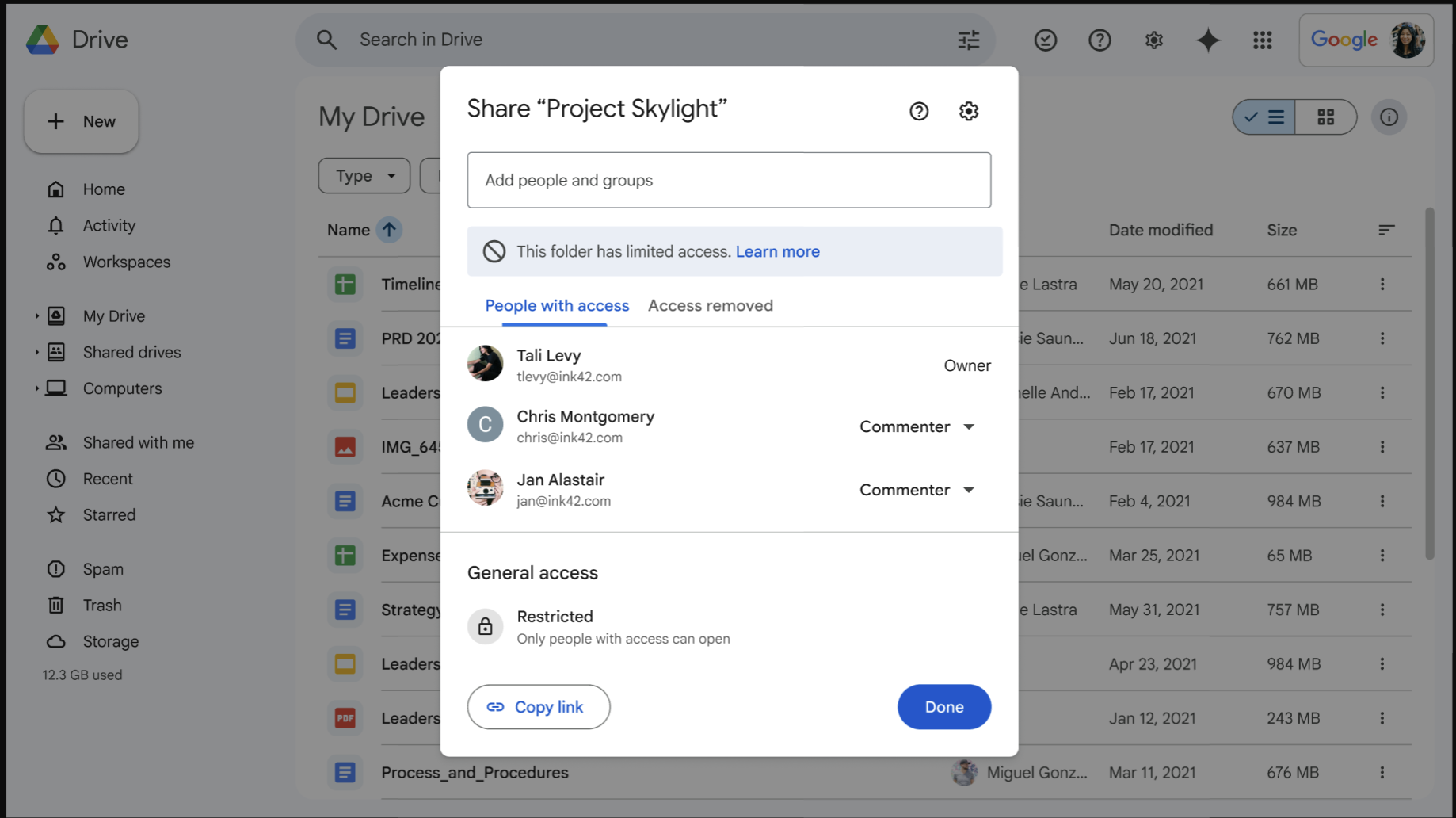
Check People with access alongside Restricted. This current Google folder example already has named members; it illustrates why Restricted alone does not make a destination private. It is not the identity-document file or a recommended recipient list.
Version notes
Official rollout announcement published 7 April 2026, available to personal accounts and all Workspace editions. The updated dialog has Limited access, People with access and Access removed. Exact captured web build is undisclosed. Background file modification dates are demonstration content, not the screenshot date. This is Google’s public example, not a personal account capture.Ask the recipient to confirm both receipt and whether the file is usable. A sent notification is not evidence that the identity check succeeded. Keep a private note of the case reference, document type, recipient account, and intended removal date, without copying the document number into that note.
Decide whether they need to keep a copy
Viewer is an editing role, not a promise that downloading is impossible. If the recipient only needs to inspect the document, open Share → Settings. Under the controls for people who can download, copy and print, disallow the viewer/commenter role where offered. Google's sharing restrictions guidance explains these controls and their limits.
Agree on this before delivery. A verifier may need an approved retained record; blocking download could make the submission unusable. Conversely, allowing a download means you must accept that a separate copy can survive your later removal of the link. Screen capture or a photograph can also reproduce readable content.
If access fails, compare the recipient's active Google Account with the invited address. If organizational policy blocks external files or they cannot use the invited account, return to the verified contact for an approved alternative. Opening the link to everyone would expose the document to solve a delivery problem.
Close access, and respond quickly to a mistake
After the agreed receipt or review, open Share, use the menu beside the recipient, choose Remove access, then Save. Check the audience list again. Ask them to close the document and reopen the original link if confirming revocation matters. An already open page or local download is not a reliable test of fresh access.
If you invited the wrong address, revoke it immediately and inspect General access too. Record the mistaken address and disclosure time, then contact the intended organization through the verified route. Ask what incident process applies. Do not describe revocation as recalling the document: it cannot erase copies already obtained.
If you suspect the requester was a scammer, stop the exchange. For US identity information, the FTC directs affected people to IdentityTheft.gov for recovery steps matched to what was exposed; elsewhere, use your country's official identity-theft reporting service and contact the document issuer. Finally, remove temporary scans and exports you no longer need, while keeping required originals and the submission receipt. Deleting your local copy does not delete the recipient's records or cloud backups.
Sources, versions & scope
The steps describe the documented controls and expected checks; they are not a claim that every device or software release has been physically tested. Platform and version differences are stated with the procedure.