Two files called “final” are a decision waiting to go wrong. One may contain the corrected deadline while the other contains the better introduction. Copying whole paragraphs between them can quietly discard a useful edit elsewhere. Start by exposing the differences, then decide what belongs in the next version.
This guide uses Microsoft Word for Microsoft 365 on Windows, in the desktop app, with two editable Word documents. The aim is a separately saved, reviewed draft. Keep the supplied files so you can reconstruct a decision later. These instructions do not assume that either filename accurately identifies the newest or authoritative text.
Establish what each file represents
Open both documents and read their opening, closing, and any section you know changed. Confirm that they concern the same project and revision cycle. A modified date alone cannot tell you whether someone corrected the content, changed a margin, or merely saved another copy.
Make separately named working copies. In a hypothetical proposal review, call them Proposal-baseline.docx and Proposal-returned.docx. Record where each came from and which version was sent out for review. Keep them in a folder that will not be confused with the eventual delivery folder.
If you kept editing after sending the baseline, preserve that newer internal draft too. You now have three relevant states: what the reviewer received, what they returned, and your own subsequent work. Comparing the return only against your latest draft mixes their suggestions with differences caused by your edits. First establish their changes against the actual baseline; then reconcile your internal draft deliberately.
Choose your route. Compare answers “what differs between these two drafts?” Combine brings reviewers’ revisions together. Microsoft explicitly directs multiple-reviewer work toward Combine. If you only need to judge two alternatives, start with a comparison.

Create a comparison without replacing a source
- Open Review > Compare > Compare, the option described as comparing two versions of a document, or “legal blackline.”
- Set Original document to the baseline and Revised document to the returned draft. Browse to each file rather than trusting similar recent-file names.
- Review the comparison options. Include text and any relevant comments or formatting; choose word-level changes for ordinary prose or character-level changes for finer inspection.
- Under Show changes in, choose New document, then select OK. Choosing Original or Revised instead modifies that selected document.
Microsoft’s comparison instructions describe a third document with differences represented as tracked changes. With New document selected, the input files remain unchanged. If Word warns about existing tracked changes, pause: continuing accepts those changes for comparison, including the original’s tracked changes in the result. Preserve unresolved review history separately; use Combine when that history is what you need to merge.
Save the result under a name such as Proposal-comparison-review.docx. Treat it as your decision copy. Before accepting anything, inspect one known alteration to confirm that you assigned Original and Revised in the intended direction. If they are reversed, close this result and regenerate it with the correct inputs.
Read each change in its surrounding promise
On Review, select All Markup in the markup display list. Under Show Markup, include Insertions and Deletions and select all reviewers under Specific People. Include Formatting when checking layout. No Markup hides revision marks; it does not resolve them. Microsoft explains these display choices in its tracking guide.
Use Next and Previous on Review to move between changes. For the selected change, choose Accept to keep the revision or Reject to discard it. Read the whole sentence before choosing; the pictured controls identify these actions without showing your document’s content.
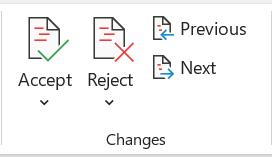
Use Previous and Next to inspect revisions, then Accept or Reject the selected change. This complete Microsoft-published control image illustrates the commands, not a particular comparison result.
Version notes
Current Microsoft Support Windows guidance applies to Word for Microsoft 365 and publishes this image for navigating tracked changes. Exact capture build is not disclosed; this illustration establishes only the named controls.A hypothetical example: the baseline promises delivery in 10 working days, while the return says 15 calendar days. That is both a number change and a unit change. Check the surrounding definition of “delivery” and any schedule table before deciding. A replacement may involve a deletion and an insertion; inspect both parts so you do not leave “10 15 calendar days” or remove the deadline entirely.
Keep a short decision list for unresolved points: location, old wording, proposed wording, and who must settle it. A comparison identifies differences; it cannot establish whether a price, date, technical claim, or obligation is correct. Ask the responsible person about an ambiguous change before calling the draft finished.
When rewording is needed, compose the intended complete sentence in the review copy and reread the paragraph. Check definitions and repeated references elsewhere. A locally sensible edit can contradict a summary, table, or appendix that still uses the old term.
When the task really is merging reviewer copies
For revisions returned from reviewers, use Review > Compare > Combine. Choose the sent-out baseline under Original document and the returned copy under Revised document. Enter a meaningful reviewer name or description in Label unmarked changes with; that label identifies otherwise unmarked edits, not independently verified authorship.
Select More, then New document under Show changes in, and OK. Save this combined result separately. Combining collects changes for review; it does not decide which suggestions deserve acceptance. Review the result before naming it an approved draft.
For another reviewer, Microsoft describes combining their copy with the saved combined document. Preserve a checkpoint before that next merge. Keep a simple record of which reviewer files you have incorporated so that a similarly named attachment is not processed twice. If the baseline is uncertain, establish it with the sender before merging further.
Resolve surprises before handing over the result
If nearly every paragraph appears changed, check the inputs before spending an hour accepting marks. Are these actually successive drafts? Did one begin as a conversion or a heavily reformatted copy? Recreate the comparison with formatting excluded for a text-focused pass, then check layout separately. Fewer marks do not prove that the content is correct.
For a visual check, open both files and choose View > View Side by Side. Enable Synchronous Scrolling in the Window group when helpful. Microsoft’s side-by-side guide documents those controls. Compare the same heading or table, rather than assuming equal page numbers mean equal content after text has reflowed.
If you accept the wrong change, use Ctrl+Z promptly and inspect the restored passage. After extensive decisions, reopening a saved checkpoint is safer than guessing how many undo actions are needed. An accepted revision is no longer a pending suggestion; preserve the comparison and source files as recovery material.
Finally, save the reviewed draft with a distinct delivery name. Reopen it and check the disputed passages, dates, numbers, tables, headers, and final page. Read any remaining comments separately and decide whether they belong in the handoff. State whether you are sending an approved clean copy or a draft with unresolved revisions, so the next reader knows what still requires a decision.
Sources, versions & scope
The steps describe the documented controls and expected checks; they are not a claim that every device or software release has been physically tested. Platform and version differences are stated with the procedure.