A table of contents can look finished while quietly disagreeing with the document. A renamed section keeps its old name, a new subsection never appears, or the listed page belongs to yesterday’s layout. A reliable contents table needs three things: meaningful heading styles, an automatic table, and the right refresh after editing.
This guide covers Microsoft Word for Microsoft 365 on Windows, using its desktop ribbon. Work in an editable Word document and save a separate copy before restructuring a long report. “Automatic” describes how Word collects entries; it does not mean you can skip refreshing and checking them before delivery.
Give Word an outline it can recognize
Start in the document body. Select a main section’s heading text, open Home > Styles, and choose Heading 1. Use Heading 2 for a subsection and Heading 3 for a subdivision beneath that. Expand the Styles gallery if the style you need is hidden. Microsoft’s heading instructions explain the gallery and its previews.
Make each heading its own paragraph. Applying a heading style to a paragraph containing both a title and its explanation can produce an unexpectedly long contents entry. Keep the explanatory text in a separate ordinary paragraph. Bold type and a larger font can make text look like a heading without assigning its structural role.
For a hypothetical project report, “Research” and “Recommendations” are Heading 1; “Interviews” and “Survey” beneath Research are Heading 2. These levels describe relationships, not page numbers or font sizes. Keep equivalent sections at equivalent levels, even when one heading wraps onto two lines.
If the heading’s appearance bothers you, keep the structural style and change its formatting. Word supports customizing a heading and choosing Update Heading to Match Selection from that heading style’s right-click menu. This affects other headings using the style, so review them afterward. Avoid removing the style just to recover a preferred typeface.

Generate entries instead of typing them
- Place the cursor in an empty paragraph where the contents should begin, commonly after the title page and before the first main section.
- Open References > Table of Contents and choose an Automatic Table option. The entries should use your document’s headings. Microsoft distinguishes these choices from the manual placeholder in its insertion guide.
- Read the generated list against your intended outline. Look for a main section, one subsection, and the final section. An empty or incomplete list is a reason to inspect source headings before doing cosmetic work.
A manual table is an editable imitation of the same layout. Word cannot rebuild its typed entries from your document. If you inherited one, preserve the original copy, remove only the manual contents block, and insert an automatic table in its place. Check the selection before deleting so that you do not remove the report’s opening paragraphs.
Resist typing a missing entry or a corrected page number directly into the automatic table. The next rebuild can replace that edit. The durable correction belongs in the source heading, its assigned level, or the table’s configuration.
Choose the refresh that matches the edit
Click inside your existing contents table, then open References > Update Table. In the update choices, select Update entire table after adding, removing, renaming, or changing the level of a heading, then select OK.
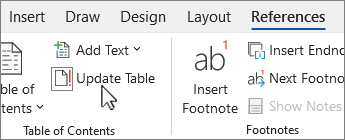
With the contents table active, choose Update Table on the References tab. Microsoft’s published ribbon image shows that command; the update-options dialog is not pictured.
Version notes
Current Microsoft Support page explicitly applies to Word for Microsoft 365. Published ribbon crop shows the References tab and Update Table; exact capture build is undisclosed. Illustration is limited to this command.Update page numbers only is the narrower choice when the heading list is unchanged and text has merely moved between pages. It ignores changes to heading text. Microsoft documents this distinction in Update a table of contents. When you are unsure what changed during a revision, use the entire-table option and inspect the result.
Try this small rehearsal on your copy: rename “Survey” to “Customer survey” in the body and add a Heading 2 called “Limitations” under Research. Refresh the entire table. Both the revised name and the added entry should appear in the correct place. This is a check for you to perform, not a reported software test.
Next, add enough ordinary body text before Recommendations to move it onto a later page. Refresh again and compare the listed number with the number printed on that page. Use the document’s displayed page numbering; counting sheets or using a viewer’s page position can confuse front matter with the numbered body.
Find the cause of a stubborn entry
- A heading is missing
- Return to that heading in the body and check its Styles selection. Apply the intended heading level, then rebuild the entire table. If other headings at that same depth are also absent, check how many levels the table displays.
- An ordinary sentence appears as an entry
- Inspect the source paragraph for an accidental heading style. Restore an appropriate body style, usually Normal for ordinary text, then rebuild. Correct the paragraph before deleting its generated entry.
- A subsection appears at the same depth as its parent
- Check whether both source paragraphs use Heading 1. Assign the subsection Heading 2, then refresh. Changing the indentation of the contents text alone does not repair the underlying relationship.
- The old title survives a refresh
- Confirm you edited the heading in the body and selected Update entire table. If you have a manually typed list, replace it with an automatic table rather than repeatedly searching for an update command.
Set the reading depth, then check the delivery copy
For a shorter contents list, open References > Table of Contents > Custom Table of Contents and adjust Show levels. In the hypothetical report, showing two levels includes Research and its subsections while leaving Heading 3 detail out. Keep those deeper headings in the document; inclusion depth is a separate decision.
The same dialog controls page-number presentation and the tab leader, such as the dots between a title and its page. Use these settings rather than typing spaces and periods. Microsoft’s customization guidance also covers Modify for contents styles; choose From template under Formats if Modify is unavailable. Cancel leaves proposed dialog changes unapplied. Use Undo promptly for an unwanted committed change, or return to your saved copy.
After final layout changes, refresh the entire table and save. If delivering a PDF, produce a fresh export after that refresh. Open the actual delivery file and compare the first, a middle, and the last listed heading with their pages. A later correction in Word does not repair an already exported copy. Keep the editable document so the next revision can follow the same heading-to-table workflow.
Sources, versions & scope
The steps describe the documented controls and expected checks; they are not a claim that every device or software release has been physically tested. Platform and version differences are stated with the procedure.