Close the account only after the records work elsewhere
An old account can hold a flight receipt, a family video and the only way into another service. Downloading a folder solves only part of that problem. Before deletion, you need readable records and working access to everything that depended on the account.
This guide covers a personal Google Account in a desktop browser. Work or school accounts need the organization's process. Check the full email address of the account you intend to close, especially if several profiles share the computer.
Deleting the entire Google Account removes access to Gmail, Drive and other associated services, including purchased content and subscriptions on YouTube or Google Play. An export cannot preserve the right to stream a purchased movie. If keeping those services matters, stop and reconsider the scope. Removing an account from a device or deleting Gmail alone are different operations.
Make a short list of records you must be able to find
Create a private closure note outside this Google Account. Record its address, the date and the records you need. Give each item a destination and a concrete opening check. Avoid an inventory so broad that you never inspect anything.
| Record | What proves the saved copy is useful? |
|---|---|
| Receipt or warranty | The attachment opens; seller, date and order number are legible. |
| Important correspondence | The conversation has its sender, dates and required attachments. |
| Working document | The expected revision opens in an application you can keep using. |
| Family video | The downloaded file plays with sound, including a section near the end. |
Save especially important documents individually as well as requesting the broader export. Use descriptive filenames such as 2026-09-appliance-warranty.pdf. This hypothetical name illustrates retrieval; it is not a claimed account record. If an attachment requires a password, establish where that password will remain available.
Include files that other people still need. Arrange an independent copy and have the recipient open it through their own account before closing yours. An old sharing link is a dependency to resolve, not evidence that the recipient owns a surviving copy.
Move the address and sign-in dependencies first
Search your mailbox and password manager for accounts using this address. Prioritize banking, utilities, shopping, insurance and other email accounts. In each service's own settings, replace the contact and recovery address, complete any verification and save its confirmation outside Gmail. Send a message to the replacement mailbox and confirm you can receive it.
Also inspect Google's linked apps list and select Sign in with Google. A site that uses this login may need a different sign-in method even after its contact address changes. Establish a supported alternative within that site before disconnecting anything.
Test the alternative in a separate browser session while keeping your working session open. A page that opens because you were already signed in proves little. Check that the new login reaches the existing account, including its records or purchases, rather than accidentally creating an empty second account. If you cannot establish access, pause deletion and contact that service.
Removing a Google connection does not delete the other service's data. Close unwanted third-party accounts through those services separately. Review recurring payments too: decide which subscriptions to retain or cancel and save any relevant cancellation receipts.
Request the export, then wait for the actual files
Use Google's Takeout instructions:
- Open Google Takeout while signed into the intended account. Review the selected products and available inclusion options against your records list. Choose Next step.
- Choose Send download link via email, a one-time export and ZIP. Select a manageable archive size, then Create export.
- When notified, download every archive part. Google says preparation can take minutes to days and links expire after about seven days. Downloading is separate from requesting.
Keep the files outside the account being deleted. An archive left only in that account's Drive is not a surviving copy. If the export fails, try again with fewer products or smaller archives. Recent changes during preparation may be absent; separately save anything important added during that interval.
Use a private computer with enough free storage for both the downloads and extracted contents. Keep other tasks from filling that destination mid-download. The size of the compressed download alone does not establish the space needed to unpack it.
Turn a successful download into usable records
Extract the downloaded files into a clearly named private folder. Consult archive_browser.html for Takeout's format information. Keep the original downloads while checking the extracted material.
Work down your records list. Open the actual saved content, not just a filename or thumbnail. For correspondence, confirm you have a way to read the exported messages after Google access ends; a mail archive is not automatically a browsable replacement inbox. Save critical threads in a readable form while the live mailbox is still available.
If extraction reports an error, keep deletion on hold. Check that the download finished, obtain the affected part again and retry in a separate folder. If a required record is missing, return to its live service and save it directly or revise the export selection. Do not let several successful sample files conceal one missing irreplaceable item.
Make a second copy of the checked records on an independent private destination. Open a few files from that copy too. Protect sensitive exports from shared-device users, and keep any encryption key accessible outside the account you are closing. Record the two destinations in your closure note without writing passwords there.
Delete only when the unresolved list is empty
Before proceeding, confirm that the records open, replacement logins work and purchased-service losses are acceptable. Update your Google recovery information while you still have access, as Google's deletion guidance recommends.
In your Google Account, open Data & privacy, scroll to Your data & privacy options, and choose More options > Delete your Google Account. Complete the identity checks and read the account-specific instructions. Recheck the address and affected services before completing deletion; stop if anything is unexpected.
Save any completion notice offered outside the account, and note the date. A sign-in error alone does not prove deletion completed. If you encounter a verification failure instead of completion, use the official recovery route and resolve access before retrying.
If you deleted too soon, try recovery immediately
Google says a recently deleted account may be recoverable, but supplies no guaranteed recovery window. Do not schedule deletion around an assumed grace period.
Open Google Account recovery. On the Account recovery screen, enter the deleted account in Email or phone, then choose Next. Answer the ownership questions presented. The entry screen does not establish that recovery will succeed.
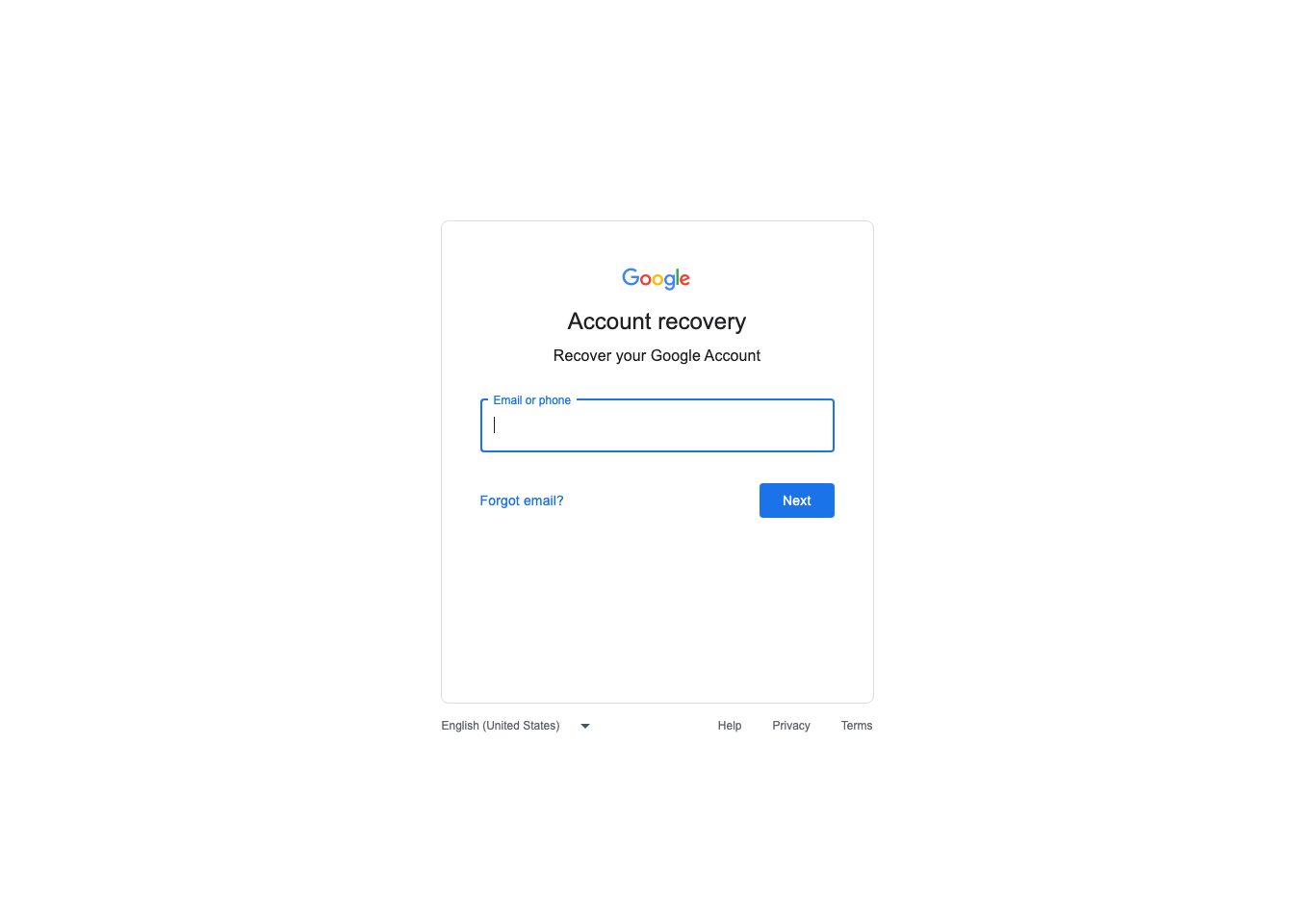
Recovery starts with the deleted account address. This public entry screen precedes ownership questions and does not indicate whether the account is recoverable.
Version notes
Captured from live accounts.google.com on 2026-10-31 using installed Google Chrome 156.0.8078.74, 1365 × 960 viewport, isolated new profile, no account data entered. Google web service exposes no release number; currency is established by same-day live rendering, not inferred from an old support asset. Layout can vary by device and server rollout.If recovery succeeds, Google directs you to create a password you have not used with that account. Reopen the missing records and save them independently before reconsidering deletion. If recovery fails, use your checked copies; there is no export step that can recreate an account's missing records after access is gone.
Sources, versions & scope
The steps describe the documented controls and expected checks; they are not a claim that every device or software release has been physically tested. Platform and version differences are stated with the procedure.