A page opens in Edge, but Firefox shows a blank booking calendar. That comparison is useful evidence, provided you reached the same page and attempted the same action. It does not yet establish whether Firefox, an extension, saved website data or the website itself needs fixing.
This guide covers Firefox desktop on Windows 11, with another installed browser as a comparison. Work through the checks that fit your symptom, changing one thing at a time. Save drafts and check for pending submissions before reloading or restarting.
Make the comparison count
Write down the smallest action that fails: “Open account page, choose delivery date, calendar stays empty.” Keep the exact error wording and approximate time. “Website broken” gives you nothing specific to retest.
- Open the same destination in both browsers on the same computer and connection. If the address is a temporary login link, reach the page through the site's normal navigation in each browser instead of copying a session-dependent link.
- Match the account and task where practical. A public homepage working in Edge does not demonstrate that an authenticated upload works there.
- Record what actually happens: missing controls, endless loading, a sign-in loop, incorrect layout or an explicit unsupported-browser message. Try a harmless action rather than submitting another payment or order.
If the comparison also fails, broaden the investigation to the service or connection. If the site explicitly excludes Firefox, use a browser it supports for the immediate task and ask the operator about compatibility. Repeatedly deleting Firefox data will not add a missing website feature.
For a hypothetical booking problem, opening the calendar without confirming a reservation is a useful repeatable test. A successful payment is a poor diagnostic experiment: a spinning page may hide a completed charge. Check the account's order history before retrying any consequential submission.

If the problem is the page's shape
Before changing storage or privacy settings, record the page's current zoom and press Ctrl + 0 to reset it. Retest the clipped button or overlapping text. If that solves it, stop; restore your preferred zoom afterward if you need larger text, and report the layout problem to the site.
Mozilla's display troubleshooting guide also identifies extensions and customized page settings as possible causes. If text is legible and the failure is a login loop or an inactive calendar, move on rather than changing fonts speculatively.
Separate extensions from the rest of Firefox
Save work in every Firefox window. Open the application menu, choose Help and Report (or Help on layouts using that label), then Troubleshoot Mode…. At the restart confirmation, choose Restart; Cancel backs out before restarting.
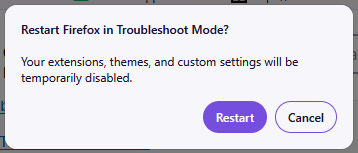
Save work before choosing Restart; Cancel backs out. This unchanged current Firefox reference shows only the first confirmation, not the later Open / Refresh Firefox prompt. Mozilla captured this application dialog on Windows 10; it is not a Windows 11 OS capture.
Version notes
Mozilla’s current159 Help displays this original1October2026 reference labelled Fx157TroubleshootModeWin10. It shows Firefox’s own restart confirmation; vendor reference was made on Windows10. No claim that a Windows11, Mac or Linux device was physically tested, or that the subsequent Open / Refresh prompt is pictured. Current159 release verified27October2026.At the subsequent prompt, choose Open. Refresh Firefox makes lasting changes and is outside this temporary test. Return to the affected page and repeat the same harmless action.
Troubleshoot Mode temporarily disables extensions, themes, hardware acceleration and other features. If the problem disappears, an extension is a candidate, not a proven culprit. If it persists, this test has not ruled out stored site data or modified preferences.
Exit Firefox completely and start it normally to restore the temporary changes. If the test helped, open Extensions and themes → Extensions from the application menu. Record enabled extensions, disable one that changes website content, reload and retest. Re-enable it if nothing improves; test another separately.
A reproducible failure with one extension enabled, followed by success with it disabled, is stronger evidence than success after disabling everything. Leave only the confirmed offender disabled while checking its settings or seeking an update. If no extension explains the result, take the observations to support rather than removing unrelated add-ons.
Check whether protection blocks the missing feature
For a missing embedded video, form or login component, try Mozilla's site-specific protection test. In a normal Firefox window, open the affected site, select the shield beside the address bar and find the Enhanced Tracking Protection switch. Note whether it was already off.
If protection was on, switch it off for this site. Firefox adds an exception and reloads the page automatically. Repeat your test, then switch protection back on to remove the exception and reload again. Protection on other sites stays enabled.
If the feature works only with the exception, you have a useful compatibility finding. Keeping the exception permits trackers on that site; decide whether the task warrants that tradeoff. Prefer using the working alternative browser for an urgent task while reporting the breakage. If switching protection off changes nothing, leave it on.
Reset one site's saved state, only when ready
A persistent sign-in loop or failure after a website redesign can justify removing that site's data. First save local drafts, verify you can sign back in and check any pending order. This deletion has no undo button; a later sign-in does not recover an unsynced draft.
- Open Settings → Privacy and security. Under Browsing data, choose Clear data for specific sites. Leave the separate clear-on-close checkbox unchanged.
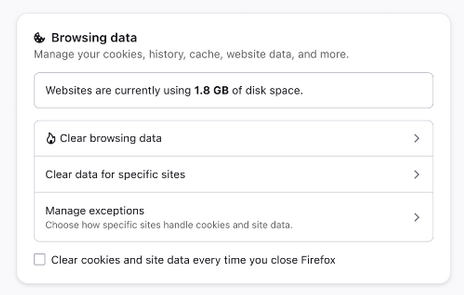
Visual 02 · Firefox desktop · current Browsing data settings design Choose Clear data for specific sites to reach the site list. Leave the clear-on-close checkbox unchanged. The 1.8 GB is Mozilla’s example storage total, not your usage; no site has been selected or deleted here.
Mozilla Support contributors. Official Firefox interface reference; copyright retained by the contributors and relevant owners. Image source · Usage termsVersion notes
Mozilla’s current Help page was opened with version159 selected; released159.0 was independently confirmed in its27October2026 release notes. The reference asset was introduced for152 inJune2026 and still illustrates these unchanged controls in159. Exact screenshot patch build unknown. This is an initial settings card, not the cache-only selection dialog. - In the site-data dialog, search for the affected domain. Inspect the matching entries; select the intended site and choose Remove Selected.
- Choose Save Changes, read the confirmation and approve only the intended removal. If the scope is wrong, cancel before confirming. Avoid an all-sites deletion.
- Reopen the website, sign in if requested and repeat the original action. Record whether it now works with your ordinary extensions and protection restored.
Mozilla's site-data instructions also document older labels such as Privacy & Security and Manage Data…. The important boundary is selecting the affected site's entry, rather than clearing everything. Deleted site state may include preferences, login status and offline content.
If the result improves, keep the recovery narrow. There is no reason to repeat the deletion on other sites. If nothing changes, repeating it provides little new evidence; move to a compatibility report.
Give support a failure it can reproduce
Use the working browser for time-sensitive work, then send the site operator a short record: Windows 11, your Firefox version, the affected page, the action and the visible result. Include the working browser's name and version, and whether the account and task matched.
Add the outcomes of Troubleshoot Mode, the protection exception and targeted site-data removal, marking skipped checks as skipped. A redacted screenshot can show an empty calendar without exposing names or booking references. Remove private tokens from copied links and never include passwords or authentication codes.
Mozilla also provides Report Broken Site through Help and Report. Review the proposed URL and details before sending. A report that says “calendar stays empty in Firefox, works in Edge, unchanged in Troubleshoot Mode” is actionable even when no local setting fixes it.
Sources, versions & scope
The steps describe the documented controls and expected checks; they are not a claim that every device or software release has been physically tested. Platform and version differences are stated with the procedure.