A heading that looks right today and changes tomorrow usually has more than one formatting instruction behind it. Its paragraph style supplies a baseline; direct formatting can override that baseline; pasted material can bring another document’s choices. Fixing each heading with the font buttons leaves those competing instructions in place.
Work on a separately named copy first. These detailed controls are for Microsoft Word on Windows, including Microsoft 365 and Word 2024. Keep the original until the repaired document survives saving and reopening. For a shared report, arrange a quiet editing window so someone else’s changes do not confuse the comparison.
Choose three headings that expose the problem
Find one correct heading, one incorrect heading at the same level, and one subheading. Write down when the disagreement appears: immediately, after pasting, after changing another heading, or only after reopening. This small sample lets you check the repair without repeatedly reformatting the whole document.
- Only one heading differs
- Check its assigned style and local overrides first.
- Every heading changes when one is edited
- Check whether you changed the style definition, deliberately or through automatic updating.
- The text looks consistent but the outline is wrong
- Check heading levels; visual similarity cannot establish document structure.
- The repair disappears after reopening
- Investigate template-driven style updates before repeating the cosmetic fix.
These are diagnostic starting points, not guaranteed causes. A heading can have both a wrong level and an unwanted font override.

Give each heading the right identity
Select the incorrect heading’s text, then inspect Home > Styles. Word highlights the applied style in the gallery. Expand the gallery with its More button if necessary. A line showing Normal has not become a structural heading just because someone made it large and bold.
Apply Heading 1 to major sections, Heading 2 to their subsections, and Heading 3 to the next level down. Choose levels by the document’s hierarchy. If Heading 2 looks more attractive than Heading 1, change the appearance later rather than demoting a major section. Microsoft documents the heading-style controls.
For a hypothetical report, “Findings” might be Heading 1, “Customer interviews” Heading 2, and “Recruitment” Heading 3. “Recommendations,” another major section, returns to Heading 1. This describes relationships, not a requirement to use three different font sizes.
On Windows, open View > Navigation Pane, then choose Headings. Confirm that your sections appear at the intended nesting levels. Click an entry to inspect its paragraph. Avoid dragging entries during this check: dragging can move sections of the document. The Navigation pane documentation also explains an important limitation: headings in tables, text boxes, headers, and footers do not appear here. A missing entry in one of those locations does not by itself prove the style is wrong.
Repair one stubborn paragraph before changing every heading
If the correct style is already assigned but one heading still differs, try removing its direct formatting. Select only that heading’s text and press Ctrl+Spacebar to remove manual character formatting. With the insertion point in its paragraph, press Ctrl+Q to remove paragraph formatting overrides. Then confirm the intended heading style again. These Windows shortcuts are listed in Microsoft’s keyboard reference.
Expect the heading to return toward its style’s font, spacing, and indentation. Check both its appearance and its place in the Navigation pane. If only the font changes, the remaining disagreement may involve the style definition or a separate numbering scheme.
Use Ctrl+Z immediately if removing formatting also removes an intentional italic word, special indentation, or other exception. Note that exception before trying again. Do not start with Ctrl+A and a document-wide formatting reset: captions, quotations, lists, and deliberate emphasis deserve separate decisions. A successful repair on one paragraph gives you a controlled method for the other affected headings.
Keep the next pasted heading from importing another design
When importing a plain heading, paste with Ctrl+V, open the Paste Options button, and choose Keep Text Only. Microsoft’s published example shows the clipboard-with-A option under the pointer. After pasting, explicitly apply the intended heading style in this document; plain text alone does not choose the correct hierarchy.
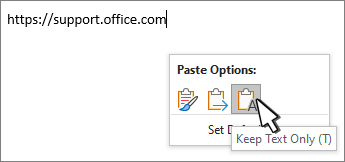
For a plain heading, choose Keep Text Only in Paste Options, then assign the appropriate heading style in the destination document. Microsoft’s example shows the option before it is selected.
Version notes
Unchanged screenshot currently served by Microsoft’s documentation for Word for Microsoft 365 and Word 2024, checked 2026-10-31. Exact captured build is not disclosed; this image verifies only the Paste Options popup and Keep Text Only choice, not the surrounding ribbon or completed heading repair.Use this selectively. Keep Text Only discards formatting and nontext content, including pictures, and converts tables to paragraphs. Merge Formatting preserves some emphasis, so it is a different choice. Undo a paste that loses needed content and choose an appropriate option. Microsoft explains these boundaries in its paste-formatting guide.
If imported material repeatedly causes trouble, inspect File > Options > Advanced > Cut, copy, and paste. Word separates pasting between documents from pasting between documents when style definitions conflict. Record the current defaults before changing either; a document-specific cleanup does not require changing every future paste.
Check numbering, then close the loop
Numbers need their own check. For a straightforward numbered report using built-in heading styles, select the first Heading 1, then open Home > Paragraph > Multilevel List. Under List Library, choose a scheme whose preview includes Heading styles. Microsoft’s heading-numbering instructions describe this route. Manually typed “1.1” remains ordinary text; adding automatic numbering may leave duplicate prefixes. Inspect the result and remove typed prefixes carefully. For an established custom numbering scheme, preserve the copy and resolve its rules before replacing it.
Save, close, and reopen the repaired copy. Inspect the same headings, paste one disposable heading, and undo that trial. If styles revert only on reopening, ask the document or template owner to check automatic updates from the attached template. Microsoft confirms this behavior in UpdateStylesOnOpen. That is separate from an individual style’s Automatically update option. Record the attached template and setting before changing anything; do not delete the template as a formatting fix.
Word for the web can apply styles, but Microsoft says it cannot create or edit built-in styles in the same way as desktop Word. Use Open in Desktop for that repair, following its web styles guidance. Mac controls differ; the Windows shortcuts and Navigation pane behavior above should not be assumed identical there. Keep the original until the reopened copy has the intended appearance, heading hierarchy, and numbering.
Sources, versions & scope
The steps describe the documented controls and expected checks; they are not a claim that every device or software release has been physically tested. Platform and version differences are stated with the procedure.
- Add a heading in a Word document
- Use the Navigation pane in Word
- Keyboard shortcuts in Word
- Customize or create new styles
- Style.AutomaticallyUpdate property (Word)
- Control the formatting when you paste text
- Number your headings
- Document.UpdateStylesOnOpen property (Word)
- Use styles in Word for the web
- Change the spaces between text in Word