An unexpected invoice does not become safe because it arrived from a familiar name. Your first useful decision is whether the request belongs in your day at all. You can establish that without previewing the attachment, extracting an archive or asking an app to open it.
This guide covers Windows 11, including a file that has already landed in Downloads. If the attachment is still only in your inbox, leave it there while you verify the request. Downloading it just to perform these checks adds an unnecessary handling step.
Keep the attachment out of an app
Do not click its thumbnail, choose Preview, double-click the downloaded file or open it in another program “just to see.” Treat a password-protected ZIP the same way: do not extract it to discover what is inside. A password supplied in the same unexpected message does not establish who sent the package.
If the email or browser blocks the attachment, leave the block in place. Do not rename it, disable protection, add an antivirus exclusion or install a special viewer supplied by the sender. Requests to enable macros or change security settings are warning signs in Microsoft’s phishing guidance.
For a work or school device, use your organization’s established reporting route now. Give IT the sender, subject and arrival time, and say whether you downloaded, previewed, opened or ran anything. Those are different events. Follow their evidence-retention instructions before deleting the message or moving a file.

Ask about the task through a separate channel
Use a saved telephone number, an existing trusted conversation or a service’s address you already know. Do not use a number, sign-in button or “support” link supplied in the suspicious message. Ask a specific question: “Did you send an invoice attachment today, and what work is it for?”
A reply in the suspicious email thread is weak confirmation: whoever controls that conversation can answer. A recognizable display name, correct signature and plausible project title are also insufficient on their own. Microsoft notes that unexpected messages and misleading sender addresses are common phishing clues.
Hypothetical example: you expect a quotation from a repair shop, but receive “Final overdue payment” with an attachment. Call the shop using the number on your existing booking. If they did not send it, stop handling the attachment. If they did, ask for the quotation through the established customer portal or a fresh message with the agreed filename. You do not need to diagnose the original package.
If you cannot verify the request, keep the transaction paused. The useful outcome is a confirmed business purpose and trusted delivery route; an urgent deadline written by the sender supplies neither.
Already downloaded? Inspect the name without opening it
Skip this section if there is no local copy. Otherwise, open File Explorer from the taskbar or Start, rather than clicking the attachment in the mail app. Before selecting the file, leave the Preview pane off; the View menu contains its toggle. Navigate to the folder where the download was saved.
In Microsoft Windows 11 File Explorer, choose View → Show → File name extensions and enable the option if it is unchecked. This makes the suffix visible in filenames. Microsoft’s illustration shows the menu before that option is enabled, rather than a completed inspection of your attachment.
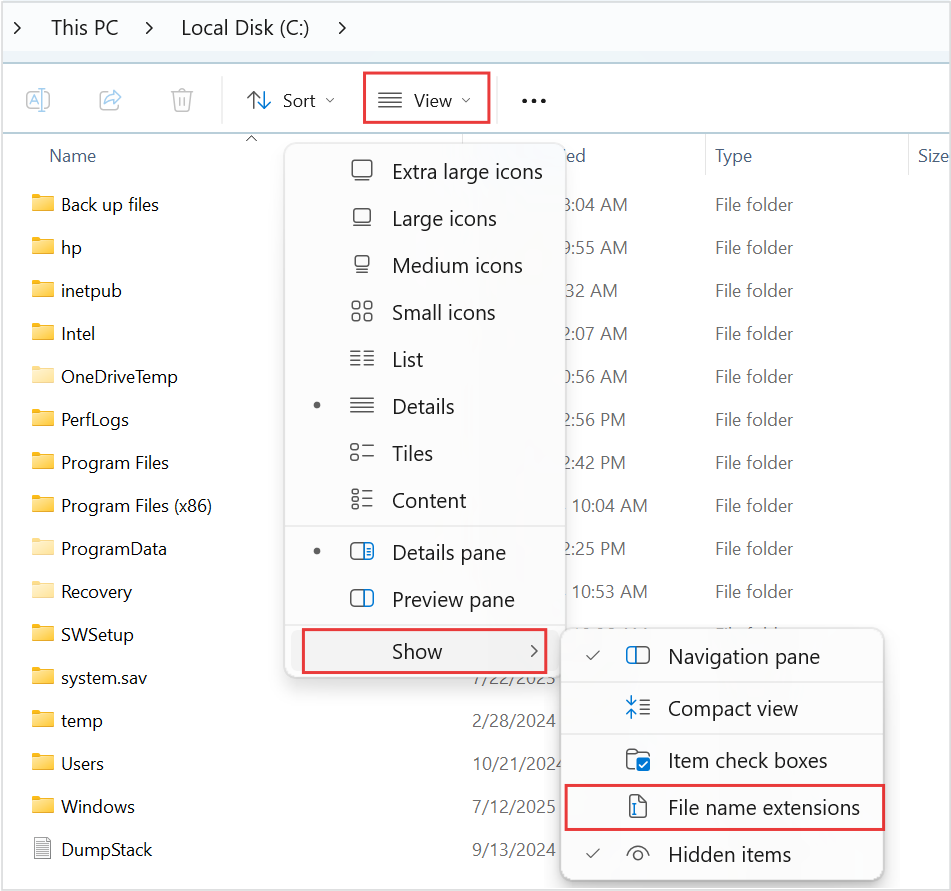
Before inspecting a downloaded filename, use View → Show → File name extensions. Microsoft’s supplied red outlines locate the route; the option is still unchecked here. Enable it in your window. No suspicious attachment is shown.
Version notes
Microsoft’s current Windows 11 file-extension instructions provide this Windows 11 command-bar and Show-submenu image. Complete downloaded asset retained, including the source’s red outlines. Exact Windows build is not stated. Initial menu state only; it does not show the article’s files or completed extension display.Read the entire name, widening the Name column if necessary. In the hypothetical filename invoice.pdf.exe, the final suffix is .exe: the apparent PDF name does not make it a PDF. Microsoft lists .exe as an executable program, .msi as an installer and .docm as a macro-enabled Word document in its extension reference.
An unexpected installer pretending to be an invoice is enough reason to stop. An ordinary .pdf or .docx suffix is not approval to proceed, either: a filename is a clue, not an inspection of the contents. Renaming the suffix does not convert the file. Leave archives closed and request a verified replacement instead of experimenting with their contents.
Use a local scan as another check
For a personal PC with a local copy, open Windows Security from Start and select Virus & threat protection. Under Who’s protecting me?, Manage providers identifies the protection provider. Protection updates is the entry to security-intelligence updates. The official screenshot shows these entry points, not a scan of your file.
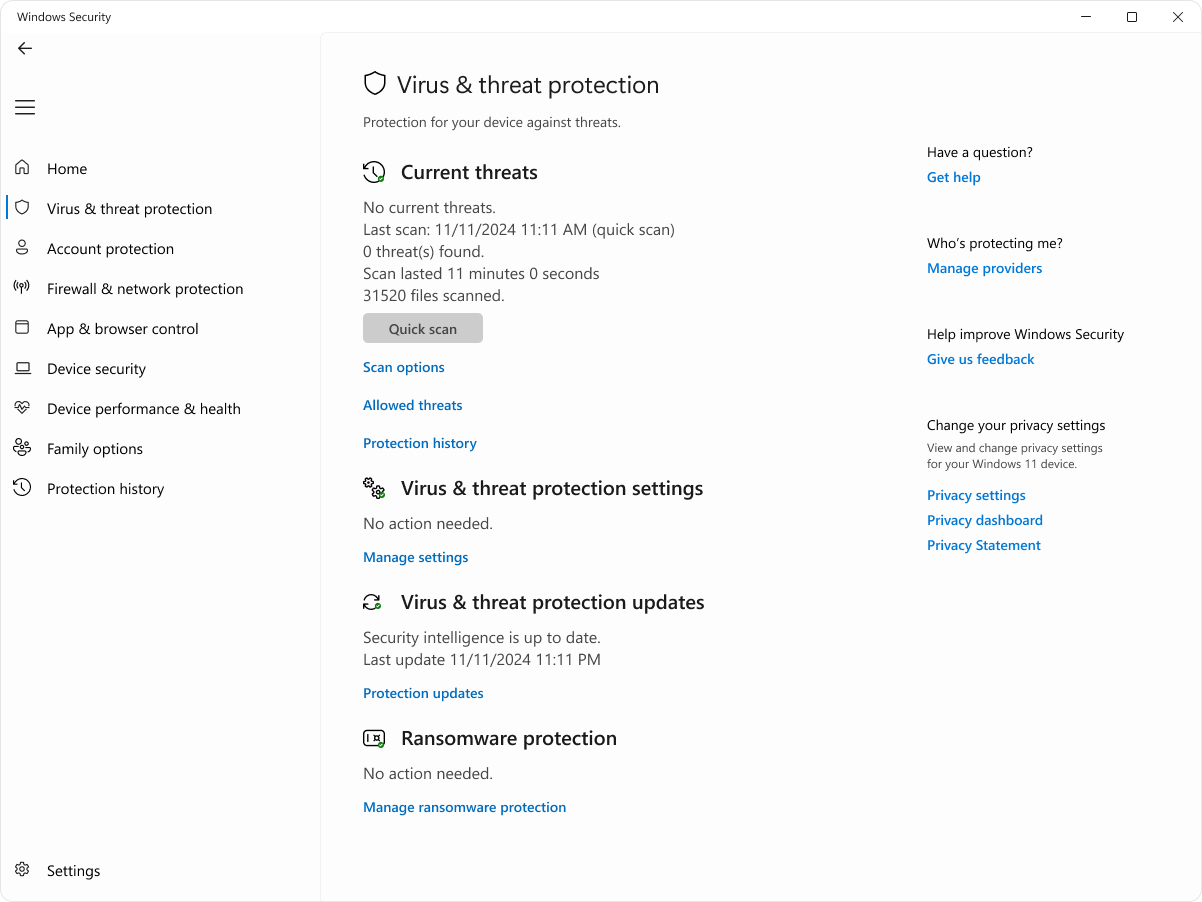
In Microsoft Windows 11 Windows Security, Manage providers identifies antivirus coverage and Protection updates leads to security-intelligence checks. This vendor example’s old scan date, zero threats and file count are sample data; they say nothing about your attachment. Used with permission from Microsoft.
Version notes
Authentic complete window supplied by Microsoft’s current Windows 11/Windows 10 support page, checked 2026-10-31. The window itself says Windows 11 under privacy settings. Exact capture date and Windows build are undisclosed; sample scan/update timestamps show November 2024. Current-reference pass is limited to the documented entry controls, not a latest-build or new scan-result claim. Original bytes unchanged.If Microsoft Defender Antivirus is active, choose Protection updates → Check for updates before scanning. Another installed antivirus can make Defender inactive; use that provider’s documented scan procedure instead. On a managed PC, ask IT rather than changing providers or protection policy.
- In File Explorer, right-click the downloaded attachment. Choose Show more options → Scan with Microsoft Defender, following Microsoft’s file-scan instructions. This asks the antivirus to examine the file without launching its associated app.
- Wait for completion. Microsoft says the Scan options page displays the results. Do not mistake the previous scan’s date or a protection-status badge for a newly completed check.
- If a threat is reported, leave it blocked or quarantined and follow the security app’s recommended action. Do not restore or allow it to satisfy the sender’s request. If the scan fails or never completes, keep the attachment closed.
A completed scan reporting no threats still leaves the sender and purpose unverified. Keep confidential attachments on the device or within your organization’s approved process; do not upload them to public scanners or AI chats to seek reassurance. Ask for a clean replacement through the verified channel if doubt remains.
Close the loop, or change to recovery
For an unneeded personal message, use your mail service’s built-in phishing or junk reporting action, then delete it. If a local copy remains, delete that specific file in File Explorer without opening it. Leave antivirus-quarantined copies under the security app’s control. A deleted download does not remove the original email attachment, and neither deletion can undo something already executed.
If you opened or ran the file, stop interacting with it and tell IT immediately on a managed device. On a personal PC, open Windows Security directly and use Virus & threat protection → Scan options for further investigation. Microsoft documents full and offline scans in its protection guide; an offline scan restarts the PC, so save other work first. Persistent alerts warrant qualified help.
If you typed a password into a page reached through the attachment, use a separate trusted device to visit the real service and change that password, including anywhere you reused it. Tell IT about work-account exposure. If money was involved, contact the bank through its established channel. Merely downloading a file does not establish that these events happened: record the actions you actually took so the response fits the exposure.
Sources, versions & scope
The steps describe the documented controls and expected checks; they are not a claim that every device or software release has been physically tested. Platform and version differences are stated with the procedure.