You wanted a small utility. Its installer also wants to add a browser, start a trial, or change your search provider. The useful habit is to treat each offer as a separate decision, even when the installer presents everything as one recommended setup.
This guide covers desktop installers on a personally owned Microsoft Windows 11 PC. Installer wording varies by publisher, so the offer examples below are hypothetical. The Windows recovery paths are checked against Microsoft’s current documentation. On a managed computer, use your organization’s approved software route.
Make the first decision before opening the installer
Start at the software publisher’s own site, reached through a known address or a trusted existing bookmark. Look for its Windows download page. A sponsored search result or a large Download advertisement on another site can lead to a different product. Check the address and product name before saving anything.
If the publisher links to a Microsoft Store listing, compare the listing’s publisher and product with the official site. If it provides a direct installer, use that route rather than a download portal’s separate “download assistant.” A publisher can legitimately use a different hosting domain; follow its own link instead of guessing which mirror is authentic.
Save work and install one application at a time. Before starting, open Settings → Apps → Installed apps and note any existing software with a similar name. This gives you a useful comparison if an unfamiliar app appears afterward. Keep a short note of the installer filename and where you obtained it.

Check protection before granting installation access
Search Start for Windows Security and open it. Select App & browser control, then choose Reputation-based protection settings beneath Reputation-based protection.
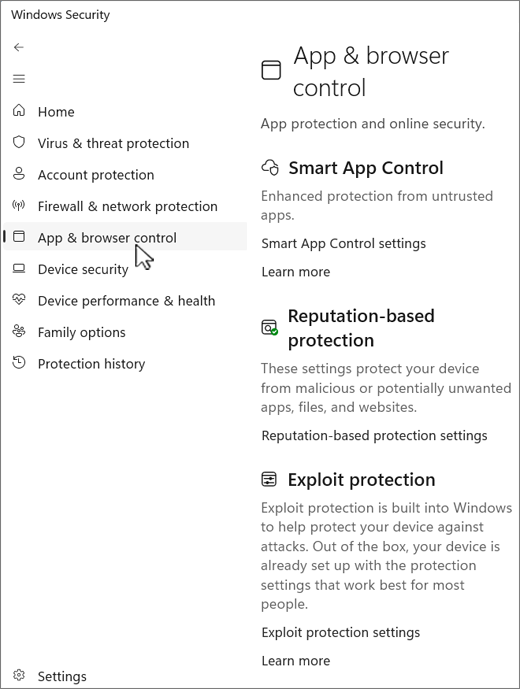
In Microsoft Windows 11 Windows Security, choose Reputation-based protection settings. This official image shows the entry link; the potentially unwanted app blocking switch is on the next page.
Version notes
Current official Windows 11 support reference checked 2026-10-31. Smart App Control distinguishes this from Windows 10; precise capture date and release build are not disclosed. Only navigation to the visible settings link is illustrated; no enabled switch or performed installation is claimed.In that settings page, review Potentially unwanted app blocking and enable it if available and off. Microsoft’s App & browser control documentation describes this protection as helping identify unwanted apps before download or installation. It is a safety layer, not a guarantee that every optional offer will be caught.
If Windows or your browser blocks the installer, stop and check the publisher’s download instructions. Do not disable protection or add an antivirus exclusion just to get through setup. A reputation warning does not automatically prove malware, but it warrants investigation. If a setting is controlled by an administrator, leave it to that administrator.
Read the next screen as a new choice
Launch the downloaded installer only after checking its source. If Windows asks whether to allow changes, compare the displayed app and publisher with what you expected. Choose No if they are unexplained. Permission to change the computer does not tell you which optional products the installer will offer later.
- Read each page before selecting Next or Install. Watch for a second product name, separate agreement, browser change, or trial enrollment.
- If offered Custom or Advanced setup, inspect it for optional components. Those labels do not guarantee a clean installation; a normal setup can also be appropriate when it contains no unwanted options.
- Clear checkboxes for software or changes you do not want. Where an offer has its own Decline, Skip, or equivalent choice, read what that choice applies to before selecting it.
- At the final summary, check the selected products again. If an extra remains selected, go Back and remove it. If there is no clear way to install only what you want, cancel and look for the publisher’s documented alternative or another product.
Do not assume the largest or brightest button is the correct choice. Equally, declining the main application’s required license normally means you cannot install it. Distinguish that agreement from a separate offer instead of clicking Decline everywhere.
Is that component necessary or another product?
An installer can contain both useful components and unrelated offers. Microsoft’s software classification criteria describe bundling as offering additional software from another developer or software that is not required for the main program to run. A separate product is a reason to investigate, not enough information to identify every dependency.
- Another application or trial
- A hypothetical file utility offering a shopping extension or a system-cleanup subscription is asking for an additional product decision. Decline it if it does not serve your purpose.
- A component of the application
- Language files, shortcuts, and file associations can be choices within the intended program. Keep the features you need; consider whether you actually want it opening those file types by default.
- A documented prerequisite
- A runtime or other dependency may be necessary. Check the publisher’s requirements before removing it. If the explanation is unclear, cancel and consult the documentation rather than disabling components at random.
If declining an offer prevents installation, you have reached a practical boundary. Choose whether the package is acceptable as supplied. There is no universal checkbox trick that turns every bundled installer into an unbundled one.
Check what actually arrived
Read the completion page before choosing Finish. Clear optional “launch partner app” or promotional selections if shown. Open the intended application yourself and try one harmless task, such as opening a sample file. Successful installation means the feature you wanted works.
Return to Installed apps and compare it with your earlier note. Investigate unexpected names rather than deleting every recently added component: a legitimate prerequisite can also be new. Open your browser and check whether its usual start page and search behavior remain as expected. An unexpected browser extension needs its own review; uninstalling a desktop app should not be assumed to reverse every browser change.
For a closer check of unfamiliar extensions, use the existing browser performance guide. Keep your installation note until you are satisfied with both the app and the surrounding changes.
If you already accepted an extra
Close the unwanted app. In Settings → Apps → Installed apps, find its exact name, select its More menu, then Uninstall. Follow the removal prompts, reading any offers to keep or replace it. Reopen Installed apps afterward to confirm its entry has gone.
If removal is unavailable there, Microsoft’s uninstall instructions give another route: search for Control Panel, open Programs → Programs and Features, select the program, and choose Uninstall or Uninstall/Change. If removal fails, record the error and use the publisher’s support route. Avoid manually deleting program folders as a substitute.
If software returns, ads continue, or Windows reports a threat, open Windows Security → Virus & threat protection → Scan options and select Full scan. Review the result and follow any recommended action. Microsoft’s scan documentation also describes an offline scan for suspected persistent malware; save work first because it restarts the PC.
Finally, repeat the original sample task and browser checks. Removal can stop an unwanted program, but it cannot guarantee reversal of settings changes or recall information already transmitted. Keep only the software whose purpose and behavior you can explain.
Sources, versions & scope
The steps describe the documented controls and expected checks; they are not a claim that every device or software release has been physically tested. Platform and version differences are stated with the procedure.
- App & browser control in the Windows Security App — Microsoft Support
- How Microsoft identifies malware and potentially unwanted applications — Microsoft Learn
- Uninstall or remove apps and programs in Windows — Microsoft Support
- Virus and Threat Protection in the Windows Security App — Microsoft Support