Set a size target and a reading test
A PDF that fits an upload limit but turns a footnote into gray fuzz has failed. The useful goal is the smallest copy that still does its job: readable small print, intact diagrams and working text selection where the original offered it. Stop compressing once you meet that goal.
This guide uses Adobe Acrobat Pro desktop on Windows, with its current interface. Advanced Optimization is a paid desktop feature; free Reader is insufficient for this procedure. If you lack access, ask the document creator for a smaller export rather than buying software before you know whether the file can shrink usefully.
Keep the original unchanged. Make a working copy called report-compression-working.pdf, note its size in File Explorer, and write down the destination's limit. A hypothetical 12 MB report going through a 10 MB portal needs a modest reduction, not the lowest possible quality. Aim comfortably below the limit because displayed sizes may be rounded.
Open the original and identify your reading tests: the smallest footnote, a dense table, an image containing labels and a faint scanned page. Note their page numbers. These are the places you will revisit after every export; a clean cover page proves little about the rest.

Find out what is actually heavy
Try selecting and copying a sentence into a plain text document. Then search the PDF for a distinctive word in it. Sharp selectable text often comes from a digital source; a scan may instead store a whole page as an image. Some scans also have a searchable recognition layer, so successful search alone does not establish how the visible letters are stored.
That difference matters. Compressing a photograph beside digital text can leave the letters looking unchanged. Compressing a scanned page changes the image containing the letters themselves. A small caption inside a chart image is vulnerable for the same reason.
- Open the working copy and choose Menu > Save as Other > Optimized PDF. Adobe documents this Windows route in its advanced size-reduction instructions. Alternatively, its desktop tutorial uses All tools > Compress a PDF > Advanced Optimization.
- In PDF Optimizer, locate Settings and Make compatible with. Adobe's example opens with Standard settings; your previous choices may differ. This is the starting dialog, before the custom changes below.
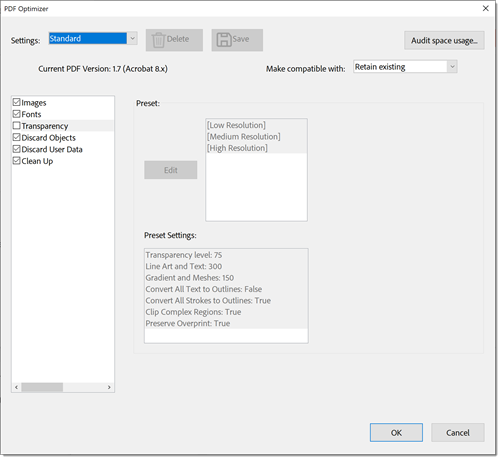
Visual 01 · Adobe Acrobat desktop, Windows-style dialog Adobe’s starting-dialog example shows Settings, compatibility and panel checkboxes. Its Transparency panel is selected but disabled; this is before the guide’s image-only changes.
Adobe product screenshot(s) reprinted with permission from Adobe. Adobe and Acrobat are either registered trademarks or trademarks of Adobe in the United States and/or other countries. Image source · Usage termsVersion notes
Official tutorial updated April 23, 2026; dialog controls corroborated by Windows help updated October 28, 2026. Exact captured build undisclosed. Starting controls only, not proposed custom settings. - Select Audit space usage. Read the bytes and percentage for Images, Fonts and other elements, then choose OK to close the report. Adobe's audit instructions explain these categories.
If images dominate, an image-only trial has a sensible target. If fonts or other elements dominate, reducing image quality may produce very little benefit. For example, in a hypothetical 10 MB file containing only 1 MB of images, even removing all image data could save at most that 1 MB. An image-quality slider cannot solve the remaining nine.
Change images while protecting the rest
In Make compatible with, choose Retain existing. Deselect the checkboxes beside Fonts, Transparency, Discard Objects, Discard User Data and Clean Up; leave Images enabled. This limits the trial to image settings. Clicking a panel name displays its options; its checkbox determines whether that panel participates. Adobe notes that changed settings become Custom.
Leaving Fonts disabled avoids unembedding fonts and the resulting risk of substitution on another computer. Leaving the discard panels disabled also avoids casually removing bookmarks, accessibility tags, comments or attachments. A smaller file should still contain the information and behavior its recipient needs.
Select the Images panel. Adobe's settings reference distinguishes downsampling, which reduces image resolution, from compression, which changes how image data is stored. For the first trial, turn downsampling off for color, grayscale and monochrome images. For photographic color and grayscale images, try JPEG with High quality. Enable Optimize images only if there is a reduction in size.
For screenshots, diagrams with flat colors, or images containing small lettering, prefer ZIP compression as a trial because it avoids JPEG's lossy artifacts. Here ZIP is an internal PDF image-compression option; the saved document remains a PDF. Leave monochrome compression unchanged initially.
Select OK, then save to a new filename such as report-small-v1.pdf. Cancel any prompt that would replace the original. Close and reopen the saved result so your inspection concerns the actual output.
Judge the copy at the places most likely to fail
Check its size in File Explorer. If the result meets the destination's limit, resist further reductions until you have compared it with the original. Open both files and visit the recorded pages at the same zoom level.
- At normal reading size, read footnotes and table values without guessing. Compare decimal points, minus signs, accents and narrow characters.
- Enlarge the scanned text and chart labels to 200%. Look for merged strokes, pale letters disappearing and halos around dark edges. Compare with the original, which may already contain defects.
- Repeat the same text selection, copy and search checks. Confirm page count, order, bookmarks, links, comments and form behavior where those existed and matter.
- If the recipient will print it, print the most demanding page at the intended size. Screen inspection alone does not establish print suitability.
A smaller copy that fails any required check is a rejected attempt. Keep the original as your recovery point. Raising the quality of an already degraded output cannot reconstruct discarded detail; create the next attempt from the original working copy.
If it is still too large, make one measured compromise
When photographs remain the main cost, try downsampling color and grayscale images to 150 pixels per inch for a screen-reading copy, applying it only to images above 225 ppi. These are trial values, not guaranteed quality settings. Keep tiny lettering and scans under particular scrutiny; they may need more resolution.
Save as report-small-v2.pdf and repeat the same comparisons. If scanned text deteriorates, return to the original and retain its resolution, or try a higher target such as 300 ppi. Change one variable between attempts so you can tell which compromise caused the damage.
If the next acceptable copy still exceeds the limit, request a fresh export from the source document or use a permitted file-sharing link. A mostly text PDF may already be efficient. Do not strip necessary fonts or turn every page into a screenshot merely to chase a number.
Deliver the accepted filename and preserve the original separately. Compression is complete when the recipient can open, read and use the smaller copy—not when the size indicator reaches its minimum.
Sources, versions & scope
The steps describe the documented controls and expected checks; they are not a claim that every device or software release has been physically tested. Platform and version differences are stated with the procedure.