Start with one recurring problem
A useful troubleshooting checklist lets the next teammate pick up where you stopped. It records what to inspect, what the result means, and when to hand over. A list that says “restart, clear cache, reinstall” loses that evidence and can make recovery harder.
Build yours in Google Docs on a computer, using a clean master and a separate document for each incident. You need a Google account and permission to create and share documents in your team’s approved location. This guide uses ordinary document checkboxes; no add-on or task-assignment feature is required.
Choose one narrow symptom, such as “a teammate cannot open a project document.” Write the intended audience and exclusions at the top: staff handling routine access questions, excluding suspected account compromise. This keeps a first-response checklist from growing into an instruction manual for every computer problem.

Make each check produce a decision
Before opening Docs, draft the checks in plain text. Start with observations that do not change anything. Put changes later, and give each one a prerequisite and a way back. The following pattern is an editorial design rule you can adapt to your team.
- Action
- Name the place to look and the exact thing to inspect.
- Expected observation
- Describe what the responder should see, without promising that it will appear.
- Recorded result
- Leave room for the actual finding, time and any safely stored evidence.
- Next move
- Say what happens for each result, including “stop and contact the owner.”
For the access example, replace “check permissions” with: “Ask the requester to confirm the signed-in work account privately. Compare it with the intended recipient. If they differ, ask the requester to reopen the link with the intended account; otherwise, send the case to the document owner.” Record only the account detail your team needs, in the approved private channel.
Define a checked box as the check was performed and its result recorded, not “the problem is fixed.” Write “not applicable” with a reason for a skipped step. Leave blocked checks unchecked and state who can unblock them. Otherwise, a full row of ticks hides missing evidence.
Build a master that stays blank
- Create a blank Google document. Click its title, name it “MASTER — Project document access checklist,” and press Enter. Add an owner, review date and scope statement above the checks.
- Enter one action per paragraph. Select the action paragraphs and choose the Checklist button in the toolbar. If it is hidden, open More. Google’s list instructions also describe checklist styles with or without strike-through under Format > Bullets & numbering; use the style that keeps completed instructions readable.
- Below each action, add a clearly labelled result space. Keep branch instructions beside the relevant check, so a responder does not have to search another page to learn when to stop.
The visible result should be an unticked checklist with empty case fields. Tick and untick one disposable item to check the behavior, then confirm the master is blank again. If selecting the paragraphs captured the case header too, undo that formatting and select only the action text.
Paste this starter into the document, adapt the wording, then apply checklist formatting to the numbered action paragraphs. The blanks belong to each incident copy.
Scope: Project document access; routine staff requests only.
Master owner: ____   Reviewed: ____   Master revision: ____
Case: ____   Responder: ____   Started (time zone): ____
Symptom and exact error: ____   Expected behavior: ____

1. Record the affected document and intended work account privately.
Result/time: ____
If identity or document is uncertain: stop; confirm with requester.

2. Ask whether one document or several are affected.
Result/time: ____
If several: route to team support; avoid changing individual shares.

3. Ask the document owner to inspect the intended audience.
Result/time: ____
If access is correct: record that finding and escalate with the error.
If access is missing: owner decides whether granting it is authorized.

4. After an authorized correction, repeat the original open attempt.
Result/time: ____
If it still fails: stop; hand over the recorded checks.

Outcome: resolved / workaround / escalated / not reproduced
Changes made and previous state: ____
Undo owner/instructions: ____   Next owner and follow-up: ____
Separate the master’s audience from the case’s audience
Keep the master in a location whose folder permissions fit the team. In Share, give designated maintainers Editor access and ordinary users Viewer access. Keep copying available for those viewers: the workflow depends on it. Google’s sharing guidance explains roles and folder inheritance; an individual file cannot reduce access someone already has through its parent.
Inspect the destination folder’s Share dialog before saving incident copies there. Check People with access as well as General access: Restricted still allows listed people. Google’s illustrated limited-access folder is an example of that distinction, not a recommended audience for your team’s incident records.
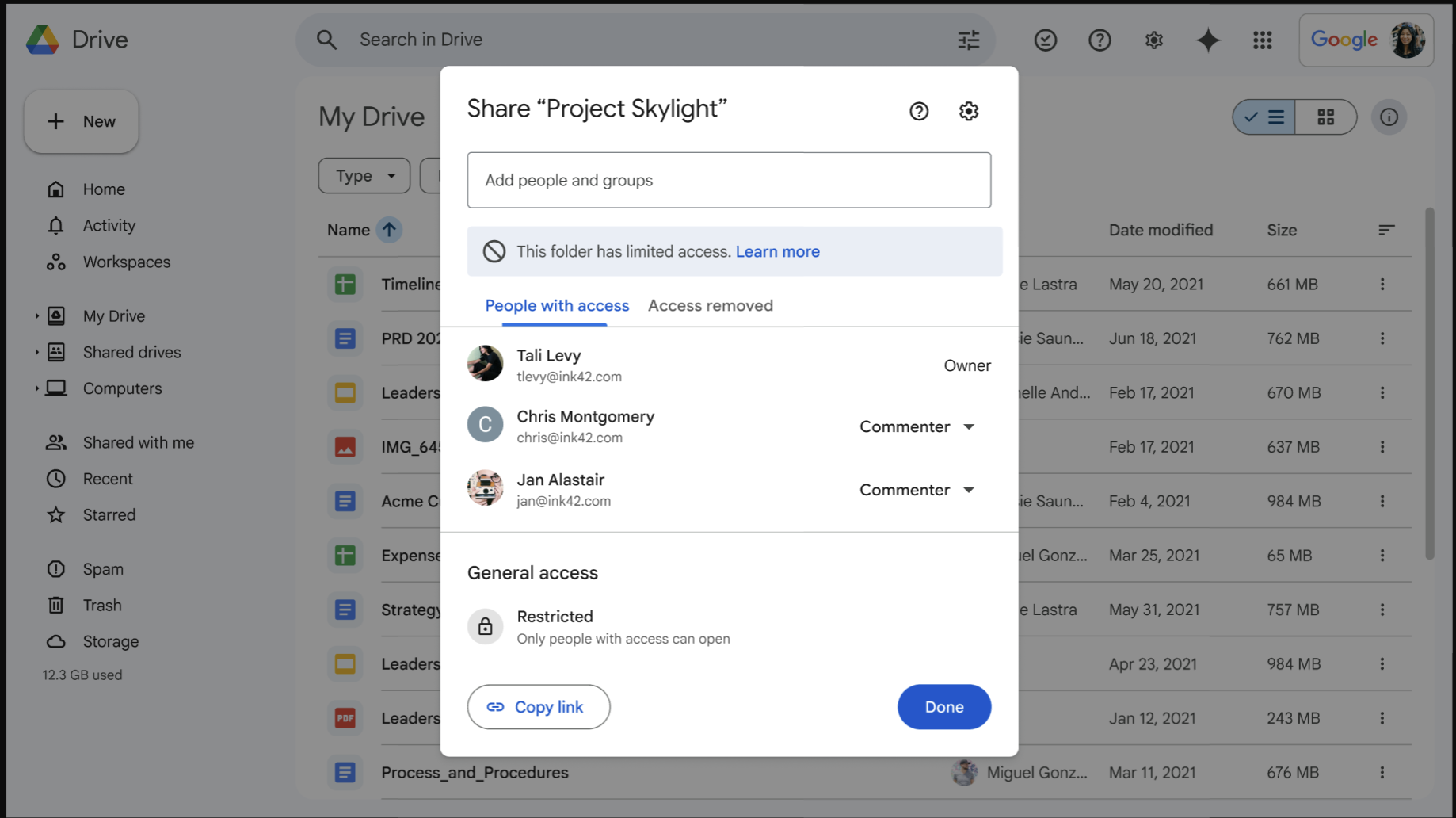
Check the destination folder’s actual audience before storing incident copies. Google’s current example shows Restricted alongside named people with access; it is not this checklist or an approved case folder.
Version notes
Official rollout announcement published 7 April 2026, available to personal accounts and all Workspace editions. The updated dialog has Limited access, People with access and Access removed. Exact captured web build is undisclosed. Background file modification dates are demonstration content, not the screenshot date. This is Google’s public example, not a personal account capture.For each incident, open the master and choose File > Make a copy. Name the copy with your team’s case identifier, choose the approved case location and click OK. Leave Copy comments and suggestions unchecked unless those comments belong in the case. Google documents this copy workflow.
Confirm the copy’s title before typing symptoms or ticking boxes, then inspect its Share settings. If copying is unavailable, ask the owner to check copying restrictions and organizational policy. Do not make the master publicly accessible as a workaround. After an accidental permission change, restore the previous role or audience with the owner; that cannot retract information already viewed or copied.
Rehearse the handoff before publishing
Give a colleague a disposable copy and a hypothetical case: one requester cannot open one project document, while another intended teammate can. Ask the colleague to follow only the written instructions. Use invented identifiers and no confidential screenshots.
A useful hypothetical record might say: “09:10 UTC, one document affected; 09:13, intended account confirmed; 09:16, owner reports recipient missing; 09:20, owner authorized and corrected access; 09:22, requester opened the original link.” These are invented observations, not test results. They show why an action, finding and next owner matter more than ticks alone.
If the colleague asks “which account?”, “who is the owner?” or “what counts as success?”, revise the master. Define success as repeating the original failed task with the intended account and expected access. A disappearing error alone is insufficient if the user is now in the wrong document.
Add explicit stopping conditions for suspected compromise, unexpected data exposure, missing authority or a step that would delete data. Route those cases to your organization’s appropriate contact. A reusable checklist should make the boundary easy to recognize, without authorizing responders to bypass it.
Improve the instructions without rewriting the incident
After a case, suggest one concrete improvement: an unclear action, a missing branch or an obsolete control name. Have the maintainer update the master and its review date. Preserve the completed case as the record of what was actually followed; future copies receive the revised instructions.
For a useful checkpoint, an editor can open Last edit at the top right, choose the relevant version, then use More > Name this version. If someone damages the master, inspect an earlier entry and use More > Make a copy to recover text separately before considering a full restore. Google’s version-history instructions require edit permission. Restoring the whole document can displace other useful edits; coordinate with maintainers first.
Assign a review trigger, such as a changed sharing interface or a failed rehearsal, alongside a calendar review date. Retire obsolete steps instead of appending warnings forever. The finished checklist should leave the next responder with a clear finding, a clear boundary and a clear next action.
Sources, versions & scope
The steps describe the documented controls and expected checks; they are not a claim that every device or software release has been physically tested. Platform and version differences are stated with the procedure.