If it is missing now, start with protection
A lost iPhone creates two jobs: recover the hardware and contain access to your information. If a quick search fails, mark it lost while you arrange the next steps. You can reverse Lost Mode after recovery; erasing the phone has a different boundary.
This guide covers your own iPhone, primarily through Find Devices in a browser, with a current iOS 27 Find My app alternative. If it is already missing, start below. If you still have it, use the preparation section first. No personal account or remote command was tested for this article.

- On a computer or borrowed device you trust, type icloud.com/find yourself and sign in with your Apple Account. If the sign-in flow asks for a verification code on the missing phone, choose Find Devices instead.
- Select your iPhone in the device list; use All Devices to leave another device’s card. Confirm the name before sending any command. Choose Play Sound if it may be nearby.
- If it remains missing, select Mark As Lost and complete the prompts. Supply a reachable alternative number and a brief return message when offered. Check that you selected the intended phone before confirming.
Apple’s Lost Mode instructions describe the web controls. Use a number you can answer without the lost phone, with the number owner’s agreement. A hypothetical message is: “This phone is lost. Please call the number shown to arrange its return.” Avoid a home address, passcode or account password.
Write down what you requested and when. This small incident log helps distinguish “I submitted the command” from “the phone received it,” particularly when several people are helping.
Separate a location clue from a completed lock
Lost Mode locks the phone and suspends Apple Pay cards and passes. An offline phone needs an internet connection for Lost Mode to take effect. A displayed map location alone is not confirmation that your latest request reached it.
Record any displayed location time alongside the place. A hypothetical last sighting at 14:10, checked at 14:40, is already 30 minutes old. It can guide a call to a café or transport operator, but does not establish who has the phone now. Ask staff about their lost-property process; do not confront someone at an unfamiliar address.
If you have another Apple device instead
On another trusted Apple device signed into your account, open Find My → Devices, select the missing iPhone, tap More, then find Lost [Device] and turn on Lost Mode. Family Sharing can also provide a route through a family member’s device.
In the Find My app’s Lost Mode confirmation, review the contact number and message, then tap Activate. Apple’s example shows Notify When Found unavailable; that disabled switch does not prevent using the separate Activate button.
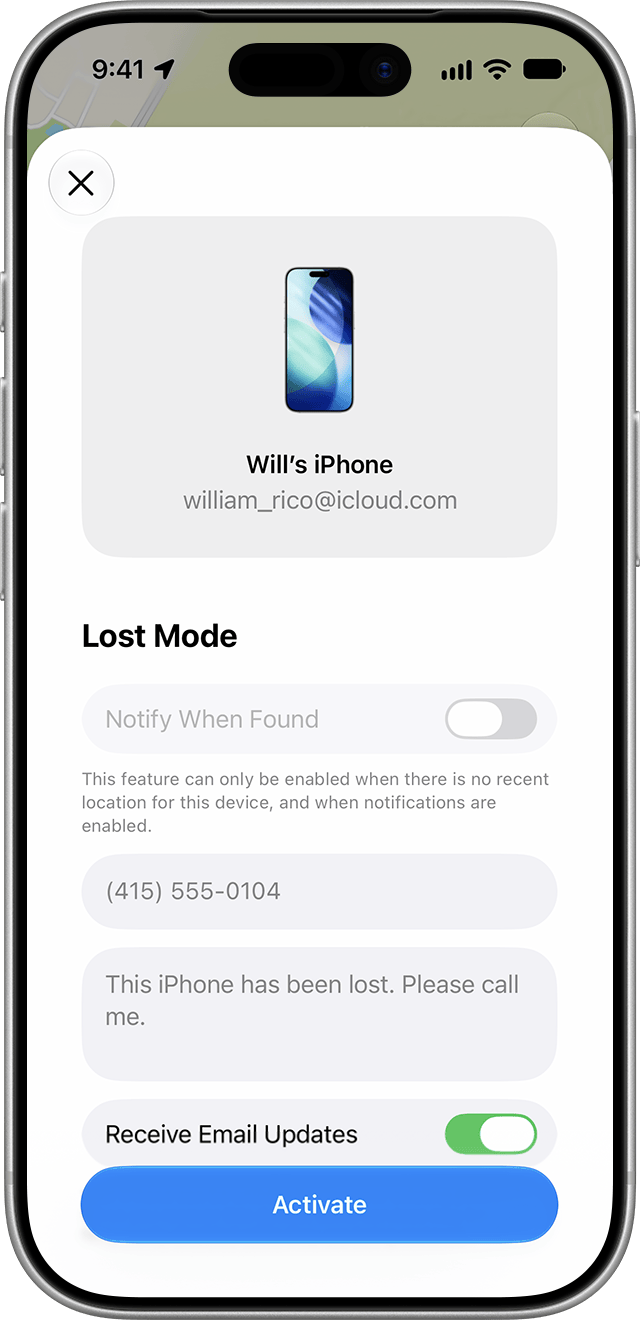
In the iOS 27 Find My app, check your return number and message before Activate. Apple’s sample shows Notify When Found disabled; the separate Activate button is available. This is not a screenshot of iCloud.com.
Version notes
Apple support 101593, published September 14, 2026, links this explicit ios-27 iPhone 17 Pro asset. Exact minor/build unknown. Shows pre-activation settings with vendor sample identity and number, not a delivered lock or recovered phone.The image illustrates the app’s confirmation state, not the web card or proof of activation. Its sample identity and number belong to Apple’s documentation example. Use your own reachable contact details.
While you still have the phone, remove recovery obstacles
Follow Apple’s Find My setup instructions: open Settings → your name → Find My → Find My iPhone and turn on Find My iPhone. Also enable Find My network for offline finding and Send Last Location for a location report when the battery becomes critically low. Availability varies by region.
Then do a modest access rehearsal on your own computer. Open Find Devices, identify the correct phone and stop before changing its state. Do not erase it or activate Lost Mode merely to rehearse. Check whether you can retrieve the account password without relying on the phone you are planning to lose.
Keep a small recovery record somewhere separate from the handset: its identifying details, carrier contact route and the alternative number you would display. A record locked inside the lost phone’s notes is of little help. Keep credentials in protected storage; a general household emergency note can point to that location without containing the secrets.
Check your backup arrangements too. Finding services locate or protect a device; they do not create a recoverable copy of its files. Our backup planning guide helps you check the recovery side before an erase decision becomes urgent.
When the search becomes an account-security problem
If the iPhone is absent from the list, first check which Apple Account you used. If Find My was never enabled, it cannot provide remote locking or erasure now. Apple’s lost-iPhone guidance covers reporting the loss to your carrier and police and reviewing account security.
Ask your carrier to suspend the missing line and explain how to restore service after recovery or replacement. Keep the case reference and instructions. Carrier suspension and Lost Mode are separate jobs; record both rather than assuming one request handles everything.
If the phone was taken unlocked or someone knows its passcode, explain that when contacting affected services. Prioritize email, payments and accounts showing unfamiliar activity. Review Apple Account information and change the password if you find changes you did not make. Use official service addresses you navigate to yourself.
Treat a “phone found” message as unverified. Apple says it will not contact you to announce that your device has been found. Never provide a passcode, password or verification code to a caller. A request to remove the phone from Find My is especially consequential: removal releases Activation Lock. Keep it listed while missing, including after erasure.
Erasure: decide before confirming, cancel before delivery
Use remote erasure when protecting the contents outweighs continuing your recovery attempts. Consider what exists only on the phone and what you could restore. Do not assume a photo library, authenticator or messaging app has a usable backup simply because another service syncs.
In Find Devices, select the correct iPhone, choose Erase This Device and follow the prompts. Apple’s erase guide distinguishes immediate delivery to an online device from a request waiting for an offline device. A completed erase cannot be undone; Activation Lock remains.
If you recover an offline phone before erasure, leave it offline while you use another connected device to select it in Find Devices. Choose Stop Erase Request and enter your Apple Account password. Complete cancellation before reconnecting the recovered phone. This opportunity ends once erasure has happened; it is not a way to recover deleted contents.
If erasure already completed, expect device setup and account authentication again. Restore available backups rather than looking for an undo button. Keep any theft-and-loss insurance claim requirements in view; do not remove the phone from your account while a claim requires it to remain linked.
After recovery, restore each service deliberately
Only turn off Lost Mode once the phone is safely back with you. On the web, select it, choose Lost → Stop Lost Mode, then confirm Stop Lost Mode again. You can also unlock locally with the passcode; Stolen Device Protection requires biometric verification to turn off Lost Mode.
Suspended cards can work again after Lost Mode ends and you sign back into your Apple Account. Check Wallet before relying on it for a journey or purchase. Separately contact the carrier about restoring the line; ending Lost Mode does not settle that carrier request.
Review the incident log: pending erase canceled, Lost Mode ended, cellular service restored, accounts checked, backup reviewed. Investigate unfamiliar activity even if the hardware looks fine. Finally sign out of the borrowed browser session and remove any saved credentials you accidentally left there.
Sources, versions & scope
The steps describe the documented controls and expected checks; they are not a claim that every device or software release has been physically tested. Platform and version differences are stated with the procedure.