Downloads is a landing place for files whose next destination has not been decided. When it becomes permanent storage, a receipt, an installer and three versions of the same attachment can look equally important. Give the folder ten minutes each week, with a specific finishing point: useful files have a home, obvious discards are gone, and anything undecided has a reason to remain.
This routine uses Windows 11 File Explorer and ordinary local files. Set aside a separate first session for the small setup below. If you already have years of downloads, start with the newest week; the ten-minute limit is a maintenance habit, not a promise to clear an unlimited backlog.
Before the first weekly pass
Open File Explorer with Windows key + E, then select Downloads in the left navigation pane. Check the address bar: work in the actual folder rather than Home’s recent-file list. If your browser saves elsewhere, use that destination instead. Leave its location unchanged while establishing the routine.
Choose View > Details so filenames, dates, types and sizes are easier to compare. Click the Date modified column heading until recent items appear first. An extracted file may retain an older modification date, so this ordering is a starting point, not an exact arrival log.
In File Explorer, choose View > Show > File name extensions and enable the option if it is unchecked. Microsoft’s extension guide documents this route. Visible suffixes help distinguish a PDF from an application; changing a suffix does not convert a file.
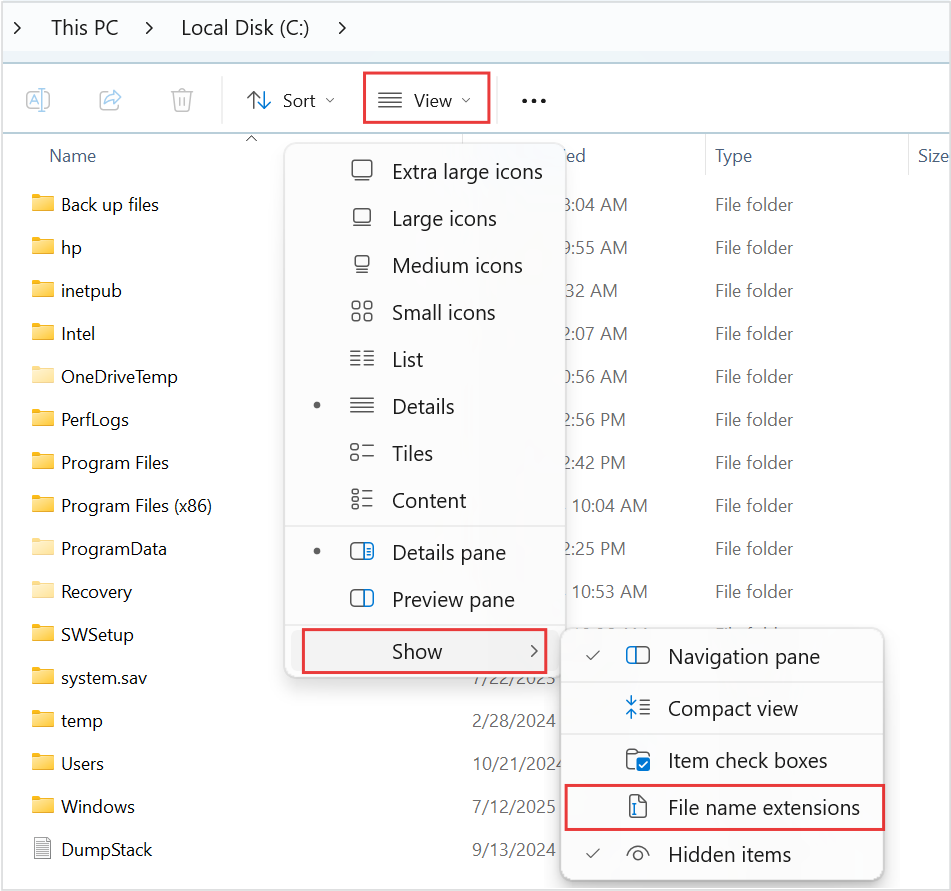
Microsoft Windows 11: the source outlines View → Show → File name extensions. The option is unchecked in this initial menu state; select it to reveal suffixes on your PC. This reference shows the C: drive, not a cleaned Downloads folder.
Version notes
Microsoft’s current Windows 11 file-extension instructions provide this Windows 11 command-bar and Show-submenu image. Complete downloaded asset retained, including the source’s red outlines. Exact Windows build is not stated. Initial menu state only; it does not show the article’s files or completed extension display.In Documents, create one folder called Download review using Ctrl + Shift + N. This is a temporary holding place for decisions that need more time. Keep long-term material in your existing project, receipts or reference folders. Avoid building a second elaborate filing system inside Downloads.
Minutes 0–2: identify what needs a decision
Start a ten-minute timer and scan recent downloads. Ask of each item: do I need to keep it, can I discard it, or do I need to resolve something first? Work through a small visible group rather than selecting the whole folder. Leave files involved in an active download or an open document alone until that work finishes.
For familiar documents, check enough content to identify their purpose. An unfamiliar executable does not need to be run to decide whether you wanted it. Leave an unexpected attachment unopened and investigate its source separately. A familiar filename, icon or extension alone does not establish trust.
Spot likely repeats, but do not treat names such as invoice (1).pdf as proof of identical contents. One may contain a correction. If comparison takes more than a quick check, put both in the review folder with a note about what you need to establish. This session is for decisions you can make confidently.
Minutes 2–6: give the keepers a destination
- Select a file you recognise and intend to retain. Press F2 if its name needs clarification. Change the base name while preserving the extension; a hypothetical receipt could become
2026-10-24-bike-repair-receipt.pdf. - Press Ctrl + X, open its intended folder, then press Ctrl + V. Microsoft’s File Explorer guide describes this select, cut, navigate and paste sequence. Wait for any transfer to finish.
- Confirm the file appears in the destination. For an important familiar document, open it there and check that it is the expected item. Then return to Downloads for the next small group.
Choose a destination by future use: a trip booking belongs with that trip; a manual belongs with the product’s records. An installer you still need can live with other software installers. Keeping every PDF together may save a decision now but make related records harder to retrieve later.
If Windows reports that a same-named file already exists, stop before replacing it. Cancel or skip that item, inspect both copies, and give distinct material a meaningful name. The newer timestamp is not enough to establish which content matters. If a file is in use, save and close the relevant application before retrying; do not force a move mid-edit.
Moving between folders on the same drive does not free drive space. Moving into a cloud-synchronised folder can also change where copies travel. Use a destination whose privacy and backup arrangements you already understand; filing something neatly does not itself create a backup.
Minutes 6–8: remove the obvious leftovers
Delete only items you have identified as expendable: an unwanted download, a confirmed redundant copy, or an installer you no longer need after installation. Deleting an installer is different from uninstalling its application. Keep installers required for offline repair or software you cannot readily obtain again.
Use ordinary Delete for local files and read any warning. Avoid Shift + Delete, which bypasses the Recycle Bin, as Microsoft’s shortcut reference explains. If Windows warns that an item will be permanently deleted, cancel unless you have deliberately accepted that loss. Leave the Recycle Bin unemptied during this routine.
For a downloaded archive, check that the extracted folder contains the expected material before discarding the archive. Do not assume extraction succeeded just because a folder exists. Keep the package if you need its original structure or a reliable source copy. Avoid deleting either half while an extraction is running.
Minutes 8–10: close the undecided loop
Move unresolved items into Download review and add a short note identifying the next action and a review date: “Compare these two invoices before paying; review next Friday,” for example. A dated subfolder can keep the note beside its files. Revisit existing review items before adding more; the holding area needs decisions, not automatic expiry.
In a hypothetical week with 24 downloads, you might file 11, delete nine and hold four for specific follow-up. Those counts are an example, not a target. The useful result is being able to explain the four pending items. A file you have not understood should not become disposable because the timer rang.
Stop at ten minutes. If older material remains, note where to resume and schedule a separate backlog session. Do not hide it all in an unlabelled “old stuff” folder. Set your next weekly reminder at a time you can repeat, and check that at least one filed item is easy to find from its new home.
Keep cleanup and recovery predictable
Check Start > Settings > System > Storage > Storage Sense. For this manual routine, leave Downloads deletion set to Never. Microsoft’s Storage Sense reference says Downloads is untouched by default unless you configure cleanup, and its deletion rule concerns files not opened for a chosen period. That is different from deciding whether a file is valuable. Also inspect the Recycle Bin retention setting; it limits your recovery window.
If your latest move or rename was wrong, stop and try Ctrl + Z in File Explorer immediately, then verify the result. Undo concerns the previous action; do not repeatedly press it after unrelated operations. For a mistaken ordinary deletion, open Recycle Bin, identify the item and choose Restore; then check its original folder.
Undo and Recycle Bin are not substitutes for backup. A permanently deleted file, an emptied bin or an overwritten destination may require an existing backup or retained version. Keep that boundary in mind when a decision is uncertain: leave the file intact, record the question, and resolve it during the next review.
Sources, versions & scope
The steps describe the documented controls and expected checks; they are not a claim that every device or software release has been physically tested. Platform and version differences are stated with the procedure.