Give the household login a home
A family chat is a convenient place to ask for the household password. It is a poor place to maintain it: someone scrolls back to an old message, someone else saves a screenshot, and nobody knows which copy is current. A shared password group gives the credential a place where the people who need it can retrieve it.
This guide uses Apple’s Passwords app on an iPhone running iOS 27. It covers an ongoing household group, from the first invitation to ending access. Choose a login whose service permits sharing, such as an account explicitly intended for household use. Sharing a saved password does not expand the service’s subscription rights.
Keep your personal email, Apple Account and phone unlock code outside this exercise. Ask whether the other person needs the whole account or only a particular task. A separate user or delegated access is preferable when the service offers the exact permission you need.

Decide who belongs before choosing passwords
Imagine two adults need the household account, while a visiting relative needs only occasional help. That is a hypothetical planning example. Put the adults in the group; do not add the relative merely because everyone shares the same family chat. A group should describe an access decision.
Apple’s group permissions documentation says members can view, add, edit and delete shared credentials. Only the owner manages membership. Treat membership as permission to handle the shared login, including changing its saved details. Agree who will make account changes so that one person does not silently replace another’s working entry.
Pick an owner who will remain available and name the group for its purpose, such as “Household accounts.” Before proceeding, agree which login belongs there and who controls its recovery email. Avoid a catch-all group containing every password in your personal collection.
Check the sync prerequisite on each phone
Each person should use their own Apple Account. Apple requires two-factor authentication for iCloud Keychain and recommends current device software. Its Keychain setup instructions explain how to enable the service that stores and synchronizes these credentials.
Open Settings → your name → iCloud → Passwords, then turn on Sync this iPhone if it is off. Complete any requested authentication on your own device. The expected result is the Sync this iPhone switch enabled on the Passwords & Keychain screen, as in Apple’s illustration.
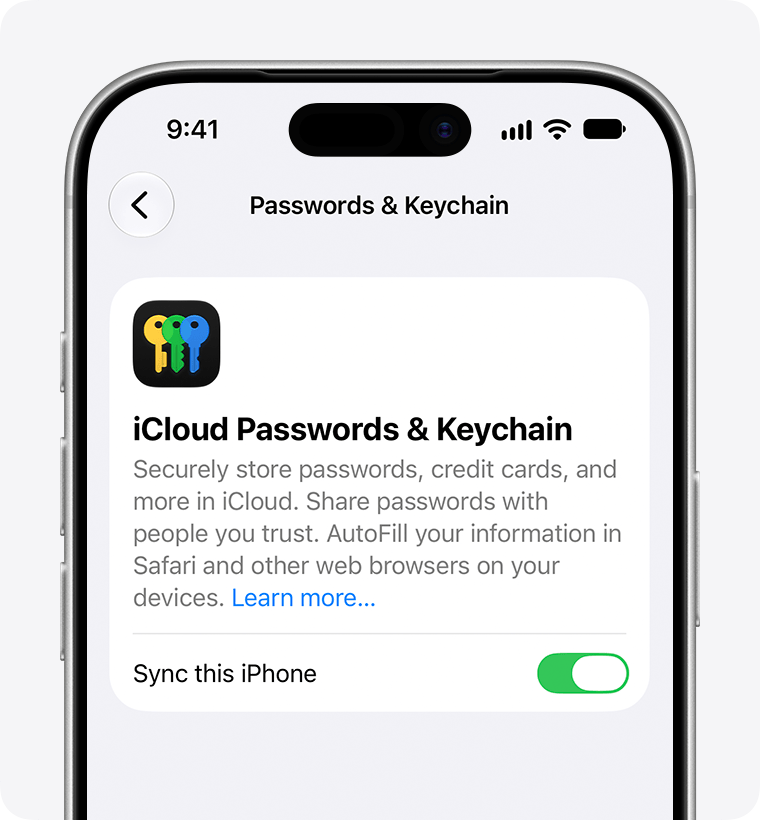
Check that Sync this iPhone is on. This is the iCloud prerequisite, before creating the household group.
Version notes
Apple’s live Keychain support page, dated October 1, 2026, serves this asset explicitly identified as iOS 27 on iPhone 17 Pro. Point release unspecified. Shows sync enabled, not a group or invitation.Do this together if a family member is unfamiliar with account settings, but let them enter their own credentials. Nobody needs to dictate an Apple Account password into the family conversation. Confirm the selected Apple Account belongs to the phone’s user before enabling synchronization.
Do not turn Keychain off as a troubleshooting shortcut. Apple says doing so, or signing out of iCloud, removes your access to shared groups while other members retain access to credentials you contributed.
Invite the people, then move one login
Follow Apple’s current iPhone group-sharing instructions with one carefully chosen saved login first:
- Open Passwords and return to its categories if necessary. Tap the New Shared Group toolbar button.
- Name the group, tap Add People, select the intended contact and tap Add. Tap the Create button.
- Select the saved password to share and tap Move. Check the selection before committing; leave unrelated accounts out.
- Ask the recipient to open Passwords → Group Invitations, open your invitation and tap Accept. A chat message is unnecessary.
Invitees must be in your contacts and have a compatible Apple device: Apple lists iOS 17, iPadOS 17 or macOS 14 as minimums. An eligible contact appears blue; gray can indicate an unsupported device. These minimums do not describe the screens used in this iOS 27 walkthrough.
The intended result is a named group containing the chosen login, visible to the person who accepted. Password changes shared through the group update for its members. Before adding anything else, ask the recipient to confirm the account’s website and username on their phone. There is no reason to paste the secret into chat to prove it arrived.
Check actual access before relying on it
Have the recipient open the service through its known app or website and use the shared saved login. Confirm they reach the intended household account. This is a check for you to perform, not a claim that Knowligent tested your service or observed a successful sign-in.
A second-factor prompt is a separate part of the service’s sign-in process. Agree how authorized household users will complete it before anyone depends on this account while the owner is away. Do not disable two-factor authentication just to make password sharing feel complete.
If the invitation is missing, check Group Invitations directly and verify which contact you invited. If the contact is gray, check their device compatibility before trying another address. Never accept an unfamiliar invitation to see whether it fixes the problem.
If the group and entry appear but the service rejects the login, compare the website and username first. A successful group invitation does not prove that an old saved password still works. Have the account owner check the service’s sign-in or recovery process rather than repeatedly guessing, which may trigger an account lock.
When a password must change, perform that change at the service and make sure its current value is saved in the shared entry. Editing a saved record alone cannot instruct a website to change its password. Repeat the recipient’s sign-in check after the update.
Recover mistakes and end access deliberately
If a shared entry disappears after deletion, Apple’s iPhone recovery procedure gives a 30-day recovery window: open Passwords → Deleted, select the account and tap Recover. For a previously shared entry, Recover to Group resumes sharing; Recover and Stop Sharing restores it without sharing. Choose according to who should still have access. If someone else contributed the deleted credential, Apple says that contributor receives the recovery notification.
To remove someone as owner, open Passwords, open the group, tap their name and choose Remove From Group. Apple warns that removing a person, leaving a group or deleting an entry cannot retract credentials already obtained. Change passwords at the affected services when former members should lose access.
Also inspect each service’s signed-in devices or sessions and its available sign-out controls. The service determines what happens to existing sessions after a password change; the group membership list cannot confirm that those sessions ended. For a shared passkey, use the service’s credential-management controls to address that access too.
If you accidentally shared a personal login, restoring it privately is only part of the repair. Consider what the recipients could already have accessed, change the exposed credential and review the account’s recovery details. An invitation is reversible; disclosure cannot be assumed reversible.
Finally, leave a short household note identifying the group owner and which accounts belong in the group. Include no passwords. Review membership when someone moves out or no longer handles the household task, so yesterday’s convenient access does not become a permanent entitlement.
Sources, versions & scope
The steps describe the documented controls and expected checks; they are not a claim that every device or software release has been physically tested. Platform and version differences are stated with the procedure.