Several addresses can lead to the same inbox
A shop asks for your email address before showing a discount. Giving it a different address can help you contain unwanted mail later, but “different” has several meanings. An alias might simply be another name for your existing mailbox. A masked address adds a forwarding service between the sender and your inbox, keeping the destination address out of the address you hand over.
This guide uses Firefox Relay’s desktop web dashboard for a practical example. You need a Mozilla account and access to its receiving inbox. You can use the dashboard without installing an extension. The goal is to create one address for a modest signup, check delivery, and understand what happens when you stop forwarding.
A sorting tag, an alias, or a forwarding mask?
- A tagged address helps organize mail.
- Where supported, adding a plus tag gives you a variation of an existing address. Google’s Gmail guidance explains that messages to the variations reach the same inbox. In a hypothetical example, [email protected] visibly contains [email protected]. Anyone can remove the tag; it does not conceal the base address.
- A mailbox alias supplies another address.
- A provider can attach an additional address to an existing mailbox. That does not necessarily create a separate inbox or password. Whether you can send from it, sign in with it, or remove it depends on the provider. Do not treat the word “alias” as a guarantee of privacy or independent recovery.
- A random mask hides the delivery destination.
- The website receives a generated address; the masking service forwards messages to your inbox. A random string does not expose your mailbox name in the way a plus tag does. You still depend on the forwarding service and the underlying email account.
For sorting trusted correspondence, a tag may be enough. For limiting how many businesses learn your everyday address, a separate random mask per business is more useful. Neither choice creates a separate identity: a purchase, shipping address, account login, or tracking cookie can still identify you.
Give one mask one job
Start with something replaceable, such as a newsletter, rather than an account whose recovery you cannot afford to interrupt. Mozilla’s mask creation guide recommends less critical signups and cautions against relying on masks for identity verification, important correspondence, or essential attachments.
Decide where you will record the address before creating it. A password-manager entry can hold the site, its exact login address, and its password together. Add a note that the address forwards through Relay. Your future self needs to know which service controls delivery when a reset message goes missing.
- Open relay.firefox.com and sign in with your Mozilla account. Use the dashboard route rather than waiting for an email-field suggestion.
- Select Generate new mask. A generated address should appear in your list. Use its copy icon, then paste the complete address into the intended signup’s email field.
- Before submitting, check that the field contains the mask, not your everyday address. Save that exact address with the site’s login. Keep a note of the destination inbox as well.
- Finish the signup and look for its confirmation in your normal inbox, including spam. Open the expected confirmation only after checking that it belongs to the signup you just initiated.
Receiving the confirmation establishes that this message reached you through this mask. It does not prove every future message or attachment will arrive. If nothing arrives, compare the saved address with the dashboard, confirm that forwarding is allowed, and check spam before requesting another confirmation.
If generation fails, leave existing masks intact while investigating. Check the allowance displayed for your account; Mozilla’s creation page and some older help pages disagree on the free quota. A temporary rate limit is another documented possibility. Try later rather than deleting an address that already receives account mail.
Use Firefox’s inline offer when available
Firefox can offer a shortcut on an email field when you are signed in to your Mozilla account and Relay masks are enabled. If it does not appear, the dashboard route above remains available; this shortcut is not required in other browsers.
Click the email field and choose Use an email mask when offered. Firefox may also offer saved addresses, so confirm that you choose the masked option rather than your primary address.
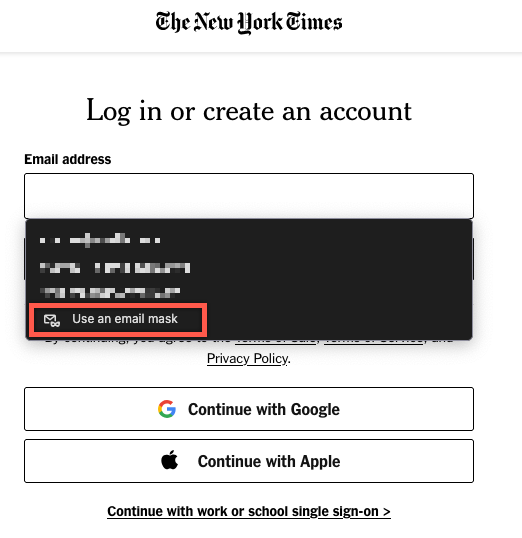
Choose Use an email mask in the offered menu. This is Mozilla’s public newspaper-signin example, not an invitation to register there or a personal account capture. The blurred menu entries and red outline were supplied by Mozilla.
Version notes
Current Mozilla Help updated 21 April 2026 supplies these two matching April2026 gallery images for the inline Firefox offer. Exact browser patch build is undisclosed; current Firefox159 release separately verified. This is the inline route, not the dashboard screenshot. Vendor redactions, example address and highlights are unchanged.After insertion, inspect the email field before selecting Continue. It should contain your new mask rather than your everyday mailbox; save the exact address with the account entry. The mozmail address in Mozilla’s reference is an example: do not reuse it or treat the picture as a delivery test. Complete the confirmation in your own receiving inbox to check your forwarding route.
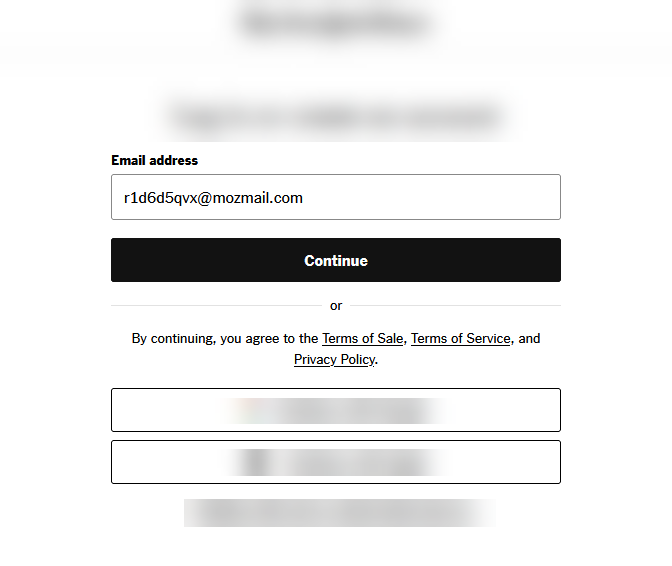
Inspect the inserted mask before continuing. The address shown belongs to Mozilla’s example; use the address generated for your own session. Blur is part of the unchanged vendor reference, and the picture does not prove delivery.
Version notes
Current Mozilla Help updated 21 April 2026 supplies these two matching April2026 gallery images for the inline Firefox offer. Exact browser patch build is undisclosed; current Firefox159 release separately verified. This is the inline route, not the dashboard screenshot. Vendor redactions, example address and highlights are unchanged.Receiving privately does not automatically mean sending privately
Suppose a seller sends an order question to your mask. Composing a new message from your ordinary mailbox directly to the seller can reveal that mailbox’s address. Merely putting the mask in a display name or signature does not change the sending address.
Mozilla’s Relay Premium FAQ says masked replies require Premium and are sent by replying to the forwarded message in your normal inbox, rather than from the dashboard. Check that your plan supports replies before using a mask for correspondence. If you cannot reply through the mask, decide whether to disclose another address or move the conversation through the business’s authenticated support site.
Even a supported masked reply can contain identifying text. Remove an automatic signature containing your primary email, and inspect quoted correspondence or attached documents before sending. Address masking does not rewrite personal details you deliberately put in a message.
Stop unwanted mail without destroying the address
Imagine three newsletters each have their own mask. Blocking one leaves the other two routes available. Reusing one mask for all three makes that switch affect all three. This hypothetical example is why one mask per service gives you more control.
Before blocking, check whether the address also receives receipts, account alerts, or password resets. Then follow Mozilla’s forwarding controls:
- In the Relay dashboard, find the exact mask recorded for that service. Expand its options with the downward arrow.
- Under What emails do you want to block?, move the slider from None to All. This blocks messages to that mask, including useful ones.
- To restore forwarding, return the slider from All to None. Request a fresh confirmation or reset message if needed; do not assume blocked mail will be replayed.
Mozilla also says reporting a forwarded message as spam can automatically disable that mask. If a previously working address suddenly goes quiet after a spam report, inspect its forwarding setting and any Relay notification before changing the website’s login.
Permanent deletion has a different boundary: Mozilla says a deleted mask cannot be recovered or reused. First change the email address inside every account using it, complete any verification, and confirm that the replacement receives mail. Blocking is the reversible choice while you are uncertain. Deleting a mask does not delete the business’s account or cancel a subscription.
Keep a way back into the real inbox
Protect the receiving email account and Mozilla account, and retain their recovery methods somewhere you can access without those accounts. Avoid making the Relay account depend on one of its own masks. Otherwise a forwarding or sign-in problem can become a circular recovery problem.
A mask can reduce address exposure and give you a useful off switch. It cannot make a phishing message trustworthy or erase an address a company already holds. Unexpected mail to a mask is a clue to investigate, not proof that a particular business sold your details. Preserve the address mapping, check delivery before depending on it, and retire the route only after moving the accounts that still need it.
Sources, versions & scope
The steps describe the documented controls and expected checks; they are not a claim that every device or software release has been physically tested. Platform and version differences are stated with the procedure.