A security key is easy to carry and easy to misplace. The setup is finished only when you can leave the everyday key behind and still sign in. Treat the spare as a separate entrance that needs its own enrollment, a successful test, and somewhere sensible to live.
This guide covers a personal Google Account in desktop Chrome, using a USB security key for ordinary 2-Step Verification. It excludes work or school policies and Google’s Advanced Protection Program. Keep your existing sign-in methods and a working account session available throughout setup.
Prepare two entrances before changing anything
Gather your everyday key, a spare, and a computer you control. Check each key’s exact model against its manufacturer’s specifications and your computer’s ports. A familiar connector does not prove which authentication protocols a device supports. Google accepts FIDO1 or FIDO2 keys as a second step; password-skipping hardware passkeys require FIDO2.
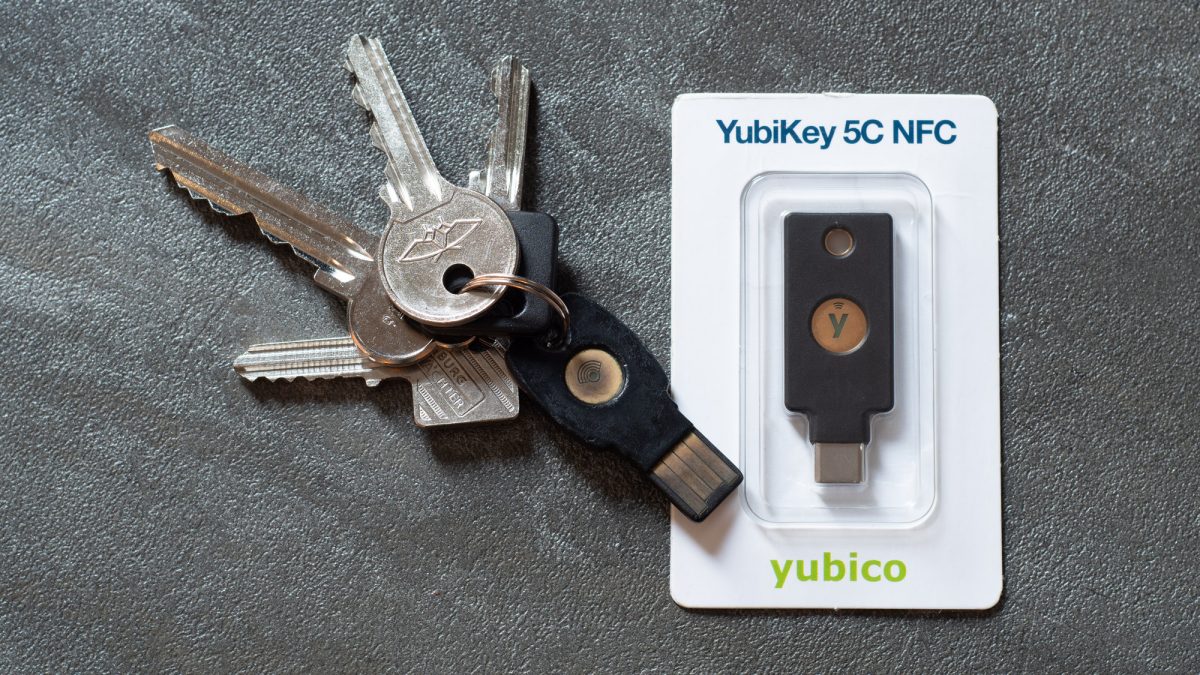
Inspect the exposed USB contacts and locate the touch target before enrollment. In the closeup, the four long gold strips at the left are the USB contacts; the large round gold disc on the body is the touch target. Your model may use a different shape. Use its instructions rather than pressing the connector or assuming every gold circle is a button.
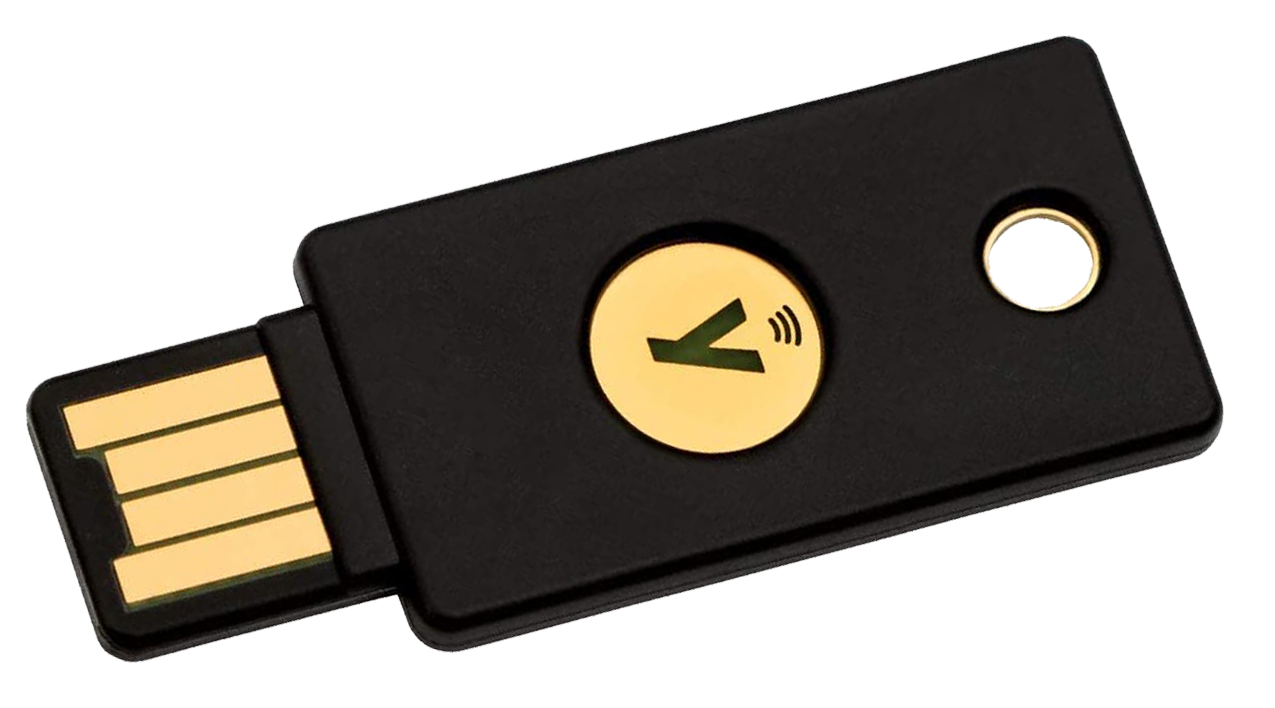
Locate the exposed USB contacts at the left and the separate round touch disc on the body. This physical closeup does not demonstrate sign-in or establish compatibility for another key.
Version notes
Real camera photo dated 2022-04-10, identified by the source as YubiKey 5 NFC. Existing Commons crop by Wdwd downloaded unchanged; original camera metadata identifies Google Pixel 4a. Evergreen inspection of this physical device, not a current software capture or a firmware claim. Display photograph resized for loading speed; the full-size link preserves the original download.Decide where the spare will stay before you register it. A protected location at home may suit someone carrying the everyday key outside. If both keys travel in one laptop bag, losing that bag removes both routes. For a hypothetical travel plan, write down how you would retrieve the spare if the bag disappeared tonight.
Use a small non-secret record: account address, key nickname, storage location, and last successful test date. Keep actual passwords, PINs and backup codes out of that inventory. It should help you find the correct credential without itself becoming a bundle of credentials.
Enroll each physical key, then distinguish the entries
Start at your Google Account. Confirm the account address, especially if your browser has several accounts signed in. Under Security & sign-in, find How you sign in to Google. If necessary, choose Turn on 2-Step Verification and complete Google’s prompts. Its setup guide explains that the challenges offered can vary.
- Open Google’s security-key enrollment link, also supplied in its official key instructions. Reauthenticate if asked. Keep only the everyday key connected, follow the hardware prompts, and touch its sensor when requested.
- Return to the security-key list in 2-Step Verification settings. Confirm an entry exists. Use its edit control to give it a useful name, such as “Daily key.” Do not treat a browser prompt closing as sufficient confirmation.
- Disconnect that key. Repeat enrollment with the spare and name its entry “Home spare.” Confirm both entries remain listed. Record which physical object matches each name before putting either away.
A spare still sealed in a drawer is not ready. Enrolling the everyday key does not enroll the second device. Likewise, a list containing two generic names is difficult to use safely during an emergency: a rushed deletion could remove the credential you still possess.
If a prompt offers to create a passkey, recognize the change in sign-in behavior: Google says a hardware passkey can bypass the separate second step. This article’s rehearsal uses the password-and-second-step route. Cancel an unexpected storage choice rather than approving a phone or computer credential and assuming it lives on the USB key.
Make the spare prove itself without the daily key
Leave the working session open. In a separate Chrome profile on your own computer, start a fresh Google sign-in. Keep the daily key physically disconnected. Use your password route and, when necessary, Try another way to select the security key. Connect only the spare and complete the requested touch or verification.
The useful result is the intended account opening after authentication with the spare. An account page that was already signed in proves nothing about the key. Record the date and the computer used. Sign out of that test profile only, then repeat a fresh sign-in with the daily key. Keep your original working profile signed in throughout.
Google warns that a newly added key may need up to seven days before it is available at sign-in. A failed immediate rehearsal therefore does not automatically mean defective hardware. Keep the old working routes, note the unsuccessful test, and retry after the documented delay. Do not remove alternatives while waiting.
For a connection failure, check the selected account, reseat the key, try a direct matching USB port, and confirm you are touching the target your model requires. If a prompt says “security key PIN,” distinguish it from your Google password. Stop guessing an unknown PIN; move to your working alternate and the manufacturer’s recovery guidance.
Put an offline fallback somewhere you can reach
For ordinary Google 2-Step Verification, prepare backup codes as an additional route. In Security & sign-in → How you sign in to Google → 2-Step Verification, find Backup codes and choose Continue. Choose Get backup codes if none exist, then print or download them.
Protect the current copy with other important documents, separately from the keys you carry. A download stored only inside the Google account you cannot open will not help at the door. If you print, check where the print job goes and collect the sheet yourself. Label the account and creation date without adding its password.
To use one, sign in with your password, choose Try another way, then Enter one of your 8-digit backup codes. Each code works once. Google supplies ten per set: using one leaves nine unused. Mark any used code immediately.
Refresh creates a replacement set and invalidates the previous one. Replace every stored copy together. Backup codes do not replace a forgotten password, and downloadable codes are unavailable under Advanced Protection. Never send a code to someone claiming to provide support.
When the key disappears, revoke the right thing
Retrieve the tested spare or use another available second step. After regaining access, remove the missing key’s named entry from Google’s security-key list and confirm the change. Enroll and test a replacement before returning it to backup storage. Repeat the missing-key removal on every other account where that physical key was registered.
If neither key nor another usable sign-in route remains, open Google Account recovery. Enter the account in Email or phone and choose Next. Later questions depend on the account. Recovery can involve delays and is not a guaranteed substitute for a registered spare.
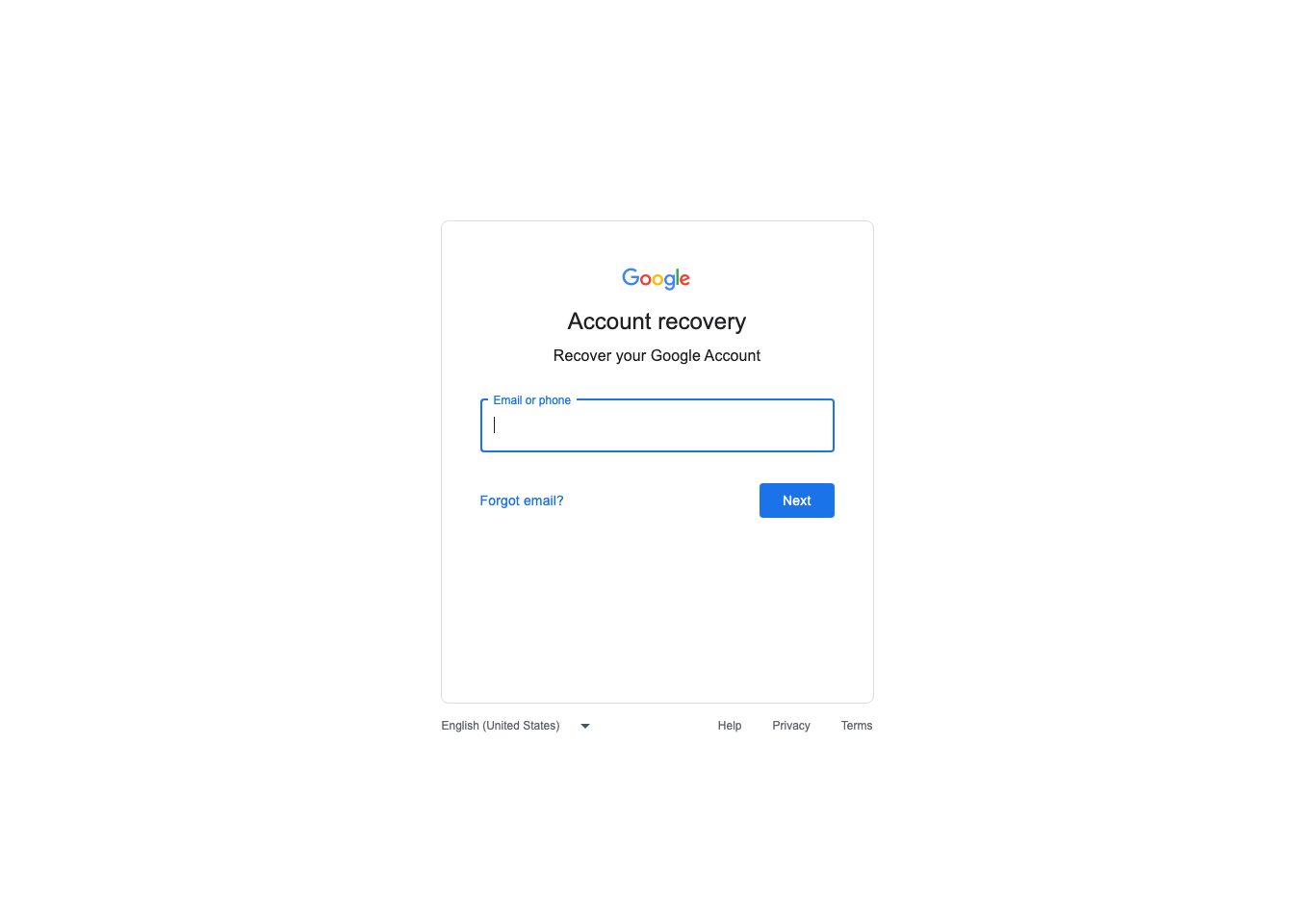
If every normal route is unavailable, start at Account recovery with the affected account address. This unchanged public entry capture shows no later questions or completed recovery.
Version notes
Captured from live accounts.google.com on 2026-10-31 using installed Google Chrome 156.0.8078.74, 1365 × 960 viewport, isolated new profile, no account data entered. Google web service exposes no release number; currency is established by same-day live rendering, not inferred from an old support asset. Layout can vary by device and server rollout. Reused unchanged from Signal Desk’s same-day verified recovery-entry asset; independently visually checked for this article.Do not reset a key as a casual troubleshooting experiment. Yubico’s FIDO documentation explains that resetting supported YubiKeys destroys their FIDO2 and U2F credentials and requires registration again at affected services. Changing a known FIDO2 PIN preserves credentials; resetting does not. Other manufacturers require their own instructions.
Removing a credential from Google revokes that account’s enrollment; a hardware reset affects credentials on the physical device. Neither action replaces checking your other accounts. Keep the non-secret inventory current, and repeat the spare-key rehearsal before a trip or after replacing your main computer. Store the spare only after it has passed.
Sources, versions & scope
The steps describe the documented controls and expected checks; they are not a claim that every device or software release has been physically tested. Platform and version differences are stated with the procedure.