The portal gives you 120 MB. Spend it deliberately.
Imagine an eight-minute training video that must fit a submission portal’s 120 MB limit. The portal’s hypothetical specification accepts MP4 containing H.264 video and AAC audio. Your recording has spoken narration, occasional demonstrations and small interface labels. You need a readable delivery copy, and you have the original recording and editing project safely retained.
“Export at 1080p” leaves the storage question unanswered. We will instead give this video a budget: aim for a finished file of 115 MB, leaving 5 MB below the stated ceiling. Within that working target, allow another 2% of the encoded media payload for container information and other small additions. These are planning choices for this example, not measured overhead or a portal guarantee.
First establish what the receiving system counts. Here, 120 MB means exactly 120,000,000 bytes. A limit of 120 MiB would mean 125,829,120 bytes. If the portal only says “120 MB,” consult its instructions; do not assume a rounded file-manager display settles the question.
Eight minutes buys 480 seconds of encoded media
Use the entire delivery duration, including title cards and the closing pause. For this example it is exactly 480 seconds. Reserve 128 kb/s for one AAC audio track. That is 0.128 Mb/s. Throughout this calculation, kb/s means 1,000 bits per second, Mb/s means 1,000,000 bits per second, and MB means 1,000,000 bytes. The site calculator labels the same rates kbps and Mbps.
Average rate matters because the file contains all those seconds together. A busy demonstration can consume more bits than a still slide in a variable-bitrate encode. Neither one difficult frame nor the highest instantaneous rate tells you the whole file’s size. The relevant estimate is the average video rate plus the average rates of all included audio tracks, multiplied by duration.
Work backward from the 115 MB target:
Estimated finished MB = (video Mb/s + audio Mb/s) × seconds ÷ 8 × 1.02
Combined media allowance = 115 ÷ 1.02 = 112.745098… MB
Combined average bitrate = 112.745098… × 8 ÷ 480 = 1.879084967… Mb/s
Video allowance = 1.879084967… − 0.128 = 1.751084967… Mb/s
Round the video target down to 1.75 Mb/s, or 1,750 kb/s. The eight converts bits to bytes; the 1.02 adds an assumed 2% to the payload. Dividing by 1.02 when working backward preserves that same definition.
Audio is already part of this allocation. Do not add it twice if an application reports a combined bitrate. Conversely, a video-only bitrate field does not reserve space for narration automatically. Two separately encoded 128 kb/s audio tracks require a combined audio entry of 256 kb/s; stereo channels inside one 128 kb/s track do not.
Make the calculator reproduce your assumptions
Open the video file size calculator. Enter 8 under Duration (minutes), 1.75 under Average video bitrate (Mbps), 128 under Combined audio bitrate (kbps), and 2 under Container / other overhead (%). The duration field takes minutes: entering 480 there would describe eight hours.
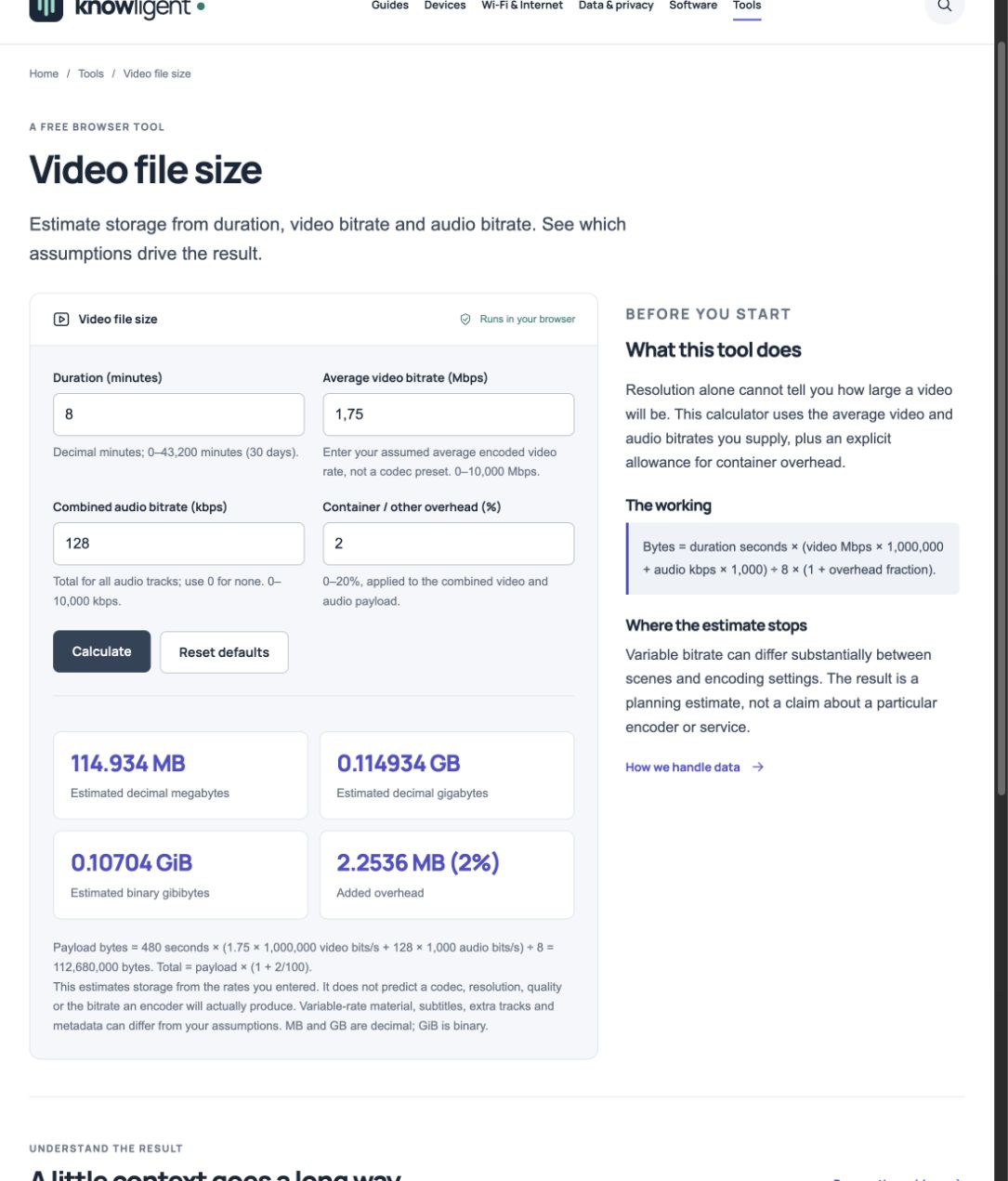
The article’s actual inputs produce 114.934 MB on screen. The exact calculation is 114.9336 MB; the result tile rounds to three decimals.
Version notes
Knowligent browser tool, current local working build inspected 31 October 2026. Fresh actual screenshot of the displayed state; no simulated device UI or measured performance claim.The unrounded arithmetic is 112.68 MB of media payload, plus 2.2536 MB of assumed overhead, for 114.9336 MB, or 114,933,600 bytes. The tool may round its displayed result. Its overhead control multiplies the combined video and audio payload; it does not add 2 MB or reserve 2% of the portal limit.
That leaves 5.0664 MB below the 120 MB ceiling in the model. It is not all “container overhead”: we already accounted for that separately. It is room for an estimate to differ from the completed file. Changing the overhead box changes our prediction, not the encoder’s behavior.
A useful sensitivity check is to change one input. Extending the same video to 8.5 minutes predicts 122.11695 MB. Keeping eight minutes but adding a second 128 kb/s audio track predicts 122.7672 MB. Either revision breaks the original budget. A slightly longer ending or an unnoticed alternate-language track can matter more than the decimal places in your chosen video rate.
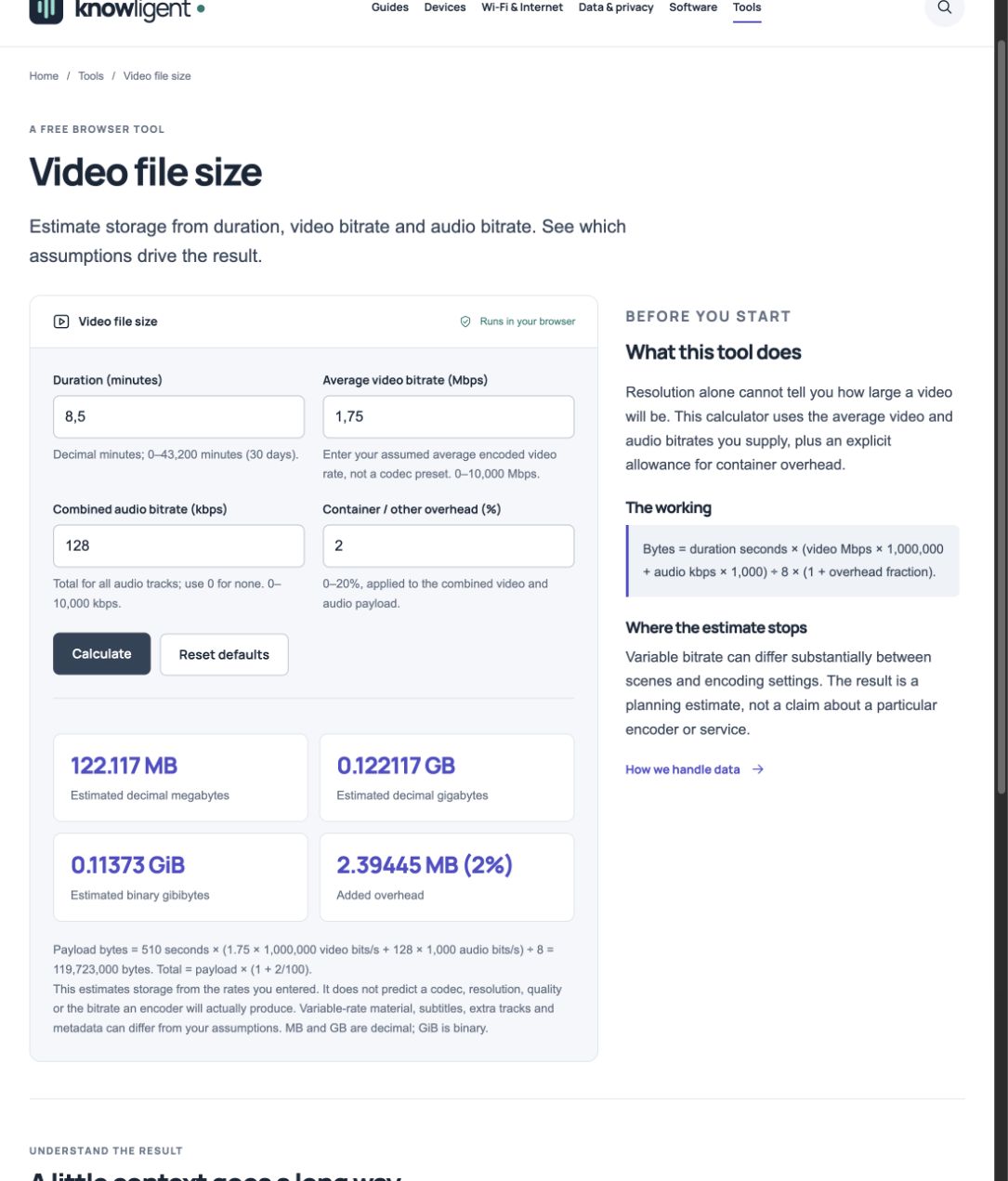
Changing only the duration to 8.5 minutes raises the displayed estimate to 122.117 MB, above the hypothetical 120 MB ceiling.
Version notes
Knowligent browser tool, current local working build inspected 31 October 2026. Fresh actual screenshot of the displayed state; no simulated device UI or measured performance claim.Resolution decides what you can show; bitrate decides what you can spend
A 1920 × 1080 frame has more pixels than a 1280 × 720 frame. It does not come with a fixed encoded size. At the same achieved average video bitrate and duration, the video payload calculation is the same for either dimension. What changes is how much detail the encoder must represent within that allowance.
For our hypothetical lesson, keeping 1080p might preserve the shape of small labels, but 1.75 Mb/s might leave motion or detailed screens visibly degraded. Reducing to 720p may ease compression while making those labels too small. Neither outcome can be decided by arithmetic. Try a segment containing the smallest required text, scrolling and a spoken explanation, then inspect it at the recipient’s intended viewing size. Do not use an easy opening slide as the only quality sample.
The codec is the compression method: H.264 in this assumed delivery specification. MP4 is the container that packages video, audio and associated information. MDN’s container documentation explains why the extension alone cannot identify all the streams inside. Choosing another codec may change quality at a given bitrate, but keeping the achieved bitrate and duration unchanged does not magically reduce the calculated payload. A different codec also needs explicit support at the destination.
Give the encoder an average target
A quality slider is not a size commitment. HandBrake’s constant-quality and average-bitrate explanation distinguishes a mode that adjusts bitrate to pursue quality from one that aims at an average rate. A strict byte ceiling is a reason to investigate the latter. Average-bitrate encoding can still vary its rate across scenes.
In HandBrake’s desktop interface, select the Video tab and, with a supported encoder such as H.264 (x264), choose Avg Bitrate (kbps). Enter 1750. Set the intended audio track’s bitrate to 128 kb/s on the Audio tab; check that an audio-passthrough choice has not left the source’s larger rate unchanged. Keep the intended dimensions and frame-rate choice stable while evaluating this candidate. Select a new destination filename, preserving your source.
Multi-pass controls depend on the selected encoder and release. Use them where supported to help allocate the average budget across the video; they do not create extra storage allowance. HandBrake’s command-line reference separately documents video bitrate in kbit/s and multi-pass options, and notes that available options vary with hardware and operating system. If your chosen encoder exposes only quality controls, select a supported rate-control route rather than interpreting an RF value as megabits per second.
A short sample answers whether this candidate is worth a full encode. It cannot certify the full file’s size, because the rest of the lesson can have different complexity. Export the complete delivery copy before calling the budget successful.
The exported bytes settle the account
If you already have FFmpeg’s ffprobe installed, this inspection command works in common macOS, Linux and Windows shells. Replace the quoted filename with your completed local export; it reads information without re-encoding the file:
ffprobe -v error -show_entries format=duration,size:stream=codec_type,codec_name,width,height -of json "lesson-delivery.mp4"The official ffprobe documentation describes the format and stream sections and the field-selection syntax. Compare the format’s byte-size value against 120,000,000, then check duration and the reported streams. An absent optional field is not a zero. Without ffprobe, use your operating system’s file information dialog and its exact byte count, rather than a rounded size or disk-allocation figure.
Suppose the completed file were 116,200,000 bytes and 480 seconds long. That hypothetical result would fit the ceiling, although it would exceed our 115 MB working target. Its whole-file average would be 116,200,000 × 8 ÷ 480 = about 1.9367 Mb/s, including audio and packaging. That is not the video stream’s average, and the difference from our estimate cannot all be assigned to container overhead.
If the real result exceeds the ceiling, confirm duration, included tracks and whether average-bitrate mode actually remained selected. Recalculate with more headroom and export again from the retained source. If it fits, watch the complete lesson, checking text, speech, synchronization and the ending, then test acceptance at the destination. When the budget cannot carry readable instructions, enlarge the demonstrated interface, shorten the edit or agree on another delivery route. A file that uploads but hides the lesson’s essential labels has spent its bytes badly.
Sources, versions & scope
The steps describe the documented controls and expected checks; they are not a claim that every device or software release has been physically tested. Platform and version differences are stated with the procedure.