Describe what the reader needs from the picture
Imagine a workplace handout with a photograph of a doorway. “Doorway” identifies the object, but it does not tell a reader where to enter. If the picture explains the accessible entrance, a useful alternative might be: “Step-free entrance on the east side of the building, beside the bicycle racks.” The description earns its place by carrying the information the picture was included to convey.
This guide uses Word for Microsoft 365 on Windows to attach descriptions to document images. The writing examples are hypothetical. Start with an editable document and save a separate working copy if you are revising someone else’s material.
Alt text gives screen-reader users a text alternative when they encounter a visual object. A caption remains useful to everyone reading the page; it can identify a figure, credit its creator or introduce its subject. Write the alt text to supply the visual information still missing after the surrounding text is read.
Decide what would disappear without the image
Before opening a pane, finish this sentence privately: “The reader needs this image to understand…” If you cannot name a contribution, consider whether it is decoration. If you need several paragraphs, plan a short alternative plus a visible explanation.
- A photograph that provides evidence
- For a hypothetical repair report, “Laptop” misses the fault. “Crack runs from the right hinge into the screen bezel” communicates the relevant observation. Do not infer a cause, such as a drop, from the crack alone.
- A screenshot that demonstrates a setting
- “Settings screenshot” contributes little. “Export options with Include comments cleared” names the control and the state the reader must recognize. Put the complete instructions in ordinary document text so they remain usable without the screenshot.
- A visual containing important words
- For a hypothetical notice, preserve the operative wording: “Water shutoff: Tuesday, 9 am to noon, floors 2–4.” Better still, make that notice real document text and use the picture only if its appearance matters.
- A purely ornamental object
- A flourish between sections may add atmosphere without adding information. A warning symbol communicating danger is different: make its warning available as text before deciding whether the symbol itself is redundant.
These examples are editorial decisions, not automatic labels for whole image categories. A building photograph in a travel memoir needs a different description from the same photograph in an entrance guide. Avoid guessing a person’s identity, feelings or circumstances when the document does not establish them.
Attach the description to the selected image
Microsoft’s current alt-text instructions document both the context-menu and ribbon routes. Work on one image at a time so a good description does not end up attached to its neighbor.
- Click the picture once to select it. Select Picture Format → Alt Text on the ribbon. The Alt Text pane opens for that object.
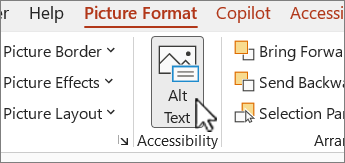
Visual 01 · Microsoft Word for Microsoft 365 on Windows Microsoft Word for Microsoft 365: select the picture, then Picture Format and Alt Text. This is Microsoft’s complete supplied ribbon-detail asset.
Microsoft Word for Microsoft 365 screenshot. Used with permission from Microsoft. Image source · Usage termsVersion notes
Checked 2026-10-31 against the current Microsoft 365 Windows tab of Microsoft’s alt-text instructions and its exact embedded asset. Documentary verification only; no precise build or hands-on test claimed. Full vendor-supplied asset retained unchanged. - Alternatively, right-click the picture and select View Alt Text. If the ribbon route is missing, first confirm that you selected the picture rather than text beside it.
- In the Alt Text pane, replace an empty, generic or inaccurate description with your own wording. Leave Mark as decorative cleared for an informative picture.
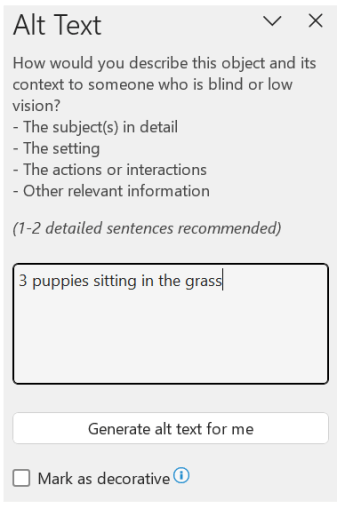
Visual 02 · Microsoft Word for Microsoft 365 on Windows Microsoft Word for Microsoft 365: the description field belongs to the selected object. Microsoft’s example wording describes puppies; replace it with information appropriate to your own image.
Microsoft Word for Microsoft 365 screenshot. Used with permission from Microsoft. Image source · Usage termsVersion notes
Checked 2026-10-31 against the current Microsoft 365 Windows tab of Microsoft’s alt-text instructions and its exact embedded asset. Documentary verification only; no precise build or hands-on test claimed. Full vendor-supplied asset retained unchanged. - Select another picture, then return to the first and reopen its pane. Check that the wording belongs to that image, then save the document.
For a chart or SmartArt object, select its outer border before opening Alt Text. Selecting a single component can describe only that part instead of the whole diagram. If a field is unavailable because the document cannot be edited, obtain an editable copy from its owner.
For a purely ornamental image, open the Alt Text pane and select Mark as decorative. The description field becomes unavailable. To restore an informative description, clear that checkbox and enter the wording again; do not assume a previously entered description has survived.
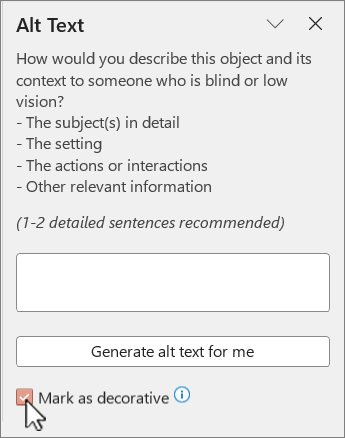
Microsoft Word for Microsoft 365: Mark as decorative is selected for an ornamental image. Clear it to return to an informative description.
Version notes
Checked 2026-10-31 against the current Microsoft 365 Windows tab of Microsoft’s alt-text instructions and its exact embedded asset. Documentary verification only; no precise build or hands-on test claimed. Full vendor-supplied asset retained unchanged.Editing alt text does not change the visible photograph. Correct a mistake by reopening the same object’s pane and replacing its wording. Keep a copy of a carefully written description before experimenting with automatic generation.
Turn a label into a useful sentence
Try a hypothetical assembly photograph. A first draft says, “Image of two things on a desk.” A second identifies “Two brackets.” A useful final draft says, “Left bracket has its mounting holes facing upward; right bracket is upside down.” It supplies the comparison needed for the next action without inventorying the desk.
Read your sentence after the preceding paragraph. Remove repeated explanations and unrelated colors, backgrounds or objects. Keep visual distinctions that change the reader’s interpretation: which bracket, where the crack ends, or whether a checkbox is selected.
Microsoft’s writing guidance recommends concise descriptions and reviewing automatic suggestions. Treat any generated text as a draft: check names, quantities and the reason the image appears here. A plausible description of the scene can still miss the point of the document.
Do not pad the field to meet an arbitrary character target. Equally, do not shorten a useful distinction into “diagram” just to keep it brief. Move lengthy instructions into the document and leave the alternative focused on the visual’s contribution.
Give detailed charts somewhere to be read
Suppose a hypothetical chart compares monthly support requests: January 40, February 60 and March 30. “Blue bar chart” discards the result. A short alternative could say: “Support requests peaked in February, then fell below January’s level in March. Values follow under Monthly request counts.”
Add that heading and the three labelled values as ordinary text beneath the chart. If readers need to compare many categories, use a properly structured data table instead. Include units, time period and any distinctions necessary to interpret the values. Do not make a reader reconstruct numbers from bar colors.
The W3C guidance on complex images describes a short identification paired with a fuller text equivalent. In a Word document, a visible explanation lets readers revisit the details without depending on one long description attached to an object.
Apply the same approach to a branching process. “Refund flowchart” names its shape; the accompanying text must explain the decisions and outcomes. For example, state what happens when a receipt is available and what happens when it is missing. Naming only the successful route leaves the alternative incomplete.
Check coverage, then check meaning
Select Review → Check Accessibility. Open the reported image issues and follow each one to its object. Add a description or deliberately mark genuine decoration, then review the findings again. Microsoft’s checker rules explain what it checks and acknowledge limitations.
Finish with a separate editorial pass. For each informative image, read the nearby text and alternative while looking away from the picture. Can you explain the comparison, locate the entrance or follow the decision? Does a reference to “values below” lead to actual values? Repair those gaps even if the checker reports no missing descriptions.
Recheck alternatives whenever you replace an image or revise what a chart means. Retain the editable Word file. If you distribute a PDF, review that exported file separately; the Word checker’s result is not evidence that the final PDF preserves every description or reads in the intended order.
Sources, versions & scope
The steps describe the documented controls and expected checks; they are not a claim that every device or software release has been physically tested. Platform and version differences are stated with the procedure.