Plan the gaps between sockets
A useful charging plan begins with tomorrow's calendar. A desk within reach of power, an early train, an afternoon outside and a spare phone going into a drawer call for different decisions. Treating all four as an instruction to stop at 80% makes the number more important than the job.
The week below is a hypothetical planning exercise, not a diary of battery tests. Its aim is to help you choose a routine that leaves enough charge for the next dependable socket while avoiding unnecessary strain. The settings example is specifically for supported iPhones; Android phones and laptops have their own controls and model requirements.
Keep three ideas separate. Charge percentage describes today's remaining supply. Runtime describes how long that supply lasts under a particular workload. Battery health concerns the battery's aging ability to store energy and deliver power. Apple explains that chemical aging reflects both temperature history and charging patterns, not simply the battery's birthday. A charging habit can influence future wear; it cannot restore capacity already lost. See Apple's charging and maintenance guidance.
Monday: the office day with room to spare
Imagine a familiar commute, messages during the day and a charger on the desk. This is a reasonable setting for a lower supported charge limit, provided it still covers the journey home and any evening plans. Start with what your ordinary days require. If a lower limit repeatedly leaves you hunting for a socket before dinner, choose a higher available setting.
The distinction between a limit and optimized charging matters. A limit sets a charging ceiling. Optimized Battery Charging instead reduces time spent fully charged by delaying completion until the phone expects you to need it. Neither asks you to stand beside the cable waiting for a particular percentage. Apple says an iPhone can remain connected overnight because charging stops when full; ordinary overnight charging does not require an alarm to unplug it. Those behaviors are described in the same maintenance guidance.
For an iPhone 15 or later running iOS 27, make the choice once in the supported interface:
- Open Settings → Battery → Charging. Record the existing limit, then select a percentage that covers your evening. Confirm that your choice is displayed.
- Expect charging to stop around the selected ceiling. Occasional full charges maintain percentage accuracy and do not by themselves indicate failure.
- For travel, use Settings → Battery → Charge to 100% when offered. Otherwise, in Charging, select 100% and Allow Until Tomorrow if shown; the previous limit returns at 6 a.m. Choosing Set Limit to 100% instead makes the change persist.
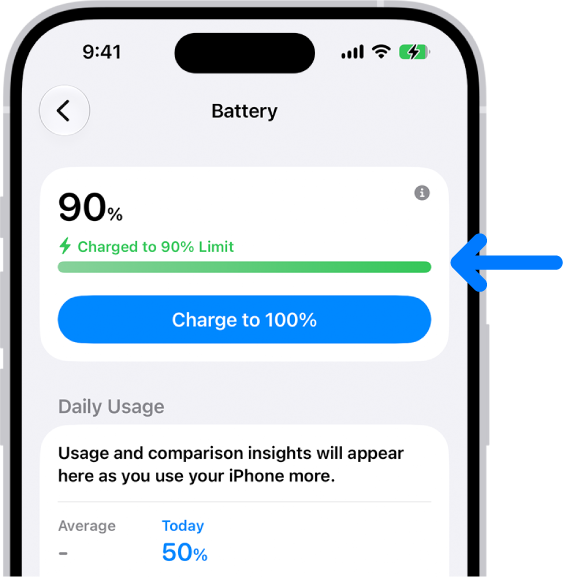
Visual 01 · iPhone / image published in Apple’s iOS 27 User Guide In iOS 27 Battery settings, tap Charge to 100% for the temporary full charge before travel. Apple’s example shows the phone at its 90% limit before that action.
Apple Inc. Official instructional interface image; copyright retained by Apple. No Creative Commons license or express republication permission asserted. Image source · Usage termsVersion notes
Apple’s explicitly versioned iOS 27 Set a charge limit guide links this Battery screen and documents Settings > Battery > Charge to 100%. No contradictory older-version markers appear; exact iOS minor build is unknown. The image shows the initial override action, not a completed 100% charge.Visual 02 · iPhone Battery settings Use Charge to 100% for a temporary full charge when this control is offered in Battery settings. Apple’s current example has a 90% limit; it does not show the separate Charging selector or its confirmation choices. The blue arrow is supplied by Apple.
© Apple Inc. Official instructional interface quotation; vendor retains copyright. No permission or open license asserted. Image source · Usage termsVersion notes
Current iOS 27 User Guide illustration, linked by Set a charge limit on iPhone and checked 2026-10-31. Exact hardware model and minor software build are not specified. Shows a 90% limit, not an 80% measurement; no hands-on test.
This route follows Apple's Set a charge limit on iPhone guide. If Charging or those choices are missing, consult the guide for your model and installed iOS version. Do not assume an older iPhone or another manufacturer's phone has the same controls.
A desk day is also a chance to stop counting cable connections. With lithium-ion batteries, partial recharges do not each count as a whole cycle. Apple's cycle explanation counts cumulative discharge: hypothetically, using 40% and later 60% of the same reference capacity totals one full-capacity equivalent. You do not need to drain the phone first. Waiting for empty can simply move charging to a less convenient part of your day.
Wednesday: the travel day deserves a reserve
Now replace the desk with a train connection, tickets on the phone, navigation in an unfamiliar town and an uncertain arrival time. The useful question becomes how much reserve you want if the next charging opportunity disappears. Leaving home fully charged can be a sensible choice.
A universal 80% rule fails here because it assigns the same reserve to very different days. A person who can plug in after lunch and a person whose phone holds the only accessible travel ticket do not face the same consequence when charge runs low. A lower ceiling is an available tradeoff, not a daily achievement that must survive every change of plan.
Use the temporary full-charge option before the trip, then check the chosen limit when your normal routine resumes. If you set 100% permanently, put the return to your usual setting alongside another travel task, such as unpacking the charger. This avoids having to remember a battery rule while managing a connection.
Do not use the travel day's remaining percentage as a verdict on your new routine. A long outing asks the phone to do different work. The planning question is whether it covered the journey with a comfortable reserve. Measuring a change in long-term battery aging would require evidence this week cannot supply.
Friday: when the day turns hot
Suppose the journey includes navigation in a sunlit car. Before adjusting a percentage target, change the charging environment: move the phone away from direct sun and, when safely stopped, pause optional demanding tasks. A lower charge ceiling does not make a hot dashboard a suitable charging place.
Apple specifies an ambient operating range of 0–35°C for iPhone and iPad and warns that very hot conditions can permanently shorten battery life. That is surrounding air temperature, not a target battery reading or a guarantee that sunlight is harmless below 35°C. Other devices need their own manufacturer's limits.
Charging may slow or stop as the device manages temperature. Read the displayed message before blaming the cable or changing the charge limit. If a temperature warning screen appears, Apple's instructions are to turn the device off, move it somewhere cooler away from sunlight and let it cool. See Apple's temperature guidance.
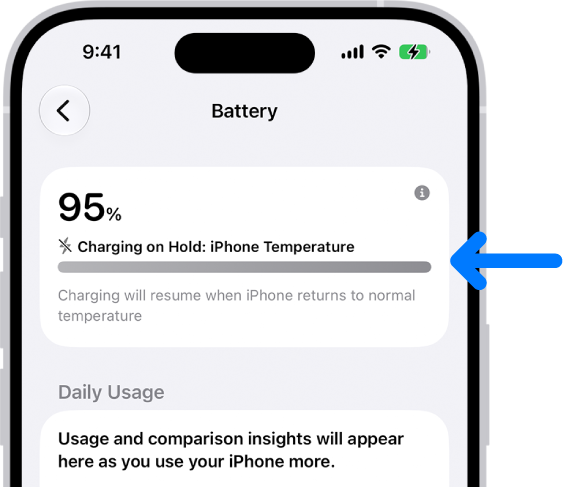
Read the reason for the pause: Apple’s iOS 27 Battery example says Charging on Hold: iPhone Temperature, with charging resuming when temperature returns to normal. This is a charging-hold card, not the separate full-screen temperature warning. Apple supplied the blue arrow.
Version notes
Full unchanged vendor original from the explicitly versioned iOS 27 Thermally Limited Charging guide, including its supplied arrow and framing. Exact capture/minor build is unknown. Shows a paused charge at 95%, not a Lock Screen notification, a shutdown operation or a measured cooling result.Plan for the interruption rather than trying to defeat it. If the phone is needed for the next leg, allow time in a suitable environment before leaving. A reserve planned in the morning is useful precisely because the afternoon may remove a charging opportunity.
Sunday: the phone that will stay in a drawer
Long storage changes the objective again. The spare phone does not need enough energy for a commute; it needs appropriate conditions while it is unused. Before powering it down, confirm that anything you still need from it has a separate accessible copy.
For long-term storage of Apple devices, Apple recommends roughly 50% charge, then powering down and keeping the device in a cool, moisture-free location below 32°C. If storage extends beyond six months, recharge to around 50% every six months. Storing empty risks deep discharge; remaining fully charged for an extended period can also reduce capacity. These are Apple recommendations, not universal storage specifications for every battery product.
Put a reminder beside the storage location in your calendar. A drawer is easy to forget, and a spare phone kept for emergencies needs a separate plan for being charged and ready before use. Half charge for storage and full charge for a difficult travel day can both be appropriate. The decision changes because the phone's next job changes.
Sources, versions & scope
The steps describe the documented controls and expected checks; they are not a claim that every device or software release has been physically tested. Platform and version differences are stated with the procedure.
- Charge and maintain your iPhone battery — Apple Support
- Batteries — Maximizing Performance — Apple
- Dell: Handling swollen lithium-ion batteries
- Apple: Check battery usage on iPhone
- Apple: Charge Limit and Optimized Battery Charging
- Set a charge limit on iPhone — iPhone User Guide, iOS 27
- Batteries — Why Lithium-ion? — Apple
- If your iPhone or iPad gets too hot or too cold — Apple Support