The return window is your chance to discover whether a refurbished phone matches its listing and works in your daily life. Spend the first evening checking the things that can stop you using it, then try it through an ordinary day. Keep your old phone usable until you have made the decision.
This guide covers iPhones running iOS 27. Battery menu names differ between older and newer iPhone models; both routes are below. The checks do not certify internal condition or water resistance.
Put the return deadline ahead of the testing schedule
Save the listing, invoice and return terms somewhere outside the new phone. Record the promised storage, cosmetic grade, battery minimum, unlocked status and included accessories. Find out whether the cutoff means requesting a return, dispatching the parcel or having it arrive. Set a reminder with time for that requirement.
Start a short defect log: date, task, what happened and whether it happened again. Photograph the phone as received and keep the packaging. A warranty repair and a return are different processes; ask the seller which one they are opening. Do not assume a troubleshooting conversation pauses your deadline.
Inspect the outside before adding your data
Remove the case and check the frame, screen edges and back in good light. Photograph cracks, dents and gaps. A lifting screen or bulging enclosure ends the home inspection: stop charging and ask the seller for safe handling instructions. Do not press it flat or open it.
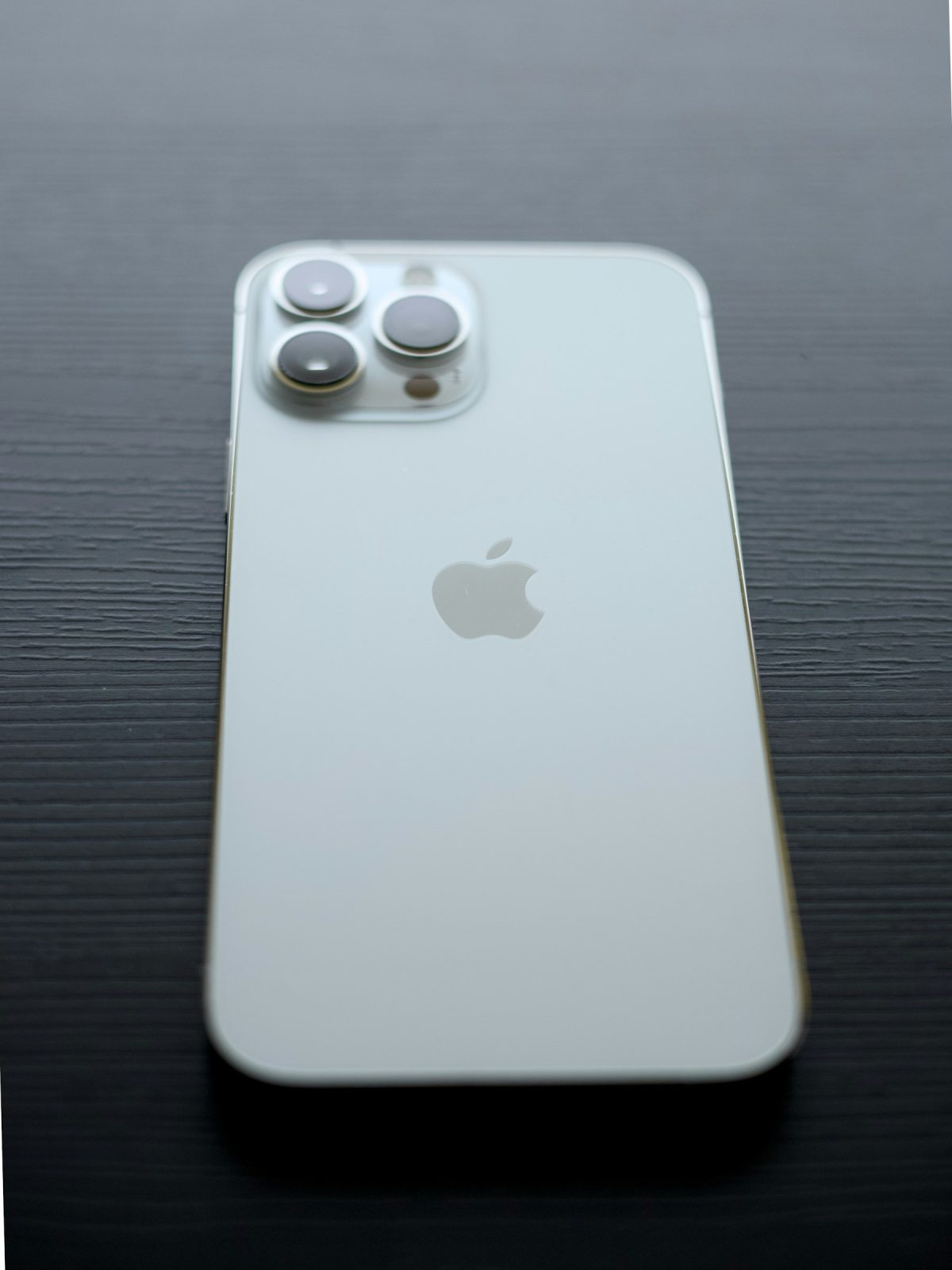
Look across the rear camera glass and its surrounding rings from an angle. Check for chips, cracks and dirt that could explain a hazy picture later. This close-up identifies the inspection area; reflections and shallow focus in an illustrative photograph cannot establish whether your own camera is undamaged.
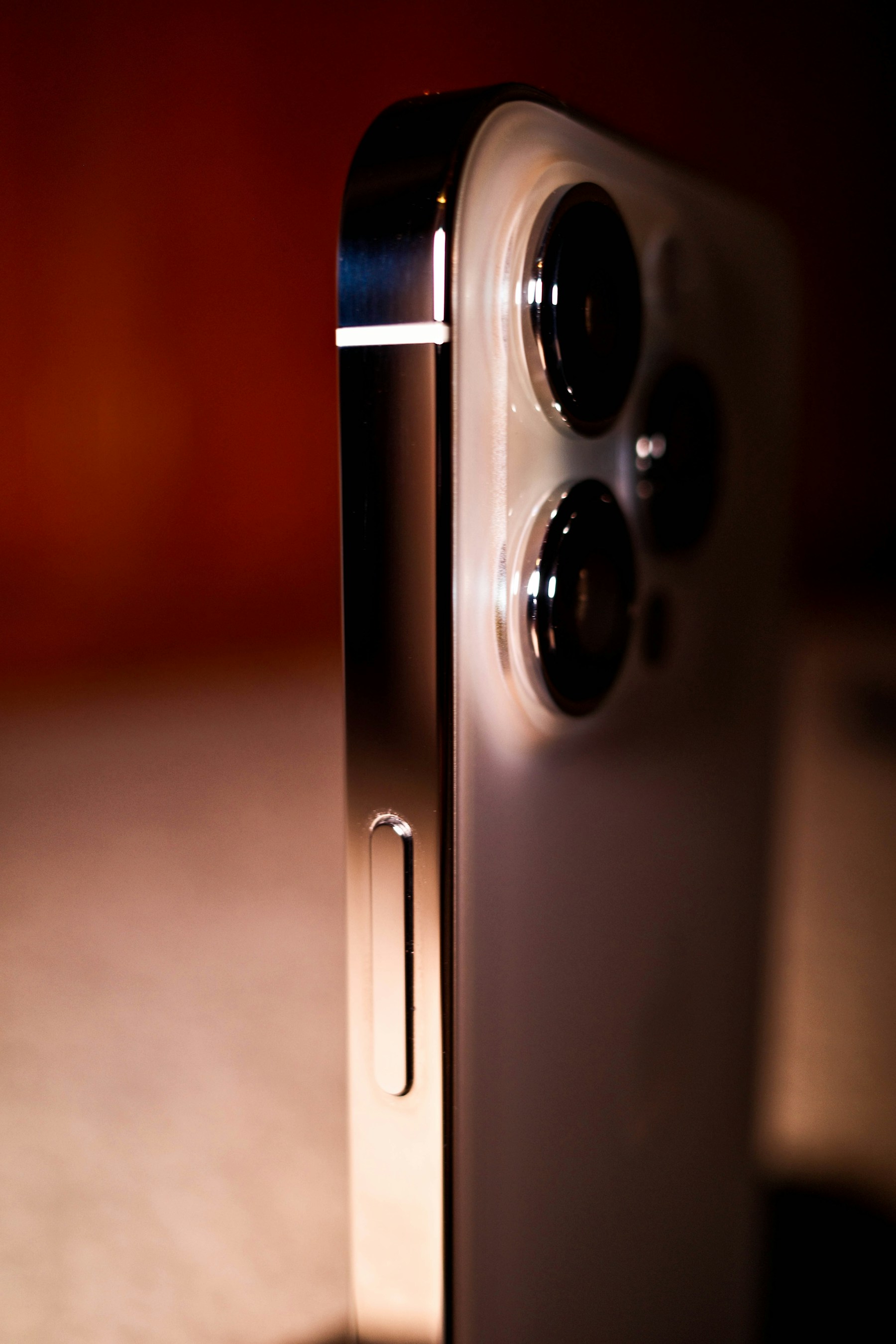
Inspect this area on your own phone: look across the camera glass, lens rings and adjacent frame for chips and cracks before taking test pictures. This licensed illustrative close-up is not evidence of damage or successful testing.
Version notes
Evergreen physical inspection photograph published November 14, 2021; no interface or OS version is depicted. Source identifies a Ricoh GR III camera. Full downloaded composition retained. Photograph illustrates where to look and cannot establish internal condition or water resistance. Display photograph resized for loading speed; the full-size link preserves the original download.Inspect the charging socket without inserting tools. Connect a compatible cable and charger that work with another device. The connector should seat normally without force. If charging fails, try another known-working cable, adapter and outlet once. Record whether the failure follows an accessory or stays with the phone; do not spend the return period trying to repair its port.
Clear activation and carrier problems first
Follow setup from the Hello screen until you can reach the Home Screen. Hello alone does not prove the phone can be activated. If it asks for a previous owner's credentials or displays iPhone Locked to Owner, contact the seller immediately. Apple's preowned-iPhone guidance says to return an online purchase with that lock. Never pay for a bypass.
In Settings → General → About, compare the model, capacity and device identifiers with the order. Keep identifiers private when sharing evidence publicly. Read Carrier Lock: No SIM restrictions indicates an unlocked phone. That wording does not prove your carrier will activate this particular model or accept its device identifier.
Have your carrier confirm compatibility and arrange your SIM or eSIM service. With Wi-Fi off, load a fresh webpage, make and receive a call, and exchange an ordinary text message. Then reconnect Wi-Fi. If cellular service fails, ask the carrier to check provisioning and eligibility before concluding the radio is broken. An unresolved incompatibility still matters to your keep-or-return decision.
Read the repair record without treating it as a certificate
Stay in Settings → General → About and look for Parts and Service History. Photograph any messages. Apple's parts-history documentation explains the important distinctions:
- Genuine or Used
- Genuine identifies a repair using Apple's parts and processes. Used identifies a part previously installed in another iPhone; it is not necessarily counterfeit.
- Unknown or Unverified
- Unknown can mean a nongenuine, malfunctioning or unlinked part. Unverified concerns a previously replaced logic board and can affect features such as Apple Pay.
- Finish Repair
- The repair still needs completion through Repair Assistant. Ask the seller to resolve this rather than accepting unfinished calibration as normal refurbishment.
Available history depends on the model and component, and only the latest service appears when a part was serviced repeatedly. No section is not proof that nobody opened the phone. Compare what you find with the seller's written claims and request an explanation while return remains possible.
Run a small test circuit, then repeat any failure
Use built-in apps and your own observations. These are suggested checks, not laboratory pass thresholds. Save a useful sample when something fails so the seller can understand the problem.
- Touch and display: type a sentence using keys across the keyboard, scroll a long page and draw continuous lines across the screen in Notes. Look for repeatable dead strips or unwanted touches. Change brightness in Settings → Display & Brightness, then restore a comfortable level. If touches fail, clean and dry the screen and disconnect the charger before repeating.
- Cameras and sound: photograph printed text and a distant scene in good light, try front and rear views, then record a short video while speaking. Review focus and playback. Remove a case or lens protector and clean the exterior glass before repeating a hazy result. Record and replay a Voice Memo, then use a call to check the earpiece separately. Bluetooth headphones should be disconnected during speaker checks.
- Controls and unlocking: test volume buttons, screen locking, and the mute switch or Action button's assigned function. Enroll your own Face ID or Touch ID through the matching Settings page, then lock and unlock several times. Repeated enrollment failure deserves a seller response; a working passcode does not establish that biometric hardware works.
- Your accessories: pair the headphones you actually use and try your usual Wi-Fi connection away from the router. If an accessory fails, check it with another device before blaming the phone. Test wireless charging only if that model and your charger support it.
Compare the battery promise with a normal day
Open Settings → Battery. On iPhone 14 or earlier, choose Battery Health & Charging; on iPhone 15 or later, choose Battery Health. Apple's iOS 27 battery guide confirms these routes. Record capacity and any service message. Newer models also provide cycle count and manufacture and first-use dates.
For a hypothetical listing promising at least 90% maximum capacity, a displayed 86% is a discrepancy to raise immediately. A displayed 92% meets that particular promise, but cannot guarantee a day's runtime. An unavailable reading also does not substantiate the seller's claim; ask for clarification.
Use the phone for your usual commute, calls and browsing, noting starting charge, ending charge and unexpected shutdowns. Do not deliberately drain it to zero. Record charging interruptions and whether they recur with your known-working equipment.
If drain seems excessive, revisit Settings → Battery and inspect the app and system activity. Background activity and weak cellular coverage can consume power, so repeat the same ordinary task under better conditions before assigning the fault to the battery. Keep that repeat inside your return timetable; one percentage drop is not a capacity measurement.
Make the decision while you can still act
Keep the phone when the advertised condition matches, essential functions work and the normal-day trial suits you. For a reproducible fault or unmet promise, send the seller a concise description and evidence, request the appropriate return, and retain its acknowledgment. Follow the documented dispatch deadline and keep tracking.
Before handing it back, save your test evidence and personal files elsewhere, and arrange continued access to your phone number and account sign-ins. Follow Apple's device handover instructions: back up, unpair an Apple Watch if applicable, sign out, and use Settings → General → Transfer or Reset iPhone → Erase All Content and Settings. Confirm backup and number transfer before erasing; remove a physical SIM and erase the returned phone's eSIM when prompted. Do not delete synced photos individually as a cleanup method. Verify the Hello screen before packing, unless a fault prevents erasure; tell the seller if it does.
Sources, versions & scope
The steps describe the documented controls and expected checks; they are not a claim that every device or software release has been physically tested. Platform and version differences are stated with the procedure.