A microphone icon without a warning is a weak promise. Your laptop may be listening through its built-in microphone while the headset sits unused, or Windows may record clearly while the meeting app has no permission. Before an interview, appointment or presentation, listen to a short recording through the equipment you will actually use.
This guide uses Windows 11 and the Zoom desktop app. Allow about ten minutes before the call. The checks separate three questions: does Windows receive your voice, does Zoom use the intended device, and can you hear the playback? They do not certify your internet connection or the other participant’s equipment.
Put the call setup in place first
Sit where you will take the call, connect the usual dock or webcam, and wear the intended headset. Charge wireless equipment beforehand. Close other meeting apps and recording tools so you can identify which app is using audio. Avoid changing several devices during the same test.
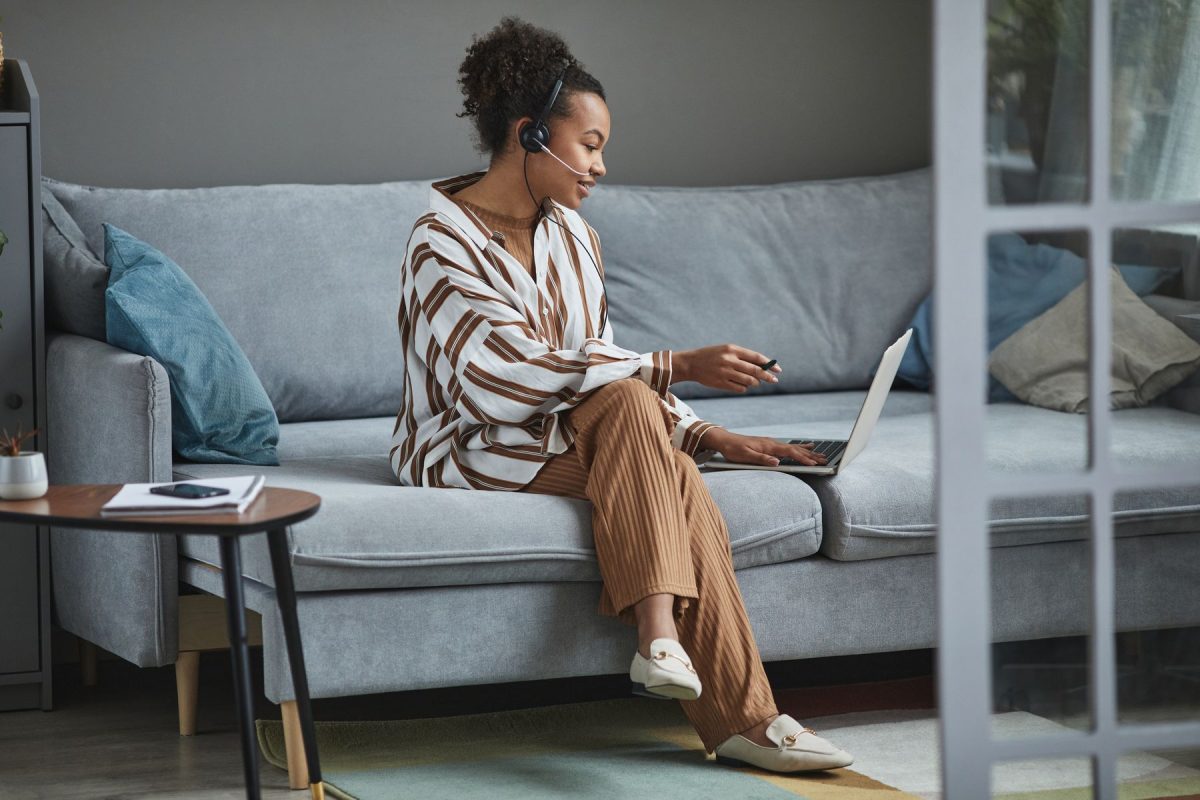
Inspect the headset’s microphone boom and foam-covered capsule, then position the capsule beside your mouth according to the manufacturer’s instructions. Keep clothing and hair away from it. A photograph can help identify these parts, but it cannot establish the right distance for every model.
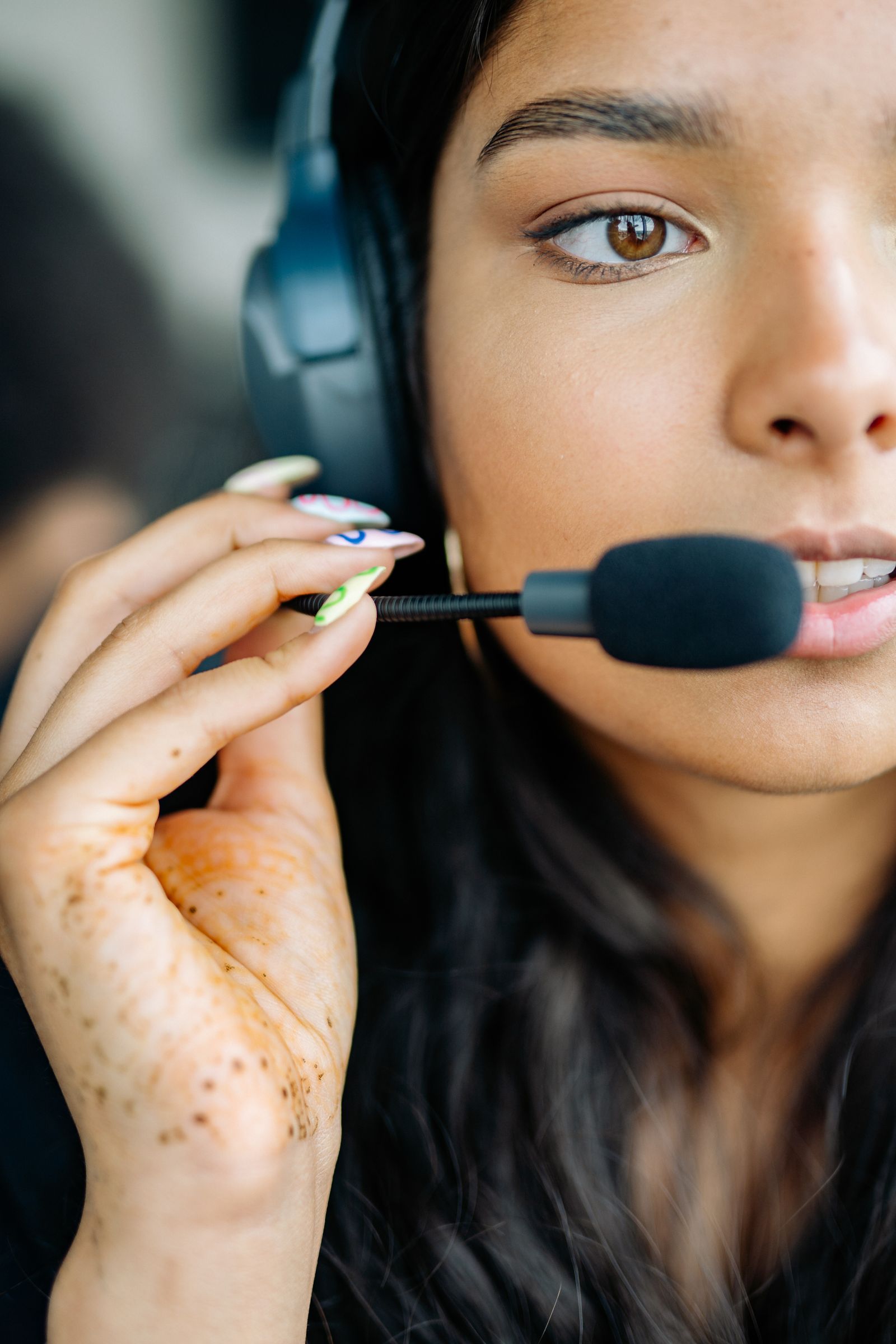
Identify the microphone capsule and flexible boom before adjusting your own headset. Follow its manufacturer’s positioning instructions; this photograph does not establish a universal mouth-to-microphone distance.
Version notes
Real Pexels photograph published July 23, 2021, checked 2026-10-31. Generic physical inspection illustration, not versioned software or an identified current headset model.Check the physical mute switch, any inline cable control and any microphone-mute key on the keyboard. A raised boom may mute some headsets, but that behavior is model-specific. Check the device instructions rather than interpreting an unfamiliar light. For a wired headset, make sure its plug is fully seated in a compatible connection; a headphone-only socket cannot provide microphone input.
Decide which microphone you expect to see by name. A webcam, laptop and headset can each supply one. Write down your current selection before changing it, especially on a shared PC, so you can restore it afterward.
Make Windows record a normal sentence
Microsoft’s microphone setup and test instructions provide a recording-and-playback check. Use that instead of treating a moving meter as proof of intelligible speech.
- Open Start > Settings > System > Sound. Under Input, find and select the microphone you intend to use. If it is missing, reconnect the device; a Bluetooth microphone must be paired and connected.
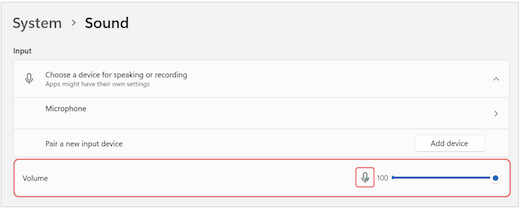
Visual 02 · Microsoft Windows 11 In Windows 11 Sound settings, find the intended microphone under Input. The arrow beside Microsoft’s generic Microphone entry opens its properties. The red outlines belong to Microsoft; Start test, Stop test and Play are on subsequent screens and are not shown.
© Microsoft Corporation. Official Windows interface screenshot reproduced unchanged for contextual educational commentary; copyright retained by Microsoft. Image source · Usage termsVersion notes
Microsoft’s current microphone troubleshooting reference links this genuine Windows 11 Sound Input pane. Exact Windows build and capture date undisclosed. Current released Windows 11 host verified independently; no live recording, test playback or hardware selection result claimed. Microsoft’s original red outlines retained unchanged. - Select the > beside that microphone to open its properties. Find Start test under the input or microphone-test settings.
- Start the test and speak normally from your call position. For a suggested sample, say: “This is my microphone check. Please confirm the time and the next step.” Pause briefly, then repeat a few words at your ordinary quieter speaking level.
- Select Stop test, then Play to hear the recorded sample. Listen through the speaker or headphones you will use for the meeting.
Look for understandable words, complete beginnings and endings, and a level you can hear comfortably. Listen for rubbing, crackling, a distant hollow voice or harsh distortion. These are observations to compare after a change, not a numerical score. A high test percentage does not automatically mean better sound.
If the sample is too quiet, first check placement, then note the current Input volume and raise it modestly. Repeat the same sentence. If it sounds worse, return to the recorded setting. Raising speaker volume only makes playback louder; it does not improve what your microphone sends.
Use the failed check to choose the next move
- The microphone is absent from Input
- Reseat its connection or reconnect the wireless device, then reopen Sound settings. If available, try another compatible port. Select the built-in microphone as a temporary comparison. Its success would narrow the problem to the external device or its connection; it would not prove that the external microphone is broken.
- The recording is silent
- Recheck hardware mute and the selected input. If playback itself is uncertain, play a familiar local audio file at a comfortable volume. Hearing that file confirms an output path, but you must still repeat the microphone recording.
- The voice is distant or noisy
- Check whether you selected the laptop or webcam microphone accidentally. Reduce nearby noise and reposition the intended microphone, changing one thing at a time. Repeat the same phrase before adjusting more settings.
Microsoft’s microphone troubleshooting guide covers connection, mute and input-level failures. If the intended device remains unavailable, use a working alternative for this call and investigate afterward. Removing audio drivers or installing unfamiliar audio utilities immediately before an appointment can leave less time to recover.
Run the second check inside Zoom
A successful Windows sample establishes a local recording path. Zoom still needs the correct microphone and permission to use it. For the signed-in desktop app, follow Zoom’s current audio-test instructions:
- Click your profile picture at the top right, choose Settings, then open Audio.
- In Speaker, choose the intended output and select Test speaker. If the tone is missing, check that selection and its volume before judging microphone playback.
- In Microphone, choose the same named input that passed the Windows check. Select Test microphone, say your sample sentence and listen to its replay. Watch for input activity, but judge the spoken words too.
If Windows works but Zoom does not, inspect Start > Settings > Privacy & security > Microphone. Microsoft’s permission instructions identify Microphone access, Let apps access your microphone and Let desktop apps access your microphone. Enable the applicable access needed for the desktop app, then reopen Zoom and repeat its test.
Desktop-app access is a broader Windows permission, not necessarily a separate Zoom switch in the app list. Record any permission you change. If a work-managed setting is unavailable, ask your administrator rather than trying to bypass it. After the call, restore temporary access if that was your intention; doing so will prevent future microphone use until you enable it again.
Zoom also offers automatic microphone-volume adjustment. If you try it, note its previous state and compare another recording before keeping the change. Avoid stacking manual level changes with automatic adjustment during the same comparison.
Keep the tested setup through joining
Leave the working devices connected. Connecting a dock, switching headphones or moving to another computer after testing creates a different setup. Recheck Zoom’s selected input after any such change. In a meeting, the arrow beside Mute/Unmute lets you choose a different microphone or speaker; unmute when you are ready to speak.
Ask the other participant whether your first sentence is clear. The local replay cannot reproduce the complete live connection. If local recordings are clean but conversation breaks up, investigate the call connection separately instead of repeatedly increasing microphone gain.
If the call is starting and the headset still fails, select the already-tested built-in microphone and repeat a brief check. Use only one active audio connection in the room to reduce echo risk. Note the working input name for next time, and postpone deeper troubleshooting until the appointment is finished.
Sources, versions & scope
The steps describe the documented controls and expected checks; they are not a claim that every device or software release has been physically tested. Platform and version differences are stated with the procedure.