Write the desk order before counting sockets
A dock can have the right-looking sockets and still fail your desk: two screens may not work together, the laptop may charge too slowly, or the only suitable USB-C port may already be occupied. Choose it by writing down the connections that must work simultaneously, then checking those against the laptop and dock manuals.
This guide covers buying for a Windows 11 laptop, followed by a short check while you can still return the dock. The Dell examples below explain how to read specifications; they are not product recommendations or hands-on test results.
Make a desk order with exact models: laptop, each monitor and its available inputs, wired network, keyboard, mouse, webcam and storage. Beside every monitor, write the required resolution and refresh rate. Beside the laptop, write its documented charging requirement. Decide whether keeping the original laptop charger connected is acceptable.
For a hypothetical office desk, the order might be two 2560 × 1440 screens at 60Hz, Ethernet, two USB accessories and laptop charging. That sentence gives you something a seller can confirm. “A dual-monitor USB-C dock” leaves most of the job unspecified.
Approve the laptop connection first
Find the exact laptop model on its case or purchase record, then open its manufacturer's specifications or setup guide. Read the entry for the particular port you intend to use. Record its location as well as its capabilities: “left rear USB-C” is a useful address when the laptop has several similar sockets.
Dell's docking guide distinguishes ordinary USB-C docks that need DisplayPort Alternate Mode from Thunderbolt docks and universal USB docks. For a native USB-C video dock, require an explicit statement that the laptop port supports DisplayPort Alt Mode. For a Thunderbolt dock, check the stated host requirements and any documented fallback behavior for your laptop.
If the laptop documentation only promises USB data, leave native video compatibility unresolved. A plug fitting into the socket does not complete this check. Ask the laptop manufacturer about that exact port before ordering.
Universal docks using DisplayLink are a separate route: Dell documents that its universal models need DisplayLink software for their display functions. If this is a work laptop, confirm that your organization permits the required software before buying. Choose the connection method deliberately; downloading a random display driver will not give a data-only port native DisplayPort support.
Read the port map as a set of jobs
Open the dock manual's labelled front and rear views. Identify the computer connection first: it may be a captive cable or a socket labelled host or upstream. Then identify power input, monitor outputs and accessory ports. Give each device in your desk order a specific destination.
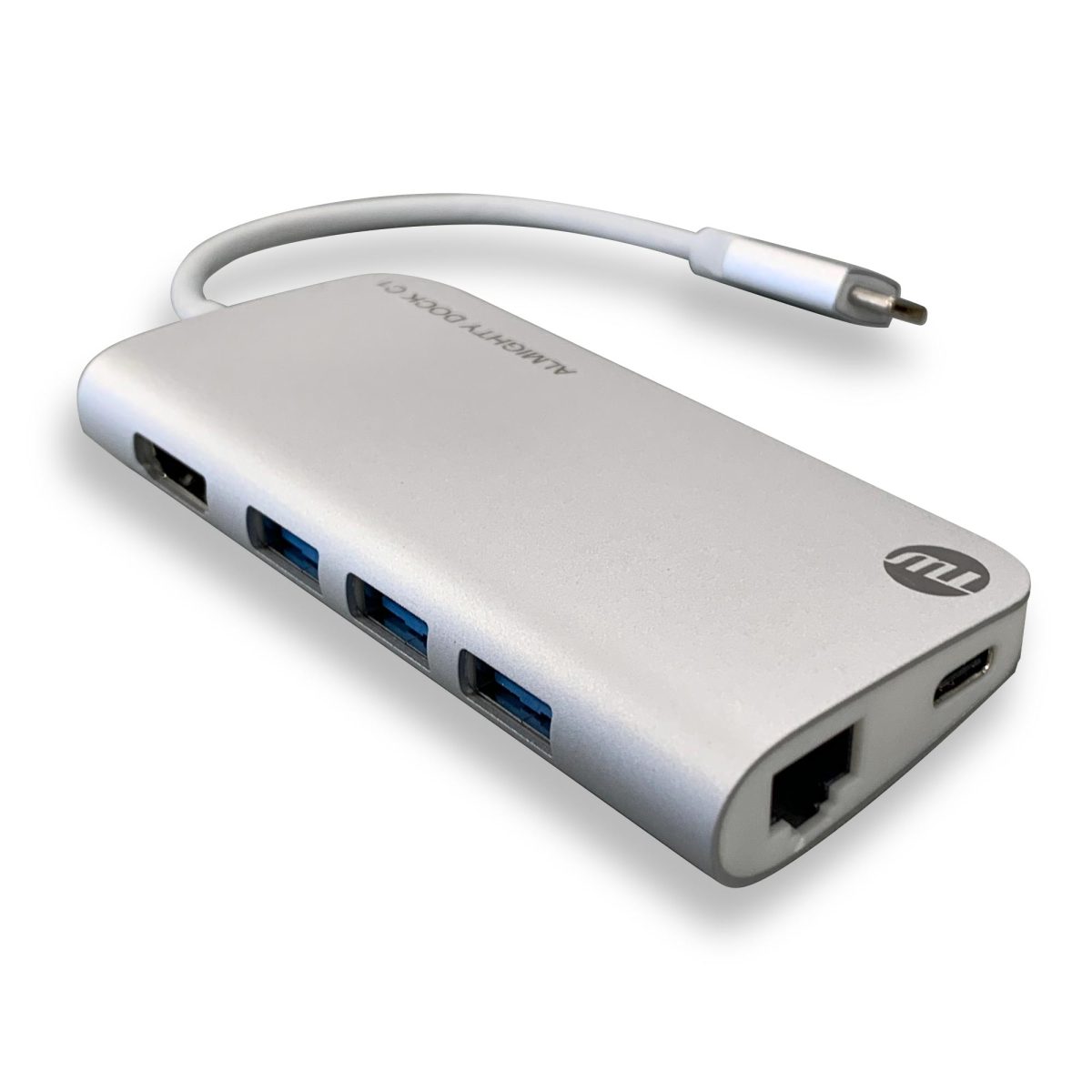
Inspect the markings beside each socket and match them to the manual's port diagram. If a USB-C socket has no readable function label, record its role as unknown until the documentation resolves it. Neither the connector shape nor a blue insert establishes a speed, charging output or video capability.
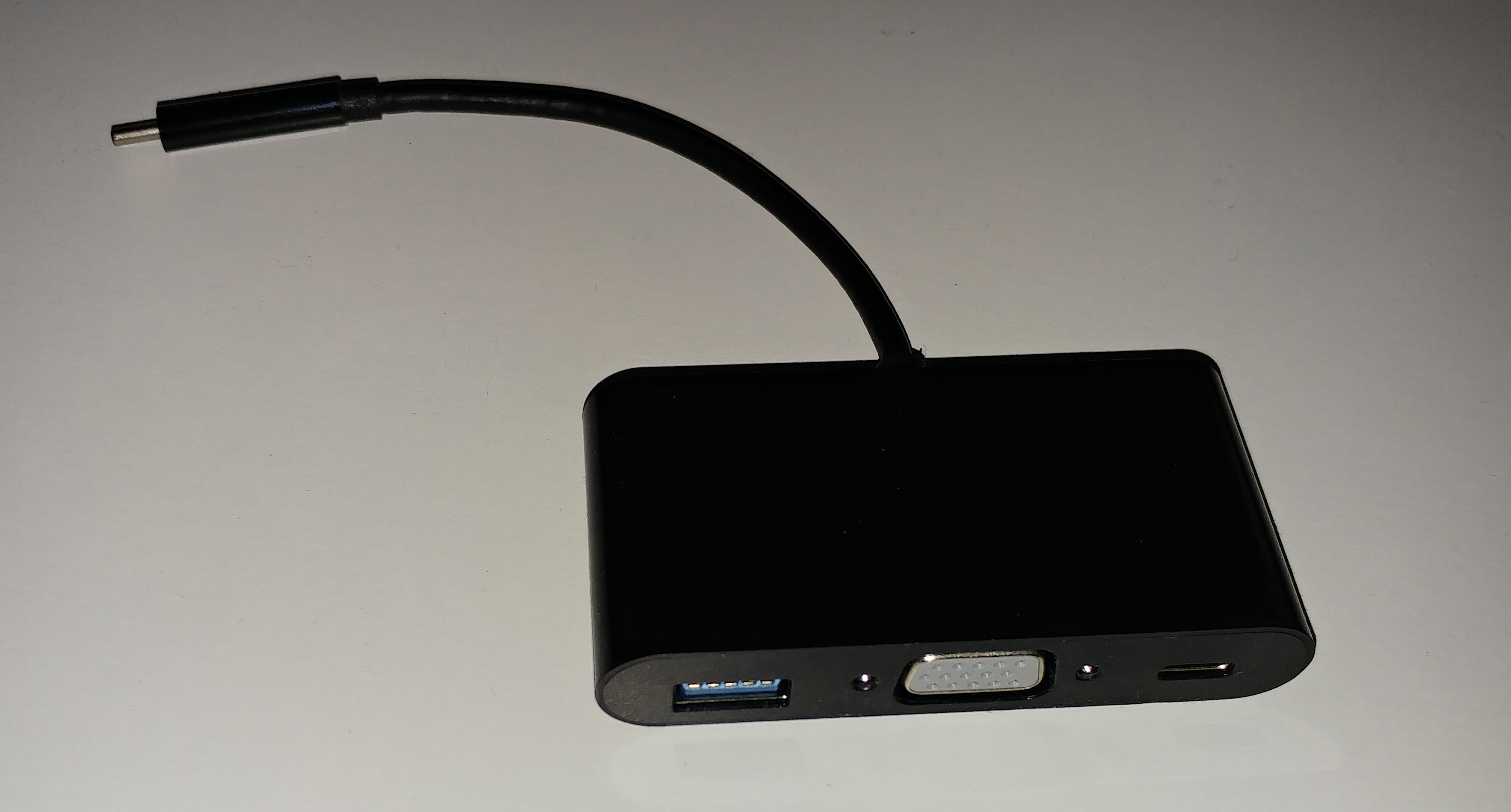
Match sockets to the manual: this reference hub shows a captive host plug and several socket shapes, but no readable labels establishing the USB-C socket’s role. Record that role as unknown until documentation confirms it.
Version notes
Unchanged reference hardware photograph dated 2017-09-07. Inspected 2026-10-31 solely for visible sockets and absent function labels; no software interface or current dock specification is depicted. Display photograph resized for loading speed; the full-size link preserves the original download.| Connection | Evidence to find |
|---|---|
| Computer | Named host connection, supported laptop interface and supplied host cable. |
| Monitors | Permitted output combinations at the required modes, with your host type. |
| USB accessories | Enough usable ports; stated data rate for the SSD's chosen port. |
| Power | Included adapter and documented watts delivered to your laptop model. |
Check the physical arrangement too. A front socket may be convenient for a removable drive; a short captive host cable may not reach a laptop stand. A used listing that omits the power supply or host cable needs a complete replacement-parts price before its apparent saving means anything.
Two fine-print checks that change the purchase
Display sockets can share a limit
The WD19S manual makes the trap concrete. Its rear HDMI and multifunction DisplayPort USB-C outputs cannot drive two monitors simultaneously. For two screens, choose one of the combinations its display table actually permits.
That table also changes with the host's DisplayPort link capability. Two DisplayPort outputs support two 1920 × 1080 displays at 60Hz in its HBR2 row; the HBR3 row lists two 2560 × 1440 displays at 60Hz. The HBR3-with-DSC row lists two 3840 × 2160 displays at 60Hz. DSC means Display Stream Compression. These are documented configurations, not measurements.
For the hypothetical two-QHD desk, ask for confirmation of the applicable host row and output pair. A headline promising “4K” cannot settle this purchase. If the manufacturer cannot confirm your combination, keep looking or simplify the desk order.
Read laptop power separately from adapter power
The same manual distinguishes a 180W adapter from up to 130W delivery to supported Dell systems; it lists 90W USB Power Delivery support for non-Dell systems. Copy the figure applicable to your computer into the desk order.
For any shortlisted dock, request its laptop-output rating and charging compatibility, including any required adapter. If that does not meet the laptop manufacturer's requirement, budget for keeping the laptop charger connected or choose another dock. Treat a charging icon as evidence of a connection, not proof that every workload can run without battery drain.
Check the purchased dock before settling in
Keep the packaging and return deadline. Save work, finish file transfers and safely eject attached storage before moving connections. Use the dock's specified power supply and supplied host cable. Start with the laptop open, one monitor and no storage attached; add the second screen and accessories once that route works.
- Press Windows key + P and choose Extend. You should be able to move a window between screens rather than see the same window duplicated everywhere.
- Open Start → Settings → System → Display and choose Identify to match screen numbers to physical monitors. If one is absent, expand Multiple displays and select Detect. These controls are documented in Microsoft's multiple-monitor guide.
- Open Advanced display, select each external screen and read its resolution and refresh rate. Compare both with the desk order while all required screens remain connected. Microsoft documents this page and the Choose a refresh rate selector. A rate marked with an asterisk requires a resolution change; check both values afterward.
- Connect the remaining accessories. Confirm the keyboard, mouse and webcam work, open a harmless file on attached storage, and check charging during your normal work. Record the observed outcome separately from advertised maximum speeds.
If a monitor stays blank, select its actual connected input using its own controls, reseat the cable and retry with one screen. Swap in a known-working display cable where available. If each screen works alone but the pair fails, recheck the dock's permitted output combination and host-specific display table.
If the dock remains unsuitable, save work, eject storage, disconnect the dock and restore the original charger and previous display connection. With the laptop open, Windows key + P → PC screen only restores the built-in-screen arrangement. Send support the exact laptop, dock, cable route and failed display mode, or return within the seller's terms. Stop when the documented desk order works together; extra sockets are useful only if they do the jobs you need.
Sources, versions & scope
The steps describe the documented controls and expected checks; they are not a claim that every device or software release has been physically tested. Platform and version differences are stated with the procedure.