Buy room for the library you intend to keep
A portable SSD for a large photo collection needs enough room for future imports, a connection your computer can actually use, and a dependable place in your backup routine. Paying for the biggest speed number while leaving no money for a second copy is a poor trade.
This guide chooses storage for an Apple Photos library on a Mac, using current macOS documentation. It concerns a working library that stays attached while you browse and edit. A drive carrying exported JPEGs to someone else has different requirements. Start with a reputable portable SSD, documented Mac compatibility and a seller whose return terms let you verify the intended setup.
Before shopping, write down three things: the amount of photo storage you need, the exact Mac and port you will connect to, and where the independent backup will live. That short record will eliminate unsuitable drives faster than a long list of benchmark rankings.
Size the next few years, not just today's folder
In Finder, select your Photos library and choose File > Get Info. Record its size and include any other photo libraries or camera folders destined for the SSD. If your collection includes originals stored only in the cloud, establish their full storage requirement separately; a local library size alone is not a safe shopping total.
Estimate growth from your own recent imports, including video. Then add working room for imports, exports and changes of plan. The following is a hypothetical buying calculation using decimal GB, not a measured requirement or a rule imposed by Photos:
| Allowance | Example |
|---|---|
| Current originals and library data | 650 GB |
| Three years of new material at 150 GB per year | 450 GB |
| Temporary exports and spare working space | 250 GB |
| Total planned use | 1,350 GB |
A nominal 1 TB drive cannot accommodate that plan; a 2 TB candidate deserves consideration. Formatting consumes some space, so check actual available capacity after setup. If your growth estimate is uncertain, price the next capacity tier against the cost and inconvenience of migrating again. Also budget enough capacity on the separate backup destination.
Match the connection before paying for speed
Read the Mac's technical specifications for the particular port, then the SSD's interface specification and the included cable details. If a dock is essential, check its computer connection and the exact downstream socket too. A connector that fits does not settle which transfer mode the complete route supports.
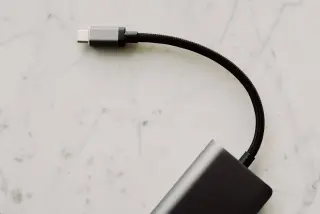
Inspect the cable plug and its housing for a traceable model or data-rate marking. The illustrated unmarked USB-C plug establishes physical shape only. If the cable cannot be identified, use the SSD manufacturer's documented supplied cable for the initial trial instead of guessing from thickness or the fact that it charges a phone.
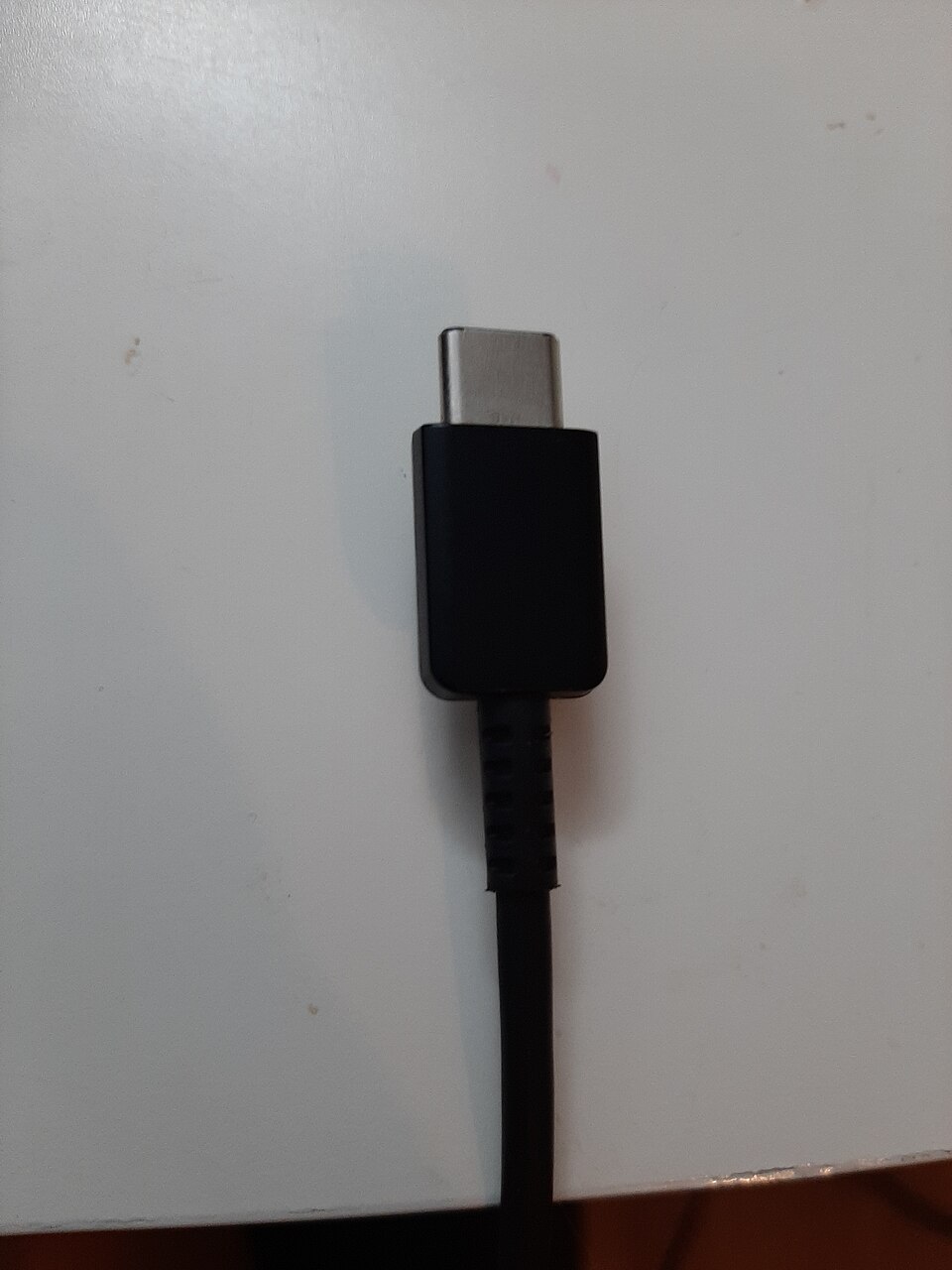
Inspect the plug and housing, then find the cable specification. This real unmarked USB-C plug shows the physical connector only; its data rate and suitability for an SSD cannot be inferred from its shape.
Version notes
Reference photograph from 2020. No speed, power or video capability has been established for the photographed cable.One concrete specification example is Samsung's T7 Shield manual: it lists USB 3.2 Gen 2 at 10 Gbps, with a maximum transfer claim of 1,050 MB/s under specified host and cable conditions. That is a manufacturer claim, not a result measured here or a recommendation to buy that model. The manual also documents lower performance on slower interfaces.
For a predominantly still-photo collection, compare a documented 10 Gbps option first. Consider paying more for a faster interface when your Mac explicitly supports it and frequent large transfers justify the expense. A peak sequential number cannot promise equally fast thumbnail generation, searches or every import. During a permitted return-period trial, judge your actual library tasks as well as copying.
Choose the enclosure you can live with
Check dimensions, weight, cable length and how the drive will sit beside the laptop. The cable should reach without pulling the SSD off the desk or putting sideways strain on its socket. A replaceable cable is useful when packing or recovering from a damaged lead; confirm replacements support the documented data mode.
If you travel, read the exact water, dust and drop conditions rather than treating a rugged appearance as protection. Check warranty exclusions and the local service route. An enclosure rating does not protect a library against theft or an accidental deletion, and a replacement drive does not recover photographs.
Check whether optional password protection needs vendor software, whether that software explicitly supports your current Mac, and what happens if the password is lost. Do this before enabling it. Do not assume an old minimum macOS requirement proves today's unlocking software works. Keep the receipt, model identifier and return deadline with your shortlist notes.
Prepare the empty drive for Apple Photos
Apple requires APFS or Mac OS Extended (Journaled) for an external Photos library. Choose APFS for this Mac-focused SSD plan. Do not use the device holding your Time Machine backups, a network share, an SD card or a USB flash stick for this working library. Factory exFAT formatting is not the destination format for this plan.
Only format a new empty SSD, or one whose contents you have independently preserved and checked. Erasing destroys everything on the selected device; there is no undo button. Disconnect unrelated external storage to reduce selection mistakes.
- Open Applications > Utilities > Disk Utility, then choose View > Show All Devices.
- Select the external SSD at the top of its sidebar hierarchy. Match its identity and capacity to the purchased drive before clicking Erase. Stop if you cannot distinguish it from internal storage.
- Choose GUID Partition Map under Scheme, APFS under Format, and a recognizable name such as Photo Library SSD. If Scheme is missing, recheck that the physical device is selected.
- Click Erase, then Done. Confirm that the named volume appears in Finder before copying anything important.
These controls follow Apple's current Disk Utility instructions. If setup fails, preserve the original library and resolve the drive problem first. Repeated erasing is not a recovery method for an SSD containing your only copy.
Give the purchase a real acceptance check
Quit Photos, locate the library in Finder and copy it to the SSD, retaining the original. After copying finishes, double-click the destination library. Inspect familiar albums, open several older and recent photographs, and play representative videos. This is a practical spot check; it does not certify every file.
Keep the SSD connected before opening Photos. If an unexpectedly empty library appears, quit Photos, reconnect the SSD, then hold Option while opening Photos and select the intended library with Choose Library. Avoid importing into the unexpected empty library. If you use iCloud Photos, follow Apple's linked System Photo Library instructions before making this your regular library.
For an unexpectedly slow copy or disconnect, stop adding material and keep the source intact. Retry the supplied documented cable directly on a supported Mac port, removing the dock from the trial. Record the exact error and whether the direct connection changes it. Persistent disconnects or failed copies are reasons to seek support or return the candidate before the deadline.
Keep the second copy in the budget
Apple's Photos backup guidance calls for a local backup even with iCloud Photos. Use separate physical storage. If manually copying the library, quit Photos first and confirm the backup copy exists. Files referenced from outside the library need their own backup too.
Retain the original until the external library works and an independent backup has been checked. If you later remove the internal copy to reclaim space, that backup becomes especially important. Quit Photos and eject the working SSD before unplugging; close files and retry if it is busy. Keep the drive whose capacity, connection and everyday handling pass your needs while leaving enough money for recovery.
Sources, versions & scope
The steps describe the documented controls and expected checks; they are not a claim that every device or software release has been physically tested. Platform and version differences are stated with the procedure.