Put your documents on the desk first
Open the document you spend the most time reading. Make its text comfortable from your usual seat, then place the thing you consult beside it: a reference page, a spreadsheet, perhaps a conversation. Keep the application's toolbars and side panels visible. This arrangement is the beginning of your monitor specification.
Ask what actually needs to remain in view. A writer may need a generous draft window and a narrow source window. Someone reconciling invoices may need two equally readable tables. A meeting participant might only need notes beside a call. Those are different uses of screen width, even if all three people describe their requirement as “two windows.”
Use representative files without private information. Set document zoom for comfortable reading without changing the file's font size or formatting to squeeze it in. If the arrangement fails, describe the failure precisely: the reference column disappears, a page becomes too small, or the application controls consume the available height. That description will help you choose between more physical area, finer text rendering and a different window arrangement.
Draw the screen's footprint around your working position
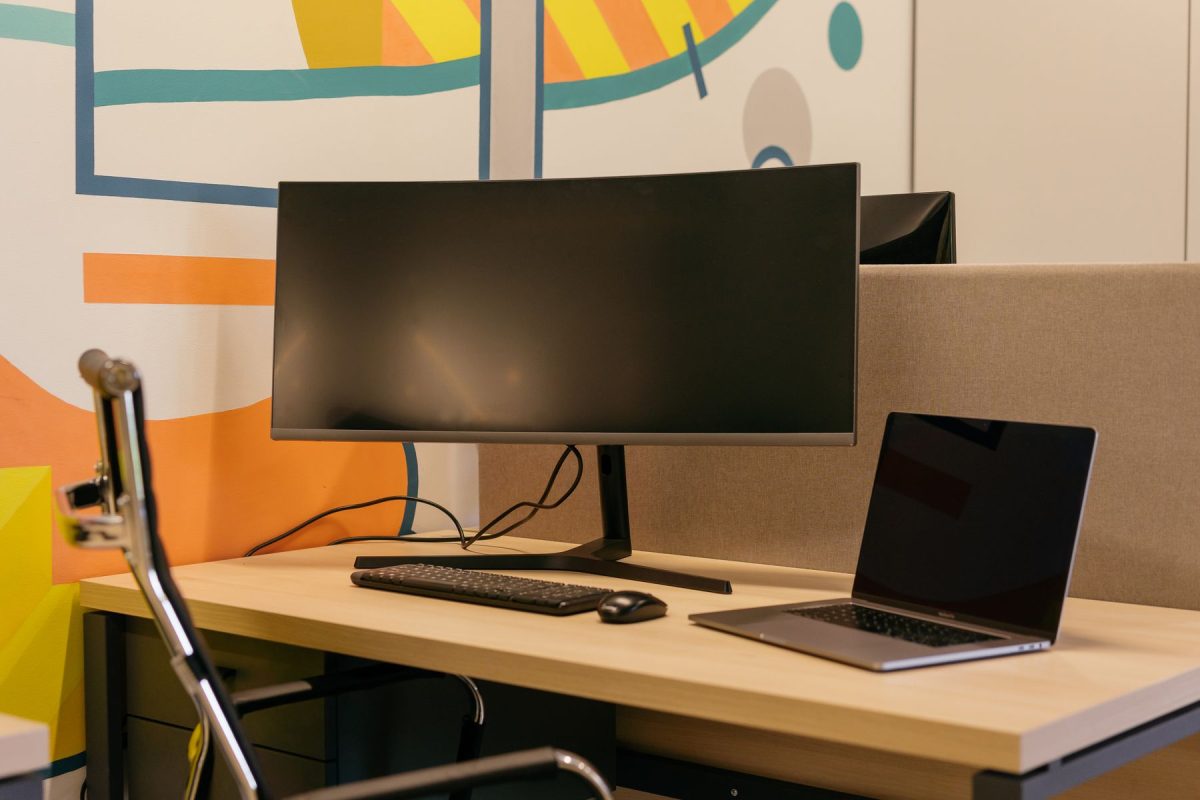
Measure the clear width and depth of the desk with the keyboard where you normally use it. Look up a candidate monitor's actual width, height and stand depth; its diagonal does not tell you where the stand's front feet will land. Use paper or removable tape to mark that footprint. Include the space needed for cable plugs behind the screen and for opening the laptop if it will remain beside it.
Then imagine the panel at its lowest usable height. Can its stand put the top of the screen near or below eye level? Does a shelf force it higher? OSHA's monitor placement guidance describes a generally preferred viewing distance of 20–40 inches, approximately 50–100 cm, with text readable while your back stays supported. Treat that as a positioning guide, allowing for individual needs. A larger screen that only fits by pushing your keyboard away has failed the room plan.
Check the proposed location when daylight reaches the desk. OSHA recommends placing the screen perpendicular to a window; consider whether you can turn the desk or adjust a blind before paying for a different panel finish. For an arm, verify the monitor's mounting pattern and weight against the arm's limits, plus the desk's ability to take its clamp. An arm changes placement options, but still needs clearance.
The purchase question hidden inside “4K”
Physical area gives your windows somewhere to go. Pixel density describes how finely the panel can draw them. Scaling connects those two things by changing the size of text and controls. A denser screen can use more pixels to draw letters at a comfortable physical size; you do not have to spend every extra pixel on smaller letters.
This is planning arithmetic, not a measured comparison of products. Application rendering, toolbars and zoom affect the result; macOS scaling choices do not translate directly into Windows percentages. Neither example establishes which text size you will prefer. The useful shopping question is whether you want your current layout drawn more finely, or need a larger physical surface to keep more material readable. You may want both, but they are separate requirements.
Rehearse the layout before ordering
An existing display can help you discover which interface size and window proportions work. It cannot impersonate the physical size or sharpness of a monitor you have not seen. For the following reversible trial, use Windows 11 and save open work first. Photograph or write down the current display settings, including which screen they belong to. Keep the panel's resolution unchanged during this trial.
- Open Start → Settings → System → Display. With multiple displays, select the screen containing your sample documents. Record its current Scale and Display resolution under Scale & layout.
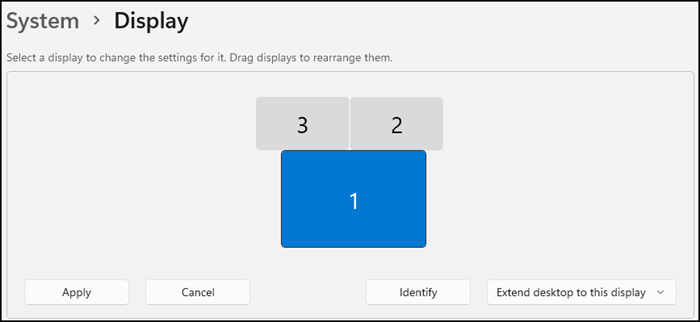
Visual 01 · Microsoft Windows 11 In Windows 11 Display settings, select the numbered panel for the screen containing your sample documents. Blue identifies display 1 in this example. This image illustrates screen selection only.
© Microsoft Corporation. Microsoft Windows 11 interface; copyright retained by Microsoft. Official support image reproduced unchanged for contextual educational commentary. Image source · Usage termsVersion notes
Current Microsoft Windows 11 support reference for Start > Settings > System > Display > select a display. The numbered panels and System > Display heading match the documented screen; no exact build or capture date is supplied. This is a selection-control reference, not an illustration of dragging displays or applying a new arrangement. - In Scale, choose one offered preset larger than the current value. Text and controls should occupy more space. Keep custom scaling out of this trial. If no suitable preset is offered, leave the setting alone and assess document zoom instead.
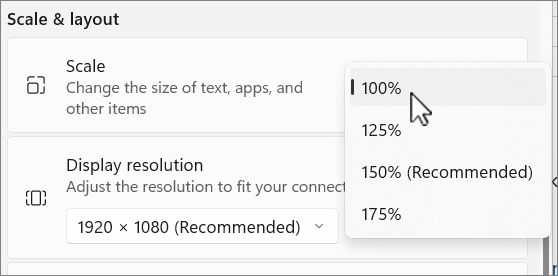
Visual 02 · Microsoft Windows 11 Open Scale and choose one offered preset larger than your recorded starting value. This Windows 11 example has 100% selected and offers 125%, 150% and 175%. Leave Display resolution unchanged.
© Microsoft Corporation. Microsoft Windows 11 interface; copyright retained by Microsoft. Official support image reproduced unchanged for contextual educational commentary. Image source · Usage termsVersion notes
Current Microsoft Windows 11 support reference for Display > Scale & layout > Scale. The menu is open with the selection marker at 100%; 150% is labeled Recommended. Available values depend on the display. Exact Windows release build and capture date are not disclosed. - Return to your sample windows and rebuild the arrangement. Notice what remains readable and what no longer fits. Return to Display → Scale and select the recorded percentage to undo the change.
Microsoft documents these controls and generally recommends the resolution marked Recommended. Lower-than-native resolutions can soften text or alter how the picture fits the panel. If your starting resolution differs, treat that as a separate configuration question before judging a prospective purchase.
Keep application zoom steady while comparing system scale, then restore the system setting and try document zoom separately. Scaling changes the surrounding interface too; document zoom lets you judge the content within it. Record both values so the comparison is repeatable. On macOS, use its own display controls and available sizing choices; the Windows instructions and percentage example are not a Mac procedure.
Let the part that does not fit make the decision
If the text becomes comfortable but the reference window is squeezed away, you have found an area constraint at that reading size. A physically larger panel is worth trying if the desk can accommodate it. Another option is to keep a secondary item on the laptop screen, provided that does not put the main reading task off to one side.
If the arrangement already fits but letter edges disappoint, investigate rendering and the connection before assuming you need more width. In particular, compare several applications. Microsoft's documentation on high-DPI applications explains why older desktop software can become blurry or incorrectly sized when scale changes, including when windows move between monitors. A single blurry legacy application is weak evidence against an entire panel.
During a demonstration, reproduce the troublesome layout rather than admiring a full-screen landscape. Read a paragraph, select text, scroll a table and open the side panel you normally use. Sit at the distance your desk permits. If a shop cannot show your applications, its demonstration can still answer physical questions, but leave text behavior unresolved.
Order a setup that can deliver that arrangement
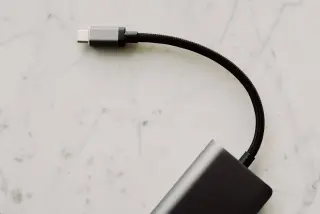
Before buying, write down the computer model, intended resolution and refresh rate, number of active screens, and every cable or dock in the route. Check those against the manufacturers' specifications. USB-C is a connector shape, not a complete video specification: Microsoft's USB-C troubleshooting documentation makes clear that DisplayPort Alternate Mode requires compatible hardware and a suitable cable. If one-cable laptop charging matters, verify the monitor's power delivery separately against the laptop's requirements.
For Macs, Apple's external-display guidance also ties available resolution and refresh rate to the Mac, cable, adapter and other connected displays. A dock listing that says “4K” leaves important questions unanswered. Ask for the supported mode with your exact computer and display arrangement.
Give the seller a concrete requirement: “My draft and reference must remain readable together at my seated distance, with this laptop and dock.” Confirm return deadlines, condition requirements, packaging rules and any charges before ordering. Keep the packaging while you repeat the same document arrangement at home, including a normal call if calls are part of the job. If it only works by shrinking the text below your comfortable size, the proposed desk still needs redesigning.
Sources, versions & scope
The steps describe the documented controls and expected checks; they are not a claim that every device or software release has been physically tested. Platform and version differences are stated with the procedure.
- Microsoft: Change your screen resolution and layout in Windows
- W3C: CSS values and units, absolute lengths
- Microsoft: Change monitor refresh rate
- OSHA: Computer Workstations — Monitors
- Microsoft Learn: High DPI Desktop Application Development on Windows
- Microsoft: Fix USB-C problems in Windows
- Apple: If your external display is dark or low resolution