Identify the screen before picking up a bottle
A fingerprint needs less intervention than a stuck key. Start with the surface and the symptom, then stop when that symptom improves. This guide covers a MacBook’s built-in keyboard and display, including the separate cleaning rules for a MacBook Pro with nano-texture glass. It does not extend Apple’s solvent permissions to another manufacturer’s monitor or a screen protector.
Check your order details or model documentation for the nano-texture option. Appearance alone is a poor way to identify a finish. If you cannot establish which surface you have, pause before using liquid. A replacement display or an added protector may need instructions from its supplier.
Put two clean, soft, lint-free cloths on a clear table: one reserved for the screen and one for the keyboard. Check both for trapped particles. Keeping them separate prevents the cloth that picked up keyboard grit from becoming your screen-polishing cloth. Set water nearby, away from the laptop; keep any optional alcohol closed until you actually need it.
Make the dirt visible, and keep it out of openings
Save work, shut down the Mac and disconnect the charger and accessories. Safely eject attached storage before disconnecting it. A locked computer is still running; shutting down also gives you a dark background for inspecting the display. If the Mac starts again while you handle it, stop and shut it down before continuing.
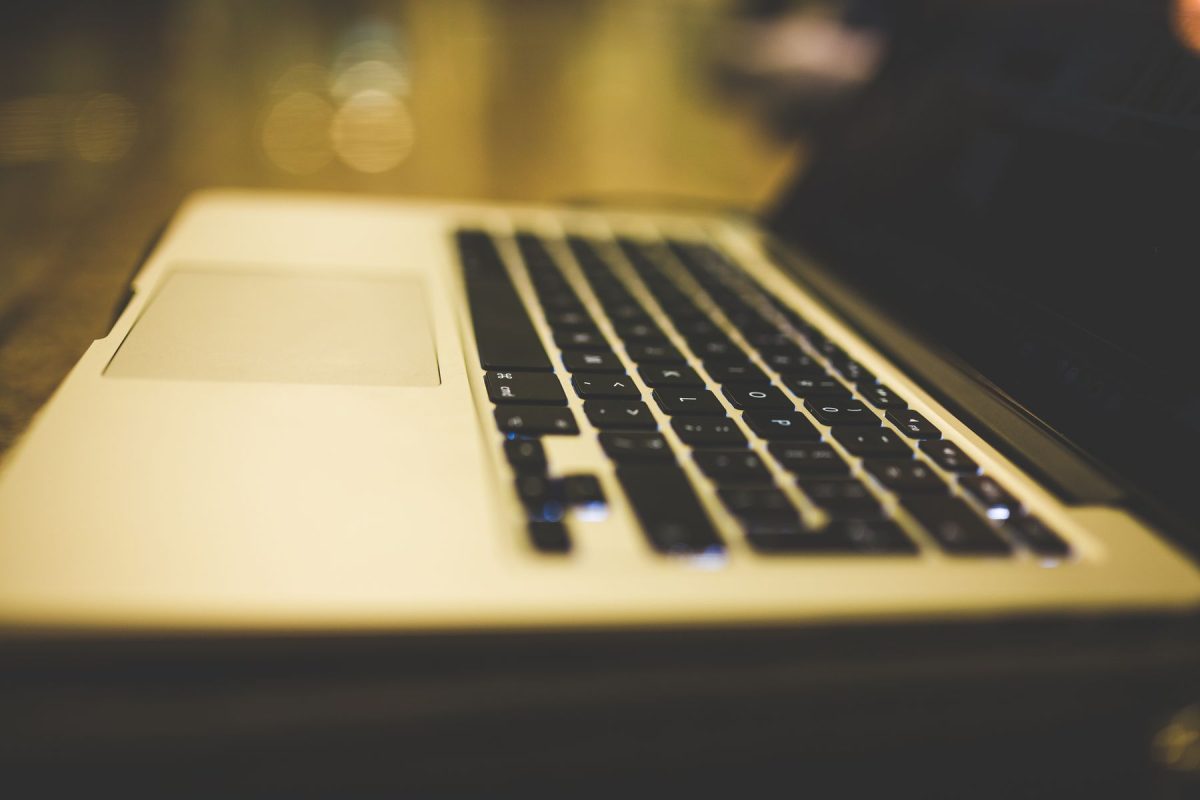
Inspect the key edges, the gaps between keys and the perforated speaker grilles in good light. Distinguish the flat key tops you can wipe from openings that must stay dry. The close-up shows these boundaries; it cannot tell you whether debris is underneath a key.
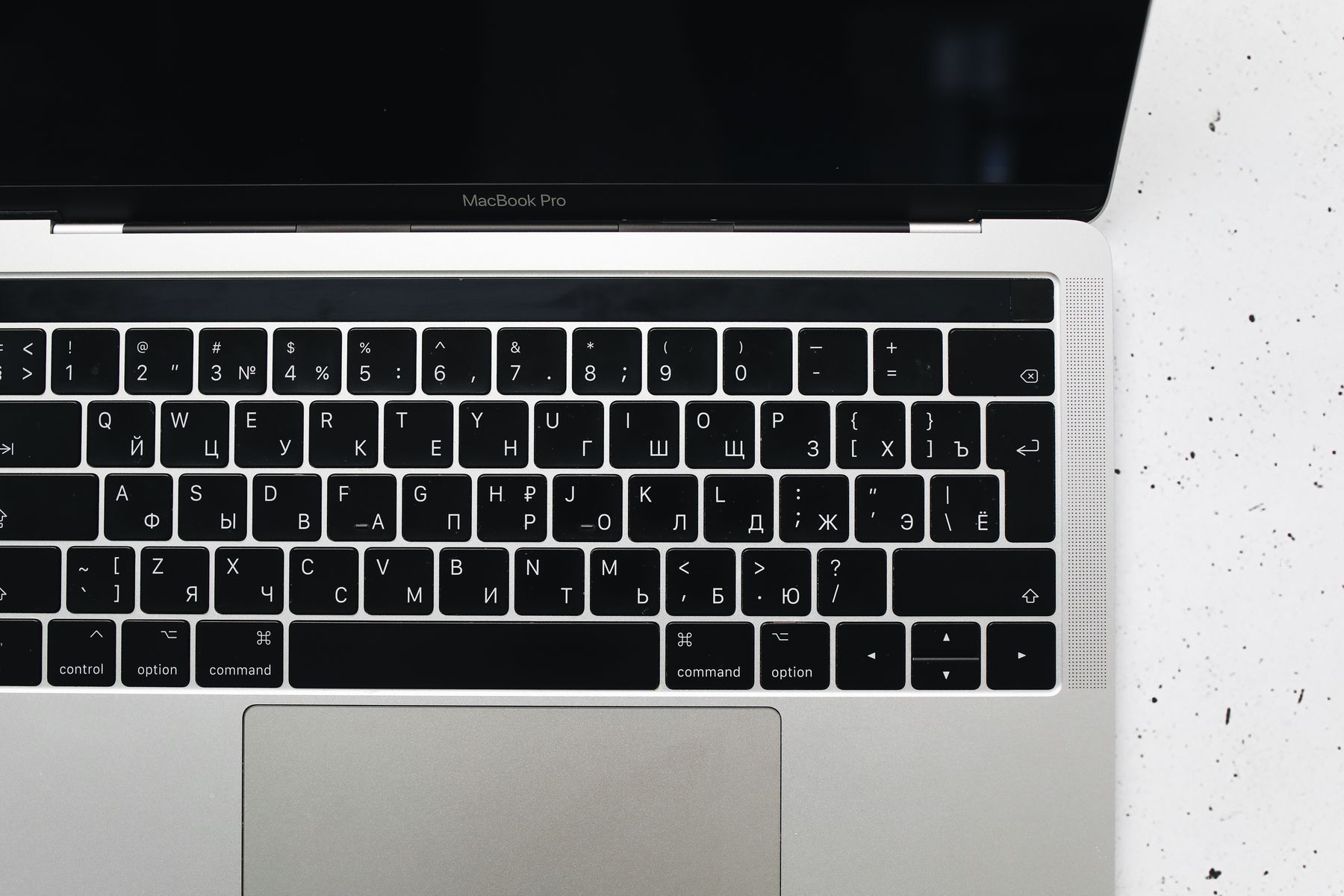
Inspect the narrow gaps around the key tops and the tiny speaker holes at right. Wipe accessible flat surfaces; keep moisture out of these openings. This photograph does not reveal what is underneath a key.
Version notes
Real hardware photo taken 26 May 2020. Used only to identify physical surface boundaries, not current macOS controls or a current model. Dark screen and Touch Bar do not establish shutdown. Display photograph resized for loading speed; the full-size link preserves the original download.Look across the unlit display from an angle and note where the smears are. A quick photograph for your own comparison can help you avoid working repeatedly on a mark that has not changed. Do not press on the panel to decide whether a mark is dirt.
For the screen, follow Apple’s screen-cleaning exclusions: keep household and window cleaners, acetone, ammonia, abrasives and hydrogen-peroxide cleaners away. Apply permitted liquid to a cloth away from the computer. Direct spraying can send it into the display assembly. A bottle labelled “glass cleaner” is not evidence that it suits a coated laptop display.
Wipe key tops without turning the cloth into a sponge
Use the keyboard cloth for accessible surface dirt. Lightly moisten part of it with water, then check that squeezing or folding it produces no drops. If it drips, prepare a drier cloth before approaching the laptop. There is no useful universal number of sprays: bottle output and cloth size vary.
Pass the cloth gently across the key tops and surrounding flat areas, moving to a clean patch as it collects grime. Keep it out of key gaps, speaker holes and ports. Work around a stubborn deposit rather than digging underneath a keycap. This procedure does not involve removing keys, opening the case or washing the keyboard.
Apple permits certain disinfectant wipes on hard, nonporous exterior surfaces, including a 70-percent isopropyl-alcohol wipe. That permission does not make every household disinfectant suitable. If using that option, check the actual ingredients, avoid bleach and hydrogen peroxide, and prevent moisture entering openings. Routine surface cleaning does not require a disinfection claim or a stronger solvent.
Judge the result by whether loose surface grime has lifted. A key that stays glossy after a gentle wipe may have a worn surface; repeated scrubbing is not a reliable restoration method. If a key still catches, separate that mechanical symptom from the appearance of its top surface.
For a catching key, check whether Apple’s air procedure applies
Apple’s compressed-air procedure specifically names MacBook models from 2015 onward and MacBook Pro models from 2016 onward with an unresponsive or differently feeling key. It does not name MacBook Air. Do not treat it as blanket authorization for every keyboard; check your model’s guidance if it falls outside that scope.
- With the supported notebook shut down and disconnected, support it securely at a 75-degree angle, nearly upright. Do not suspend it by the display.
- Fit the can’s supplied straw. Keep its tip about half an inch from the keyboard and keep the can from inverting. Sweep air across the affected keys, or keyboard, from left to right.
- Turn the notebook onto its right side and repeat the left-to-right sweep. Repeat once more with the notebook on its left side. Maintain a secure hold throughout.
The expected improvement is freer key movement after loose debris is displaced. Air will not reliably dissolve a dried sugary spill. Once cleaning is complete and everything is dry, test the affected key in a disposable text document. If it remains unresponsive, Apple directs you to service. Do not escalate to prying off the cap or pouring alcohol underneath it.
Clean the display with the cloth reserved for it
Standard MacBook display
Lightly dampen the clean screen cloth with water. Gently wipe the affected area, then change to an unused part of the cloth before carrying collected dirt elsewhere. Use light pressure and avoid pushing moisture toward the frame. Let the surface dry and inspect it from the same angle as before.
For a hard-to-remove fingerprint, Apple’s Mac laptop instructions allow a cloth moistened with 70-percent isopropyl alcohol. Use that as a limited escalation after water, not an invitation to polish the entire screen repeatedly. A 99-percent bottle is not the specified concentration. Avoid improvised cleaner mixtures.
Nano-texture MacBook Pro display
Follow the separate nano-texture instructions. Apple currently lists a clean Apple Polishing Cloth, another microfiber cloth made for electronic displays, or a cotton-and-Elastane/SPANDEX blend. Start with an appropriate clean cloth for dust and smudges. For infrequent removal of stubborn smudges, Apple permits moistening it with 70-percent IPA.
Keep the nano-texture cloth reserved for that screen. If you wash the polishing cloth, Apple specifies dish soap and water, a thorough rinse and at least 24 hours of air drying. Have another suitable clean cloth available rather than using one that is still wet from washing.
Use the result to decide when to stop
If a smear clears, finish. If a streak moves with the cloth, switch to a fresh clean area and reassess after drying. If a patch stays fixed, looks peeled or becomes more conspicuous, stop cleaning and arrange an assessment. Appearance alone cannot distinguish residue from coating damage. More pressure or a stronger chemical can make that uncertainty expensive.
If liquid entered a key gap, port or display edge, keep the Mac off and disconnected and contact Apple or an authorized service provider promptly. Surface dryness does not establish that the inside is dry. There is no cleaning-based undo for damaged coatings or liquid intrusion.
For an ordinary successful clean, leave the lid open until the surfaces are fully dry, then reconnect and test the keyboard. Store clean cloths where they will not collect grit. Next time, remove light dirt before it becomes something you feel tempted to scrape.
Sources, versions & scope
The steps describe the documented controls and expected checks; they are not a claim that every device or software release has been physically tested. Platform and version differences are stated with the procedure.