Before your next click
Dear reader with the Erase window open,
Cancel it for now. Erasing removes the contents of the selected device or volume, and you should assume there is no dependable undo. If this disk holds anything you still need, another folder on the same disk is not a safe place to put it. Copy the material to independent storage and open representative files there before considering a change.
I want you to reach the format menu with a reason you can explain to the person receiving the drive. “The Mac would not let me save” is an observation worth investigating. It does not establish that the existing format is wrong. Apple's erase guidance makes the deletion explicit; Microsoft's Disk Management documentation gives the same warning for formatting a volume. Neither operation is a harmless compatibility toggle.
If the drive is unreadable and contains your only copy, leave the experiment here. Declining an initialize or format prompt preserves your options; accepting it is not a recovery procedure.
Picture the person opening it
Who receives this drive after you? Write down the actual computers and devices, including their operating-system versions. Beside each, write what must happen: view files, copy them off, add new ones, or edit a project in place. A recipient who only reads the delivery has different requirements from a collaborator expected to return changes.
Keep that distinction when someone says a drive “works on Mac.” It might mount, show thumbnails and play a video while refusing every attempt to save. Read access has passed; write access has not. A USB-C socket tells you how the drive connects, not whether the receiving software understands its contents.
If the recipient is a television, camera, console or phone, its exact manual becomes part of your decision. Support on your laptop does not establish support there. The manual may specify the file system, partition scheme, drive capacity or supported media types. A television that recognizes a disk can still reject the movie's encoding. Leave any unavailable device marked untested rather than guessing from its connector.
Three formats, three different promises
For ordinary exported documents and media moving between supported Windows and Mac computers, exFAT is a sensible candidate. Apple lists it among Disk Utility's Windows-compatible formats. That makes it worth testing for your exchange route. It does not make it the default answer for every external drive.
NTFS deserves a different conversation. Windows workflows may depend on its access controls or other native features. Microsoft's file-system comparison lists access control lists and metadata journaling for NTFS, but neither for exFAT. Those are meaningful differences if you are considering moving a working directory rather than delivering finished files. Journaling can help a file system recover consistency after interruption; it does not provide a backup of an overwritten document.
For a directly attached NTFS disk, Apple's Mac write-access guidance warns that your Mac may read it without being able to write. If that describes your situation, a healthy drive can produce exactly the symptom that brought you to Erase. When you only need to retrieve files, copying them from the disk to your Mac may already meet the requirement. Any additional NTFS software would be a separate support decision for those specific computers.
APFS belongs in a Mac-focused plan. Apple's format documentation describes support in macOS 10.13 and later, including external storage and traditional hard drives as well as SSDs. Encryption and snapshots are among its features. Choose it because the intended hosts and applications support it; do not promise a Windows recipient that an APFS disk will open without additional supported software.
The menu also offers APFS variants. Case-sensitive means names differing only in capitalization can identify different items; encrypted means the volume needs an unlock credential. Neither is merely a more thorough version of plain APFS. Know why your application or security requirements call for the variant before selecting it.
Tell me what you will keep on it
Suppose, hypothetically, you edit in Final Cut Pro on a Mac and deliver finished videos to a Windows colleague. Those are two storage jobs. Apple specifically recommends APFS for external storage used with Final Cut Pro, Motion and Compressor, and cautions that Windows formats may not behave as expected. Your exported movie could travel on a separately tested exFAT disk while the working library stays on supported storage.
Time Machine supplies another concrete boundary. Apple prefers APFS or APFS Encrypted for a directly attached Time Machine backup disk; a Windows-formatted disk is not an interchangeable destination. Existing supported backup formats have their own rules. Do not erase a functioning backup history simply because an exchange-drive recommendation mentioned exFAT.
Encryption needs its own recipient question: can that person unlock the storage using supported software and credentials? A mutually understood file system does not answer that. Keep the protection required for the material; arrange a supported delivery method if the other device cannot unlock it.
A second volume can separate jobs logically, but it cannot turn one physical drive into independent protection against that drive failing. Before designing an elaborate universal disk, consider whether dedicated working or backup storage and a small exchange drive would make the arrangement easier to maintain.
Give the current drive a fair trial
You can learn something useful without changing its structure. Use a healthy, already mounted drive with important contents protected elsewhere. This trial adds disposable copies only: no moving originals, replacing existing files, partitioning or changing permissions. Stop for repeated disconnects or storage errors.
Identify the current format. On a Mac, select the external volume in Finder and choose File > Get Info, or press Command-I. Read Format. For more detail, open Disk Utility, choose View > Show All Devices, select the device and volume in turn, and click Info. Match their names and capacities. Apple's information guide documents this view. On Windows 11, use File Explorer > This PC, right-click the drive and choose Properties; Microsoft documents that format check in its file-recovery guidance. If the drive is missing, cancel any format prompt instead of continuing this trial.
Prepare a uniquely named trial folder on your computer, containing non-sensitive files you already have elsewhere: a small document and a representative file for the actual delivery. Copy that folder onto the external drive using Finder or File Explorer. Cancel any replacement prompt. If copying is refused, record the precise error and current format; the refusal itself is evidence.
Open the destination copies in their intended applications. Then close them and eject the drive. On Mac, use Finder's eject control beside the volume and wait for it to disappear. On Windows, right-click the taskbar's Safely Remove Hardware and Eject Media icon, then select Eject for the correct device; Microsoft provides the removal instructions. If it is busy, close the relevant files and apps and try again before unplugging.
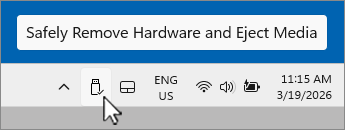
Visual 01 · Microsoft Windows 11 First locate the Windows 11 USB removal icon by its “Safely Remove Hardware and Eject Media” tooltip. Right-click that icon to open the device menu. This image shows only the initial control; no device has been ejected.
© Microsoft Corporation. Used with permission from Microsoft. Image source · Usage termsVersion notes
Current Microsoft Windows 11 system-tray support reference. The screenshot shows the removal icon with its tooltip and the hidden-icons chevron; the device menu is closed. Exact Windows build and capture date are undisclosed. The demonstration clock is not evidence of a test date.On the receiving computer, open those copies and copy them to a local test folder. If collaboration requires return writes, copy a differently named disposable file from that computer onto the drive. Eject normally, reconnect to the first computer and open the return file. Keep every original throughout.
Include your genuinely large delivery file if size is part of the problem. FAT32 has a roughly 4 GiB per-file ceiling; ample total free space cannot overcome it. A successful small document therefore proves less than you might hope. Likewise, opening an exported video does not certify a working application library or preservation of every permission and metadata field.
The note to leave beside the drive
After the trial, write a precise sentence: “This volume is exFAT; these two computers opened the delivery files and each wrote a new file; the television remains untested.” Substitute your actual observations. That sentence is more useful to the next person than “compatible.”
If the necessary route already works, close Disk Utility and carry on. If it fails, you now have a specific gap to solve through the recipient's requirements, application guidance or a different transfer route. Should a new format truly be necessary, make it a separate migration: preserve and verify independent copies, identify the physical device unambiguously, settle the format, partition scheme and encryption, and then follow the manufacturer's procedure. Keep the originals until the restored destination has passed the real workflow. You should not have to discover what the drive was for after erasing it.
Sources, versions & scope
The steps describe the documented controls and expected checks; they are not a claim that every device or software release has been physically tested. Platform and version differences are stated with the procedure.
- File System Functionality Comparison
- File system formats available in Disk Utility on Mac
- Apple: If your Mac cannot save files to an external drive
- Apple: Get detailed disk information
- Apple: Erase and reformat a storage device
- Erase and reformat a storage device in Disk Utility on Mac
- Disk Management in Windows
- If your Mac can’t save files to an external drive
- Format storage devices for Final Cut Pro, Motion and Compressor
- Types of disks you can use with Time Machine on Mac
- Get detailed information about a disk in Disk Utility on Mac
- Windows File Recovery
- Safely remove hardware in Windows