Restore the printer’s connection before replacing its driver
A new router can leave a perfectly usable printer looking offline. The printer may remember the old Wi-Fi name or password, while Windows still remembers an installation that no longer reaches it. Fix those in order: establish the printer’s network connection, then check the computer’s printer entry.
This guide covers Windows 11 and an already configured HP touchscreen printer that offers Wireless Setup Wizard, on your own home network. It does not cover first-time activation, office print servers or button-only models. If your touchscreen lacks that wizard, stop at the model’s official instructions rather than trying another printer’s button sequence.
Load plain paper, check for a jam or open cover, and wake the printer. Save the original documents behind any waiting jobs and cancel unwanted queued copies before restoring connectivity; old jobs may resume when the printer reconnects. A printed network report later will show whether the printer itself can produce a page, independently of Windows.
Read the printer’s consumer model name and product number before choosing support instructions. A label headed Regulatory Model Number is a different identifier; do not choose a driver from that code alone. Use accessible labels or the front model badge without tipping a loaded printer over. Keep the serial number private when sharing troubleshooting details.
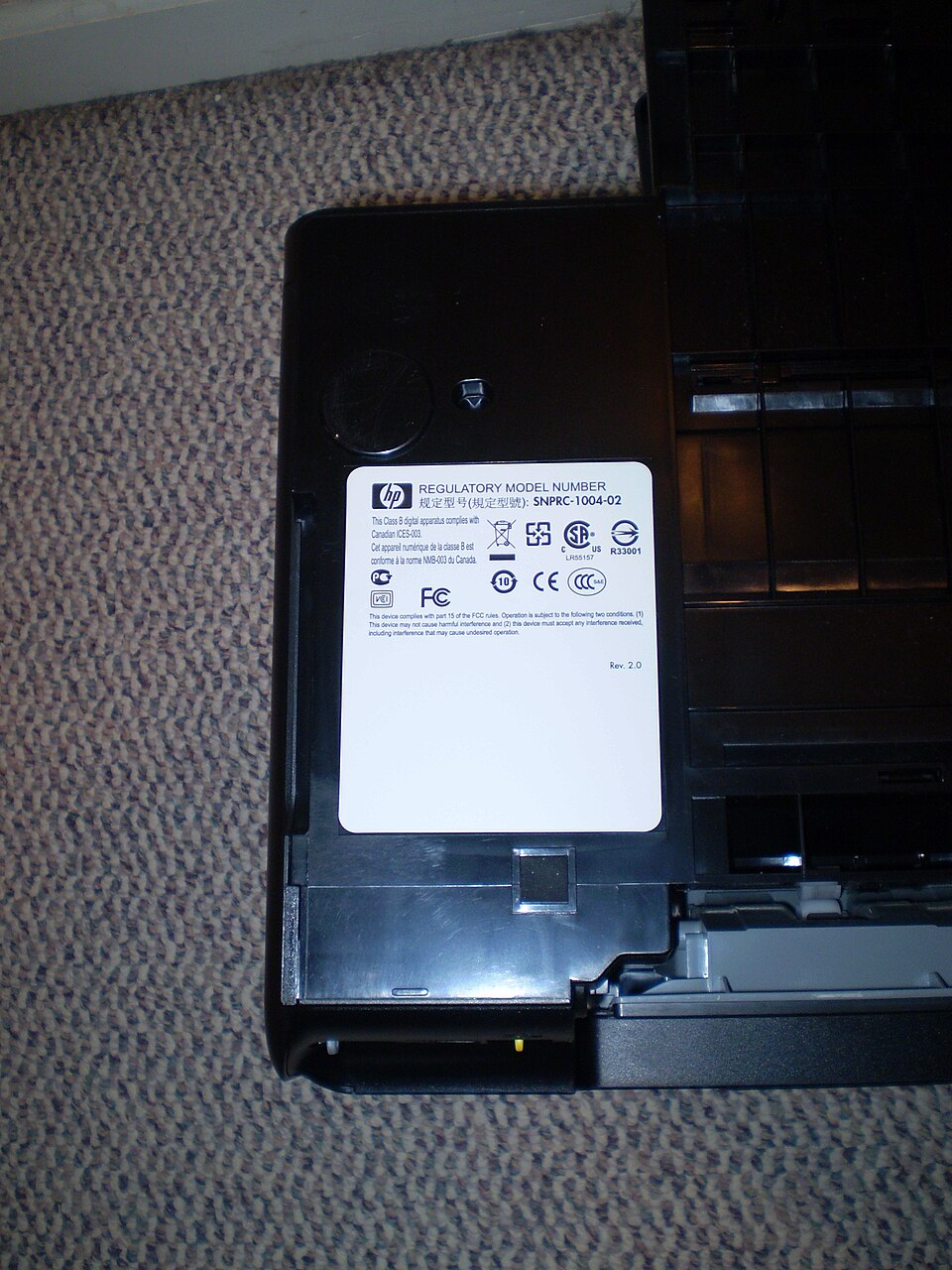
This label explicitly says Regulatory Model Number. Find your printer’s consumer model name and product number before selecting its setup instructions; the regulatory code alone is not the driver name.
Version notes
Real HP Officejet 6500A label photograph dated 14 March 2020. Official Commons 960px rendition retrieved unchanged and inspected 31 October 2026. Evergreen label-reading example; not an image of current printer firmware or the wizard.
Tell the printer about the new Wi-Fi
Have the current home network name and Wi-Fi password available. The router’s sticker is useful only if those credentials have not been customized. Neither its administration password nor a printer’s WPS PIN is the Wi-Fi password you need here.
- Connect the Windows computer to the intended home network. Avoid a guest connection and a network named DIRECT-xx-HP: the latter connects directly to the printer rather than joining your router’s normal network.
- Place the printer within good reception of the new router. Open its Setup, Network, or Wireless settings menu and select Wireless Setup Wizard. These are alternative menu names across HP models, not three successive taps.
- Select the current network name, enter its password carefully and complete the onscreen connection prompts. If you reused the old network name with a new password, enter the replacement credential anyway.
- Open the printer’s Wireless, Network Settings, or Setup menu and locate Wireless Network Test or its report option. Print the report and read the connection results and any corrective instructions.
HP’s router-change instructions document the wizard and report. The useful outcome is a report showing a successful connection to the intended network. A Windows icon alone cannot establish that.
If the wizard cannot finish
For a rejected password, recheck capitalization and the selected network before changing router settings. If the network is absent, move the printer closer and check the exact model’s supported wireless bands and security modes against the router configuration. Do not assume every HP printer supports the same bands, disable encryption, or change several router options together.
If saved network settings remain a problem, record any custom printer networking first. HP’s recovery route for most touchscreen models is Wireless or Setup → Network setup or Settings → Restore Network Settings. This removes the existing network configuration, so expect to reconnect the printer afterward. Use it only when you have the replacement credentials and the model’s matching instructions, then repeat the wizard. Do not choose a full factory reset.
Try the existing Windows entry once
After the printer joins Wi-Fi, restart the printer and PC if they still show stale connection status. Leave the router running unless the network itself is failing; rebooting it interrupts everyone using it. Keep the computer on the same home network throughout this check.
Open Start → Settings → Bluetooth & devices → Printers & scanners. Select the existing printer. Open a short, non-sensitive document, explicitly select that printer in the application’s print dialog, and send one copy. If it prints, keep the installation. You do not need to remove a working printer merely because you changed routers.
If it still fails, record the entry’s name and any custom printing preferences before replacing it. Select the affected printer in Printers & scanners, choose Remove and confirm if prompted. This removes this PC’s printer entry; reinstalling may require restoring its preferences. Leave unrelated printers alone.
Back in Printers & scanners, select Add device beside the add-printer controls. Allow the search to finish, then choose Add device beside the matching printer. Microsoft’s Windows 11 installation guide confirms this route. Match the model rather than selecting the first similar-looking device.
If Windows cannot find a connected printer
First compare the PC’s network name with the printer’s report. A guest network may permit internet access while blocking communication between devices. HP’s Wi-Fi troubleshooting guidance also distinguishes the normal home connection from the printer’s DIRECT network. Move the PC onto the intended main network before attempting manual installation.
If a VPN is active, disconnect it briefly for discovery only when your work policy permits, then restore it after the check. Do not disable the firewall as a blanket fix. If printing works only with the VPN disconnected, use its supported local-network-access option or ask its administrator.
- On the printer touchscreen, open Wireless Summary or Network Settings and note the current IP address. Read it now, rather than copying an address from an old installation.
- In Windows’ add-printer area, next to The printer that I want isn’t listed, select Add a new device manually. In the dialog, choose Add a printer using TCP/IP address or hostname, then Next.
- Choose Autodetect for device type, enter the printer’s current IP address and continue. Follow the installation prompts for the actual printer model. Cancel if the identified device is wrong.
The address-based route is documented in HP’s built-in-driver guide. An address identifies a destination, not a guarantee that the computer can reach it.
For example, in a hypothetical router replacement, a printer previously at 192.168.1.50 might now report 192.168.0.25. Enter the reported new value, never these example numbers. Do not assign an arbitrary static address to make it resemble the old network. A manually added address may need updating if the router later changes it.
Finish with paper, then restore normal conditions
Send one short document through the installed printer entry and check the physical output. Repeat from the application that originally failed, selecting the new entry explicitly. Basic Windows printing does not establish that scanning, ink reporting or every finishing option is installed; check those separately if you use them.
Reconnect any temporarily paused VPN and try again. Return the printer to its normal position and repeat the small print job there. This distinguishes a successful near-router setup from usable reception at the desk.
If the printer’s own report fails, return to its network connection. If the report succeeds but neither discovery nor address-based installation works, retain the report, exact model, current IP and Windows error wording for HP support. If a fresh installation prints but one application fails, investigate that application’s selected printer and job. Stop changing router settings once the evidence points elsewhere.
Sources, versions & scope
The steps describe the documented controls and expected checks; they are not a claim that every device or software release has been physically tested. Platform and version differences are stated with the procedure.