The family computer becomes difficult to manage when every handoff leaves a small mystery: whose download is this, why did a game launcher open, and is someone still working before a restart? A few agreed routines can remove those questions without making one person the household’s permanent help desk.
This guide covers an already configured, personally owned Windows 11 PC. It concentrates on everyday organization and maintenance. If everyone still shares one login, first use our separate user accounts guide. Return here once each person has a working desktop; account creation and privacy testing belong in that companion procedure.
Give the computer an owner and each task a home
Choose one adult to coordinate installations, storage reviews and planned restarts. Keep a short maintenance note somewhere everyone can find it. Record who handles a problem, what changed and how to reverse it. Keep passwords and recovery codes elsewhere.
Write down three household decisions: where unfinished work belongs, how files pass to another person, and when the computer can be restarted. “Ask before deleting another person’s files” is more useful than “keep it tidy.” Someone who uses the PC once a month still needs a predictable place for their work.
Keep the initial cleanup small. Ask each person to identify one recurring irritation and one essential task, such as printing homework. Resolve those first. A wholesale reorganization just before a deadline makes it harder to tell whether a missing document was moved, deleted or saved in another account.

Replace the mystery download with a named handoff
Use each person’s Documents folder for work in progress. Agree on one deliberately shared destination for communal material, such as a family cloud folder whose access you have already checked. Do not turn an entire personal Documents folder into the exchange area. Our file-sharing guide covers choosing its audience.
- In your own account, open File Explorer and choose View → Show → File name extensions. If it is already enabled, leave it enabled. You should be able to distinguish an editable document from a PDF by its suffix.
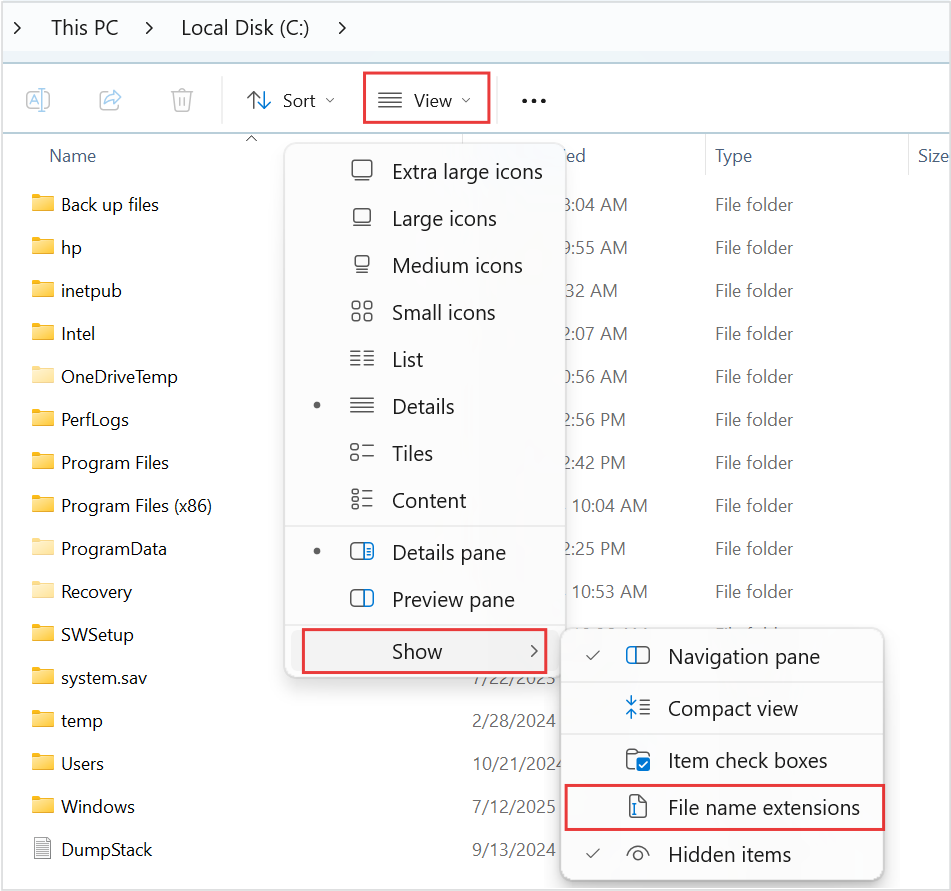
Visual 01 · Microsoft Windows 11 Before naming a family handoff, expose file suffixes with View → Show → File name extensions. Microsoft’s initial menu has the option unchecked and includes its own red outlines; it does not show the example homework files.
Microsoft Corporation. Official support image; copyright retained. Contextual educational interface quotation. Image source · Usage termsVersion notes
Microsoft’s current Windows 11 file-extension instructions provide this Windows 11 command-bar and Show-submenu image. Complete downloaded asset retained, including the source’s red outlines. Exact Windows build is not stated. Initial menu state only; it does not show the article’s files or completed extension display. - Create a clearly named project folder in Documents. Move only files you recognize as yours into it. Leave unfamiliar material in place until its owner identifies it.
- For a handoff, copy the agreed file to the shared destination. Include the person, subject and revision in its name, then tell the recipient which copy to open.
- Have the recipient open that exact copy from their own account. Confirm the content before removing any older duplicate.
For example, a hypothetical homework handoff might contain Maya-history-draft-02.docx for editing and Maya-history-submit-02.pdf for submission. Agree who edits next; two people independently editing the same draft creates a new sorting problem. The number identifies a revision, not proof that it is the latest approved work.
Microsoft’s extension guide confirms that renaming a suffix does not convert a file. Use the application’s export function to create a PDF. If a rename breaks opening, restore the original suffix. If the recipient cannot see a handoff, check the exact folder, signed-in account and sharing permission before making more copies.
Stop optional apps from greeting every user
Ask each person which apps they actually need immediately after signing in. A music player or game launcher may be useful without needing to open automatically. Work through this with the person affected, keeping a note of the original setting.
Open Settings → Apps → Startup. Turn Off one recognized, optional app that the person prefers to launch manually. Microsoft documents these switches as controls for automatic launch at sign-in. This does not uninstall the application.
Save work, sign out and sign back in. The app should stay closed, but should still open when deliberately launched. If something essential no longer starts, return to Startup and turn its switch On. Repeat changes individually so you know which one caused a difference. Leave unfamiliar security, backup, accessibility and hardware utilities alone until you understand their purpose.
If an app is absent from the list, check its own startup preference. Do not start deleting executable files or editing registry entries to make the list look cleaner. Ask other users whether the same nuisance occurs in their sessions; checking one login does not establish the experience for the whole family.
Make automatic cleanup an individual decision
Open Settings → System → Storage → Storage Sense in each person’s account. Microsoft says these preferences apply only to that user, and Storage Sense works on the system drive. One adult’s choices do not settle everyone’s cleanup policy.
Before enabling scheduled cleanup, review the Recycle Bin retention and Downloads deletion choices. Set Downloads cleanup to Never if people keep unfinished work there. Choose a Recycle Bin retention period everyone understands; it is not a permanent archive. Move wanted downloads into project folders before considering more aggressive cleanup.
Review cloud-content settings separately if shown. Making inactive cloud files online-only frees their local copies without permanently deleting the cloud files, but downloading them again needs connectivity and free space. Keep essential offline work marked Always keep on this device where supported.
Record the choices. If cleanup removes something wanted, check your backup or the service’s recovery options promptly. Turning cleanup off cannot recreate a deleted file. Avoid running a manual purge simply to see how much space it might reclaim.
End the session before it becomes someone else’s problem
For a short break, press Windows+L. When finished, save documents and choose Start → your user picture or Accounts icon → Sign out. As Microsoft explains, signing out closes applications and can lose unsaved work; switching users keeps the earlier session running.
Use switching for an intentional temporary handoff. If several people leave sessions open all evening, agree on a later sign-out rather than treating the next person’s slow session as a reason to uninstall their apps. Before a restart, ask every signed-in person to save and finish. Stop if Windows warns about another user’s unsaved work.
Set a recurring household review at a quiet time. The coordinator asks about new startup annoyances, checks that everyone can find their active project, confirms the backup includes important work, and arranges any required restart. For update-specific choices, follow updates without losing your work.
After the first week, repeat an ordinary evening: one person finishes, another opens a handed-off document, and both can find their own work afterward. Treat that as a rehearsal to perform, not a guaranteed result. Fix any failed handoff before adding more automation. The aim is a computer whose next user can understand what has been left for them.
Sources, versions & scope
The steps describe the documented controls and expected checks; they are not a claim that every device or software release has been physically tested. Platform and version differences are stated with the procedure.