Keep the old iPhone until the new one earns your trust
A familiar Home Screen is the beginning of a move, not proof that it finished. Your photos may still be arriving, a banking app may need activation, and an important document may live inside an app you rarely open. Keep the old iPhone intact while you check the things you actually need.
This guide covers moving from a working iPhone to a personally managed new iPhone with Apple’s wireless Quick Start, then checking the result. It includes an iCloud-backup fallback. Android migration, employer-managed setup and cable-specific transfers are outside this procedure. Apple says Quick Start cannot transfer data to a new device enrolled in Apple School Manager or Apple Business.
Before starting, create a fresh backup through your established backup method and confirm it completed. Know the old phone’s passcode and your Apple Account sign-in details. If you are changing your phone number too, add another trusted number before losing access to the old one. Have both phones, chargers and your usual Wi-Fi available; choose a time when both devices can be occupied.
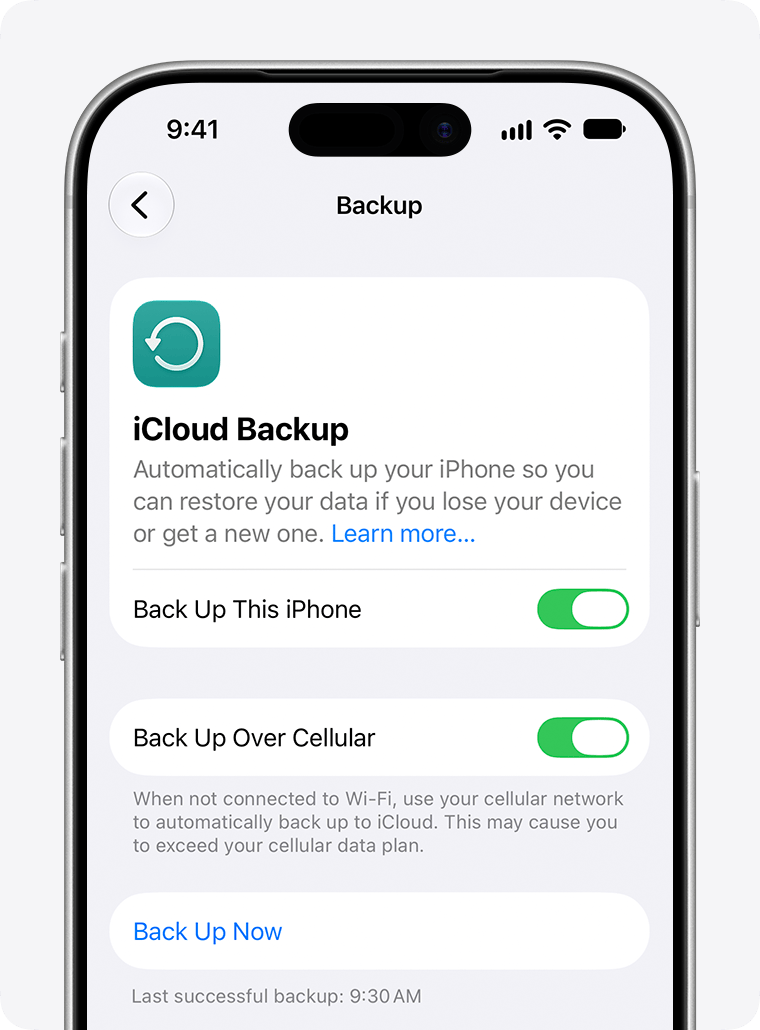
If your established method is iCloud Backup, read Last successful backup beneath Back Up Now before moving phones. Apple’s example says 9:30 AM. Record your own completed backup time; this screen does not show a transfer or restore in progress.
Version notes
Official current support page links an explicitly ios-27 iPhone 17 Pro illustration. Exact minor version/build unspecified. Vendor example state only; no personal session or successful author test.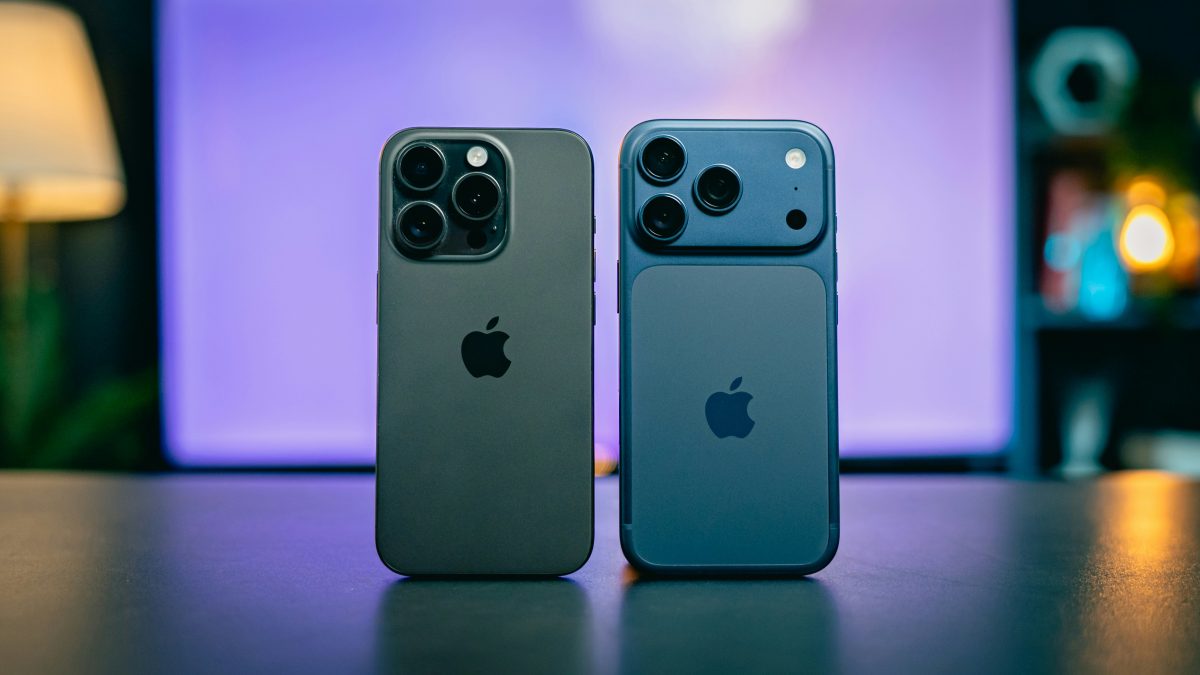
Choose the evidence before you start
On the old phone, make a short private checklist of things the new phone must reproduce. Select an older photo and a recent video, a message thread with an attachment, a contact, an upcoming calendar event, a note and a document. Write enough detail to find each again. Choose actual essentials, such as a travel reservation or work rota, rather than relying on a count of app icons.
Open Files and look under Browse at both iCloud Drive and On My iPhone, where available. Note which app or location holds each important document. Include an item stored locally if you have one. Also list your password manager, authenticator, banking app and any messaging app with its own transfer instructions. A successful Apple transfer does not by itself demonstrate that those services will let you sign in.
Let Quick Start move the data
- Prepare the old phone. Connect it to Wi-Fi, turn Bluetooth on, unlock it and leave it at the Home Screen. Update both devices to the latest software available for them before migration, as Apple recommends.
- Bring the new phone alongside. Turn it on near the old one and follow the setup prompt. If that prompt disappears from the old phone, restart both devices and try again. Keep track of which phone each instruction refers to.
- Complete the setup prerequisites. Follow the network connection and any cellular-activation prompts, then set up Face ID or Touch ID when requested. Cellular activation is a separate part of readiness; seeing your photos later will not establish that your number works.
- Choose direct transfer. When setup offers the transfer method, choose the option to move from the other iPhone rather than download from iCloud. Apple’s setup instructions label the direct-transfer choice From Another iPhone when that option is offered. An iCloud download is the alternative described below.
- Leave both phones together on power. Wait until both report that the direct transfer has completed before using them. Apple gives no fixed completion time: the amount of data and network conditions affect it. Avoid starting just before you must leave with one phone.
If the transfer repeatedly fails, preserve the old phone and its backup. Record the exact message and the stage where it stopped before seeking Apple support or choosing the backup route. Repeating an erase without knowing which data is safely stored adds risk without explaining the failure.
If you need the iCloud-backup route
During setup, at Transfer Your Apps & Data, tap From iCloud Backup. Sign in and inspect the backups’ dates and sizes before choosing the recent backup of the intended old phone. Follow any request to update iOS. Keep the new phone on Wi-Fi and power through the restore progress bar.
This route behaves differently from direct transfer: content can continue downloading after setup lets you use the phone. If purchases belong to multiple Apple Accounts, the restore may request those accounts too. A password prompt for purchased content is not evidence that your personal files disappeared.
If the new phone is already set up, Apple requires erasing it before following this restore procedure. First preserve anything created only on that new phone. Erasing removes its current local contents; restoring an older backup is not a merge that automatically retains new messages or files. Stop here if you cannot establish where those newer items are saved.
Check content and access separately
Keep a simple checklist with three possible results: opens correctly, still downloading, or missing. Perform these checks on the new iPhone while the old one remains available for comparison.
- Photos and messages: open your chosen older photo at full view, play the recent video and open the message attachment. Thumbnails alone do not prove the full item is accessible.
- People and plans: find the selected contact, event and note. Check their details, not merely that the apps open. If something is absent, compare the account or list containing it on the old phone.
- Files and apps: open the chosen document from its actual Files location, then open essential apps and check their contents. An installed icon proves less than an accessible booking, conversation or saved project.
- Sign-in and service: unlock the password manager and complete an ordinary sign-in using your usual verification method. Check the authenticator’s own migration guidance if needed. Verify cellular calls and messages in normal use, and inspect Wallet and any watch pairing you rely on. Treat unfinished activation as an outstanding task.
For example, if your travel PDF appears in Files but will not open, mark it unfinished and retain the old copy. Do not erase the old phone merely because the other checklist entries passed. For anything you need without internet, confirm the app’s offline download is available before travelling.
Resolve gaps before releasing the old phone
After an iCloud restore, look in Settings > [your name] > iCloud > iCloud Backup for a message that restoration is still underway. Keep Wi-Fi and power connected while downloads continue. iCloud Photos and Messages in iCloud sync separately from the backup when enabled; missing items may belong to that unfinished sync.
If an app’s data stays absent, check its provider’s recovery instructions. Check other possible backups before assuming the old data is gone. Apple advises backing up current data to a computer before trying a different iCloud backup. A different backup can replace the phone’s present state.
Only release the old phone once essential content opens, sign-ins work and service is active. Do not manually delete synced photos, contacts or documents to clean it: those deletions can reach iCloud and the new phone. Follow Apple’s linked retirement instructions for signing out and erasing the old device, including any Apple Watch and eSIM steps that apply. Erasure itself has no local undo; keep your verified backup.
Sources, versions & scope
The steps describe the documented controls and expected checks; they are not a claim that every device or software release has been physically tested. Platform and version differences are stated with the procedure.